

Configure RAG semantics for document Q&A
RAG standard Q&A saves confirmed questions and answers and associates them with documents in a knowledge base. When a user’s question has the same meaning as a standard question, the agent can refer to this configuration when composing its answer while retaining the original source. This tutorial uses a Customer Support Service Level Agreement (SLA) policy document. You will first ask a question directly, then configure a standard Q&A entry for the same question and verify that the answer consistently uses the confirmed wording.
What You Will Do
Upload a customer support SLA document to Catalog and add it to a knowledge base.
Ask about the initial response target for Enterprise edition P1 incidents before configuring semantics.
Configure a RAG Standard Q&A entry and verify the result using the same question.
Before You Start
Prepare an MOI account and open the target workspace.
Download the sample file customer-support-sla-policy.pdf.
The sample PDF and screenshots are in Chinese. The prompts and standard Q&A below are in English; they refer to the same SLA policy and use the same question throughout configuration and verification.
Steps
1. Upload and Process the SLA Document
In the left navigation, go to Data > Import Tasks and click New Import Task.
Select Unstructured and Local Upload, then upload
customer-support-sla-policy.pdf.Set the target location to:
tutorial_data / rag_semantic_demo / policy
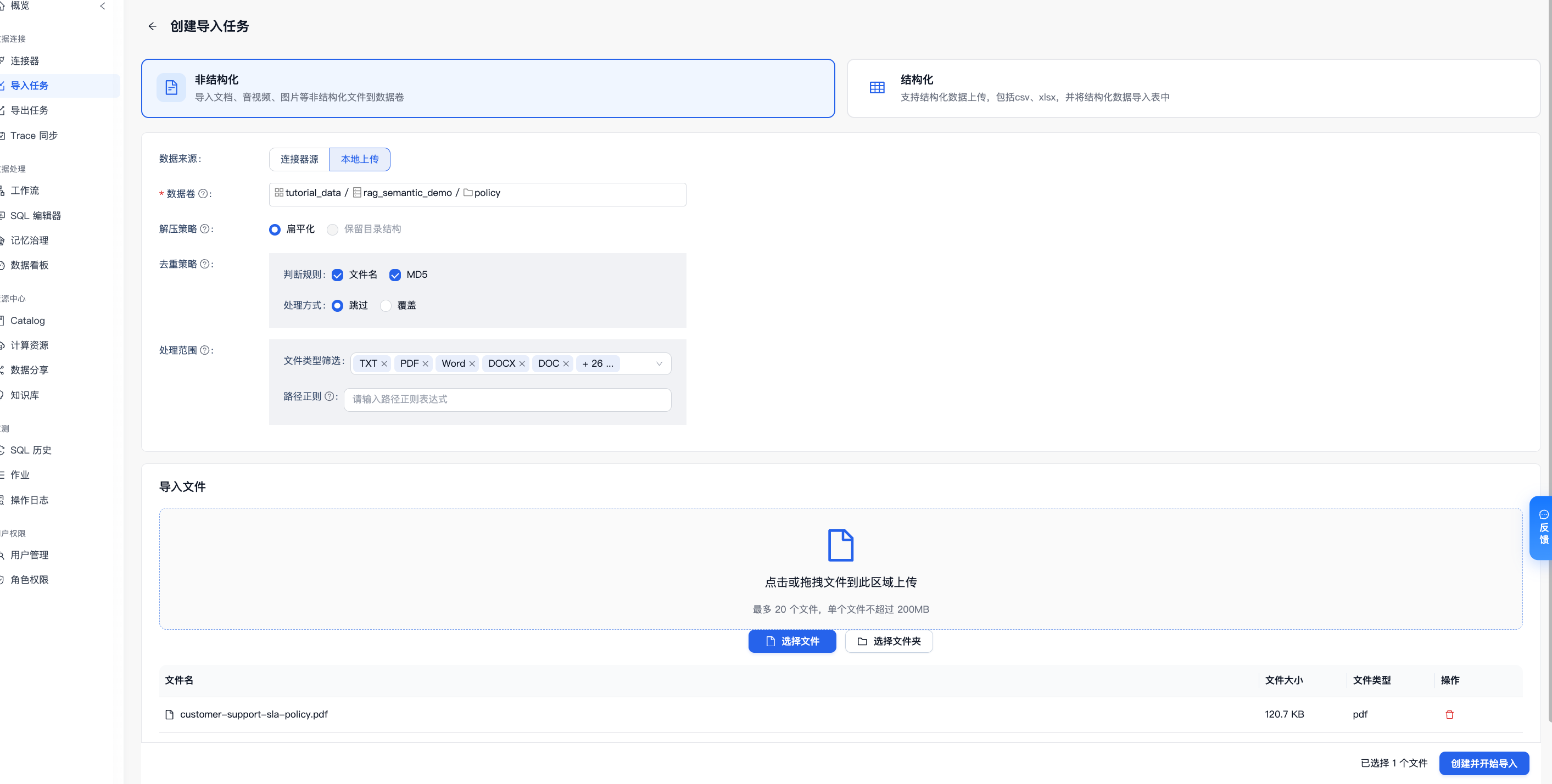
Keep the other settings at their defaults and click Create and Start Import.
In the import task list, wait until the file status changes to Completed.
2. Create a Knowledge Base and Add the Document
Go to Resource Center > Knowledge Base and click Create Knowledge Base.
Enter the name
support_sla_rag_knowledgeand the purpose: “Query customer support tiers, response time limits, and escalation rules.”Open the knowledge base details, click Add Data, and select
tutorial_data / rag_semantic_demo / policy / customer-support-sla-policy.pdf.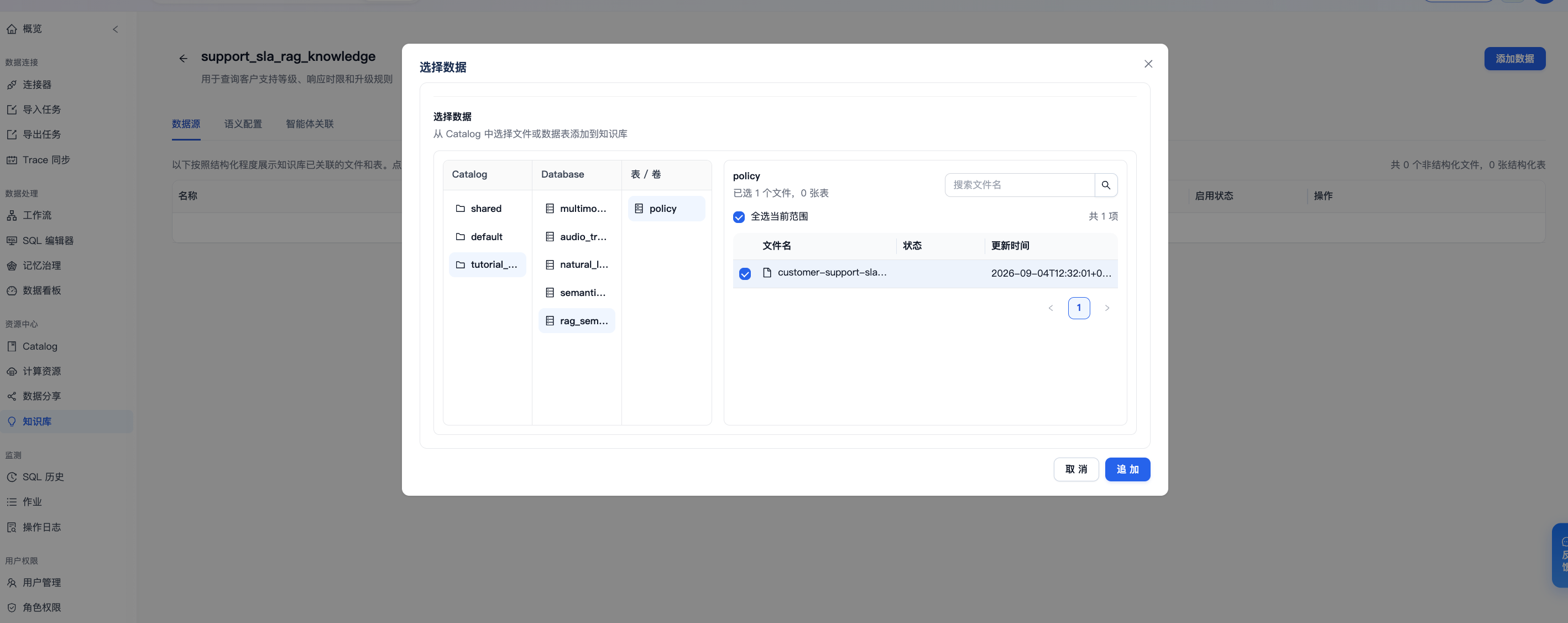
Wait for document parsing and indexing to finish.
3. Ask a Baseline Question Without RAG Semantics
Click Chat on the knowledge base card and send:
What is the initial response target for Enterprise edition P1 incidents?
Record the answer. At this point, the agent retrieves the answer directly from the initial response target table in the SLA document: the initial response target for Enterprise edition P1 incidents is 15 minutes. It also provides the corresponding PDF source.
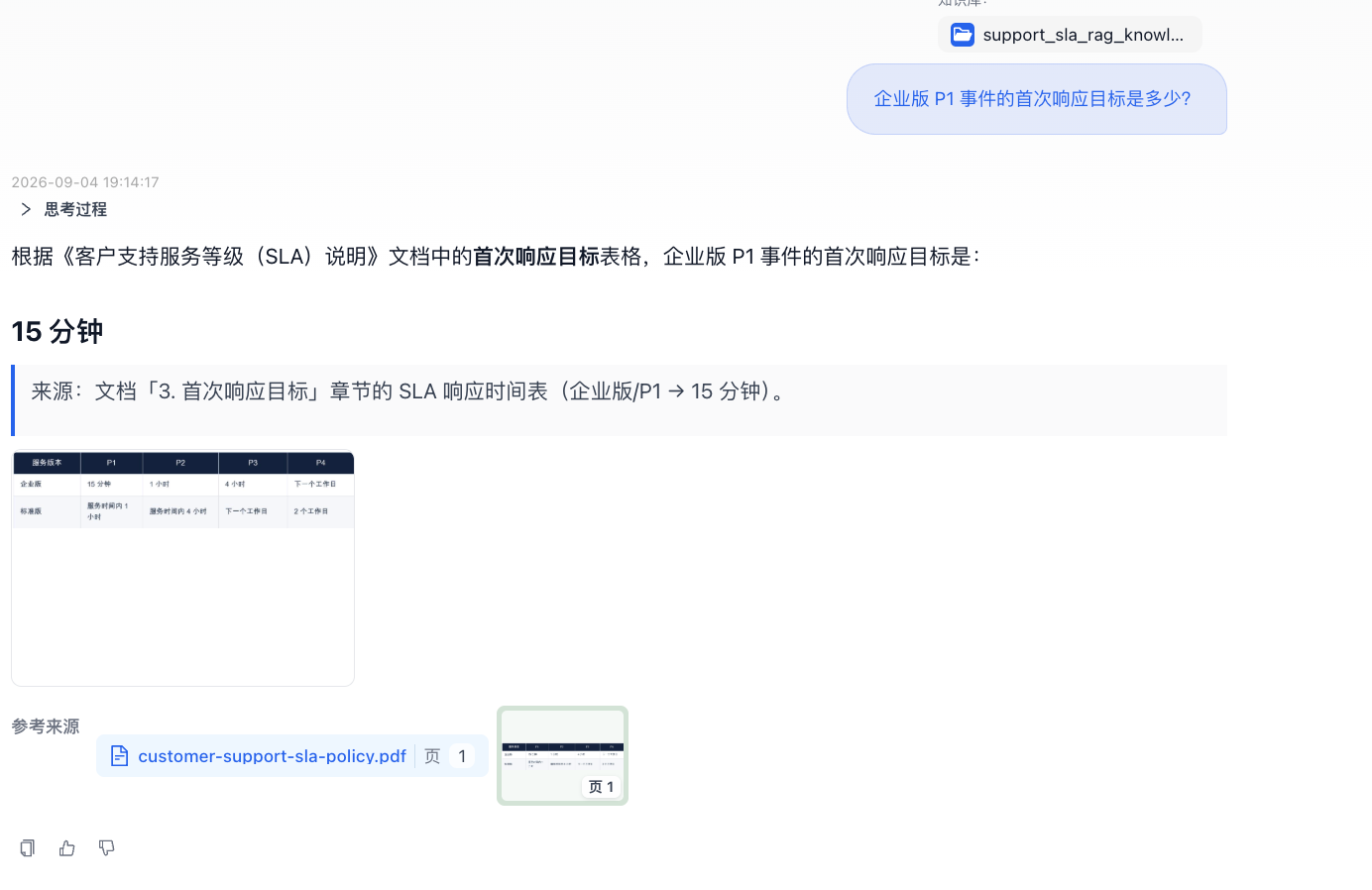
This answer comes from document retrieval, and its conclusion is correct. Next, save this confirmed question and answer as a RAG standard Q&A entry so that identical or similar questions can consistently use the same wording.
4. Configure a RAG Standard Q&A Entry
Return to the knowledge base and open Advanced Configuration > Semantic Configuration. Go to RAG Semantics > Standard Q&A, click New Standard Q&A, and enter the following values:
Setting |
Value |
|---|---|
Standard Q&A Identifier |
|
Question |
What is the initial response target for Enterprise edition P1 incidents? |
Similar Questions |
How quickly do you respond to Enterprise edition P1 incidents?; Can an Enterprise edition P1 incident be escalated if the response target is missed?; What should I do if a P1 incident receives no response within 15 minutes? |
Usage Mode |
Reference |
Answer |
Enterprise edition P1 incidents receive 24/7 support, with an initial response target of 15 minutes. An initial response means that support staff have received the incident and started handling it; it does not mean the issue has been resolved. |
Associated File |
|
Select Reference so that the answer remains grounded in the retrieved document content. Consider Enforce only when the answer has been confirmed and the question closely matches the standard question.
After saving, the standard Q&A list should display the identifier, natural-language question, associated file, and usage mode. In this example, enterprise_p1_response_time uses Reference mode and is associated with customer-support-sla-policy.pdf.
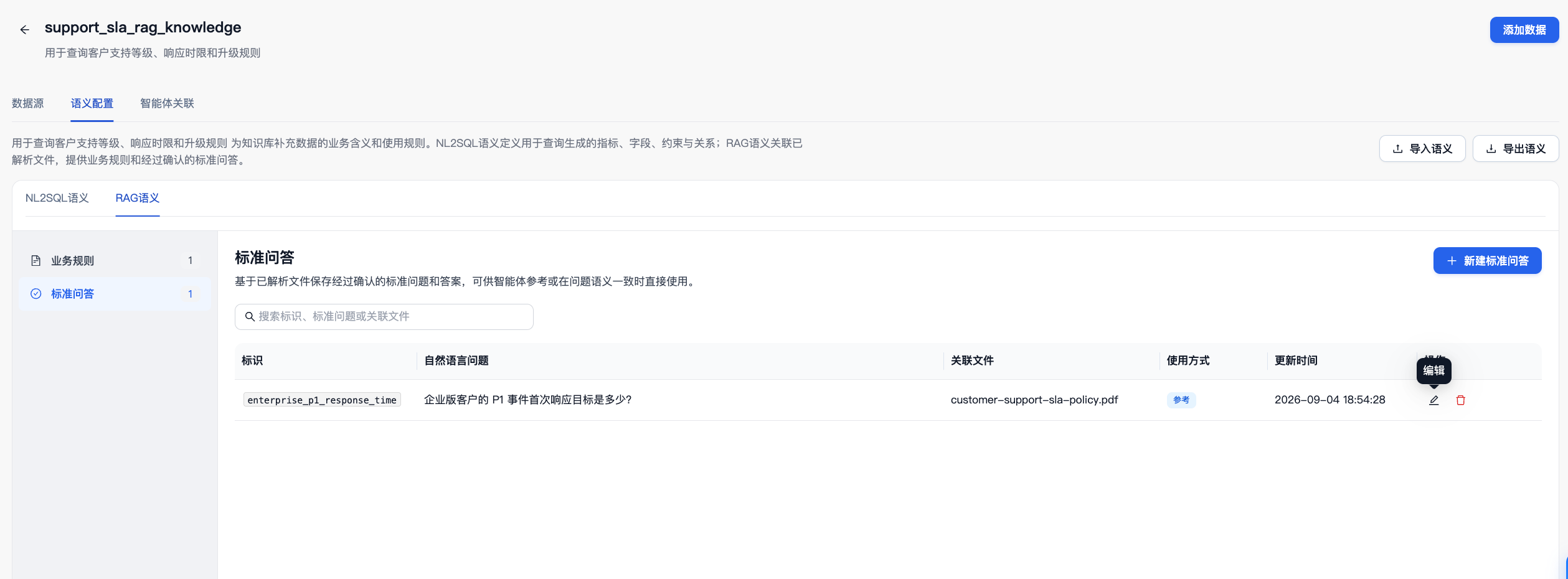
Confirm that the identifier, question, associated file, and usage mode in the list are correct.
5. Verify Using the Same Question
Return to the knowledge base chat, start a new conversation, and send the question from Step 3 again:
What is the initial response target for Enterprise edition P1 incidents?
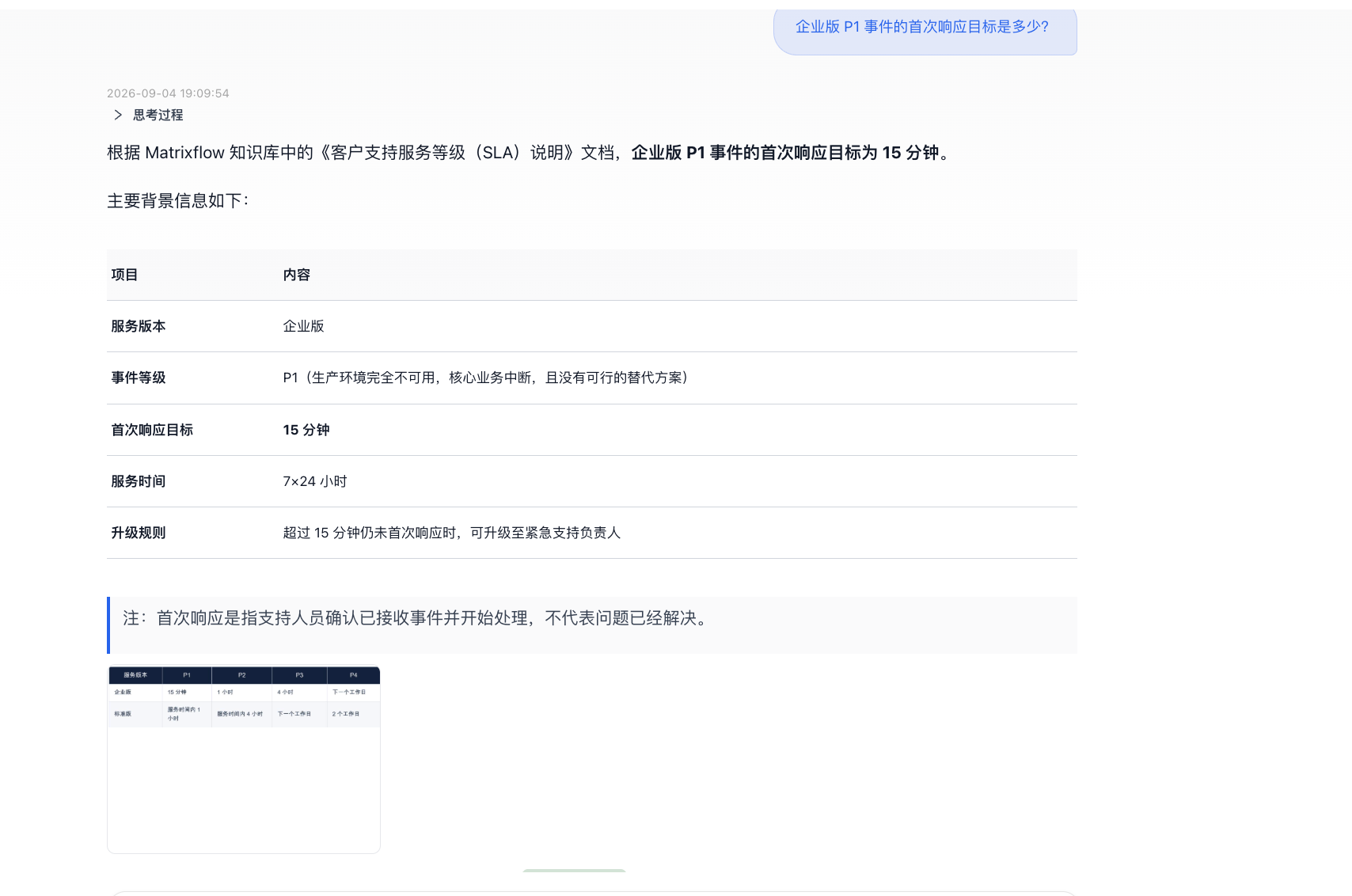
Check that the answer includes the following:
Enterprise edition P1 incidents receive 24/7 support, with an initial response target of 15 minutes.
The 15-minute target is for the initial response, not for resolving the issue.
The answer’s reference sources include
customer-support-sla-policy.pdf.
If the answer does not use the standard Q&A entry, check that the current conversation has selected support_sla_rag_knowledge, that the standard Q&A entry is associated with the correct file, and that its usage mode is Reference.
Tutorial Complete
You have completed the process from document import and RAG standard Q&A configuration to answer verification. Standard Q&A is suitable for storing confirmed answers to frequently asked questions. Associate each entry with the correct parsed file and verify the result using identical or similar questions.