
Use an MOI agent in WeCom
MOI’s two-way IM communication feature connects agents in your workspace to messaging platforms such as WeCom, Feishu, and Slack. When you send a request in a conversation, MOI passes the message to the connected agent and sends its reply back to the same conversation, so you can use agents directly in your everyday collaboration tools.
Once connected, you can start tasks, view results, and ask follow-up questions in the same conversation. The agent follows the instructions already configured in MOI and can use its configured skills and tools. For example, after connecting a project weekly report assistant to WeCom, you can send project updates, receive a structured weekly report, and add details through follow-up messages.
This tutorial continues Create and use your first agent with the Project Weekly Report Assistant you created there. You will connect it to a WeCom smart bot, send the same project updates, and then add a coordination item in the same conversation.
You can use an existing agent. If you have not created one yet, follow the linked tutorial first to create the Project Weekly Report Assistant and test it in MOI.
What you will accomplish
Connect a WeCom smart bot to an MOI agent.
Organize project updates into a weekly report and add a coordination item in WeCom.
View the reply in WeCom and confirm message reception in MOI.
Before you begin
Have an MOI account and enter the workspace containing the target agent.
Make sure the target agent has been created and can respond normally in MOI conversations.
Have an account that can sign in to WeCom and access the smart bot you want to connect.
Make sure the workspace has an available model for agent conversations. If the interface requires a Runtime model, select one before connecting.
This tutorial uses the Long connection receiving method for a WeCom smart bot. MOI manages the connection, so you do not need to configure a public callback URL or create a tool instance first. WeCom applications, group robots, and enterprise mail are separate capabilities and do not apply to the steps below.
Steps
1. Open the agent’s two-way messaging settings
Sign in to MOI, enter the target workspace, and open Agent at the top of the page.
Find the Project Weekly Report Assistant in the agent list and click More actions in the upper-right corner of its card.
Select Two-way messaging. In the dialog, select WeCom AI Bot under Platform.
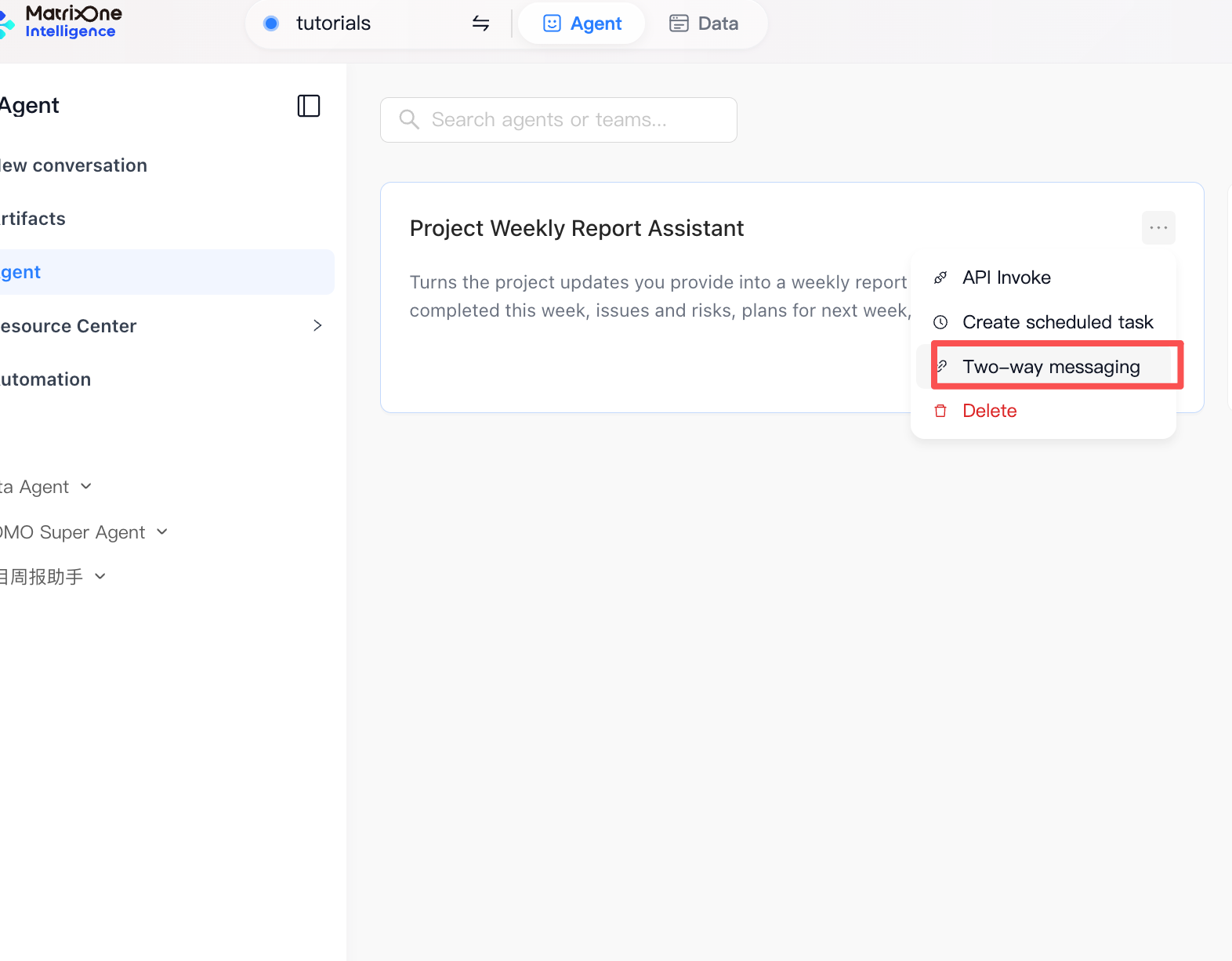
The current interface provides the Long connection method for this platform. If a Receiving method field is shown, select Long connection.
2. Scan the QR code to connect the WeCom smart bot
Click Get WeCom QR code to open the QR code page.
Use your own WeCom account to scan the QR code generated on your MOI page, then follow the prompts to confirm authorization.
Return to MOI and wait for QR code authorization succeeded. Continue to connect.
If the page requires a Runtime model, select a model available in the current workspace.
Click Save and continue.
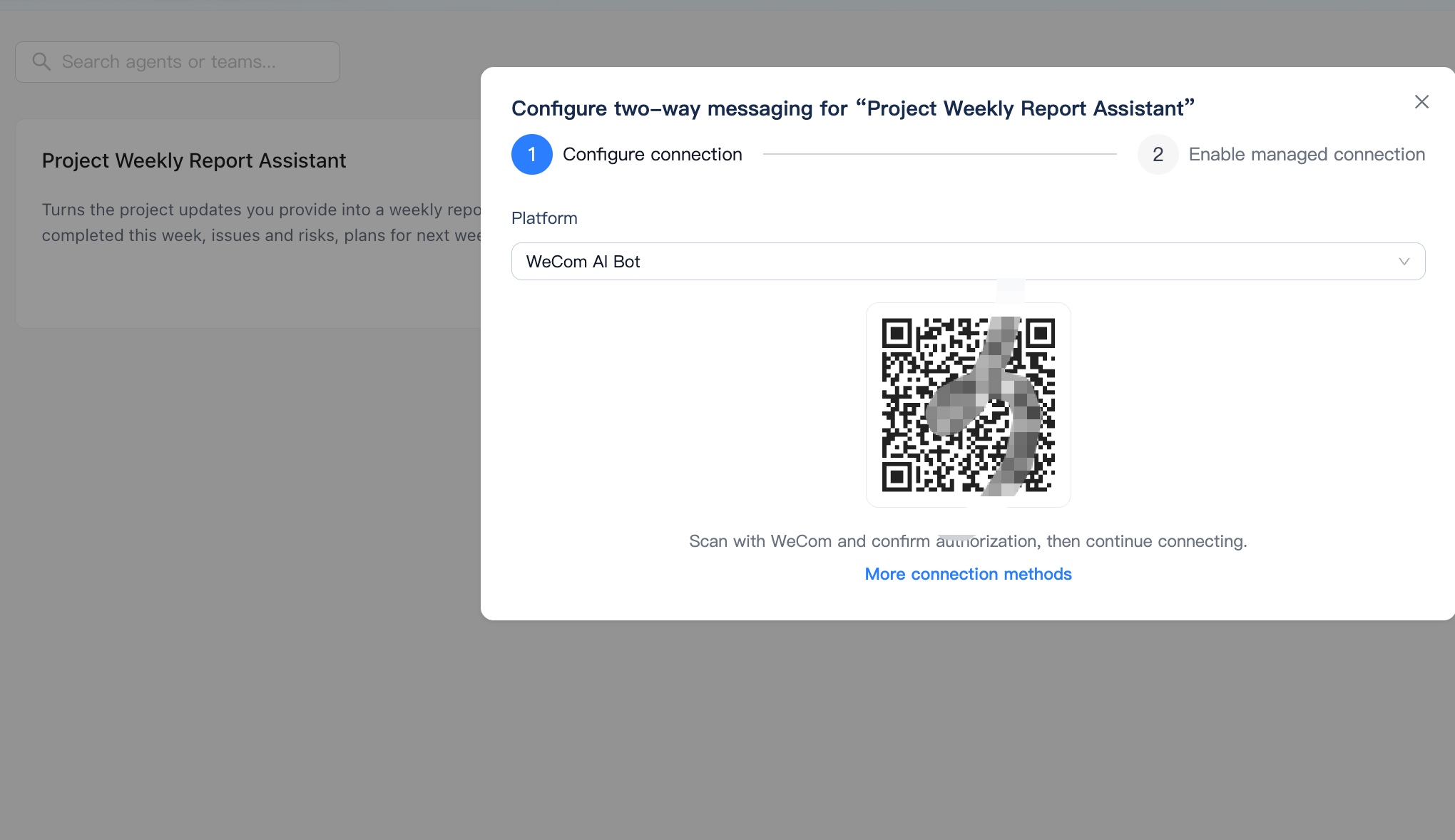
Scanning the QR code obtains only the information needed for the connection. MOI saves the two-way communication configuration and starts establishing the long connection only after you click Save and continue. If the QR code expires, click Get a new QR code and scan again.
If you already have the smart bot’s Bot ID and Secret, you can instead click More connection methods, enter both fields manually, then select the runtime model and save. Enter the Secret only in MOI’s connection form; do not send it in chats or include it in documentation.
3. Confirm the connection status
After saving, the dialog moves to the Enable managed connection step. Check for Configuration saved and MOI receiving enabled, then wait for the status to become Connection established. If you see Connecting or a temporary Reconnecting status immediately after saving, reopen the same settings later to check again.
The screenshot below shows the configuration saved while the connection is still Connecting. Wait for it to finish before continuing.
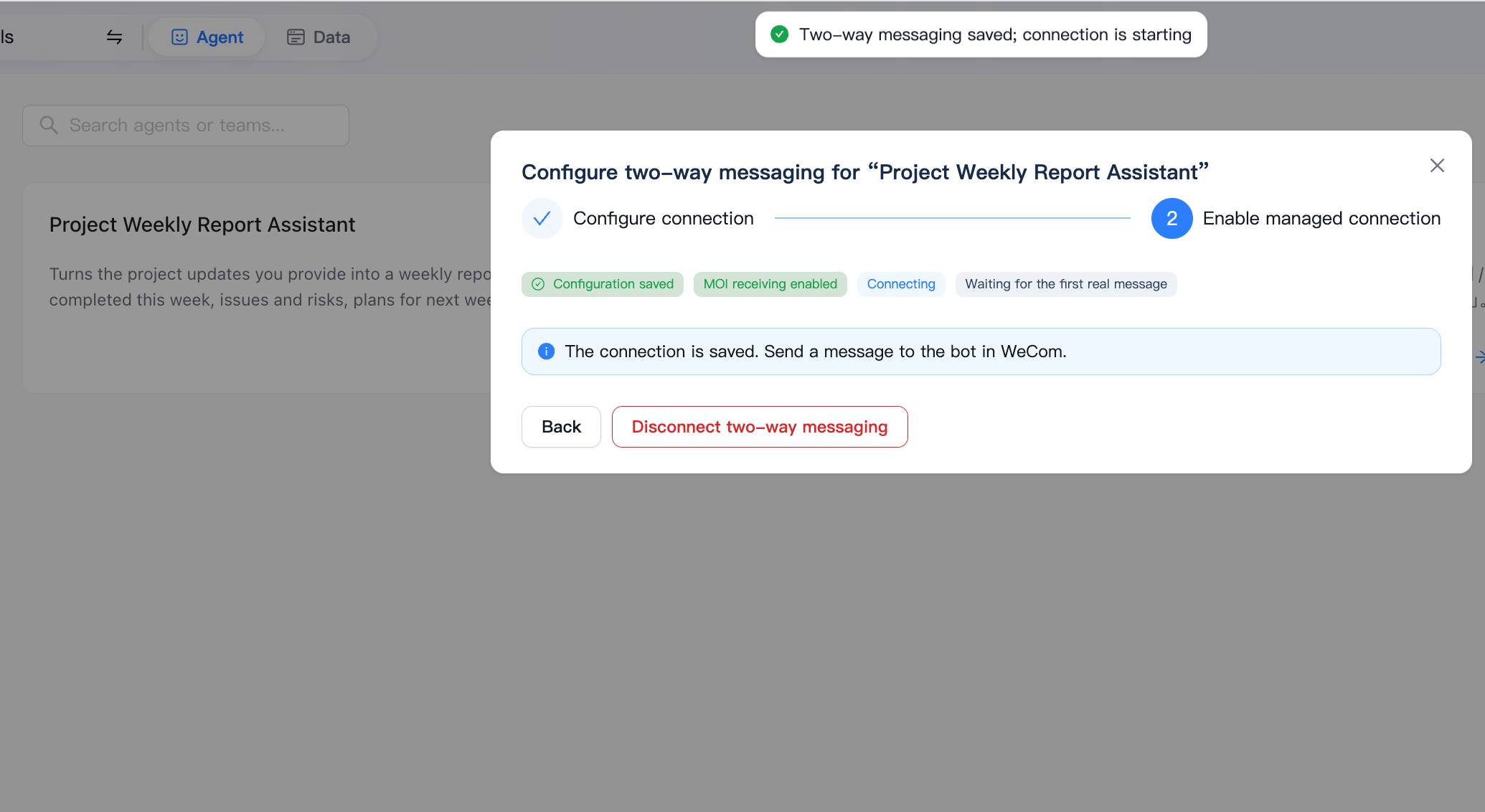
At this point, Waiting for the first real message is normal: MOI has not yet received a message from this bot. After sending a test message in WeCom in the next step, reopen Two-way messaging. The status should show Real message received.
4. Organize a weekly report in WeCom
Open the connected smart bot in WeCom and send the same project updates used in the previous tutorial:
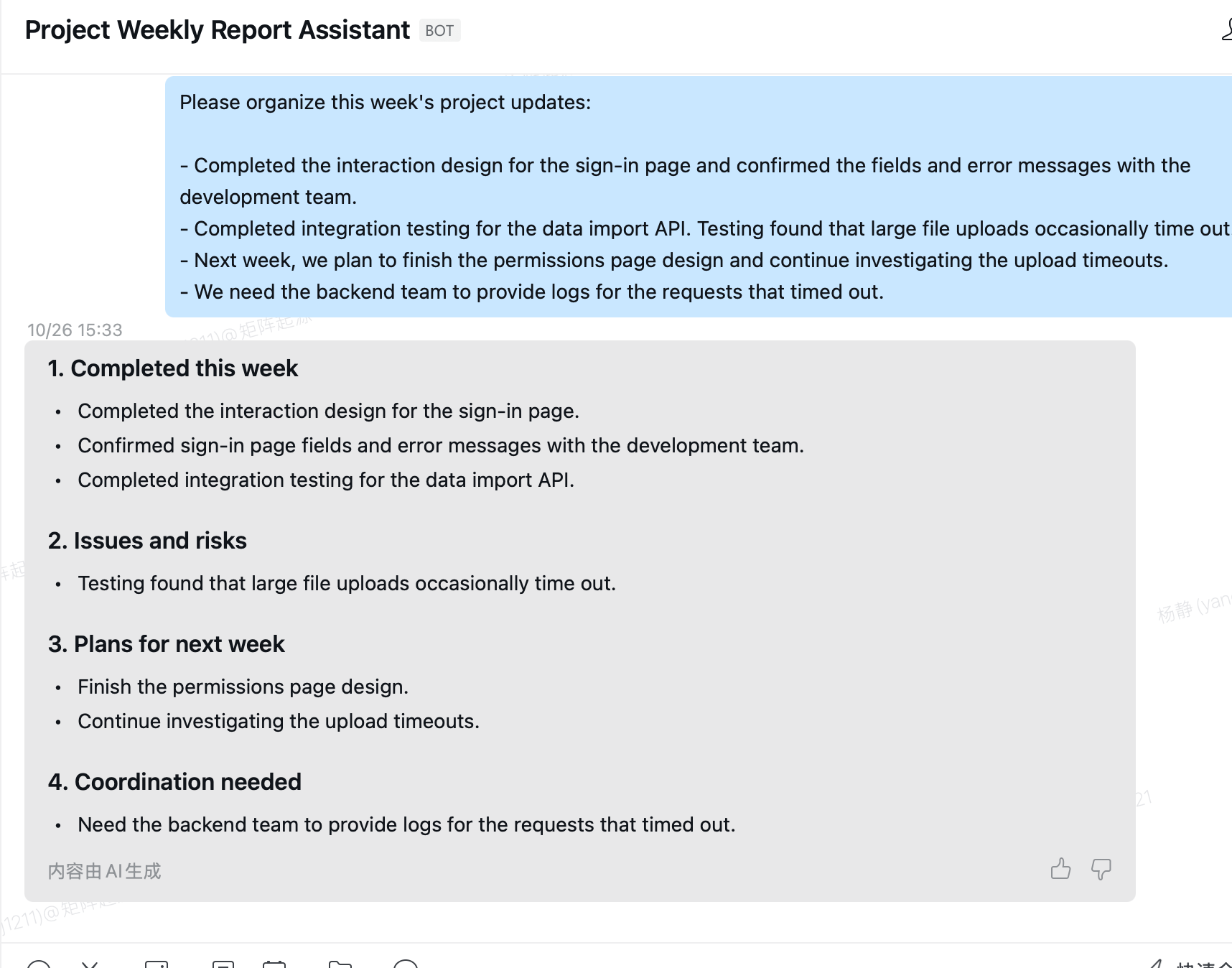
Please organize this week's project updates:

- Completed the interaction design for the sign-in page and confirmed the fields and error messages with the development team.
- Completed integration testing for the data import API. Testing found that large file uploads occasionally time out.
- Next week, we plan to finish the permissions page design and continue investigating the upload timeouts.
- We need the backend team to provide logs for the requests that timed out.
Wait for the bot to reply in the same WeCom conversation. Check that the report uses these four sections:
Completed this week.
Issues and risks.
Plans for next week.
Coordination needed.
Check that the response uses only facts from the input, places the large-file upload timeouts under Issues and risks, and places the request for backend logs under Coordination needed. The exact wording may vary by model.
Then send this additional update in the same conversation:
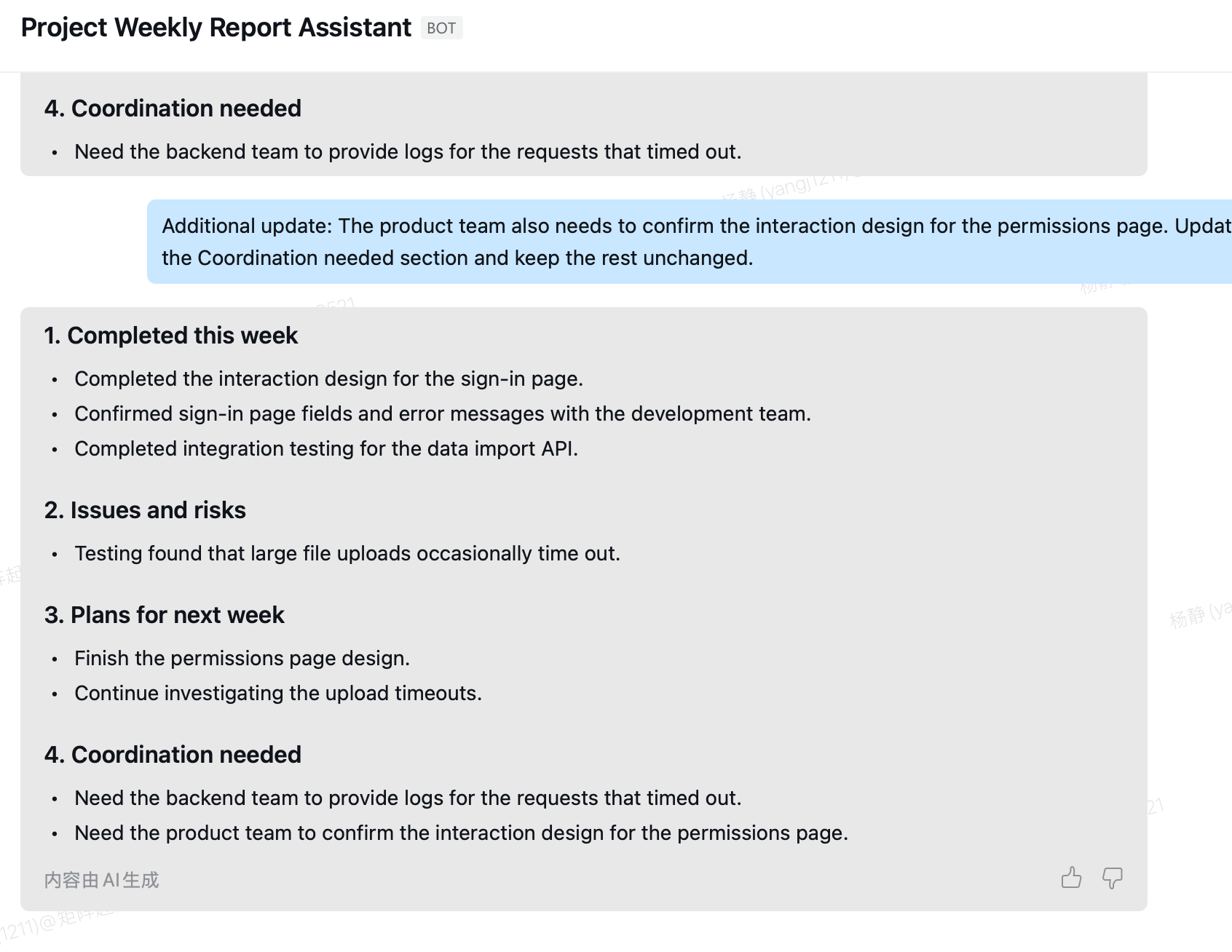
Additional update: The product team also needs to confirm the interaction design for the permissions page. Update the Coordination needed section and keep the rest unchanged.
Check that the reply adds the product team’s confirmation task to Coordination needed, keeps the request for backend logs, and leaves the other sections unchanged. It should not claim that the permissions page design or its confirmation has already been completed.
Return to MOI and reopen the agent’s Two-way messaging settings. Confirm that the status now shows Real message received.
Troubleshooting
Symptom |
What to check |
|---|---|
The QR code expires, or no success message appears after scanning |
Get a new QR code in the dialog and complete authorization in WeCom. You must still click Save and continue after authorization succeeds. |
The status never reaches Connection established after saving |
Reopen Two-way messaging and check the connection status and any connection error shown. If you used manual entry, verify the |
The status is Connection established, but no reply arrives |
Confirm that you sent the message to the connected smart bot, then check whether the status changes from Waiting for the first real message to Real message received. If it still has not received a message, check who can access the bot in WeCom. |
Tutorial complete
You have connected your Project Weekly Report Assistant from MOI to WeCom. You can now send project updates, view the weekly report, and add details in the same WeCom conversation. To stop receiving messages, open the agent’s Two-way messaging settings and click Disconnect two-way messaging.