

Create Your First Knowledge Base from a PDF
Turn a local English PDF into a knowledge base, ask a question, and open the cited passage to check the answer. MOI uses files stored in Catalog as knowledge-base sources and automatically processes them for document Q&A.
This tutorial uses Scikit-learn: Machine Learning in Python, a six-page paper publicly available from the Journal of Machine Learning Research (JMLR). You do not need to run any code from the paper.
Before you begin
Sign in to MOI and enter a workspace where you can import files and create knowledge bases.
Set the interface language to English and select Data in the top navigation.
Download the sample PDF from JMLR and save it as
scikit-learn-machine-learning-in-python.pdf.
The screenshots use these resource names. You can use another writable Catalog location; select that same location when adding the file to the knowledge base.
Resource |
Example name |
|---|---|
Catalog |
|
Database |
|
Volume |
|
Knowledge base |
|
If you completed your first AI Q&A with this PDF, you can reuse the file already in Catalog. Confirm its location in step 1, then continue to step 2 without importing it again.
Steps
1. Import the PDF into Catalog
Under Data Connection, open Import Tasks and start a new import task.
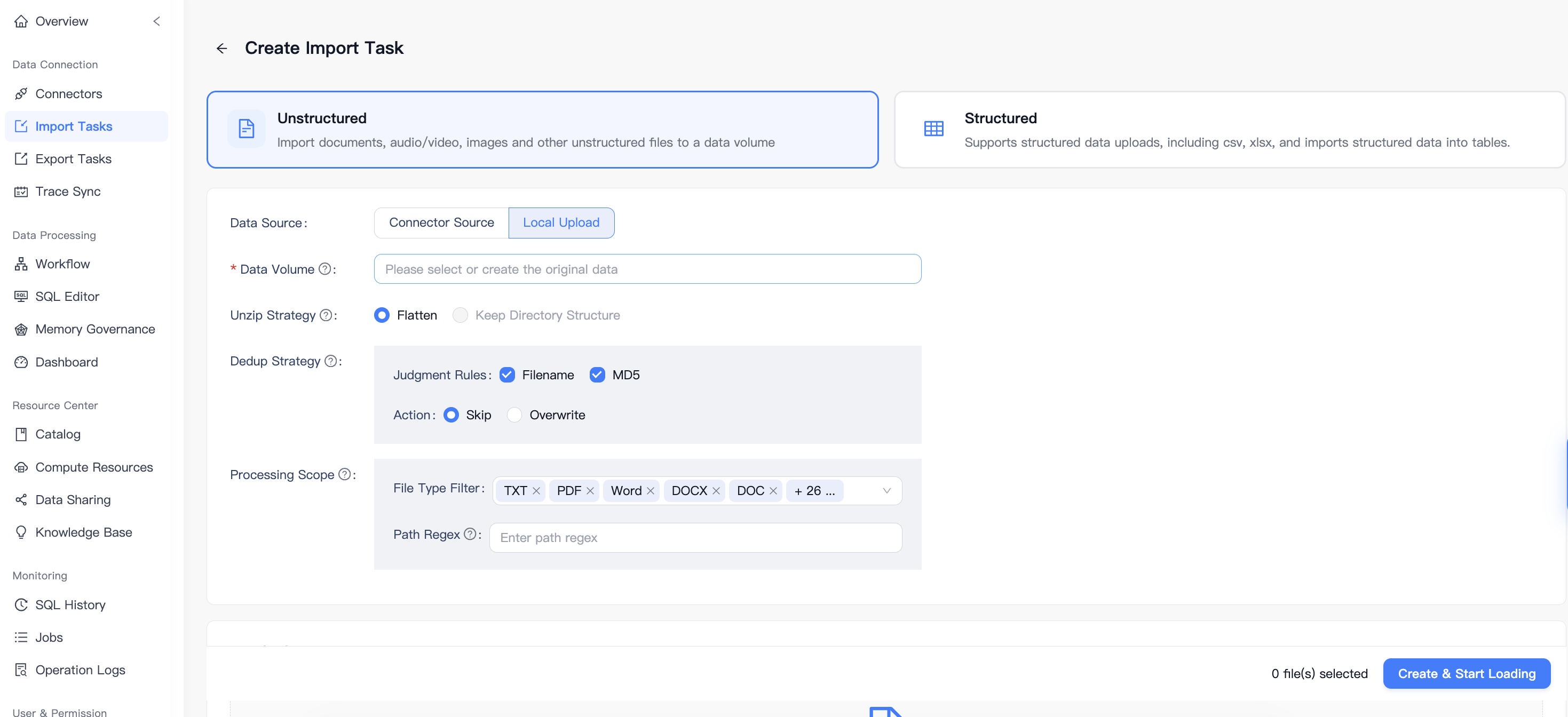
On Create Import Task, select Unstructured, then choose Local Upload as the Data Source.
In Data Volume, select a writable destination volume. For this example, use:
the_first_tutorial / pdf / scikit_learn_machine_learning_in_python
If the destination does not exist, use the selector’s creation options to create the required resources, or choose an existing writable volume. The Data Volume field must contain your destination before you start the import.
Keep the default Unzip Strategy and Dedup Strategy. Under Processing Scope, make sure PDF is included in File Type Filter and leave Path Regex empty.
The following screenshot shows the local-upload configuration before a destination is selected:
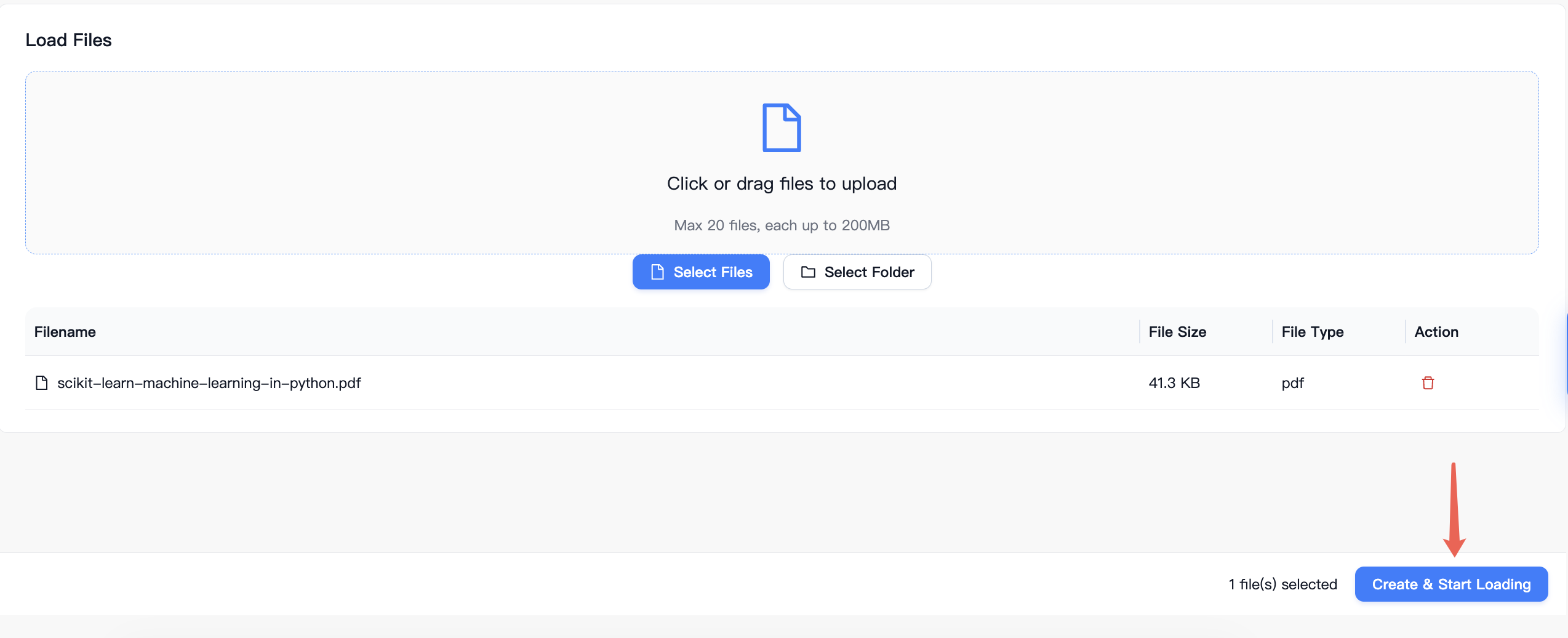
Scroll to Load Files, click Select Files, and select
scikit-learn-machine-learning-in-python.pdf.Confirm that the file list contains the PDF, then click Create & Start Loading.
Wait for the import task to finish. Open Resource Center > Catalog and navigate to the destination volume. Confirm that the PDF appears in its file list.
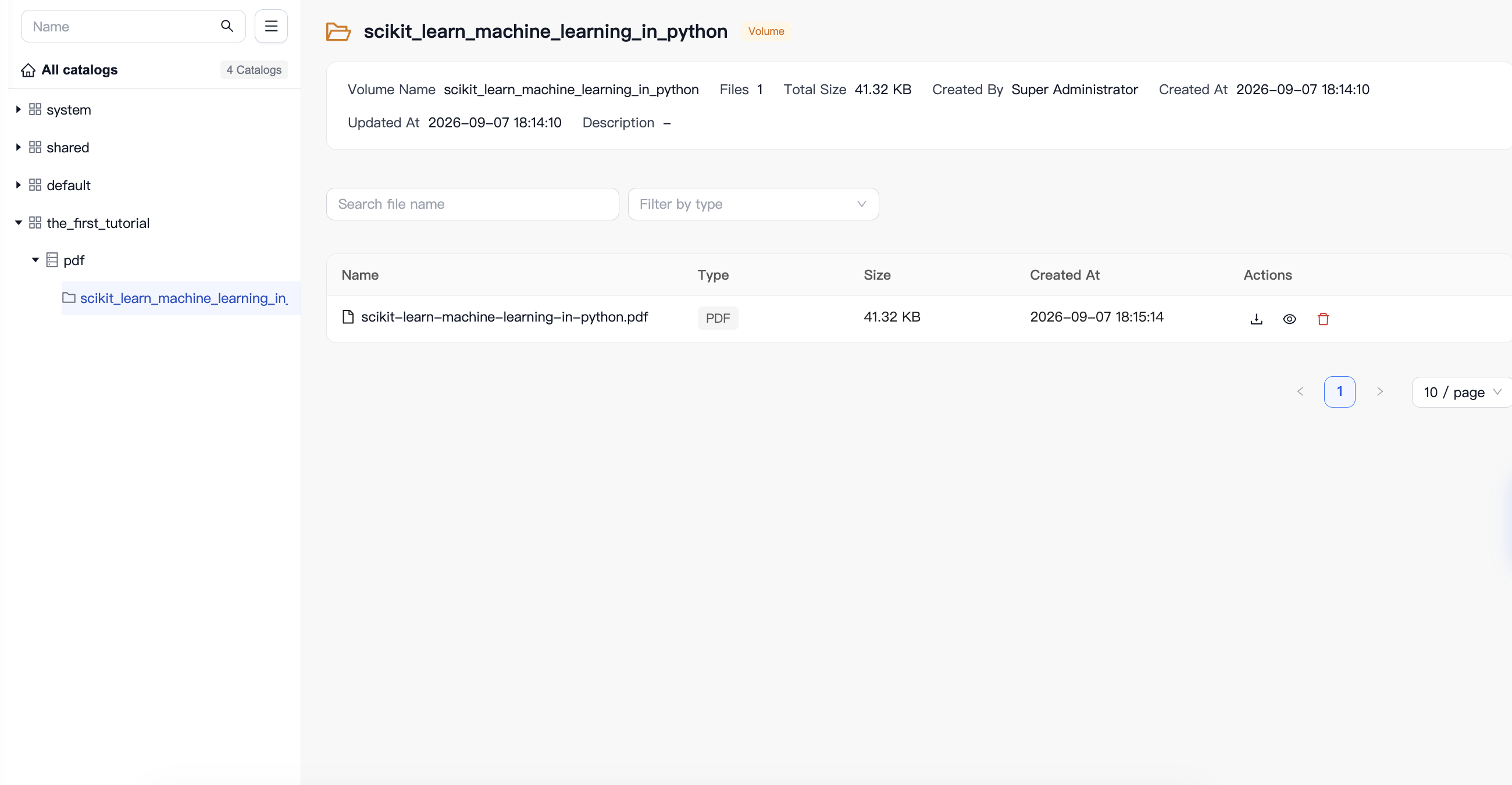


Completion check: The PDF is present in the selected Catalog volume. If it was already there, you can use that existing file; a second import is unnecessary.
2. Create the knowledge base
Under Resource Center, open Knowledge Base.
Click Create Knowledge Base.
Enter
scikit_learn_pdf_knowledgein Knowledge Base Name.Leave Remark empty, or add a short description such as
Answer questions about the scikit-learn paper with references to the original PDF.Keep Advanced options unchanged and click Finish.
Open the new knowledge base if its details page does not open automatically.
3. Add the PDF and wait for processing
In the knowledge-base details, click Add Data.
In Select Data, browse to the Catalog, database, and volume containing the PDF. For this example, select
the_first_tutorial / pdf / scikit_learn_machine_learning_in_python.Select
scikit-learn-machine-learning-in-python.pdfand click Append.On Data Source, wait until Processing Status shows Completed.

MOI automatically parses the document and builds its index after the file is added. You do not need to complete separate Data Sources and Knowledge Index wizard steps for this workflow.
Completion check: The knowledge base lists the intended PDF and its processing status is Completed.
4. Ask a question and check the reference
Return to the knowledge-base list and click Chat on the
scikit_learn_pdf_knowledgecard.Confirm that this knowledge base is selected in the conversation input area.
Send the following question:
According to Section 2 of the paper "Scikit-learn: Machine Learning in Python", what unit-test coverage was reported for release 0.8, and which two static analysis tools were used?

Answer in English using only this knowledge base, and cite the supporting passage.
Check that the answer identifies 81%, pyflakes, and pep8, and includes a reference to the PDF. The wording of the generated answer can vary.
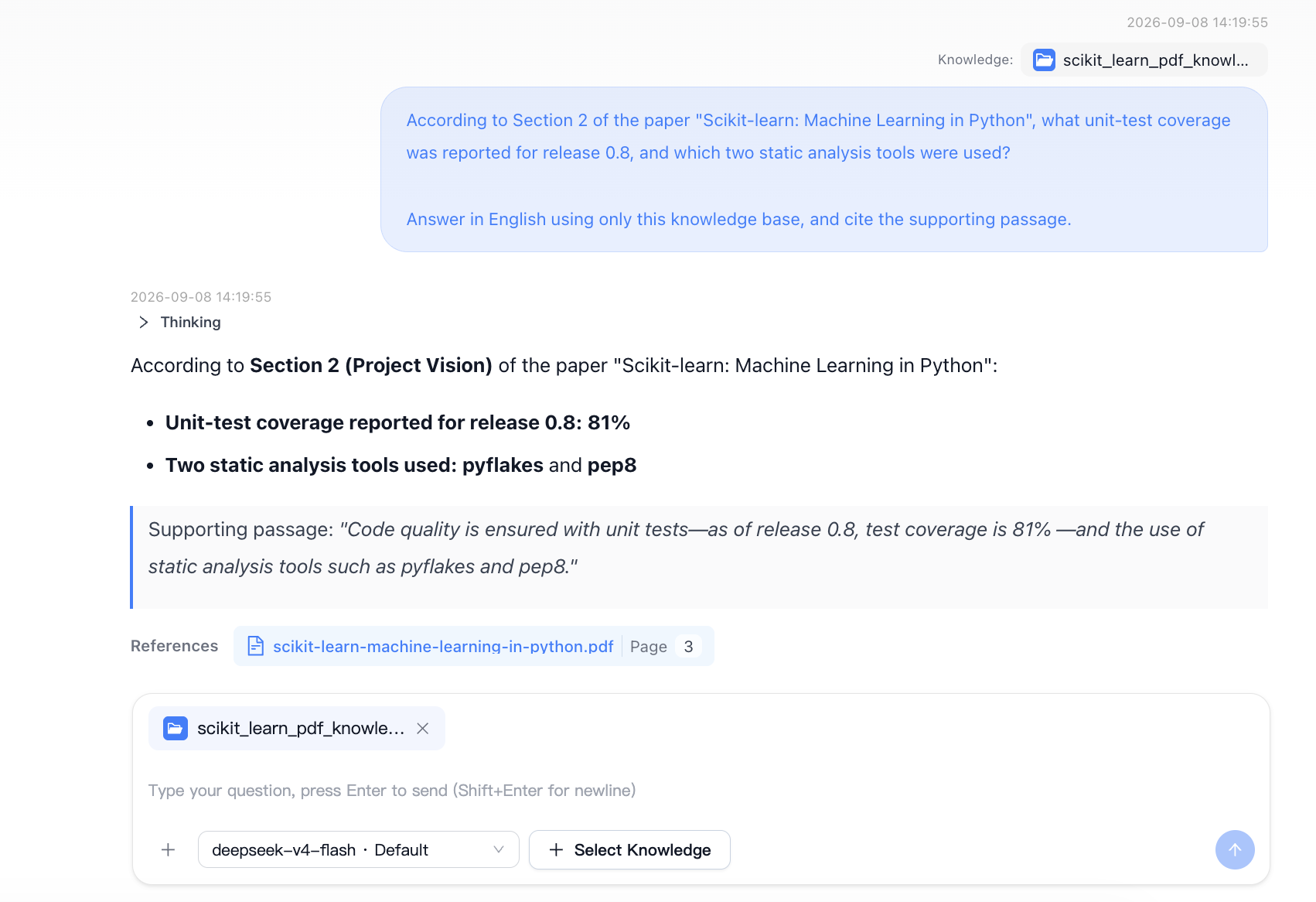
Click the PDF filename under References. In the preview, check page 3 of 6, under 2. Project Vision. The highlighted code-quality paragraph contains all three facts.
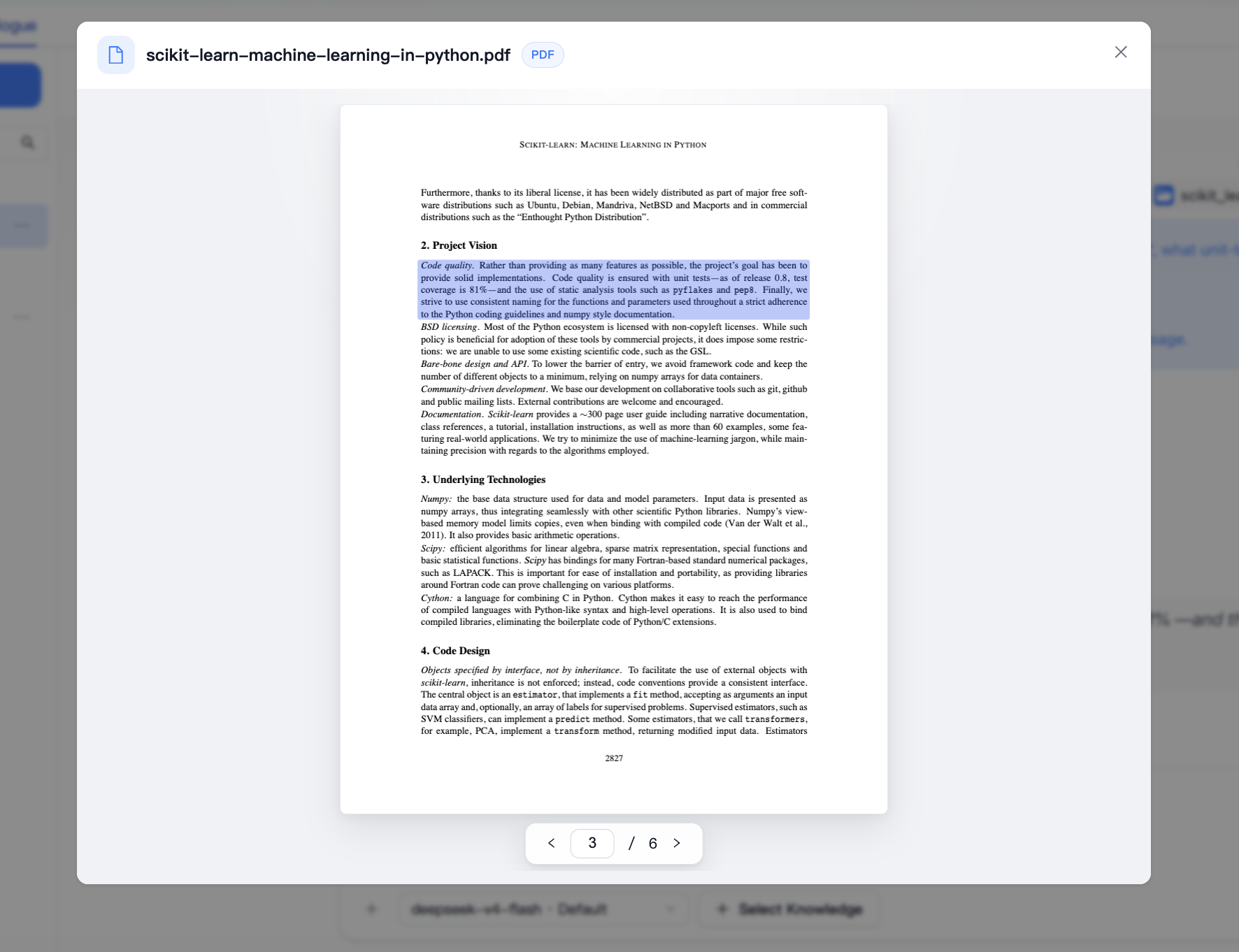


These figures describe release 0.8 as reported in the 2011 paper. They are not claims about the current scikit-learn release. The viewer shows PDF page 3; the printed journal page number on that page is 2827.
Completion check: The answer includes the expected facts, and its reference opens the passage that supports them.
Troubleshooting
The import cannot start. Check that Data Volume has a selected destination, that the PDF appears in Load Files, and that File Type Filter includes PDF. Keep Path Regex empty unless you intentionally want to filter paths.
The PDF is missing from Select Data. Check the workspace and Catalog location. Confirm that the file is visible inside the volume, rather than only checking that the volume exists.
The knowledge-base file is still processing. Wait and refresh its details. If processing fails, check that the PDF opens normally and review the error before retrying.
The answer has no useful reference. Check that the file status is Completed and that the intended knowledge base is selected in the conversation. Ask about a specific passage in the document, then inspect the returned reference.
Tutorial complete
You have a knowledge base backed by a PDF in Catalog. You have also asked a question, received an English answer with a reference, and checked the answer against the original passage.