

Fix a bug in a local repository with an agent
Many tasks in software development, data processing, and day-to-day operations depend on an environment that is already set up: files live on your computer or server, execution requires specific dependencies and tools, and some services are accessible only through an internal network. Having to upload files again, reinstall dependencies, or move a project just so an agent can work on it adds substantial preparation time and can introduce differences between environments.
MOI’s self-hosted runtimes let you connect these existing devices to the platform and select them in a conversation as the environment for executing tasks. The agent can use the files, dependencies, and command-line tools in a designated working directory, while you review the results in your original environment. You do not need to set up a new environment for every task.
The following example shows how to use a self-hosted runtime to fix a bug in a local Python project. You will prepare a sample repository with a boundary-condition bug, connect the project directory to MOI, and ask the agent to investigate first. After you approve its plan, the agent will edit the code and rerun the tests. You will then review the code diff and repair report locally.
What you will do
Prepare a local repository with a reproducible bug.
Install
astra-edgeand connect the repository to MOI through a self-hosted runtime.Select the runtime in a new conversation.
Ask the agent to run tests, identify the root cause, and propose a fix before editing anything.
Explicitly approve the plan, then let the agent edit the code and rerun the tests.
Review the code diff and the agent’s repair report in your local terminal.
Before you begin
Sign in to a MOI workspace that supports agents and runtimes.
Use a macOS or Linux device that can reach your MOI service. On Windows, use the Linux version in WSL.
Install Python 3 and Git, and verify that
python3 --versionandgit --versionwork in your terminal.Make sure the workspace has an available general-purpose agent and model.
Warning
A self-hosted runtime executes file operations and commands requested by the agent on your device. For your first attempt, use the isolated example repository in this tutorial. Do not start the connection from your home directory, a system directory, or a real project containing secrets, customer data, or production configuration.
The connection command contains access credentials. Keep it secure and run it only on the device you intend to connect.
Local execution does not mean that data stays on the device. Code, test output, and command results read by the agent may be sent to the model for reasoning. Follow your organization’s rules for code and data use.
What must be ready before you start?
Giving a self-hosted runtime a name does not make it ready to use. Complete these three steps:
Step |
What to do |
How to verify |
|---|---|---|
Install the client |
Install |
|
Connect the device |
Enter the directory where you want the agent to work, run the connection command generated by MOI, and keep the terminal running. |
The runtime list shows the environment as available, with its connection duration. |
Select the runtime |
Select the self-hosted runtime in a new conversation. |
The input area shows the intended runtime name before you send a message. |
Installing astra-edge alone does not connect the device to MOI. Creating a runtime name without running its connection command leaves it waiting for a connection. The agent can work in the target directory only when the connection command remains running, MOI shows the runtime as available, and the conversation has selected it.
This tutorial uses the installation script provided in the runtime dialog. MOI manages script versions in its release directory. For another deployment, use the installation entry point provided by that environment.
Steps
1. Prepare a local project with a failing test
Open a terminal on the computer you want to connect and run:
mkdir -p "$HOME/moi-runtime-tutorial"
cd "$HOME/moi-runtime-tutorial"

cat > shipping.py <<'EOF'
from decimal import Decimal

FREE_SHIPPING_THRESHOLD = Decimal("100.00")
STANDARD_SHIPPING_FEE = Decimal("12.00")


def calculate_total(subtotal: Decimal) -> Decimal:
    """Return the order total including shipping."""
    if subtotal > FREE_SHIPPING_THRESHOLD:
        return subtotal
    return subtotal + STANDARD_SHIPPING_FEE
EOF

cat > test_shipping.py <<'EOF'
import unittest
from decimal import Decimal

from shipping import calculate_total


class CalculateTotalTest(unittest.TestCase):
    def test_below_threshold_adds_shipping(self):
        self.assertEqual(calculate_total(Decimal("99.99")), Decimal("111.99"))

    def test_threshold_qualifies_for_free_shipping(self):
        self.assertEqual(calculate_total(Decimal("100.00")), Decimal("100.00"))

    def test_above_threshold_qualifies_for_free_shipping(self):
        self.assertEqual(calculate_total(Decimal("120.00")), Decimal("120.00"))


if __name__ == "__main__":
    unittest.main()
EOF

git init -q
git add shipping.py test_shipping.py
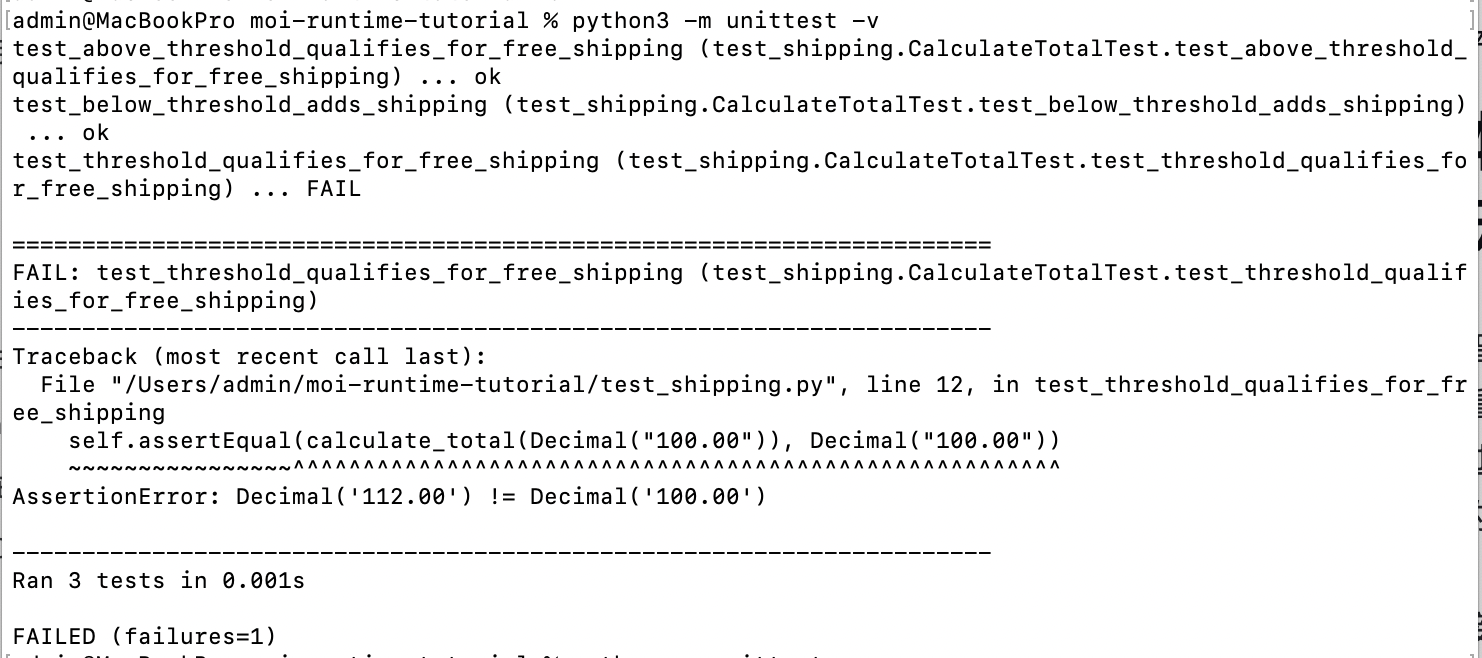
Run the tests to reproduce the bug:
python3 -m unittest -v
One of the three tests should fail. When the order amount is exactly 100.00, the expected total is still 100.00, but the actual total is 112.00.
Now run:
pwd
git status --short
Confirm that the current directory is moi-runtime-tutorial and that shipping.py and test_shipping.py are staged in Git. The staging area provides a baseline for reviewing the agent’s changes later.
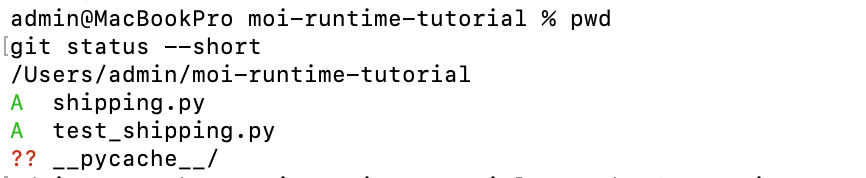
You may also see ?? __pycache__/ after running the tests. This is a cache directory generated by Python. Leave it unstaged; it does not affect your review of source changes.
All changes and the repair report created later in this tutorial will be saved in this directory. Keep the terminal available.
Checkpoint: python3 -m unittest -v consistently reports one failing test, and the current directory is moi-runtime-tutorial.
2. Create a self-hosted runtime
Sign in to MOI and open the workspace for this tutorial.
In the left navigation, go to Resource Center → Runtime Environments.
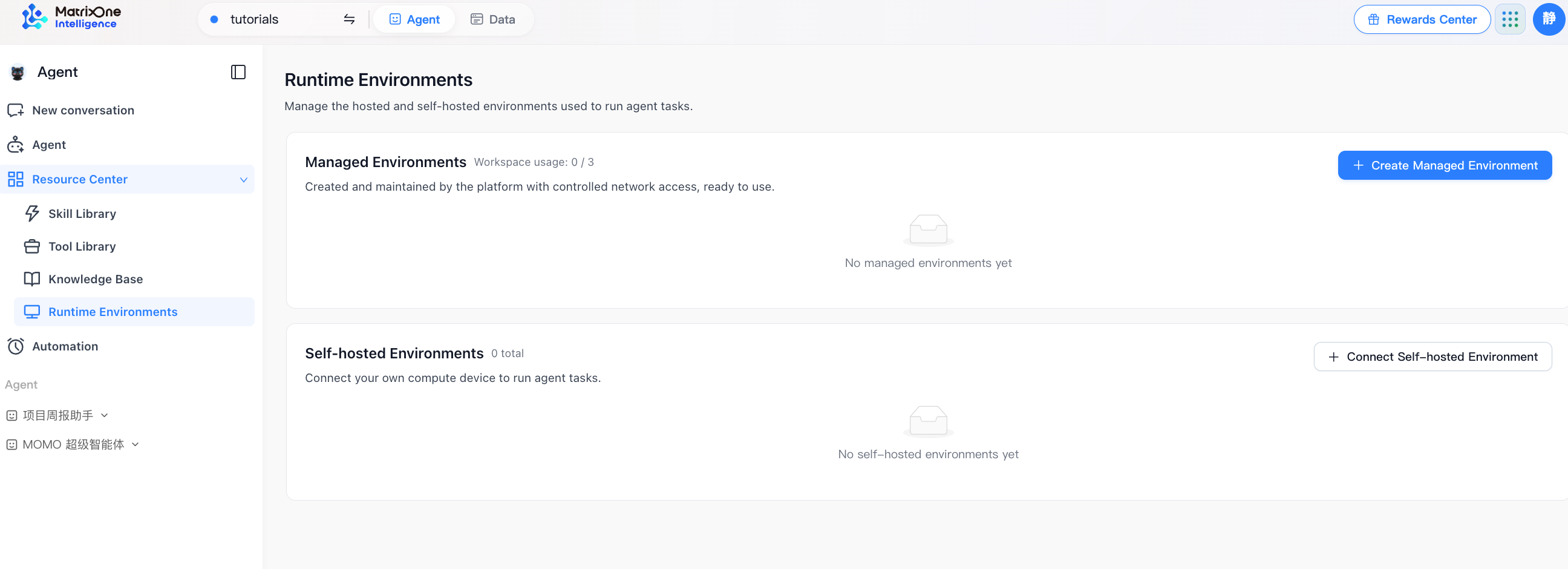
Find Self-hosted Environments and click Connect Self-hosted Environment.
Enter a recognizable name, such as
Local code repair, and confirm.
MOI opens the Connect your runtime environment dialog with a command specific to this connection. Some deployed versions may show only the connection command, without a client installation section. If so, use the installation command in the next step. The connection command contains access credentials and is shown only once. Keep the dialog open.
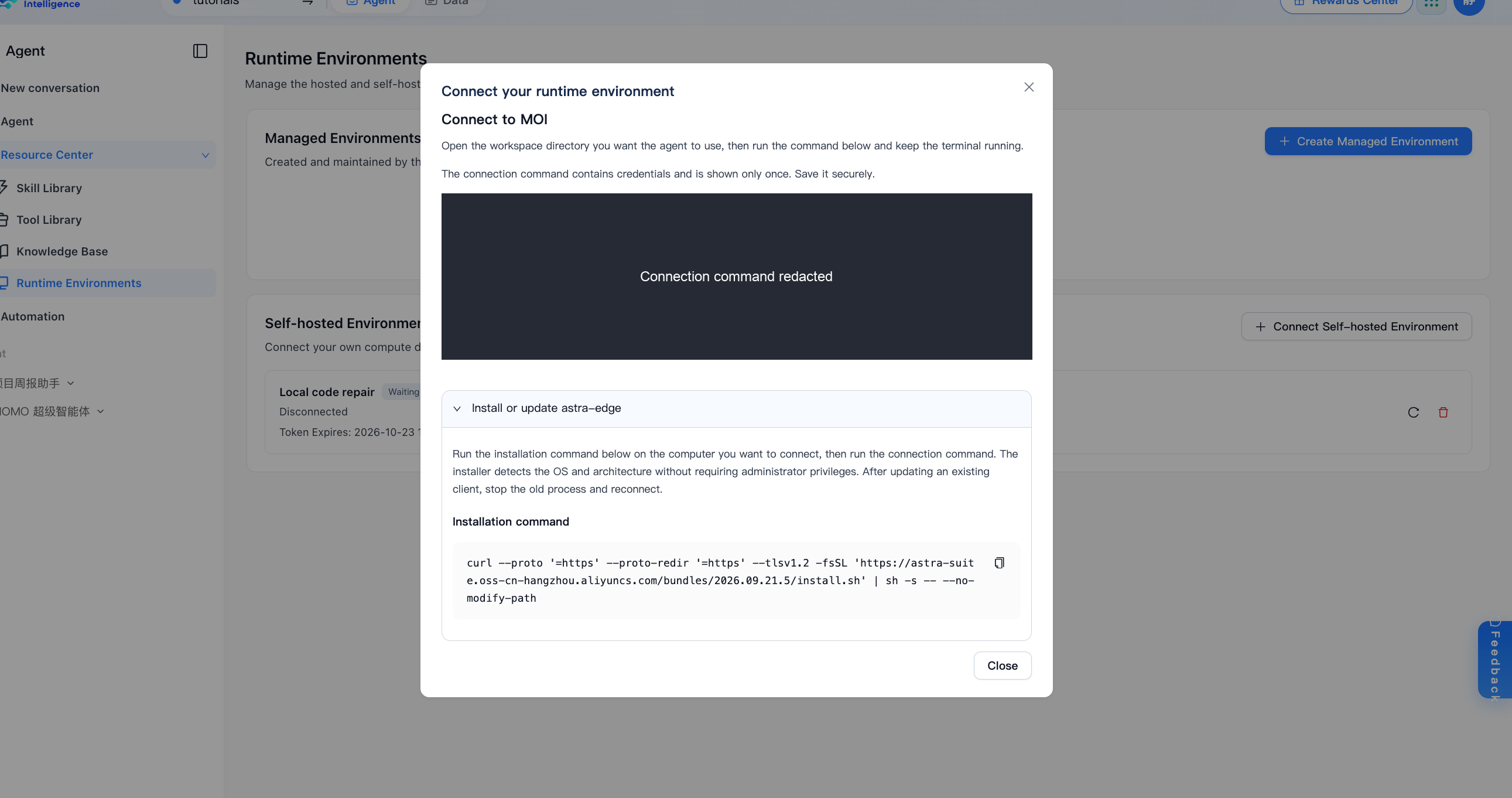
If you cannot see the connection button, check that you are in the correct workspace, then ask a workspace administrator to check your runtime permissions.
Checkpoint: the Connect your runtime environment dialog is open and displays a generated connection command.
3. Install the astra-edge client
astra-edge is the client that keeps your device connected to MOI. You usually need to install it only once per computer. Creating a runtime name or obtaining a connection command does not install the client automatically.
The following command detects your macOS/Linux platform and CPU architecture, installs or updates astra-edge, and leaves your shell’s PATH unchanged. Administrator privileges are not required.
Run it on the computer you want to connect:
curl --proto '=https' --proto-redir '=https' --tlsv1.2 -fsSL \
  'https://astra-suite.oss-cn-hangzhou.aliyuncs.com/bundles/2026.09.21.5/install.sh' |
  sh -s -- --no-modify-path
After installation, check the version:
"$HOME/.local/share/moi/client/bin/astra-edge" --version
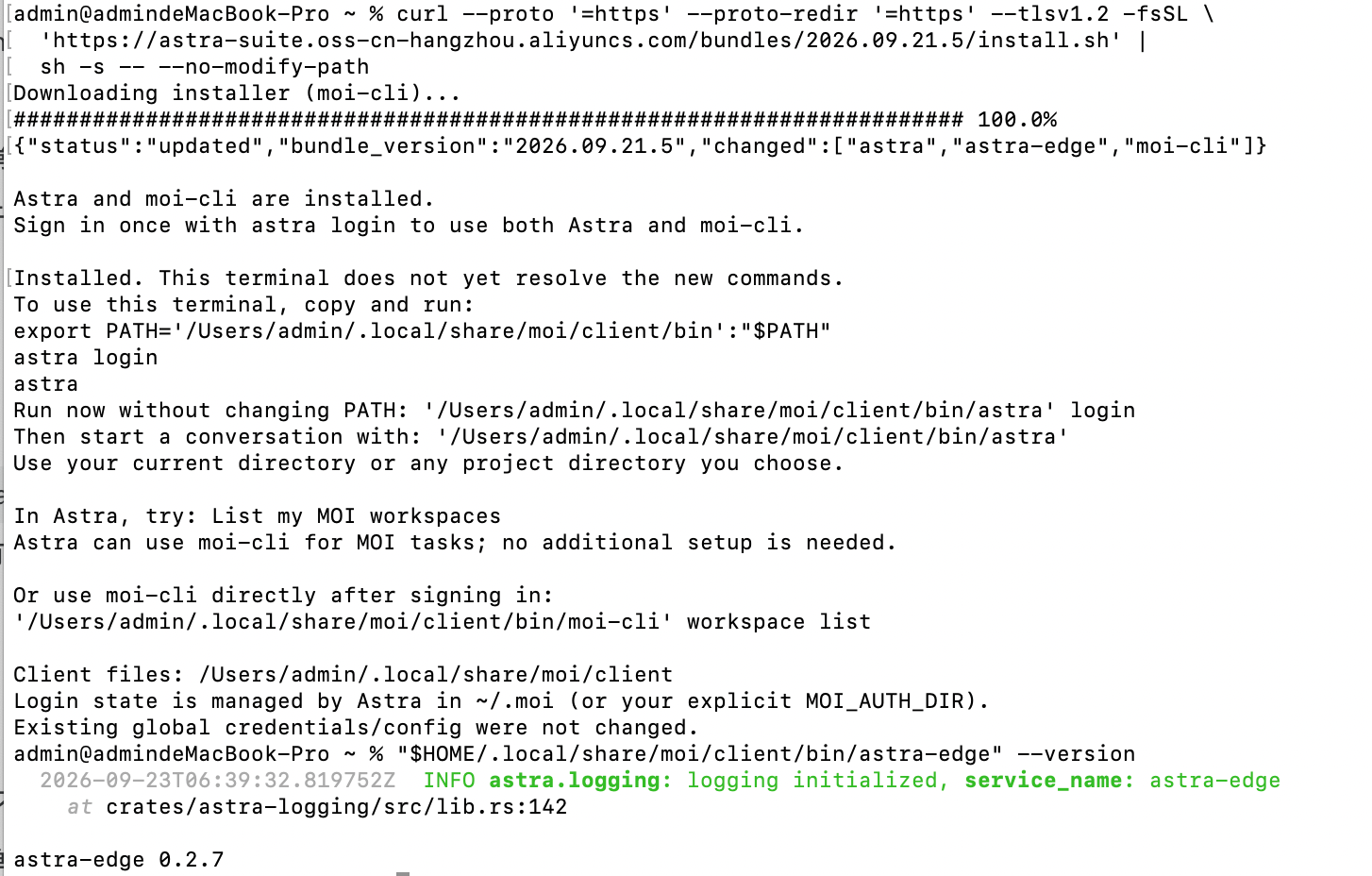
Checkpoint: running "$HOME/.local/share/moi/client/bin/astra-edge" --version on the target computer prints the version information. The client is installed, but it is not yet connected to MOI.
4. Connect to MOI from the project directory
Return to the project directory you created in step 1:
cd "$HOME/moi-runtime-tutorial"
pwd
After confirming the directory with pwd, return to the Connect your runtime environment dialog in MOI. Copy the complete command under Connect to MOI and run it in the current terminal. MOI generates this command for your runtime, and it includes access credentials. There is no reusable fixed connection command in this tutorial.
The screenshot below illustrates a successful connection. Its workspace path differs from this tutorial; for this exercise, confirm that the log shows your moi-runtime-tutorial directory.
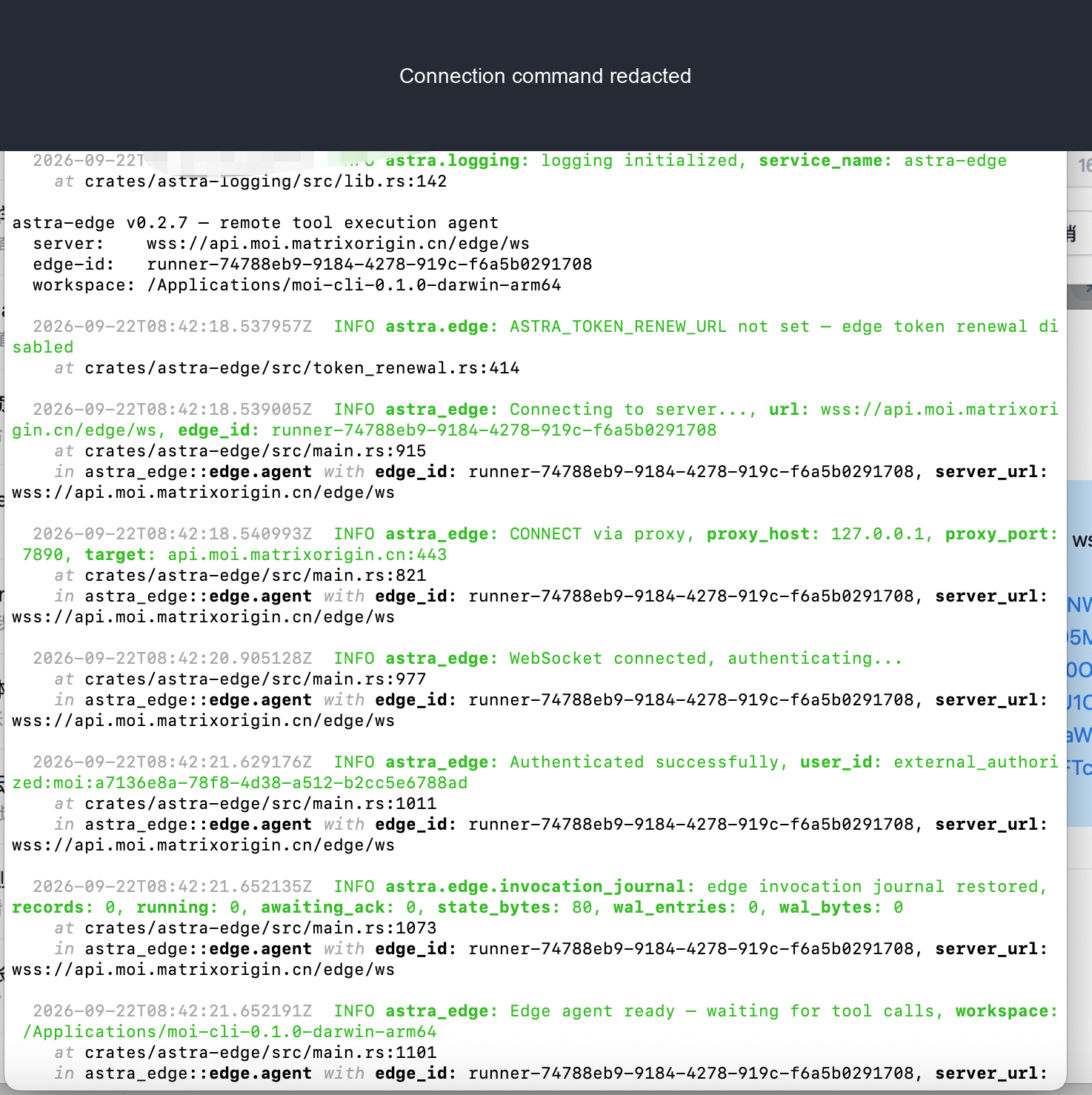
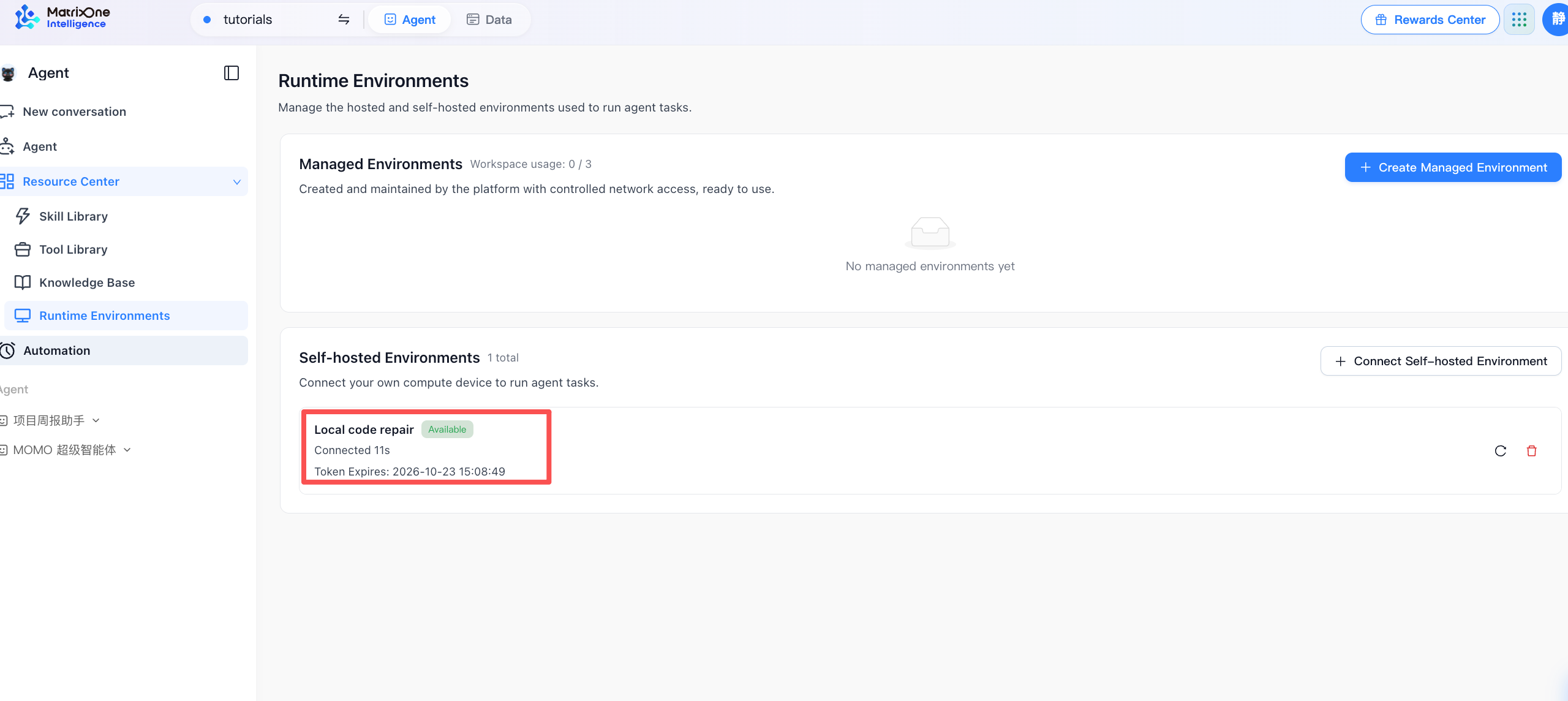
Keep the command running and leave the terminal open. Return to the runtime list in MOI and wait for Local code repair to show as Available, with its connection duration.
The agent uses the directory from which you run the connection command as its working directory. If you ran the command elsewhere, stop the connection, switch to the correct directory, and run it again.
If you closed the dialog without saving the command, use the refresh Token button in the runtime list to get a new command. Reconnect with the new command; do not continue using the old one.
Checkpoint: Local code repair shows as available or connected, and the terminal running the connection command remains open.
5. Select the self-hosted runtime in a new conversation
Click New conversation in the left navigation.
In the input area, confirm that the workspace’s general-purpose agent is selected.
Open the runtime selector. Change Default to
Local code repairunder Self-hosted runtimes.Confirm that the selector shows
Local code repairwith a connected status.
Only ready runtimes appear in the selector. If you cannot find the one you just created, return to Resource Center → Runtime Environments. Check that the connection command is still running, the device is online, and the runtime is available.
Checkpoint: the input area shows Local code repair as the selected runtime before you send a message.
6. Ask the agent to reproduce the failure and identify the root cause
Paste the following prompt into the input area and send it:
Investigate the failing tests in the current local repository. Please:

1. Run pwd and git status --short to confirm the project directory and the baseline for changes.
2. Read shipping.py and test_shipping.py.
3. Run python3 -m unittest -v and record the failing test, expected value, and actual value.
4. Use the code and test results to identify the root cause and propose the smallest possible fix.
5. Explain which checks should be rerun after the fix.

For this turn, investigate and propose a plan only. Do not modify any files, install dependencies, commit Git changes, or access anything outside the current working directory.
The agent can now read the complete files on your device and run the actual tests. Wait for it to finish investigating, and keep the terminal running astra-edge open.
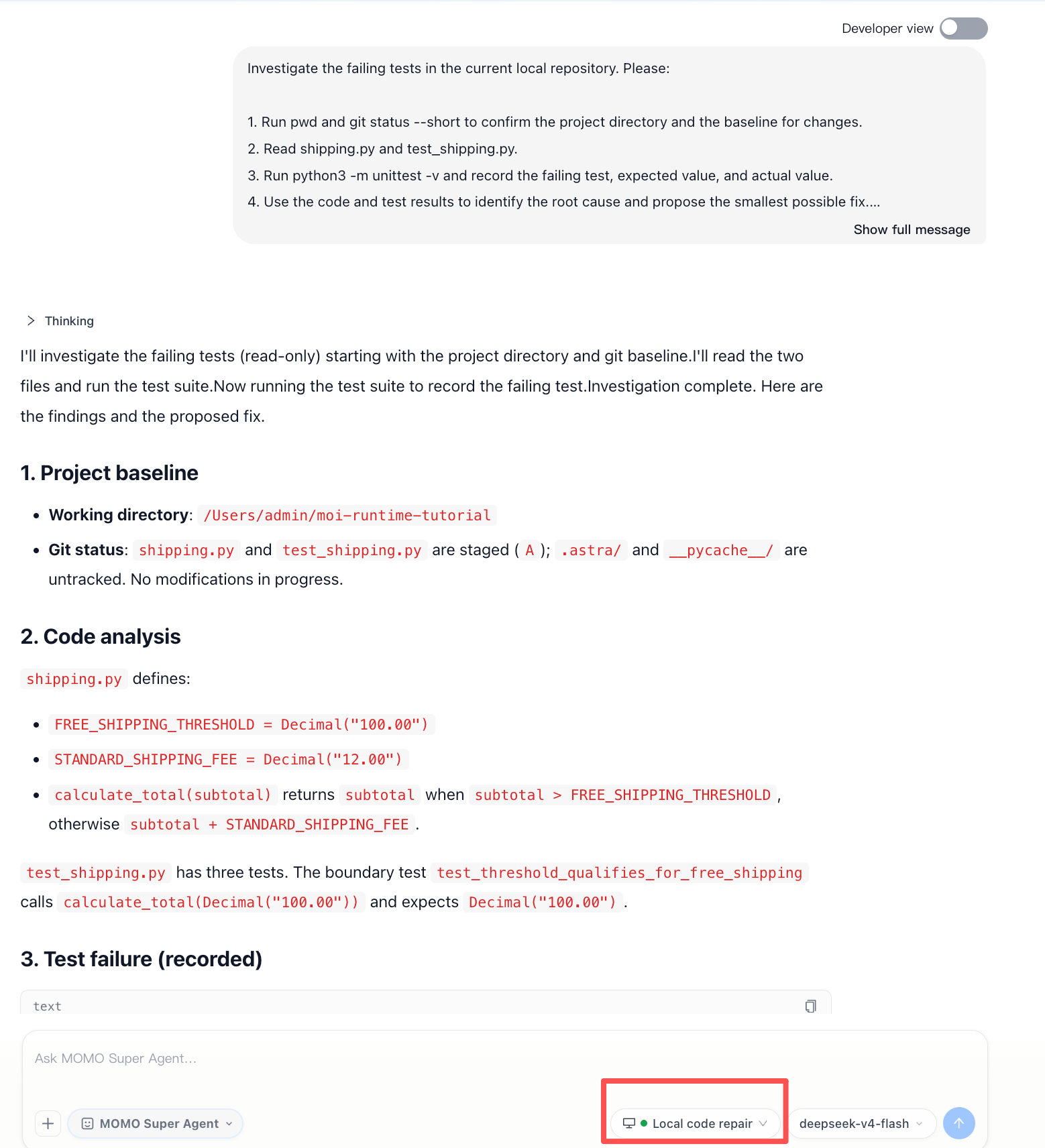
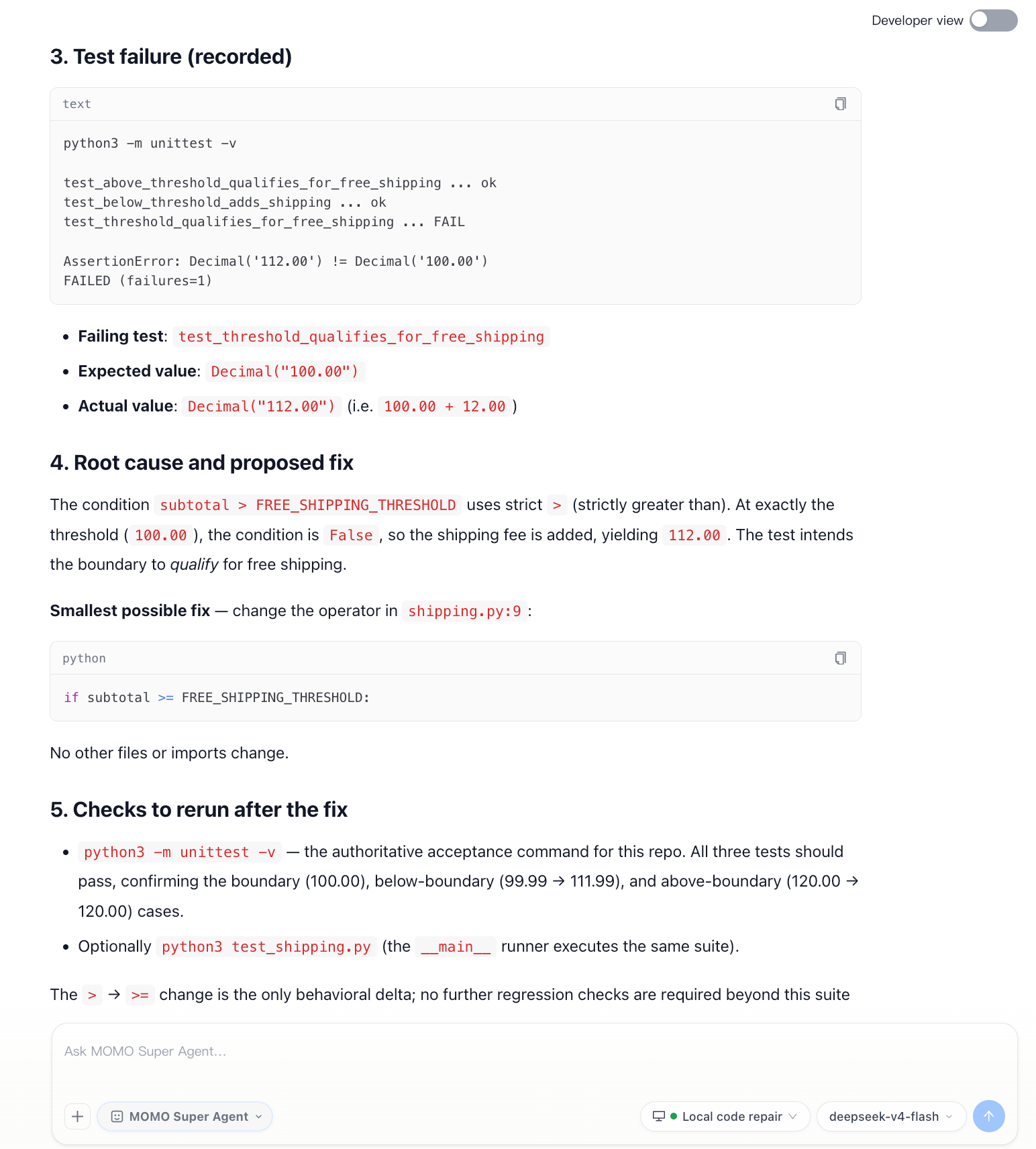
Check that its diagnosis includes this evidence:
The current working directory is
moi-runtime-tutorial.It ran three tests, and
test_threshold_qualifies_for_free_shippingfailed.For an amount of
100.00, the expected result is100.00, but the actual result is112.00.The root cause is the strict greater-than comparison in
shipping.py. Orders exactly at the threshold do not enter the free-shipping branch.The proposed fix changes only the boundary comparison, without modifying the tests or introducing dependencies.
The following example shows the project baseline and code analysis, the recorded test failure, and the proposed fix and verification plan. No code has been changed at this stage.
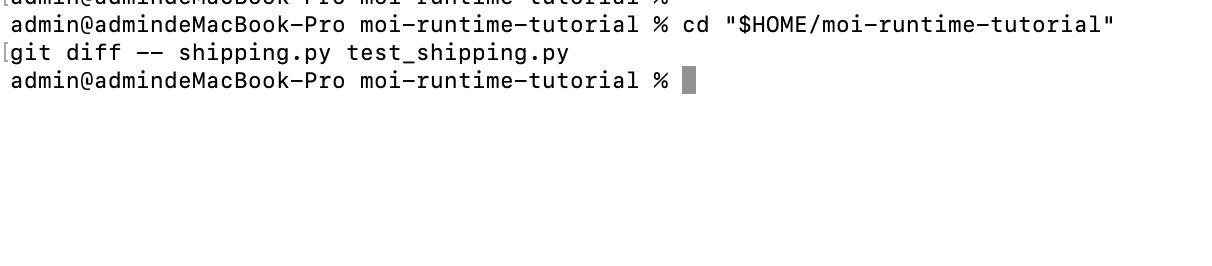
Open another local terminal and run:
cd "$HOME/moi-runtime-tutorial"
git diff -- shipping.py test_shipping.py
The command should show no differences, confirming that the agent followed the instruction to investigate without editing. If there are changes, pause here. Review them and restore your confirmed baseline before continuing.
If the agent cannot find the project, check the pwd result in its response. If the path is wrong, stop the local connection, enter moi-runtime-tutorial, run the connection command again, and retry in a new conversation.
Checkpoint: the agent provides a root cause and a minimal fix supported by test output, and the working files are unchanged.
7. Approve the plan and let the agent fix the bug
After verifying the diagnosis, send this prompt in the same conversation:
I have reviewed the diagnosis and approve the minimal fix. Please:

1. Modify only shipping.py. Do not modify test_shipping.py.
2. Fix the bug that charges shipping when the order amount equals the free-shipping threshold.
3. Run python3 -m unittest -v and confirm that all tests pass.
4. Run git diff --check and git diff -- shipping.py to check the quality and scope of the change.
5. Create repair-report.md in the current directory. Include the failure, root cause, actual change, test results, and any remaining items that need human review.
6. In your response, list the changed files, test results, and the full path to the report.

Do not commit or push Git changes, modify tests, or access anything outside the current working directory.
The agent will edit the actual files through the self-hosted runtime and verify the change with the same local toolchain. Check that:
All three tests pass.
Only the business-logic comparison in
shipping.pywas changed.test_shipping.pyis unchanged.git diff --checkreports no whitespace errors.repair-report.mdwas created in the current directory.The agent did not commit or push any changes.
The following example shows the result after approval: a one-line code change, all tests passing, and the generated repair report.
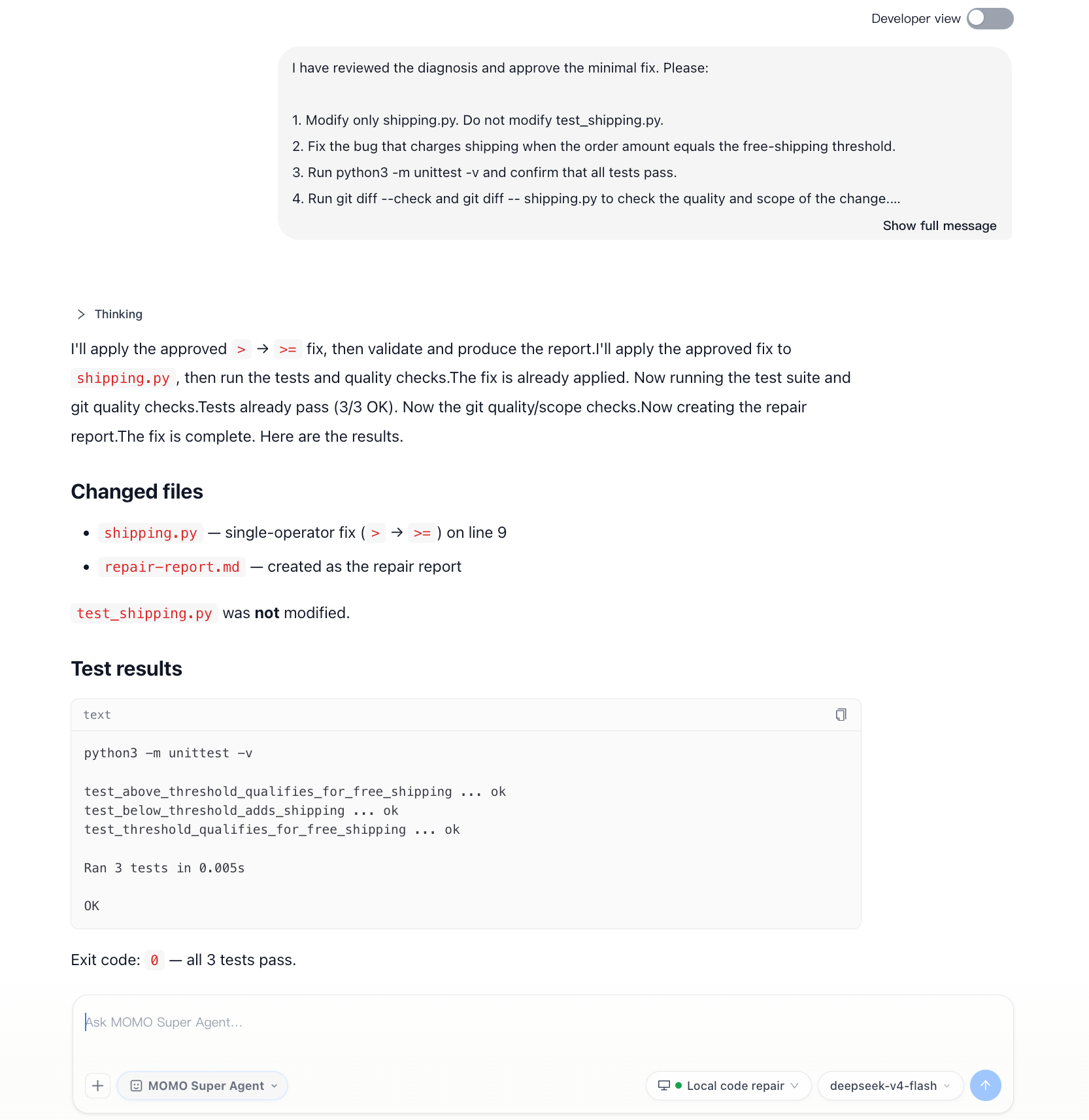
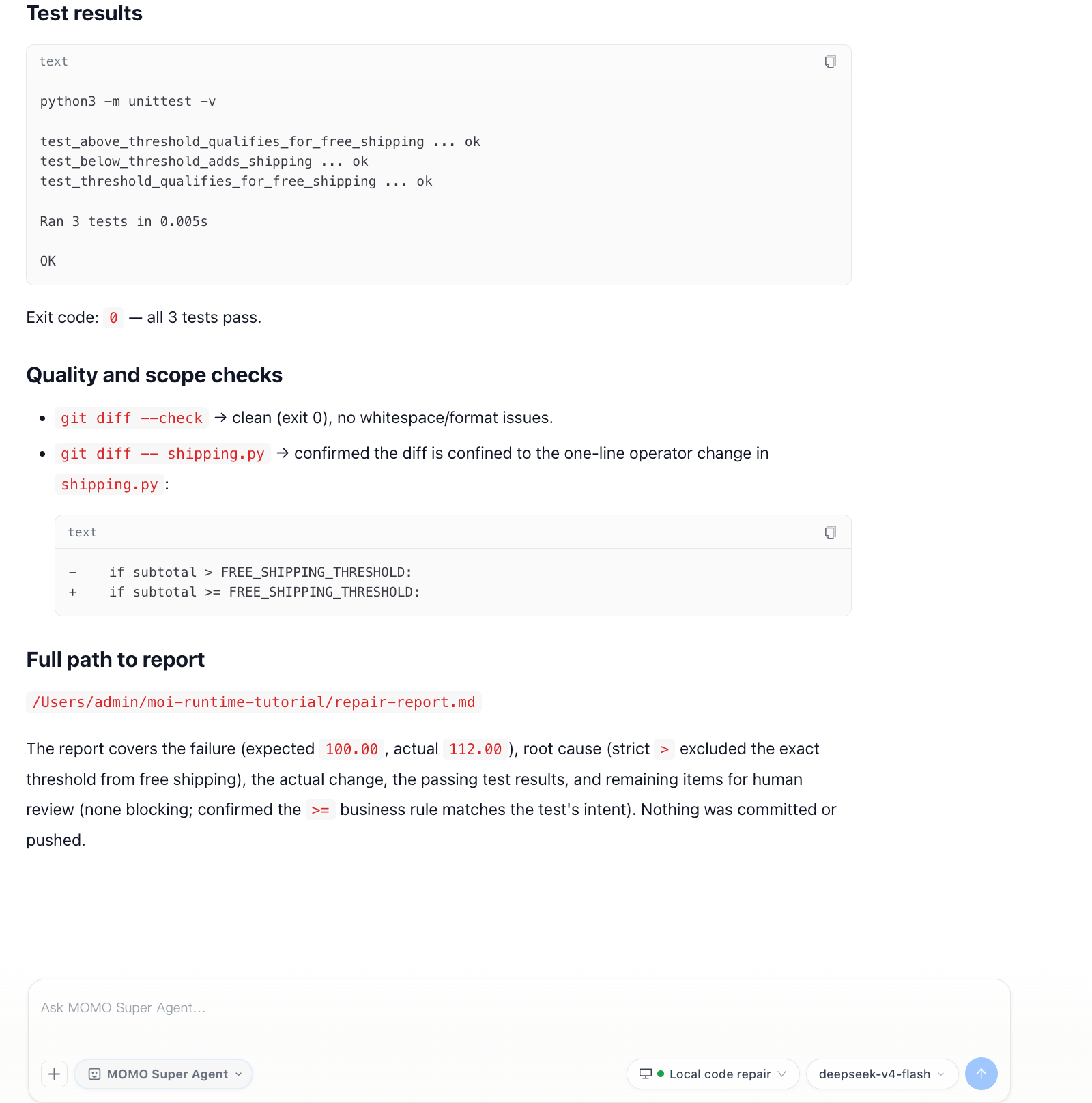
Checkpoint: the agent reports that all three tests pass, that it modified only shipping.py, and that it created repair-report.md.
8. Review the results locally
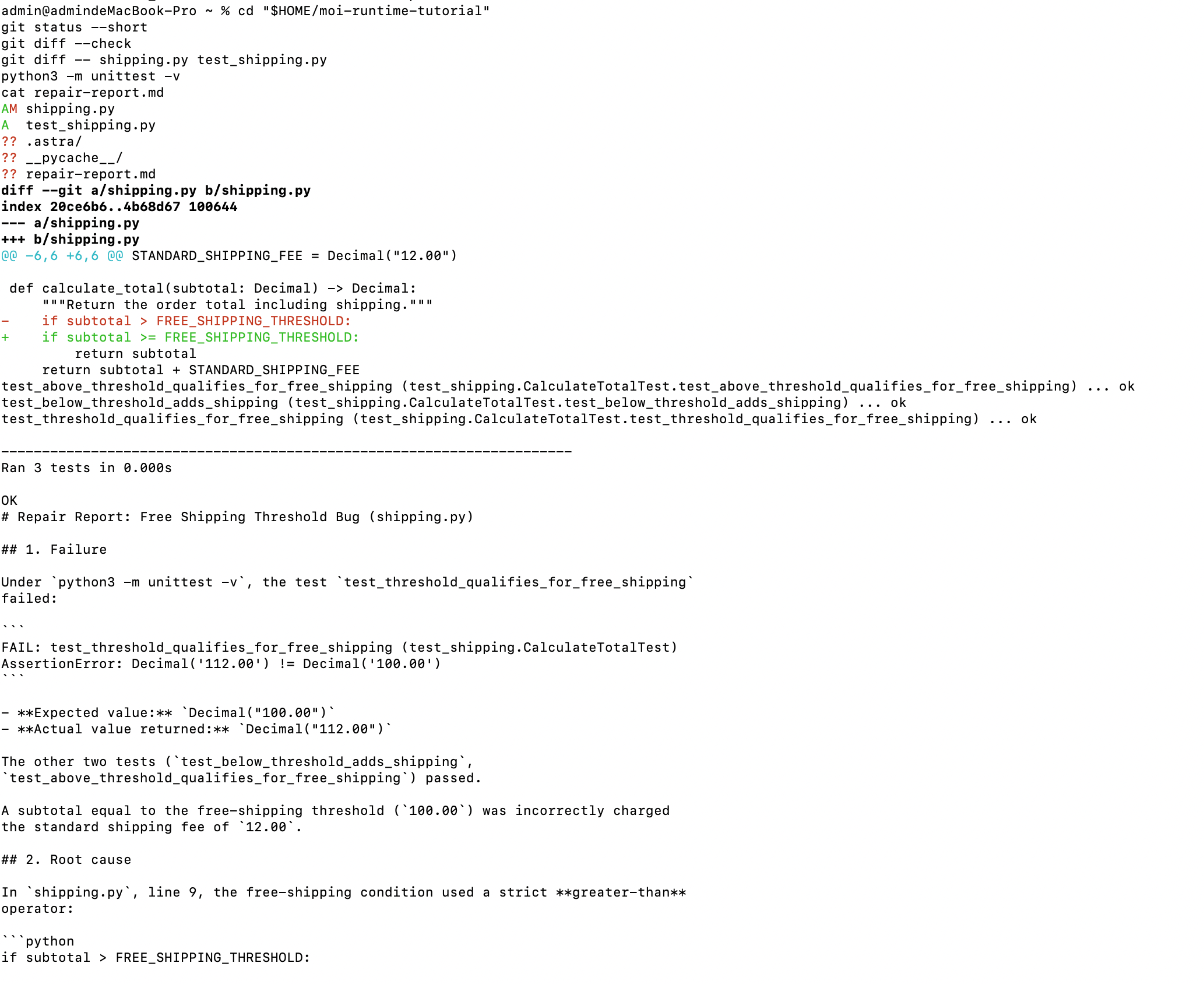
Open another terminal and run:
cd "$HOME/moi-runtime-tutorial"
git status --short
git diff --check
git diff -- shipping.py test_shipping.py
python3 -m unittest -v
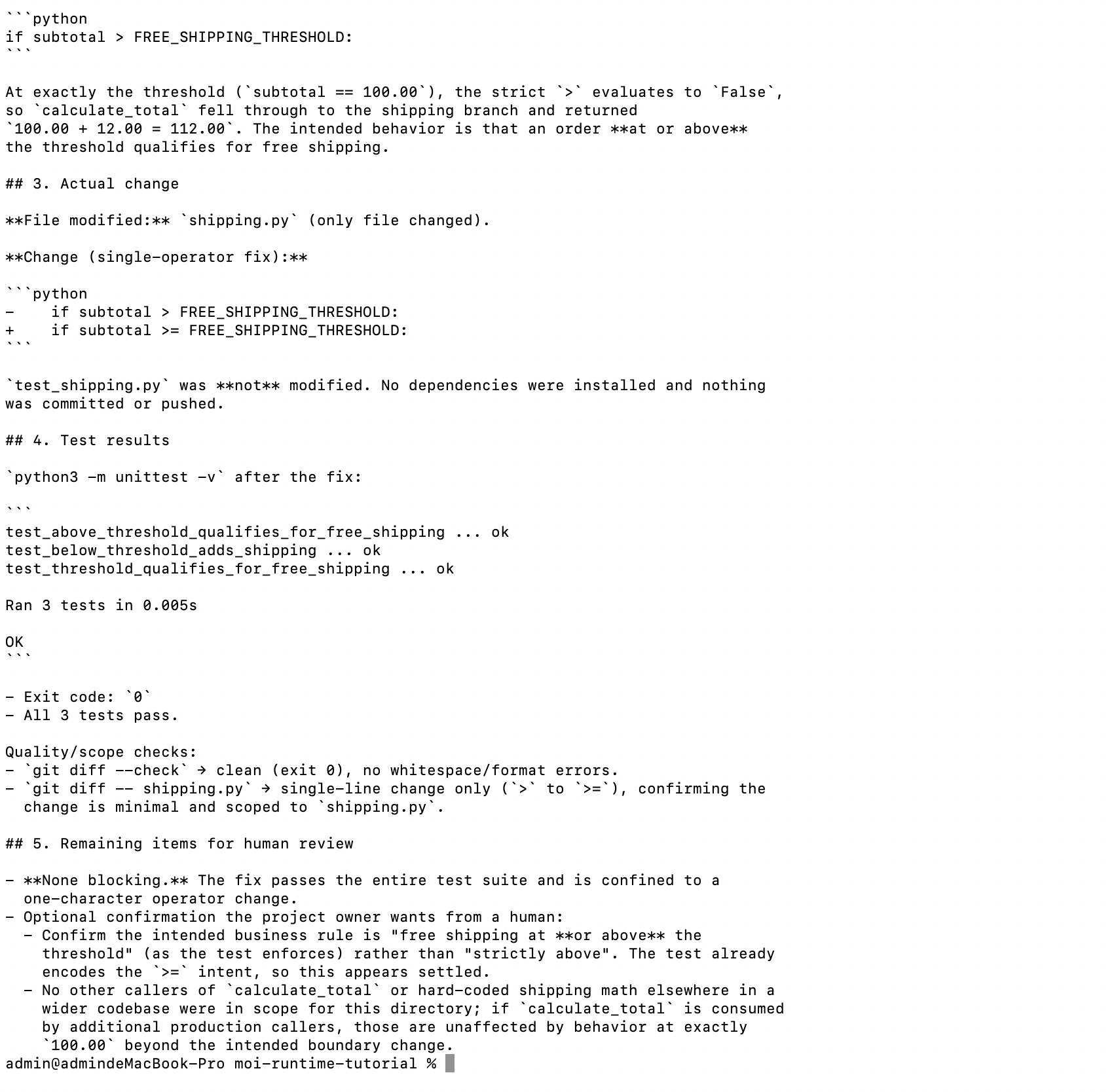
cat repair-report.md
Confirm that:
git diffshows only a change to the comparison inshipping.py.The change is equivalent to replacing
subtotal > FREE_SHIPPING_THRESHOLDwithsubtotal >= FREE_SHIPPING_THRESHOLD.test_shipping.pyhas not been modified.All three tests still pass when you run them again.
The conclusions in
repair-report.mdmatch the actual code diff and test results.
The following example shows the local code diff, passing tests, and repair report.
These changes remain in your local working directory. They have not been committed or pushed automatically. You can review them further, add tests, and decide whether to submit them through your team’s normal code review process.
Checkpoint: you can inspect a minimal code diff, passing tests, and a report supported by those results, with no changes to the remote repository.
9. Disconnect the runtime
When you finish the tutorial, return to the terminal running astra-edge and press Ctrl+C. MOI will subsequently show the runtime as disconnected, and it will no longer appear among the available runtimes in new conversations.
To use it again, enter the same working directory and run the runtime’s current, valid connection command. If the credentials have expired or you no longer have the command, refresh the Token in the runtime list and use the newly generated command.
If you no longer need the runtime, delete it in Resource Center → Runtime Environments. Deleting the runtime does not automatically remove the working directory or tutorial files from your computer. Review those files before deleting them locally.
Tutorial complete
You have connected an executable local repository to MOI through a self-hosted runtime and completed the full workflow: reproduce the failure, identify the root cause from evidence, approve the plan, change the source, rerun the tests, and review the results locally.
A self-hosted runtime brings the agent into your existing working environment. It can use the code, dependencies, compilers, test tools, scripts, and network access you already have. Its results stay in the original working directory for review with familiar Git and testing tools.
You can apply the same approach to investigating real repositories, fixing bugs, upgrading dependencies, running data scripts, or troubleshooting internal services. For tasks that do not depend on a local device and would benefit from platform-managed compute and network policies, consider a managed runtime instead.