

Organize local documents via a self-hosted runtime
Project specifications, API notes, and working drafts often live across local folders on your own computer. Sorting files manually and rewriting summaries one by one takes extra effort.
Using MOI’s self-hosted runtime environment, you can expose a designated local working directory to an agent, let MOMO Super Agent (or your workspace general agent) inspect source folders and generate structured documentation files into an output folder locally, and review the results directly on disk.
What you will do
Prepare local source and output folders and connect their parent working directory as a self-hosted runtime environment;
Select that self-hosted runtime in a new conversation and ask the agent to extract and organize local documents;
Review the generated Markdown, CSV, and JSON outputs locally, then cleanly disconnect the runtime.
Before you begin
A signed-in MOI account with permission to use agents and runtimes in your workspace;
A macOS or Linux computer (on Windows, use the Linux build inside WSL) with network access to your MOI service;
A local folder containing source documents to organize (keep only material intended for this workflow inside the connected directory).
Warning
A self-hosted runtime grants the agent read/write and command access to the working directory where you launch the connection command. Launch it from a parent directory containing only your source and output folders—do not connect your user home directory or folders holding secrets or production keys.
What must be ready before you start?
Registering a self-hosted runtime name alone does not make it usable. Complete these three checks first:
Step |
What to do |
How to verify |
|---|---|---|
Install client |
Install |
|
Connect device |
|
Runtime Environments list shows Available |
Select runtime |
Switch the runtime selector at the lower-right input bar from Default to your self-hosted runtime |
Selector displays the environment with a connected indicator |
Steps
1. Prepare local directories and connect a self-hosted runtime
Prepare a working root on your device that contains both source files and an output folder (for example $HOME/moi-docs-workspace):
mkdir -p "$HOME/moi-docs-workspace/source" "$HOME/moi-docs-workspace/outputs"
cd "$HOME/moi-docs-workspace"
Next, register and connect the self-hosted runtime in MOI (for full installation options, see Connect a self-hosted runtime environment and Fix a bug in a local repository with an agent):
Expand Resource Center → Runtime Environments in the left sidebar and select Connect Self-hosted Environment in the Self-hosted Environments card.
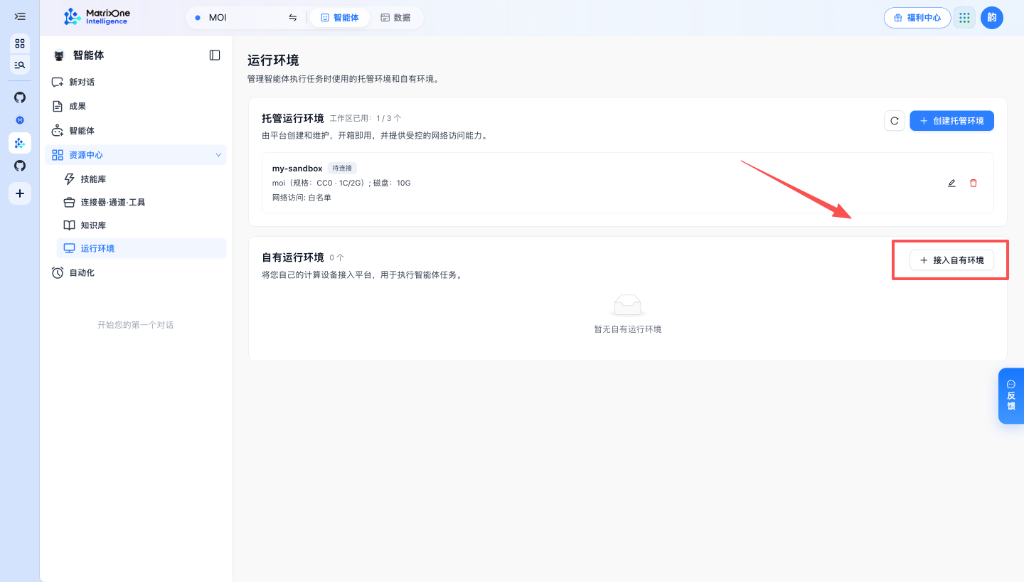
Select Connect Self-hosted Environment in the upper-right corner of the Self-hosted Environments card.
Enter a recognizable name (such as
my-computer) and submit Connect Self-hosted Environment.
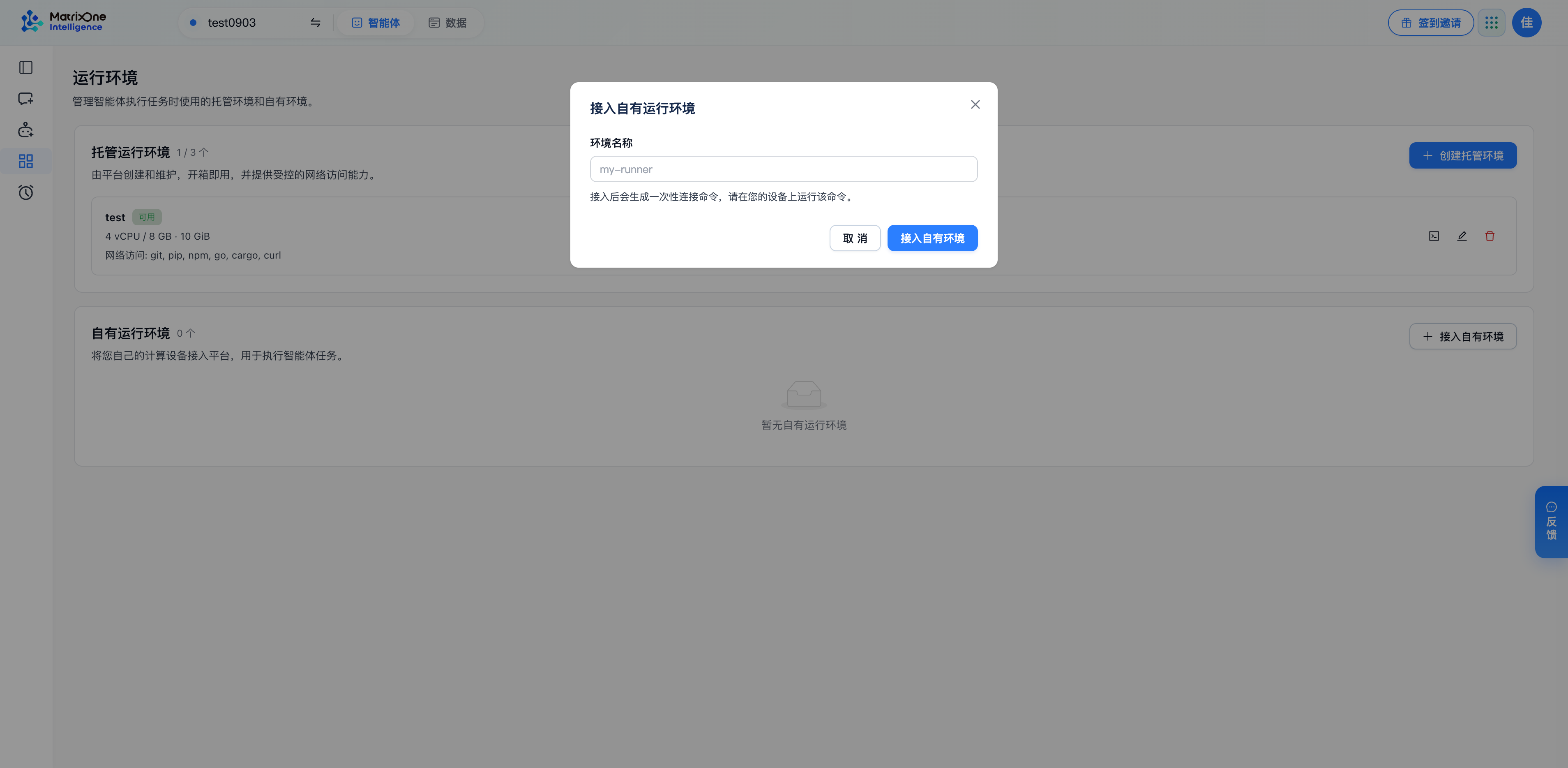
Submit a recognizable environment name to open the installation and connection command modal.
If
astra-edgeis not installed yet, expand Install or update astra-edge in the modal and run the installation command on your computer. Then confirm your terminal is in$HOME/moi-docs-workspace, copy and run theastra-edgeconnection command shown under Connect to MOI, and leave that terminal running.Refresh the Runtime Environments list in MOI and wait until the status changes to Available.
Completion check: the connection terminal stays active and the runtime status in MOI reads Available.
2. Select the runtime and ask the agent to organize documents
Open New Chat in the left navigation and make sure your general-purpose agent (for example MOMO Super Agent) is selected at the lower left.
Open the runtime selector at the lower right of the input box, switch from Default to your connected self-hosted runtime (such as
my-computer), and confirm the green connected badge appears.
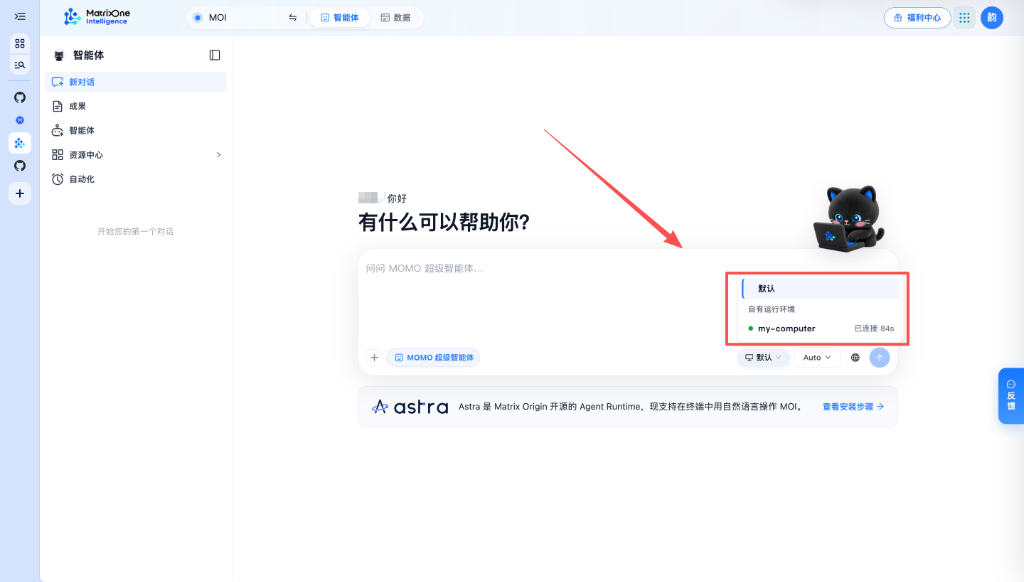
Switch the runtime selector from Default to your connected self-hosted runtime before sending the prompt.
Send a clear organization prompt referencing folders inside your bound working directory (adjust paths to match your own source and output directories):
Inspect the source folder in the active working directory, extract and organize API endpoint references and inventories,
and save a main README, grouped Markdown files, and CSV/JSON indexes under outputs/moi-api-docs.
Wait for the agent to finish scanning and writing files locally. The reply summarizes the output path, item count, and deliverables table.
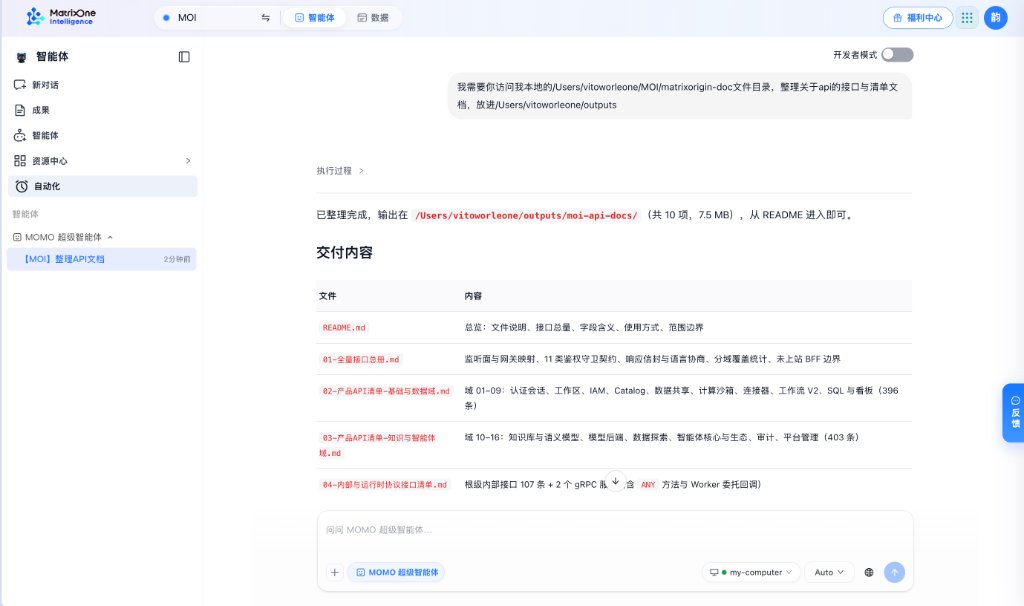
The agent reports the local output folder and deliverables table after finishing organization (example paths reflect the demo workspace).
Completion check: the agent reports the output directory path and generated deliverable summary.
3. Review the organized files locally
Open the generated folder (outputs/moi-api-docs/) in Finder or your terminal. Confirm the README.md index, grouped Markdown documents, and CSV/JSON files are complete, properly formatted, and ready for downstream use.
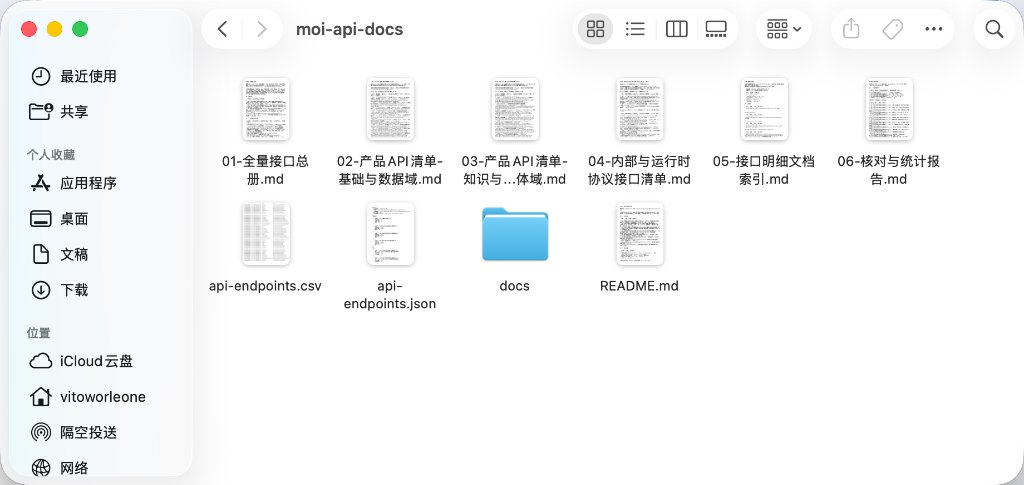
Inspect moi-api-docs locally to verify README.md, grouped documentation files, and generated index files.
Completion check: all files inside the local output directory are verified.
4. Disconnect and clean up
Once you finish reviewing the files, return to the terminal running astra-edge and press Ctrl+C to disconnect. You can optionally remove the registered entry under Resource Center → Runtime Environments; deleting a runtime entry in MOI does not remove local source or output directories on your computer.
Common issues
Symptom |
What to check |
|---|---|
Agent reports source or output directory cannot be accessed |
Make sure |
Newly registered runtime does not appear in the chat selector |
Return to Resource Center → Runtime Environments and confirm the terminal connection is still running, the device is online, and the list status shows Available. |
Output sections need refinement |
Ask the agent in the same conversation to split sections further, adjust fields, or update index files directly in place. |
Tutorial complete
You have connected a local working directory via a self-hosted runtime, asked the agent to organize local documentation outputs, and verified the generated files directly on disk. Those organized files remain in your local output folder ready for archiving, version control, or further editing.