

Connect MySQL Data to MOI
MOI brings data from multiple sources into one workspace. You can connect an external database such as MySQL, import its tables into Catalog, and work with the data in the SQL Editor.
In this tutorial, you’ll connect to MySQL and import a sample sales table with four orders. Then you’ll check the import in Execution History and compare the row count and total amount with the source.
Before you begin
Have an MOI workspace and permission to create and use connectors and import tasks.
Have a MySQL server that the MOI server can reach, along with its host, port, database name, read-only username, and password.
Make sure the MySQL account can read the target table and its schema. This tutorial uses
sales.orders. The default MySQL port is3306. If you connect through a gateway or TCP tunnel, use its assigned port.
Network note: When the hosted MOI service connects to MySQL,
127.0.0.1refers to the MOI server, not your computer. If MySQL runs only on your computer, make it reachable from the MOI server before configuring the connector.
If you already have a readable MySQL table, use your own database and table and skip the sample SQL below. Otherwise, run this SQL on a MySQL server that MOI can reach:
CREATE DATABASE sales;

CREATE TABLE sales.orders (
  order_id BIGINT PRIMARY KEY,
  ordered_at DATETIME NOT NULL,
  region VARCHAR(20) NOT NULL,
  amount DECIMAL(10, 2) NOT NULL
);

INSERT INTO sales.orders (order_id, ordered_at, region, amount) VALUES
  (1001, '2026-11-16 09:30:00', 'East China', 199.00),
  (1002, '2026-11-16 11:05:00', 'South China', 88.50),
  (1003, '2026-11-17 14:20:00', 'East China', 320.00),
  (1004, '2026-11-17 16:40:00', 'North China', 56.00);
Create a separate read-only account for the import and grant it read access only to the sales database. Keep the actual credentials out of shared scripts and screenshots.
Check the source data in MySQL:
SELECT COUNT(*) AS order_count, SUM(amount) AS total_amount
FROM sales.orders;
The sample data should return 4 rows and a total amount of 663.50.
1. Create and test a MySQL connector
Sign in to MOI and switch to the workspace where you want the target table.
Open Data. Under Data Connection, open Connectors and select Create Connector.
Enter a name such as
mysql-sales-tutorial. Choose Database → MySQL as the connector type and keep the usage set to Load.Enter the MySQL Host, Port, Username, and Password. You can enter
salesas the Database, or leave it blank and select an accessible database later.Select Test Connection. When the test succeeds, select OK to save the connector.
Check: The connector appears in the list with an Enabled status. In the next step, you’ll check that MOI can read the table schema.

2. Select the MySQL source table
Open Data. Under Data Connection, open Import Tasks and select New Import Task.
Choose Structured, then set Load Type to Connector Import.
Select
mysql-sales-tutorialas the data source, then choose thesalesdatabase and theorderstable.Wait for Field Mapping to load. Confirm that it includes
order_id,ordered_at,region, andamount.
Check: The orders field mapping appears. This confirms that the connector can discover the database, table, and column definitions.
3. Choose the target table and run the import
Under Load Target, choose New Table. In the Catalog, select
tutorial_data / excel_analysisand enterorders_from_mysqlas the table name. MOI creates the table at that location when the import runs.Review the field mapping. Keep all four fields selected and
order_idas the primary key. Because all four source fields areNOT NULL, clear Nullable for each one. Check that the target types match the source fields.Keep Load Mode set to Once, Initial Load Rule set to Append after existing data, and Primary Key Conflict set to Error.
When the page says the configuration is complete, select Create And Start Import.
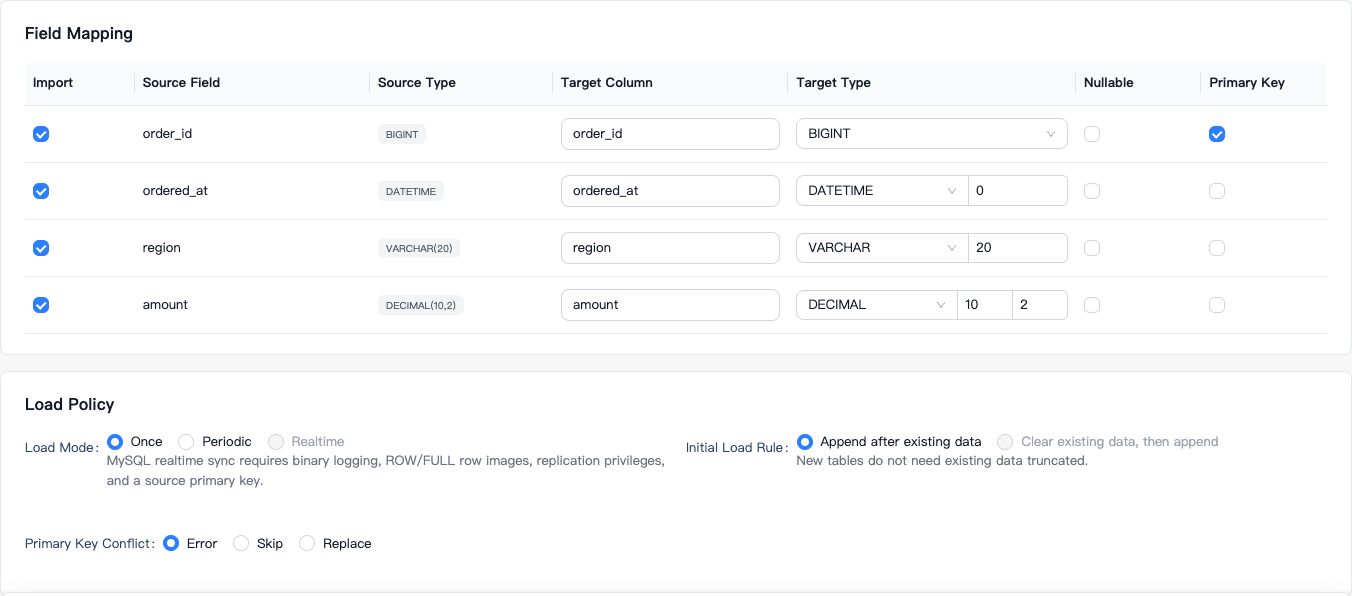
Check: The task appears in the import task list. It may show Running first. Wait until it finishes before checking the target table.
4. Verify the imported data
Open the new import task and select Execution History. Confirm that the run status is Completed. With the sample data, the record should show 4 rows imported.

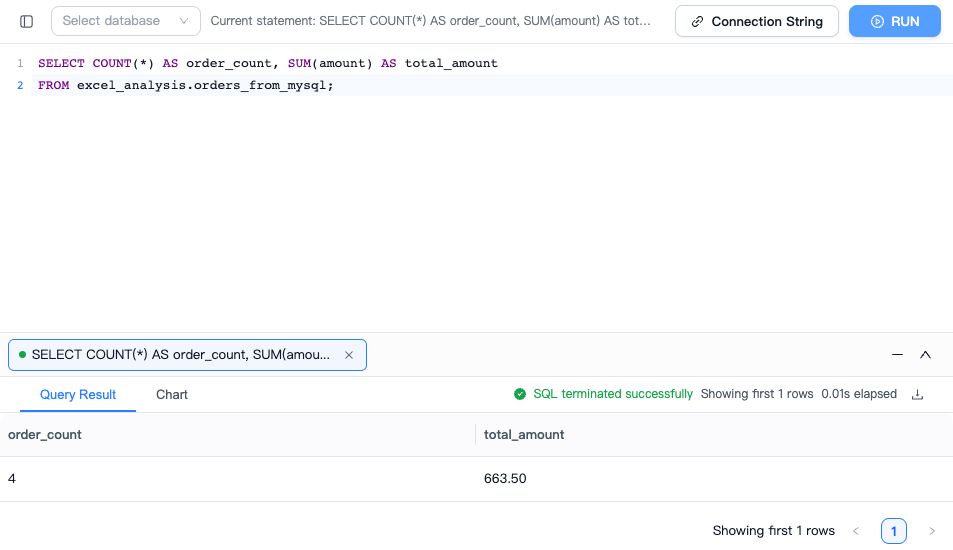
Then go to Data → Data Processing → SQL Editor and run the following queries. If you chose a different target database, replace excel_analysis with its name.
SELECT COUNT(*) AS order_count, SUM(amount) AS total_amount
FROM excel_analysis.orders_from_mysql;

SELECT order_id, ordered_at, region, amount
FROM excel_analysis.orders_from_mysql
ORDER BY order_id;
With the sample data, the queries should return 4 rows and a total amount of 663.50. The order_id values should run from 1001 to 1004, matching the source MySQL table. If you used your own table, compare the results with the source table instead.
Troubleshooting
Issue |
What to check |
|---|---|
The connection test fails |
Check the host, port, username, and password, and confirm that the MOI server can reach MySQL. Test from the network that MOI uses to reach the database. |
Connected, but the database or table is missing |
Check the read-only account’s permissions and the source database and table names. |
The connector is enabled, but database selection times out |
Run Test Connection again and check that MySQL and the network path are still available. The Enabled status does not verify live connectivity. |
The connector is missing from the import task |
Check that it is enabled, its usage includes Load, and your account has permission to use it. |
The import task fails |
Open the task detail to read the run error, then check the source schema, field mapping, and target permissions. |
The target row count differs from the source |
Check the run’s read and write counts and whether the target already contained rows. If you ran the import more than once, check for a primary key conflict in Execution History. |