
Use Genesis models in CC Switch
The CC Switch desktop app lets you centrally manage model providers for multiple local AI clients (such as Claude Desktop, Codex, Gemini CLI, OpenCode, and DeepSeek Harness). Because CC Switch includes a built-in Genesis (genesis.moi.matrixorigin.cn) provider preset, you only need an MOI personal access token as your API key, choose the models to enable, and apply the provider to your target client.
This tutorial uses DeepSeek Harness with Kimi K3 (kimi-k3) as an example. Adding Genesis for other CC Switch clients follows the same workflow.
Before starting, install CC Switch and the target client app (DeepSeek Harness in this example), and prepare an MOI account with access to Genesis.
1. Create an API token in MOI
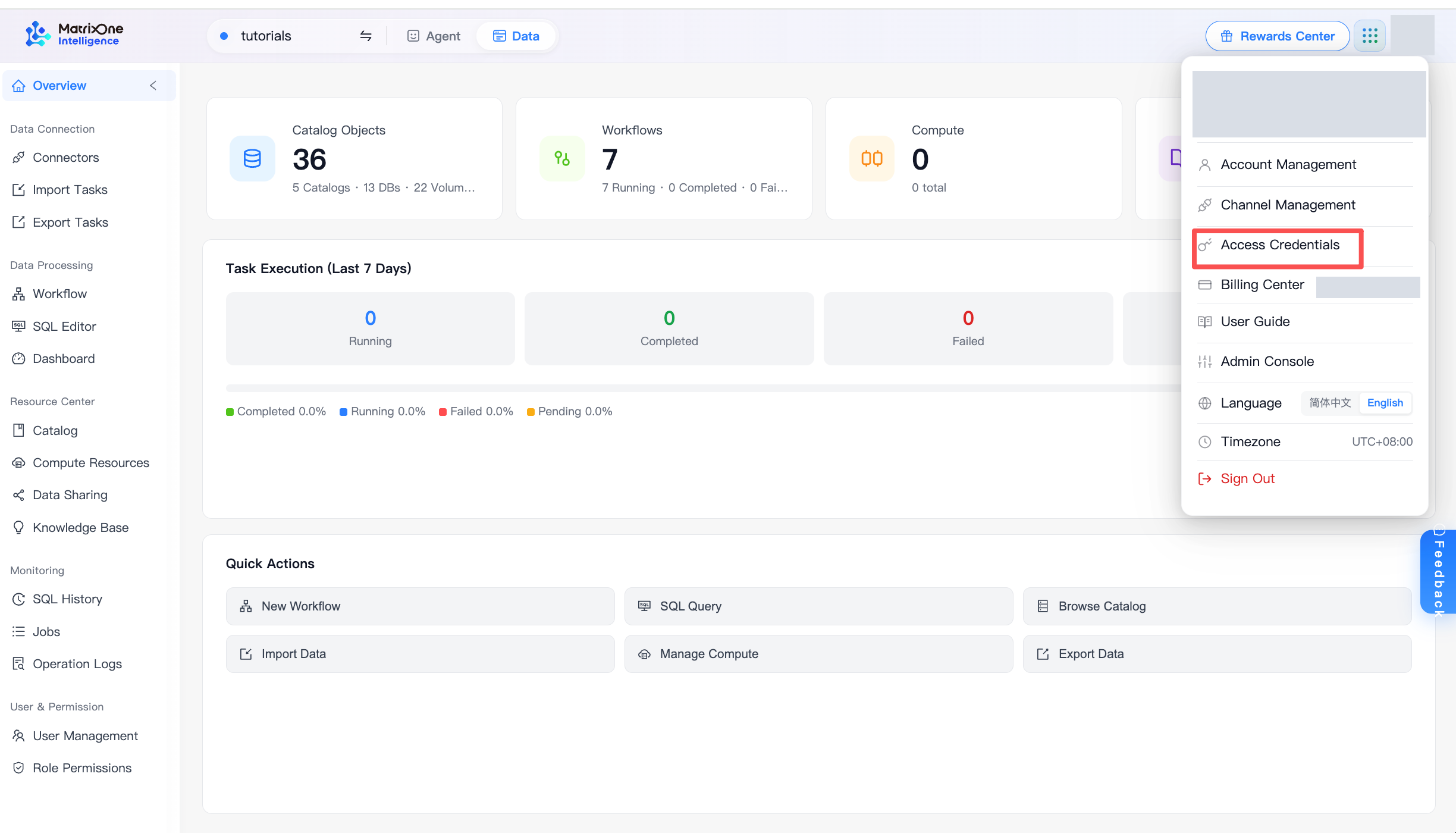
Click your avatar in MOI and select Access Credentials.
Choose Personal access tokens, then click Create token. Give it a recognizable name such as
genesis-ccswitch, pick an expiration, and create it.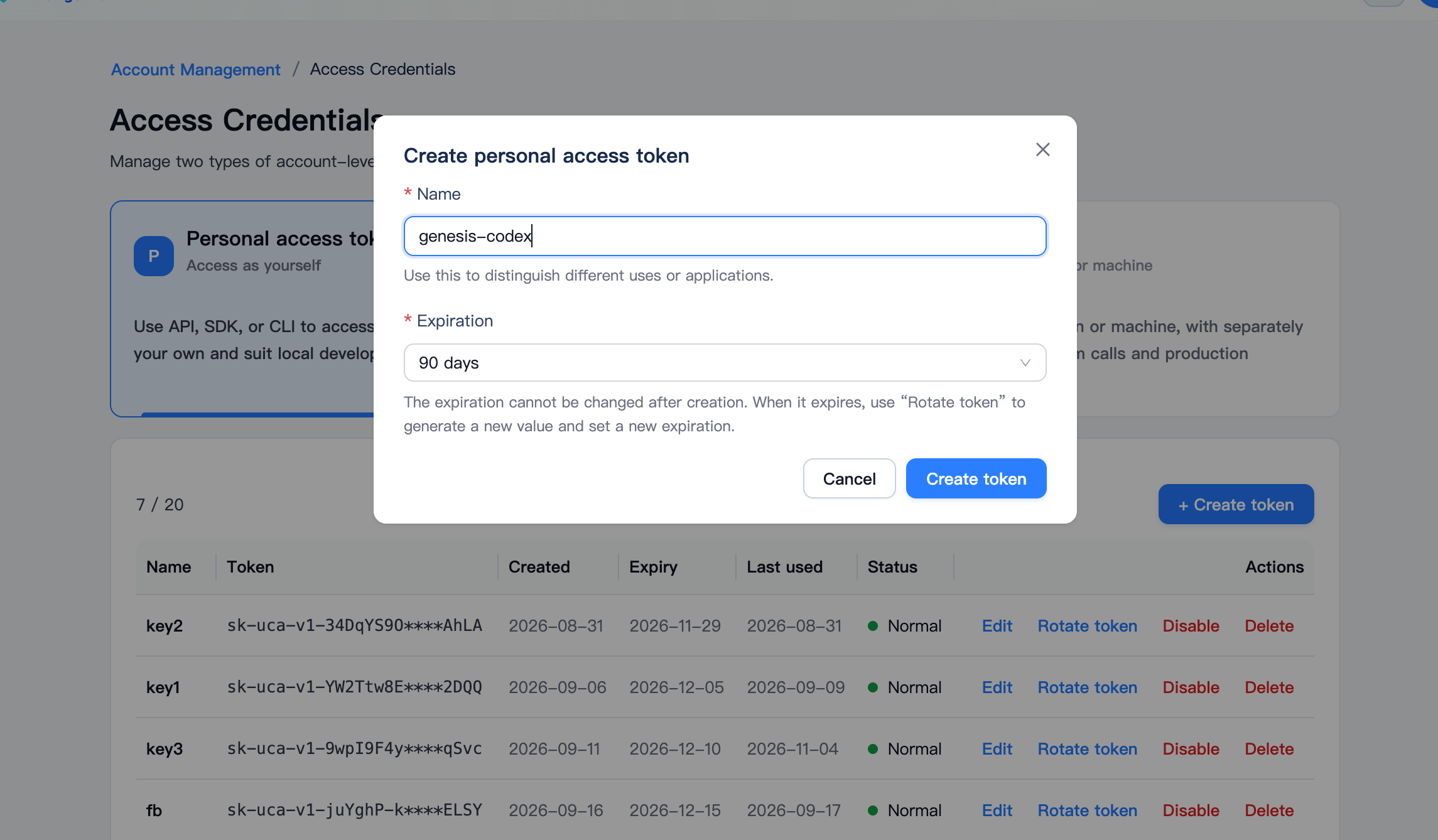
Copy and save the full token. You will paste it into CC Switch as your API key.
You can reuse an existing valid personal access token instead of creating a new one.
2. Add the Genesis provider in CC Switch
Open CC Switch, select the target client in the left sidebar (this example selects DeepSeek Harness), and click Add Provider.
Choose Third-party Platforms on the left, then locate and select Genesis (
genesis.moi.matrixorigin.cn).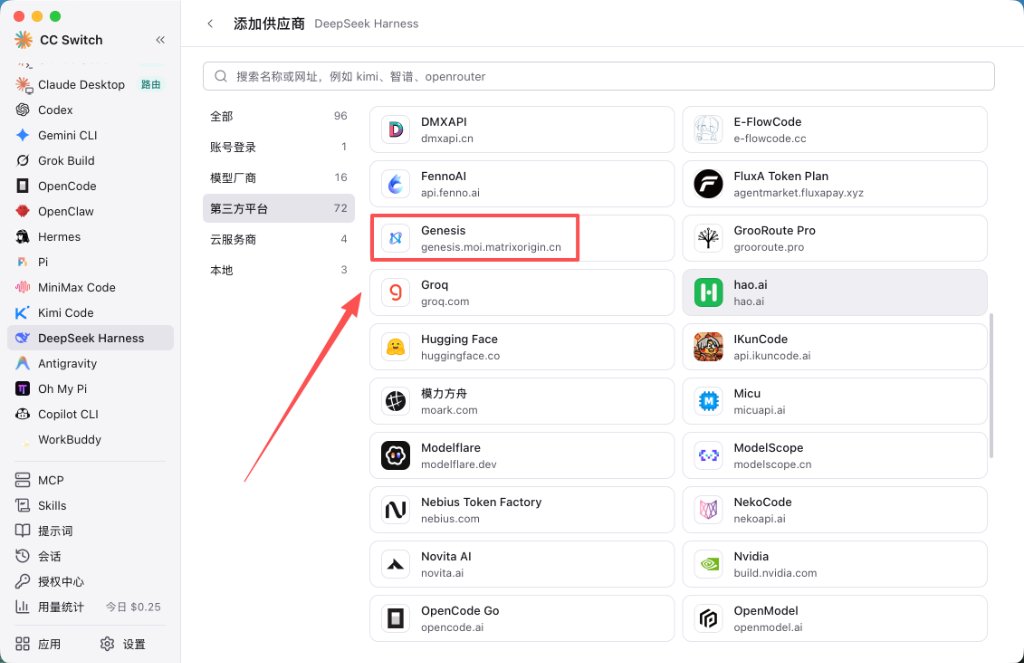
In the provider form, the Genesis preset fills in
https://token.moi.matrixorigin.cn/v1(baseURLin Config JSON). Paste your MOI token into the API Key field and check Config JSON to confirmbaseURLandapiKey. Under Model Configuration, click Select Models (or + Add Manually to enter a model ID manually).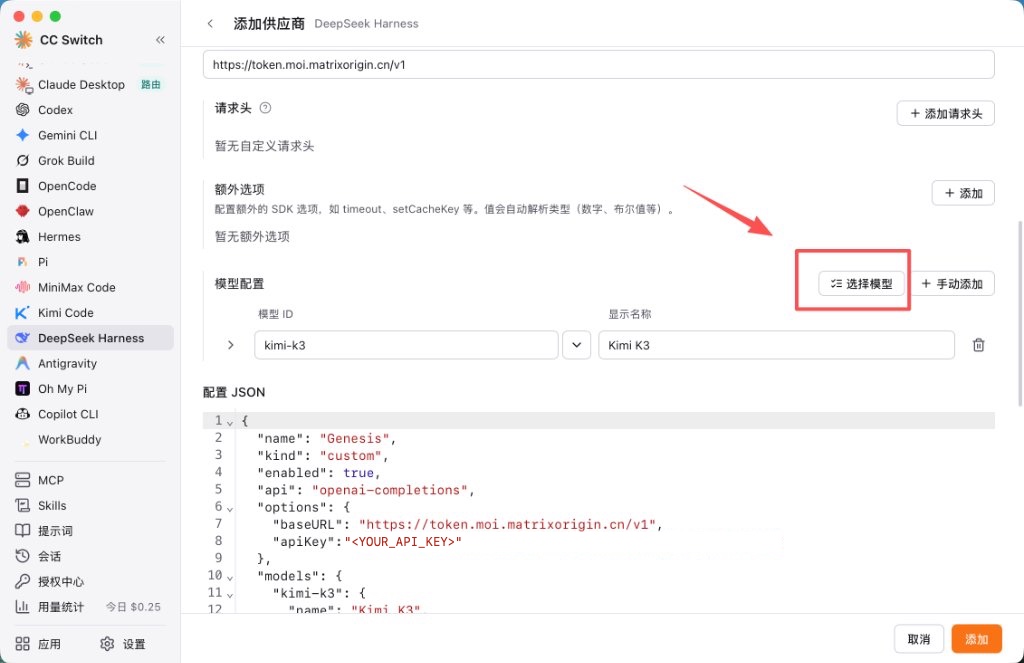
In the Select Models modal, click the Refresh icon at the upper right if you need to fetch the latest list, check
kimi-k3(and any additional Genesis models you want, such asglm-5.3ordeepseek-v4.1-flash), and click Apply.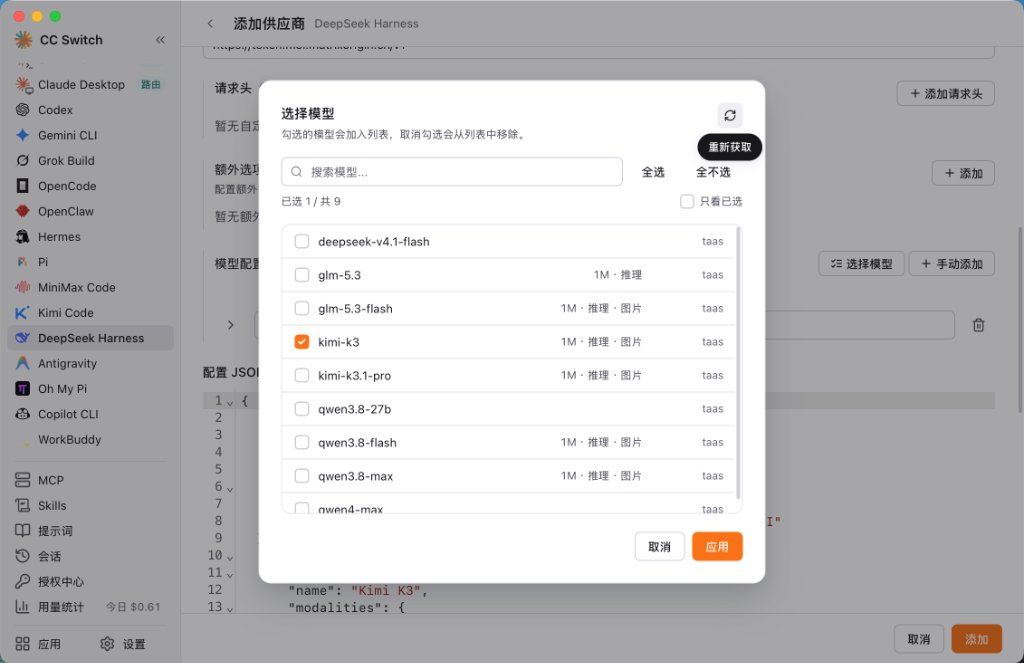
Back on the provider form, verify
kimi-k3/Kimi K3and Config JSON, click Add at the lower right to save, and make sure the Genesis provider is enabled for that client.
3. Select the model and verify in the client
Open DeepSeek Harness (or the client you configured in CC Switch) and start a new conversation.
Open the model picker at the lower right of the input box and select Kimi K3 under Genesis.
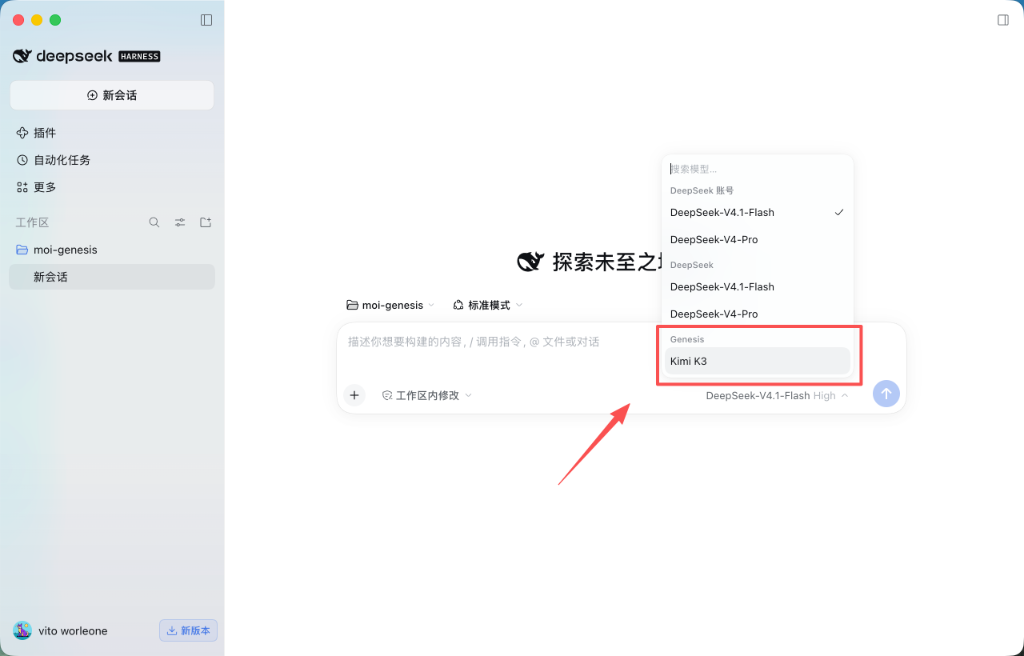
Send a short check prompt, for example:
What model are you?
Confirm that the client returns a response identifying Kimi along with elapsed time and token usage counters.
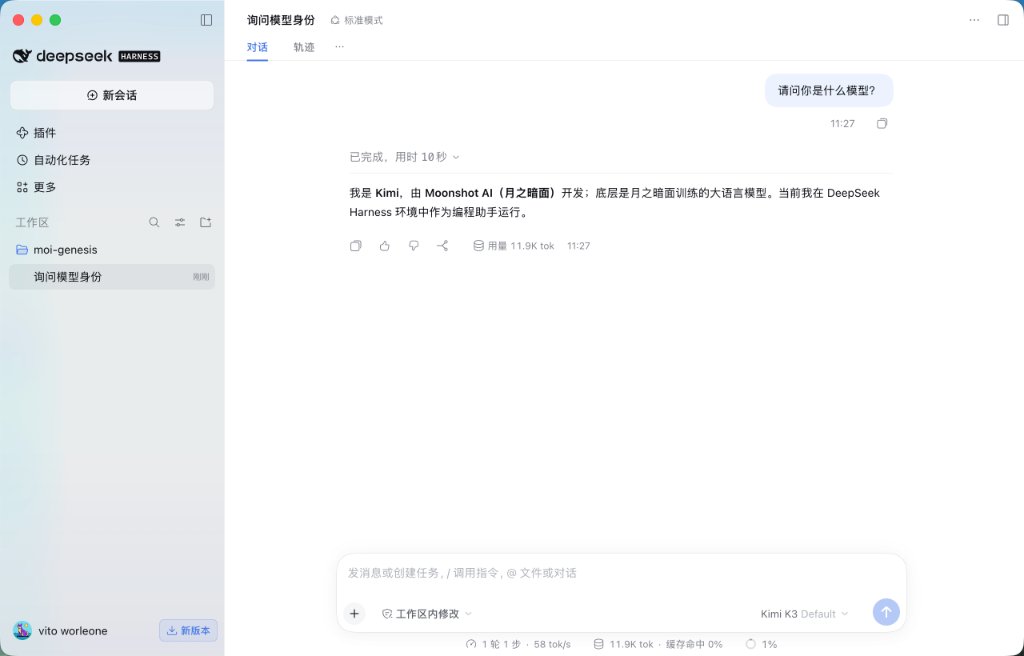
Optionally open Logs in Genesis to confirm the request ran against
kimi-k3.
You have configured Genesis in CC Switch and verified a live conversation in your target client. If you prefer direct client setup without CC Switch, see Use Genesis models in Codex App and Use Genesis models in WorkBuddy.