
Two-way messaging
Two-way messaging connects an MOI agent to WeCom, Feishu, or Slack. Send a message in your messaging app and receive the agent’s reply in the same conversation. Agents can also process supported files and return generated files. Open the corresponding conversation in MOI to review messages and results. File transfers depend on the platform’s capabilities and the permissions granted to the connection.
Supported platforms
MOI manages a long-lived connection to each supported platform. No public domain, callback URL, or tool instance is required.
Platform |
Connection method |
What to prepare |
Instructions |
|---|---|---|---|
WeCom AI Bot |
Long-lived connection |
A WeCom account for QR code authorization |
|
Feishu App Bot |
Long-lived connection |
App ID and App Secret |
|
Slack App / Bot |
Long-lived connection using Socket Mode |
App ID, App-Level Token, and Bot Token |
How this differs from tools
Messaging tools in the tool library let agents call platform capabilities, such as sending application messages or querying contacts. Those tools require a tool instance bound to the agent. Two-way messaging lets people start conversations with an agent from their messaging app; configure it from the agent’s card.
Before you begin
Create the target agent and make sure the workspace has an available agent chat model. Select a runtime model when configuring the connection.
For WeCom, have an account that can sign in and confirm QR code authorization.
For Feishu or Slack, have permission to create and configure an app on the platform.
Open the connection settings
Open Agent at the top of MOI, then select Agents in the sidebar.
Find the target agent’s card, open its ⋯ menu, and select Two-way messaging.
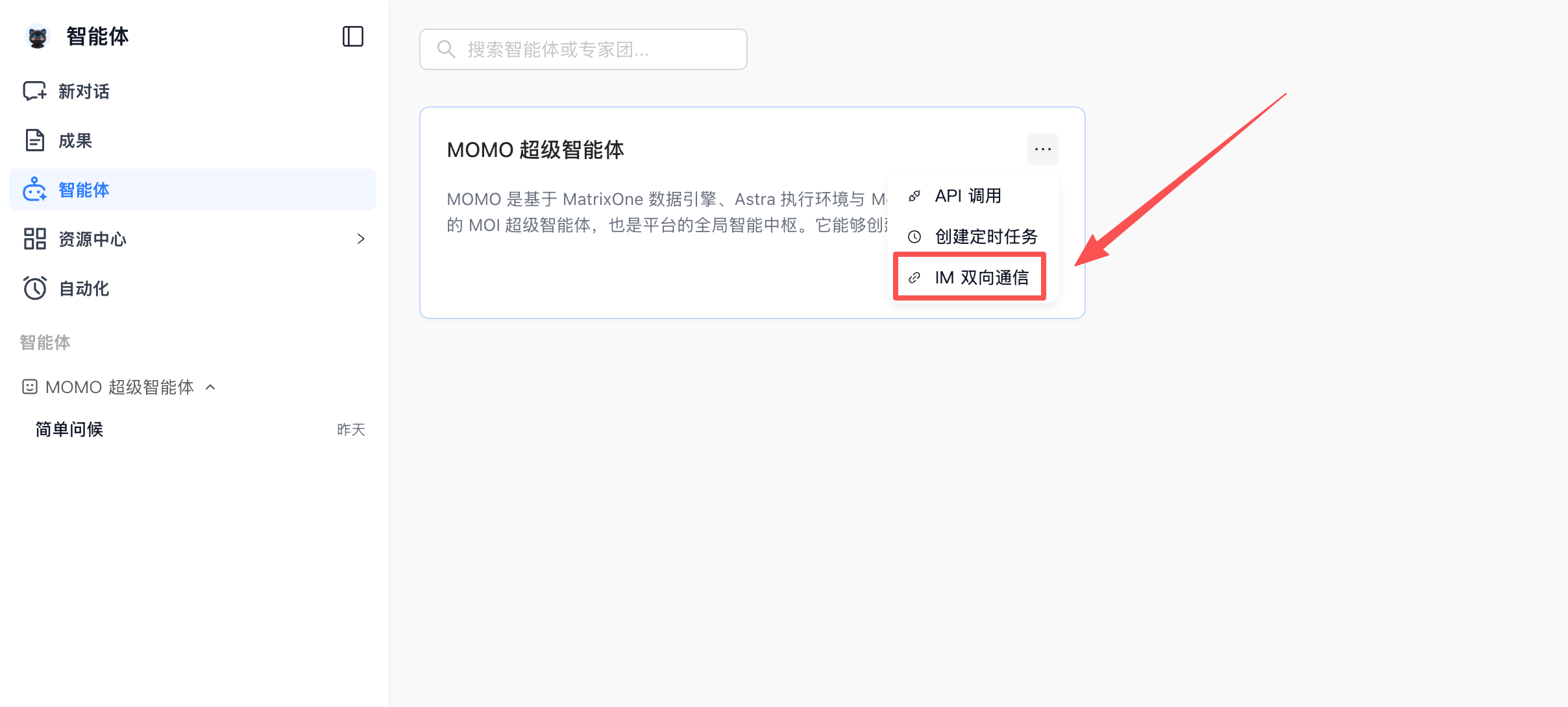
Open Two-way messaging from the target agent’s card menu. The screenshot shows the Chinese interface.
In the configuration dialog, select a platform. Authorize WeCom by scanning a QR code, or enter the credentials described in the Feishu or Slack guide. Select a Runtime model, then click Save and continue to open Enable managed connection.
Saving starts the connection process. Connection established confirms that the connection is open. Real message received confirms that MOI has received an incoming message. Send a test message and confirm that the agent replies in the original conversation to verify the complete flow. See Connection status and troubleshooting.
Use the connection
After setup, you can chat with the agent, send supported files, receive generated files, and manage sessions with !moi commands. See Use a connected agent.