

Prepare Document Knowledge Base
Parse and chunk manuals, reports, and other material into a knowledge base, while saving parsed files and source relationships. After processing, retrieve document content from the knowledge base and inspect the saved files.
This template builds a text index. For page or document-image retrieval, use Prepare Document Knowledge Base with Image Index. For engineering drawings, use Drawing Parsing.
Prepare your resources
Resource |
What to prepare |
|---|---|
Source files |
Upload material to a Catalog volume. Start with a familiar PDF or Word manual so you can check the results |
Knowledge base |
Select an existing knowledge base or create one during configuration; it supplies the text index table and embedding model |
Output location |
A Catalog volume or directory for parsed results |
Check the source and destination separately so saved results are easy to locate. For audio or video, use the speech or video template.
Load the template
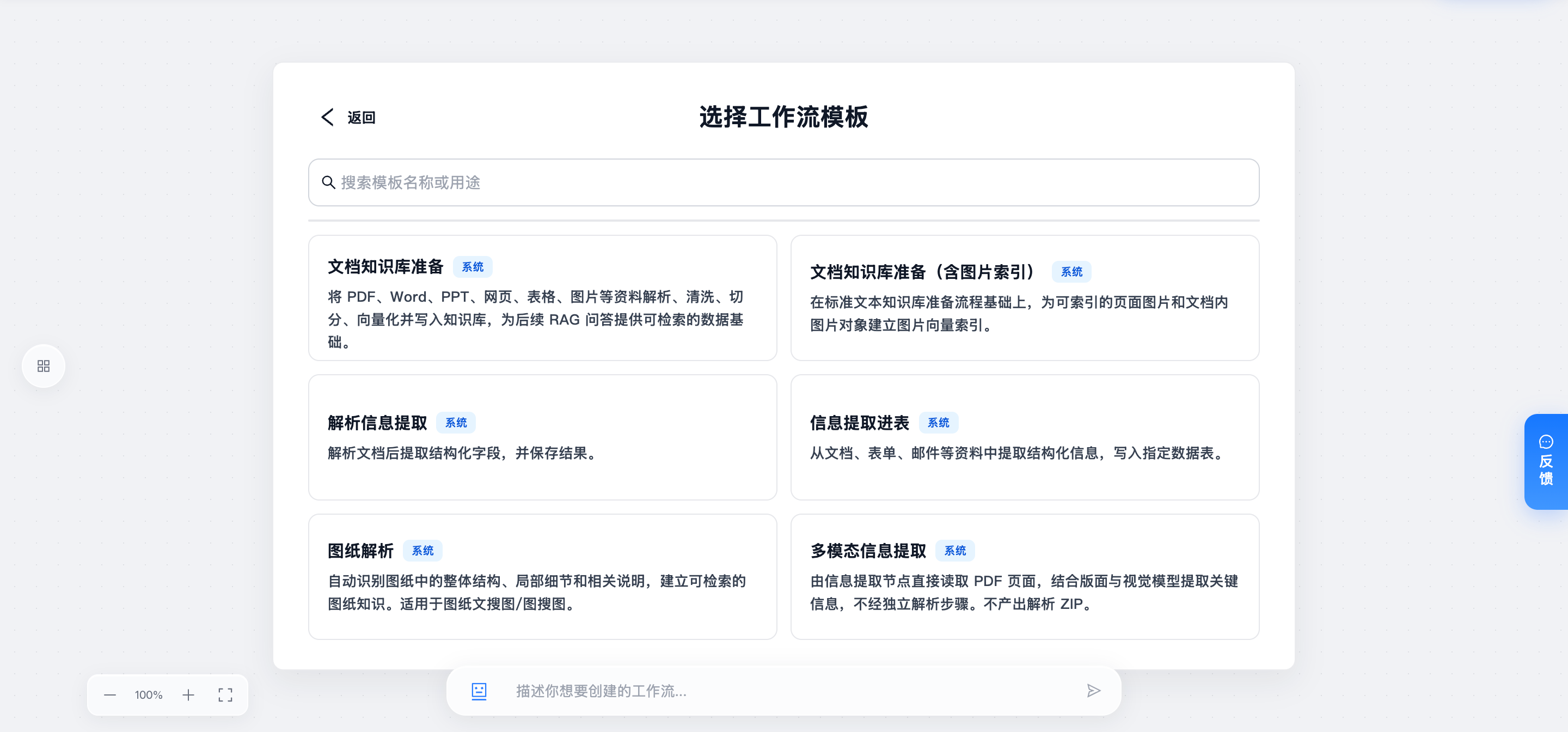
Select Start from a template on the workflow creation page.
Search for Prepare Document Knowledge Base and load it onto the canvas.
Review the processing steps, then fill in the run parameters.
The screenshot shows the template selection entry in the Chinese interface.
Understand the processing steps
The diagram follows the template’s execution order. Each box describes its data; arrows show sequencing.
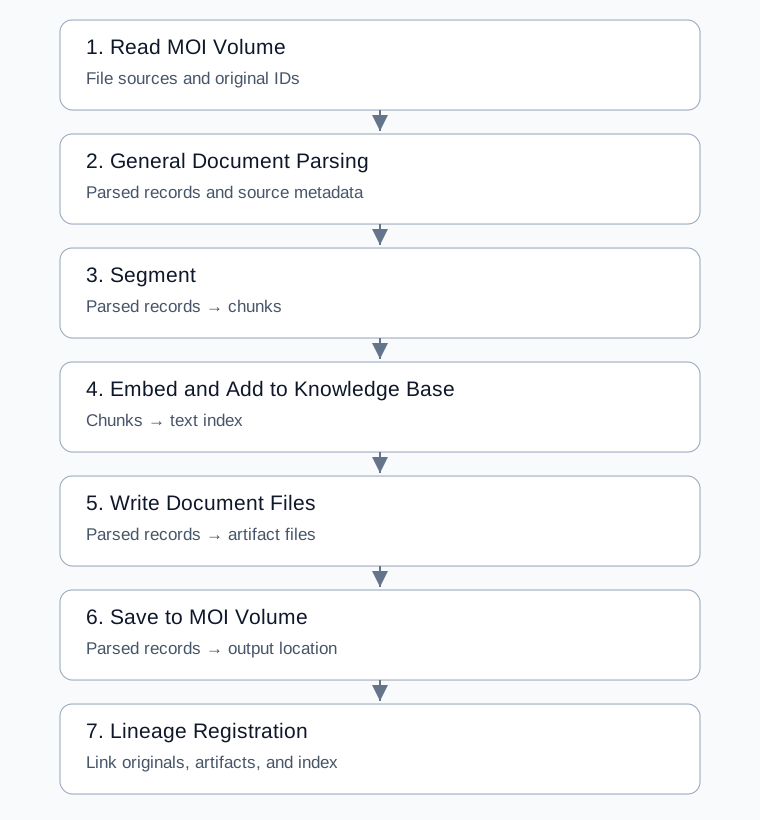
Read MOI Volume selects files and obtains source references and original file IDs.
General Document Parsing reads files into records containing content and source metadata.
Segment splits parsed documents into chunks for indexing.
Embed and Add to Knowledge Base generates chunk vectors and writes them to the selected index table.
Write Document Files writes parsed records to files used for lineage registration.
Save to MOI Volume saves parsed documents at the chosen destination.
Lineage Registration records relationships among originals, parsed artifacts, saved results, and the text index.
Indexing uses chunks; file-writing steps use the parsed documents before chunking. Downloaded record counts can therefore differ from chunk counts and index row counts.
The template supplies these bindings. When editing nodes, retain separate references to parsed and chunked documents so saving does not accidentally use another intermediate output. See Variables and data flow.
Configure processing
Select sources and destinations
Setting |
What to select |
|---|---|
Source files |
Files or a volume; check scope and types when selecting a whole volume |
Parsing tier |
Required; defaults to Standard |
Knowledge base |
Select or create the text-index destination and check its embedding model |
Output location |
Volume or directory receiving parsed results |
When reading a volume, filter by file type if needed. To inspect part of a document, set a page range such as 1-3. Pages start at 1; leaving the range empty processes all pages.
Choose a parsing method
Material |
Suggested configuration |
|---|---|
Ordinary manuals and reports |
Start with Standard and inspect text and tables |
Office documents with native text and structure |
Try Native and check that the required structure is retained |
Scans, complex tables, formulas, or multiple columns |
Use Enhanced and adjust table, image, and reading-order options |
See General Document Parsing for enhanced settings. Check parsed content before deciding whether chunking needs adjustment.
Adjust chunking and indexing
These defaults apply to this template.
Setting |
Default |
Purpose and adjustment |
|---|---|---|
Chunk size |
512 |
Target character length for splittable text. Try larger chunks if context is missing, or smaller chunks if unrelated topics are combined |
Overlap |
50 |
Characters repeated between adjacent chunks. Check context across boundaries; must be at least 0 and less than chunk size |
Three-level index (doc/section/chunk) |
Enabled |
Builds document, section, and chunk records |
Section size |
5 |
Consecutive chunks per section when three-level indexing is enabled |
Length is measured in characters, not model tokens. Tables and code blocks retain their structure and can exceed the target length. See Segment and Embed and Add to Knowledge Base.
Run and inspect results
Save parameters and start a manual run. The system saves the workflow before submitting execution. If parameters are missing, complete and save the form, then run again.
Open the run record and check the reading node’s file count against the intended scope.
Compare parsed content and source metadata with the original, including headings, tables, and key passages.
Inspect chunk boundaries, overlapping context, and source metadata.
Check the index node’s target table and
writtencount.Open the output location to inspect saved files. Check the final lineage result when tracing sources.
Retrieve known content from the knowledge base and confirm that it comes from the expected file.
What each result means
Location |
What to inspect |
|---|---|
Parsing node |
|
Segment node |
|
Knowledge base writing node |
|
File-writing and saving nodes |
|
Lineage node |
Confirm that source, parsed, and index assets match this run |
The output-saving step is configured for ZIP. The document-writing step’s format also depends on artifacts: ordinary records can produce JSONL, while associated parsing artifacts can produce ZIP. Inspect the actual list and formats; see Write Document Files.
Example: prepare a product manual
For a manual containing section headings and parameter tables:
Select the manual, a product knowledge base, and an output volume.
Keep Standard parsing, chunk size 512, overlap 50, three-level indexing, and section size 5.
Run the workflow and compare one complete section and one parameter table with the original.
Test retrieval with a question answered in the manual, such as a parameter’s allowed range, and verify the returned content.
If a table is incomplete, adjust Enhanced table settings and compare results using the same input.
Before rerunning, confirm the knowledge base and destination and decide which existing results need to be retained. Check relevant node settings for overwrite or duplicate writes.
Common problems
Symptom |
What to check |
|---|---|
Unwanted files were processed |
Review source selection and file-type filtering, then check the reading node’s count |
Missing table content or incorrect reading order |
Compare parsed output with the original; use Enhanced and adjust table or reading-order options as needed |
Retrieved chunks lack context |
Confirm parsing is complete, then inspect chunk boundaries, overlap, and multi-level indexing |
More index rows than files |
Three-level indexing creates several kinds of records; compare with chunks rather than file count alone |
Saved files cannot be found |
Check whether saving completed, verify the destination, and inspect all |
Indexing succeeded but the workflow failed |
Inspect later writing, saving, or lineage errors; check already written results before rerunning |
Images themselves need to be retrieved |
Use the image-index template and configure its model and index |
For further troubleshooting, see Run and debug.