

Configure WeCom
Get a QR code in MOI, scan it with WeCom, confirm authorization, and save the connection settings to connect an agent to a WeCom AI Bot. MOI manages the long-lived connection. No public domain, callback URL, or tool instance is required.
The screenshots show the Chinese interface; the steps below use the English control labels.
Before you begin
Create the target agent and check that it can respond in MOI.
Have a WeCom account that can sign in and confirm authorization.
Make sure the workspace has an available agent chat model.
1. Open two-way messaging
Open Agent at the top of MOI, then select Agents in the sidebar.
Find the target agent’s card, open its ⋯ menu, and select Two-way messaging.
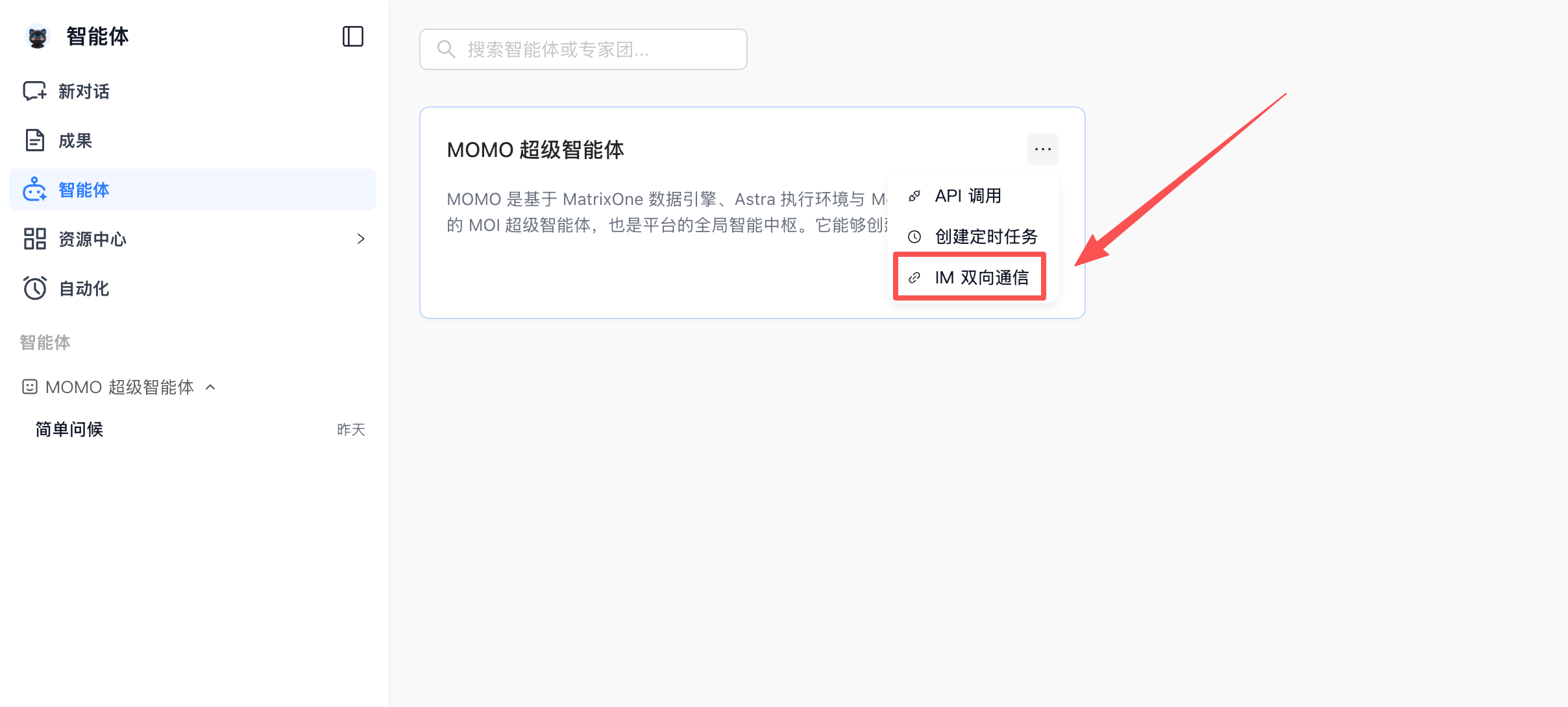
The screenshot uses MOMO as an example. Open the same menu on the card of the agent you want to connect.
2. Choose a connection method and save
Authorize with a QR code, or connect manually with an existing bot’s Bot ID and Secret. Choose either method.
Authorize with a QR code
Under Platform, select WeCom AI Bot.
Click Get WeCom QR code.
Scan the QR code with WeCom and confirm authorization.
Return to MOI and wait for Authorized. Continue to connect.
Select a model available in the workspace under Runtime model.
Click Save and continue.
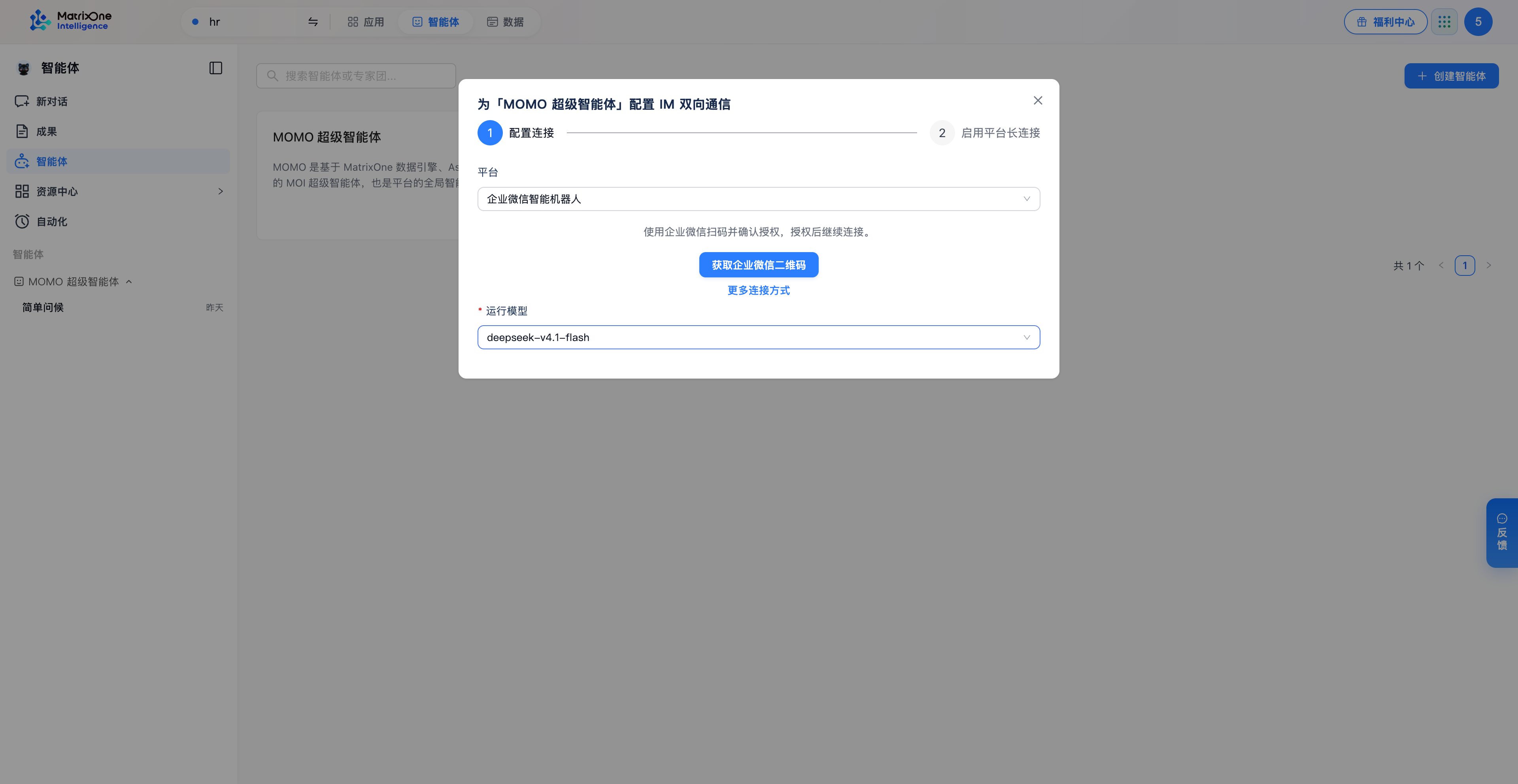
Get a QR code, authorize with WeCom, select a runtime model, and save.
QR code authorization obtains the information needed to connect. MOI saves the configuration and starts connecting only after you click Save and continue. If the code expires, click Get a new QR code and scan again.
Connect using existing bot credentials
Find Bot ID and Secret in WeCom
The WeCom client screenshots show the Chinese interface. The Chinese labels below identify the controls shown in those screenshots.
In the WeCom client, open Robots (机器人) in the sidebar, then select Manage robots (管理机器人).
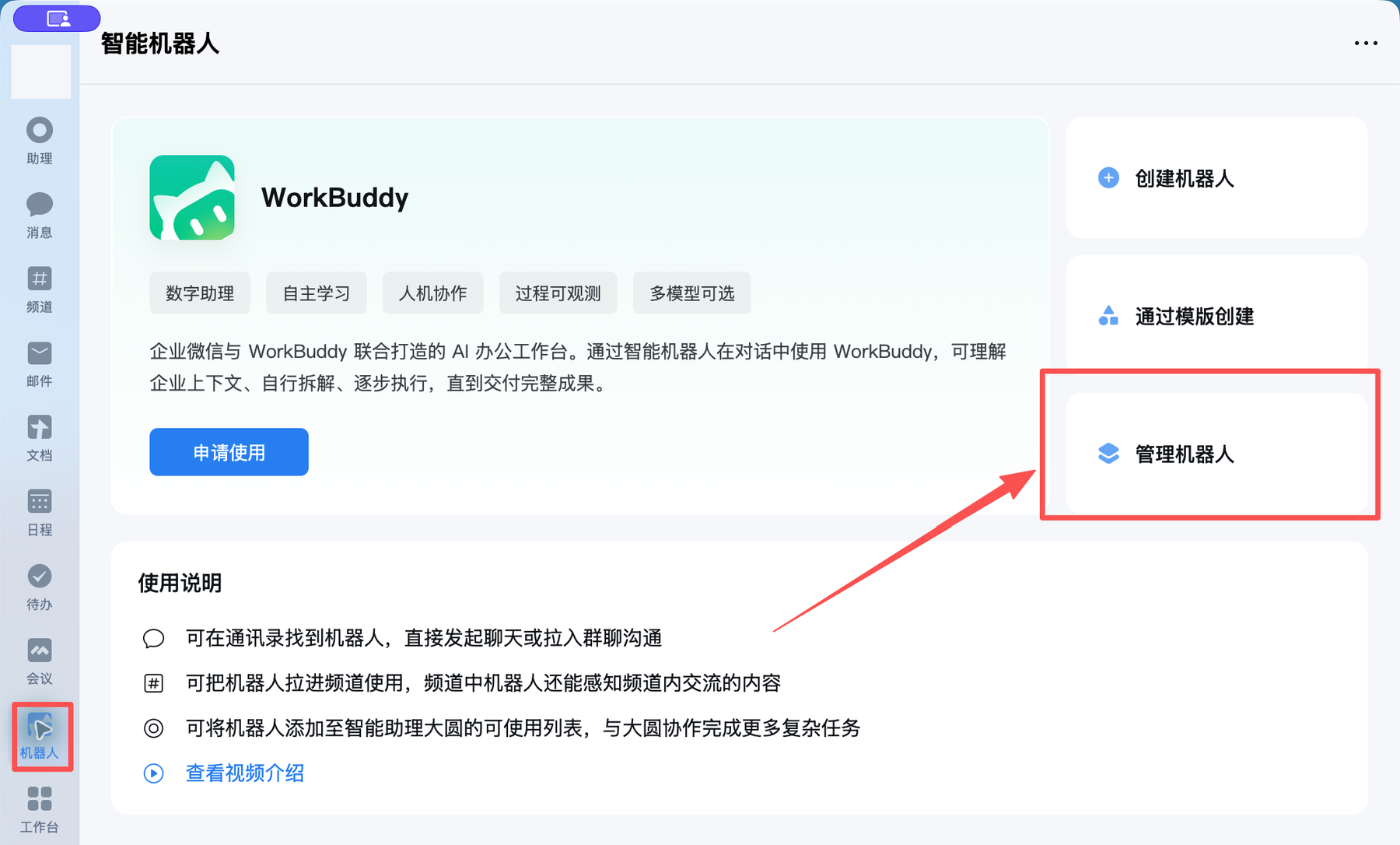
Open robot management in the WeCom client.
Under My robots (我的机器人), find the API-mode bot you want to connect and open its Details (详情).
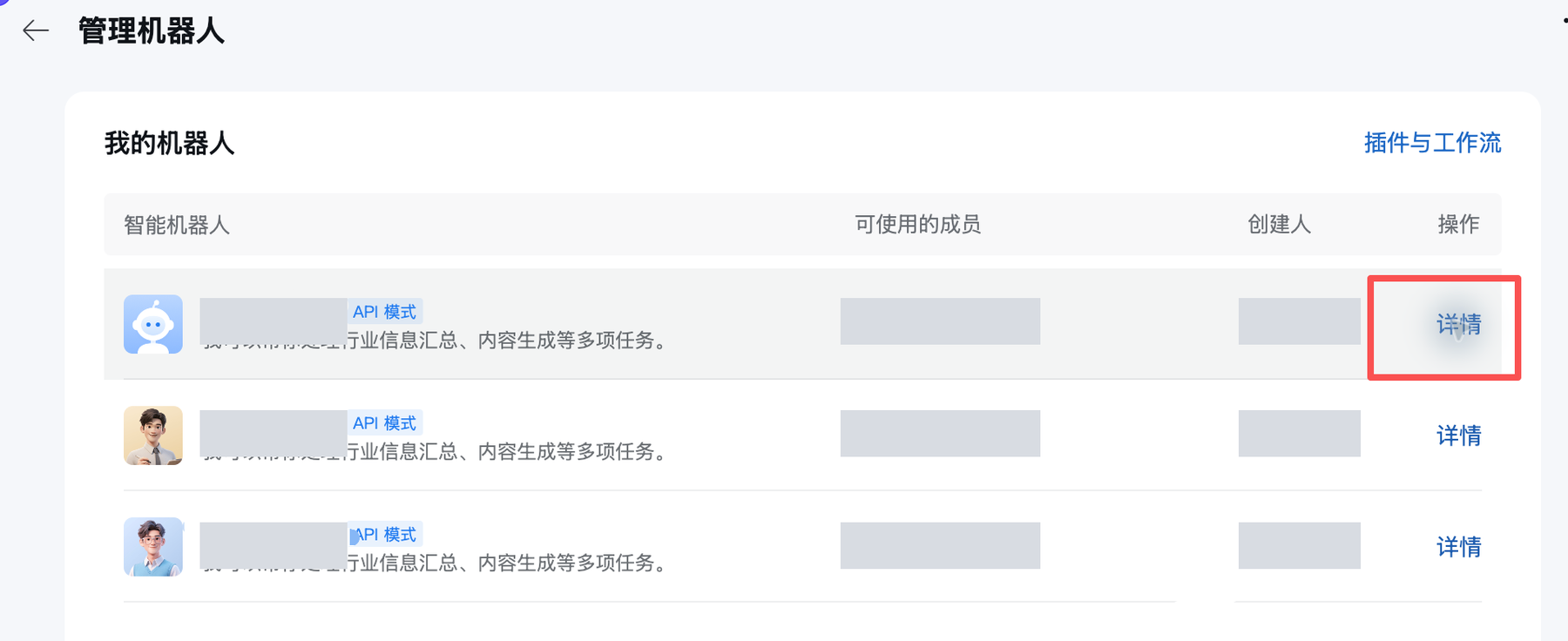
Open the details of the bot you want to connect.
On the Robot details (机器人详情) page, open API configuration (API 配置).
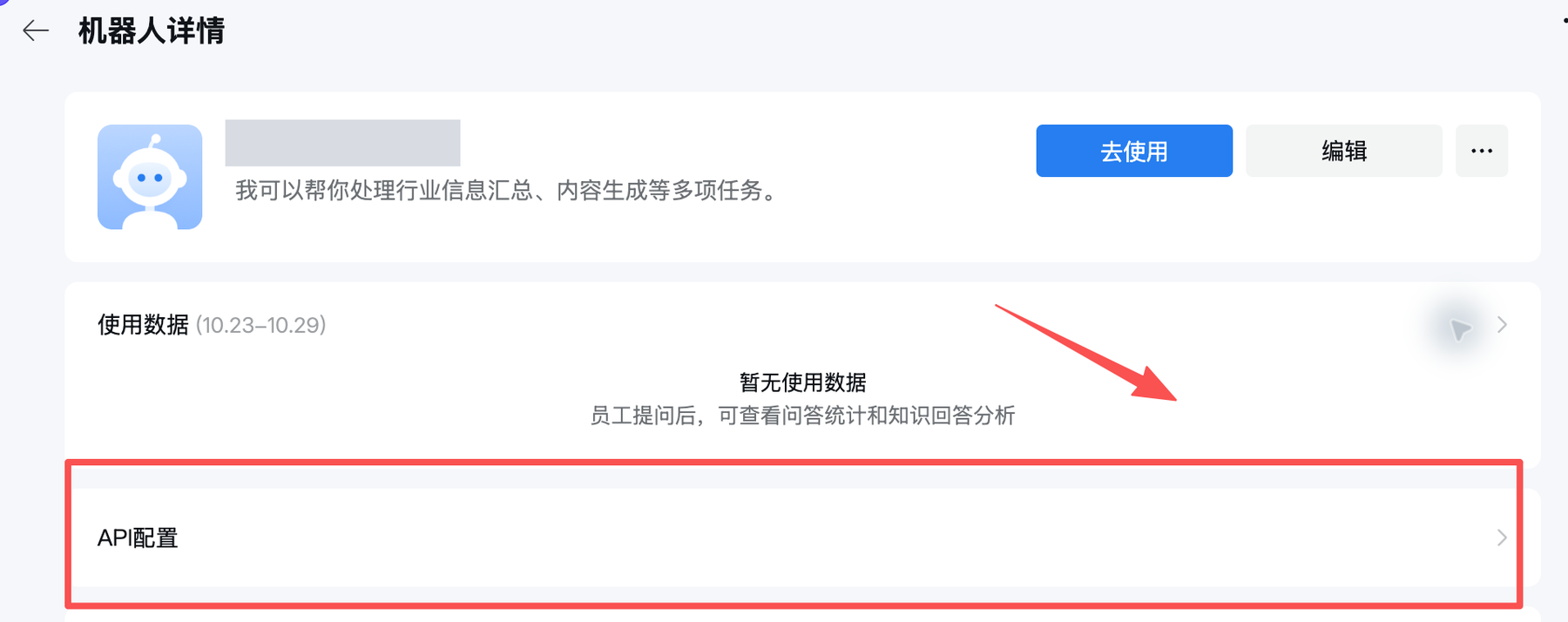
Open API configuration from the bot details page.
Use the copy buttons next to Bot ID and Secret. Obtain both values from the same bot.
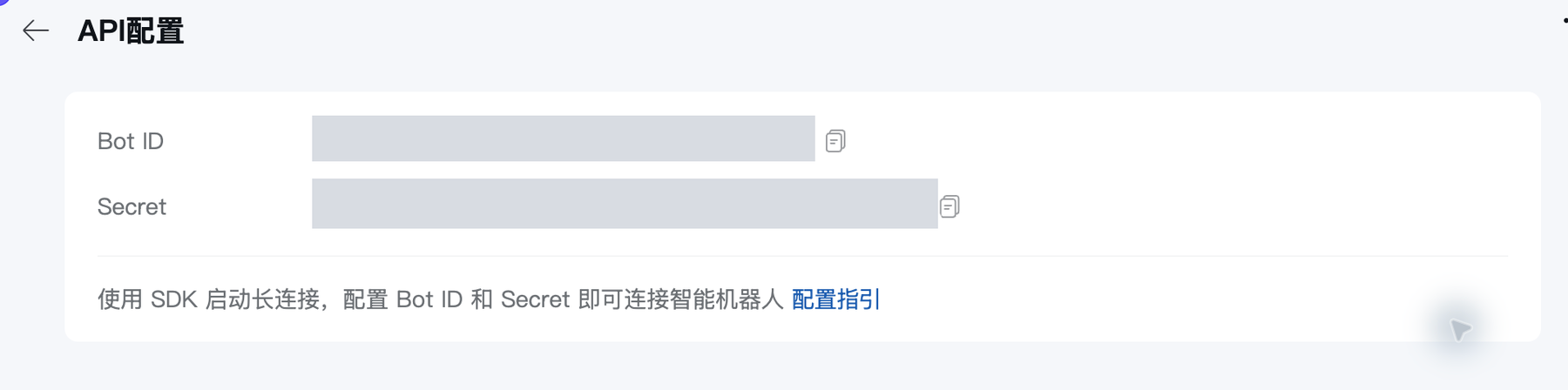
Copy Bot ID and Secret from the same bot. Credential values are redacted in the screenshot.
Secret is a connection credential. Enter it only in the MOI connection form; do not send it in chat or include it in public screenshots.
Enter the credentials in MOI
Return to the target agent’s Two-way messaging dialog and select WeCom AI Bot under Platform.
If the dialog shows QR authorization, click More connection methods. If Bot ID and Secret are already visible, enter the two values copied from WeCom directly.
Select an available workspace model under Runtime model.
Click Save and continue to open the connection status page.
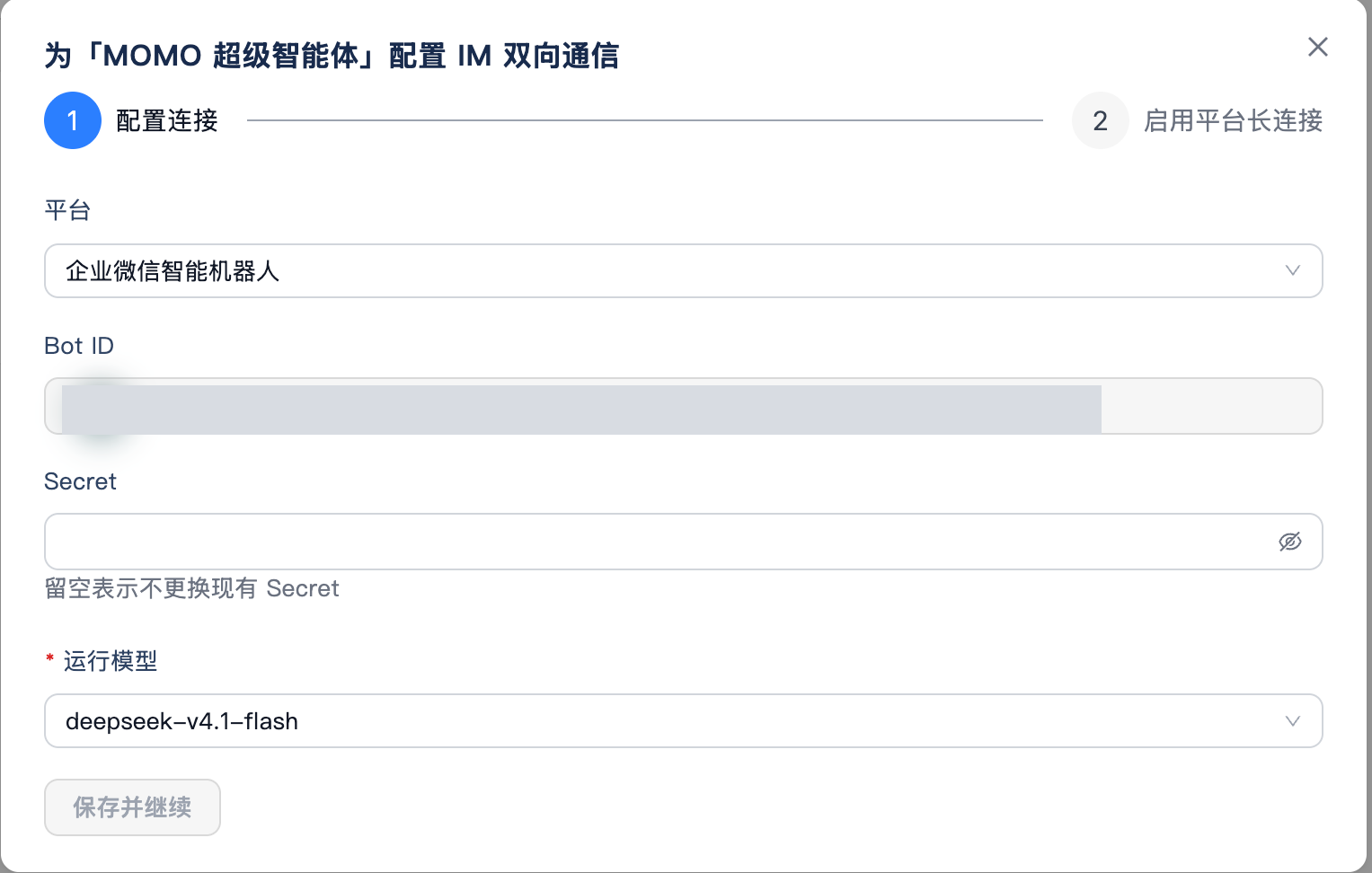
The screenshot shows an existing connection: Bot ID is read-only, and leaving Secret blank keeps its current value. For a new connection, enter the credentials obtained from WeCom.
When editing a connection, enter Secret only if you need to replace it. The runtime model shown is an example; select a model available in your workspace.
3. Check the connection and test a conversation
After saving, the dialog opens Enable managed connection. Check for Configuration saved and MOI receiving enabled, then wait for Connecting to change to Connection established.
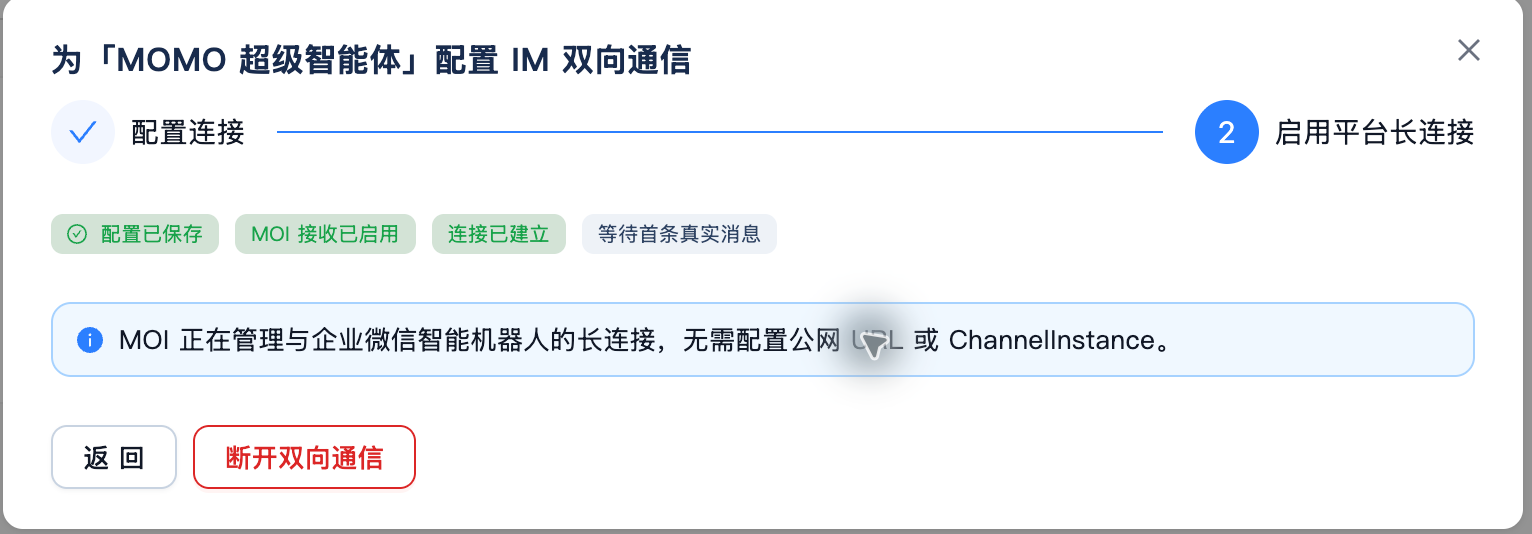
The connection is established, but no real message has been received. Send a message to test the conversation.
Waiting for the first real message means MOI has not received a message from this bot. Test the connection:
Open the connected bot in WeCom and send a test message.
Wait for the agent to reply in the same WeCom conversation.
Reopen the agent’s Two-way messaging settings in MOI and confirm Real message received.

Example conversation in WeCom. The agent replies in the original conversation; the actual response depends on the connected agent.
If the connection is established but no reply arrives, check that you sent the message to the connected bot, then check whether MOI received it. See Connection status and troubleshooting.