

Multimodal Information Extraction
Read PDF pages directly in Information Extraction and extract fields using their layout and visual content.
Prepare your resources
Prepare PDFs, a field schema, and an output volume. Use this template when table position, page regions, or visual content help determine fields. For images, use Document Information Extraction.
Use the template
On the workflow creation page, start from a template, search for Multimodal Information Extraction, and load it onto the canvas.
Complete the required fields in the parameter form.
Setting |
Purpose |
|---|---|
Source files |
PDF files or folders to extract from |
Extraction schema |
JSON Schema defining fields from page text, tables, and layout |
Output location |
Catalog location for structured extraction results |
Save the parameters, then start a manual run. The system saves the current workflow before submitting execution.
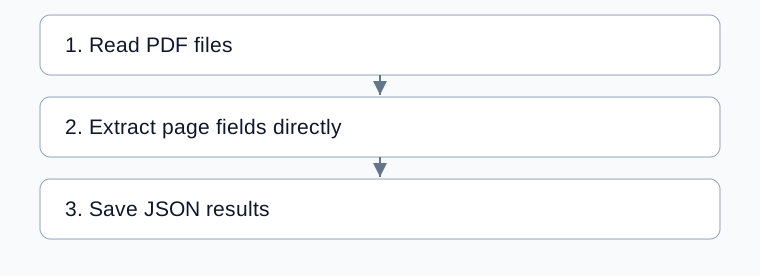
Complete processing flow
Arrows show execution order; configured bindings supply each step’s input.
Configure page extraction
Setting |
How to use it |
|---|---|
Source files |
Select PDFs and check volume file types |
Schema |
Define names, types, meanings, and compatible missing values |
Instructions |
Explain how page text, tables, and visual evidence determine fields |
Layout-sensitive fields |
Name fields easily confused by position, such as payer and payee |
Output location |
Destination for structured JSON |
The reading node passes files directly to Information Extraction. There is no separate parsing or chunking step, so ordinary document parsing tiers and chunk settings do not apply here.
The template uses n_to_1, combining PDFs into one result. Per-file extraction requires both a mode change and corresponding saving changes.
Check page evidence and files
Inspect the selected PDFs and extraction input.
Compare fields with original pages, especially similar values in adjacent regions.
Check available source tracking against the correct page.
Inspect the returned file and saved JSON at the destination.
There is no separate parsing ZIP. Use Document Information Extraction if parsed documents must also be saved.
Example: distinguish payer and payee
Define payer and payee with clear descriptions. Add both to layout-sensitive fields and explain their expected page regions in the instructions. Run one PDF and compare names and positions with the original, rather than checking only that fields are nonempty.
Common problems
Symptom |
Check and action |
|---|---|
Adjacent fields are confused |
Clarify meanings and page positions and check sensitive field names |
No parsing ZIP exists |
This template saves extraction JSON; choose document extraction for parsed files |
Several PDFs are combined |
Confirm they belong to one task; combined extraction is the default |
Image input fails |
Use an image-parsing template and verify source types |