

Install the WeCom plugin
Install the WeCom plugin in the tool marketplace and authorize an account so agents in the current workspace can use that account’s authorized WeCom capabilities as needed.
This guide applies to the tool marketplace interface where the WeCom card shows Install or Manage. To chat with an agent from WeCom, configure two-way messaging separately. The screenshots show the Chinese interface.
1. Open the installation dialog
Open Resource Center → Tools → Tool marketplace in MOI.
Find WeCom and click Install.
Click Install plugin in the dialog to open the service authorization page.
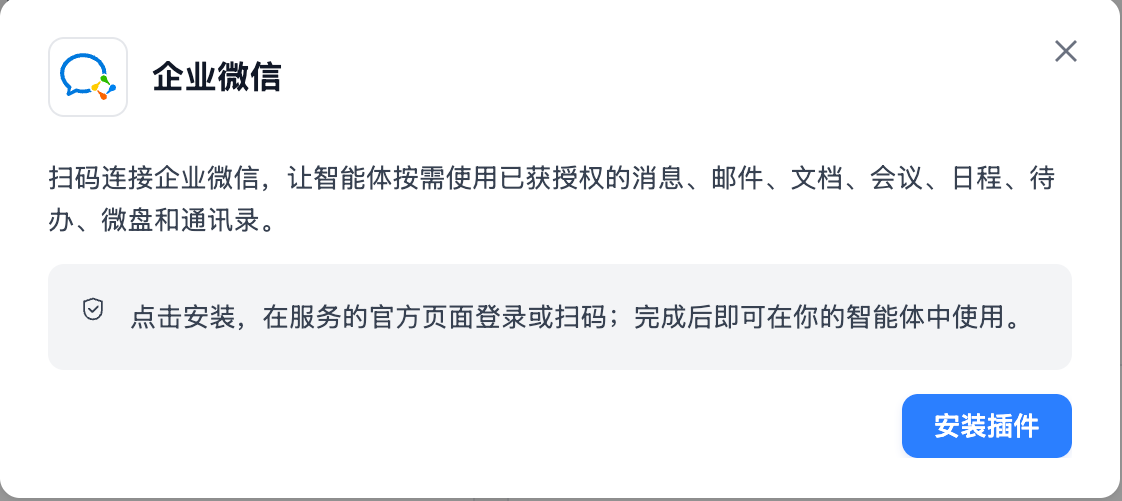
Install the plugin to start service authorization.
2. Authorize an account
Sign in or scan the code as prompted in the new tab, review and complete authorization, then return to MOI. To reuse valid authorization, select an account under Select an existing connection. Clear the selection to sign in with a different account.
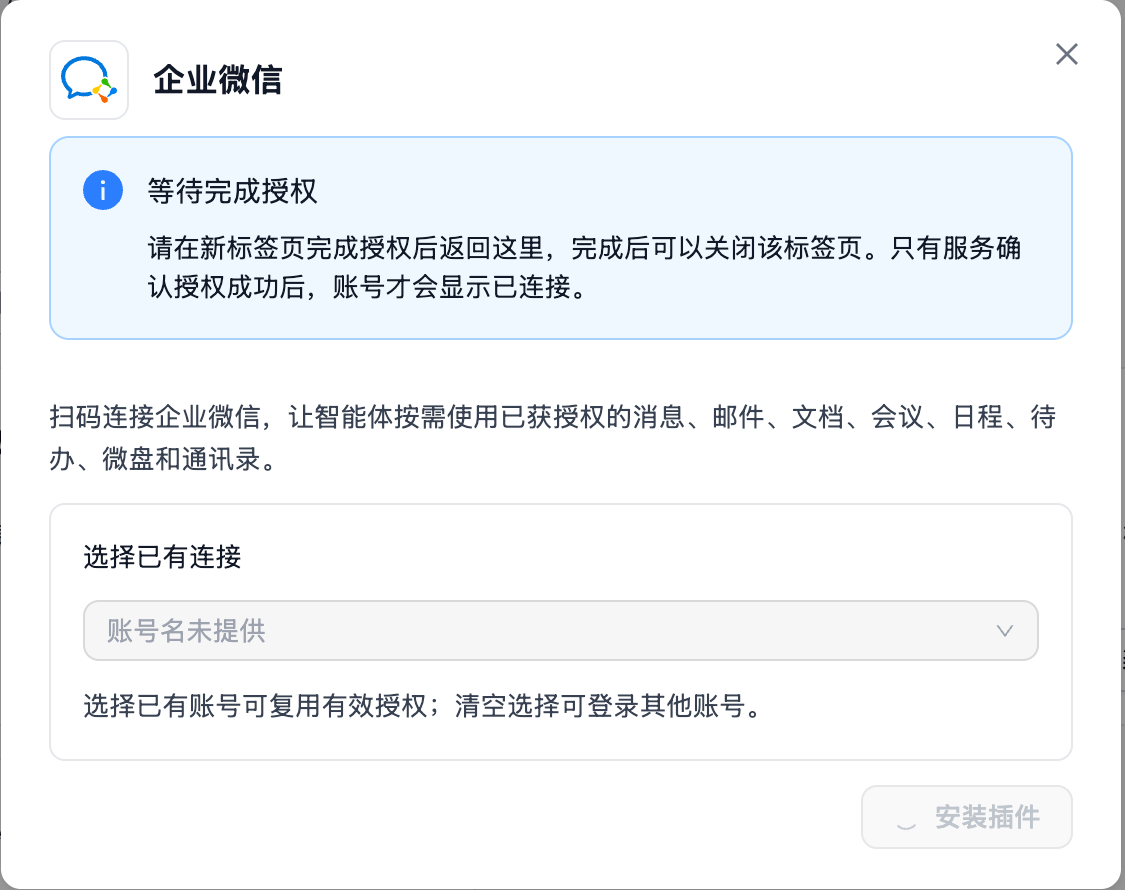
Wait for the service to confirm authorization. Opening the authorization page alone does not complete installation.
3. Confirm installation
After returning to MOI, wait for Installed and ready to use. Close the dialog and check that the WeCom card shows Installed and its action changes to Manage.
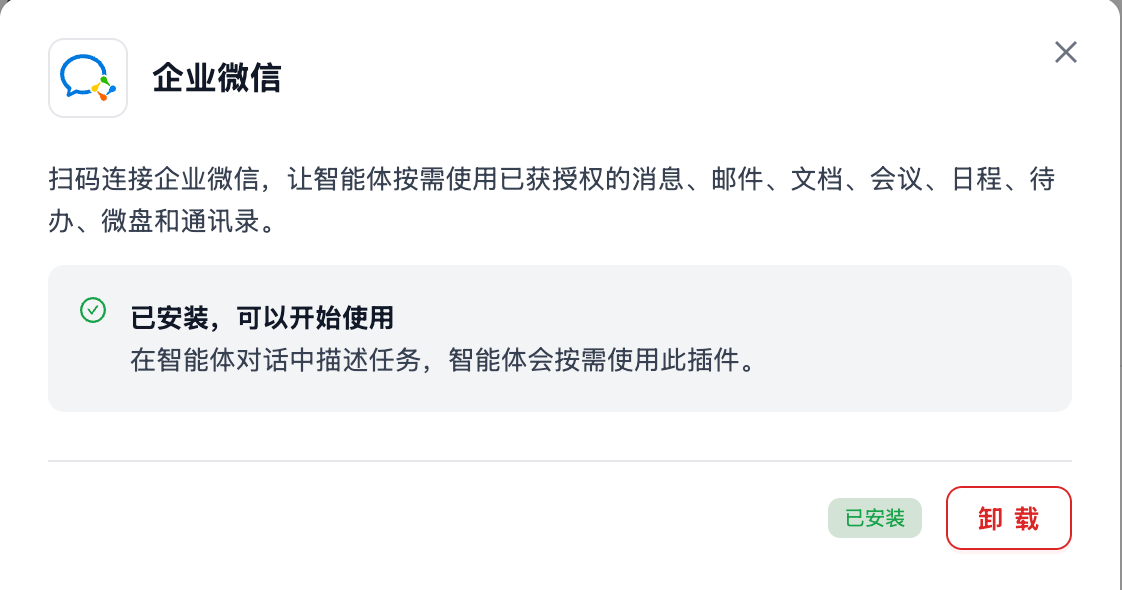
MOI confirms installation after the service confirms successful authorization.
In an agent conversation, describe the task you want to perform with WeCom. Available capabilities depend on the account’s permissions and authorization scope.
How this differs from two-way messaging
The plugin lets agents in MOI call authorized WeCom capabilities. Two-way messaging lets users send messages to a bot in WeCom and receive replies from the connected agent in the same conversation. Configure them separately. An installed plugin does not confirm that IM messaging has been tested.