

Prepare Document Knowledge Base with Image Index
Add page and document-image indexes to text knowledge base preparation. Use it when retrieval also needs to use images.
Prepare your resources
Prepare documents containing text and images, a text knowledge base, image-index settings, and an output volume. Start with one representative document to check parsing and indexing.
The text embedding model processes text; the image embedding model processes images. Check that image indexing is enabled and that its table, model, dimensions, preprocessing version, and distance metric match. Captions alone do not establish an image index.
Use the template
On the workflow creation page, start from a template, search for Prepare Document Knowledge Base with Image Index, and load it onto the canvas.
Complete the required fields in the parameter form.
Setting |
Purpose |
|---|---|
Source files |
Documents or folders to process |
Parsing tier |
Controls parsing speed, quality, and cost |
Knowledge base |
Select an existing knowledge base or create one |
Output location |
Catalog location for parsed result files |
Before running, check Image Embedding and confirm that the image model matches the index dimensions.
Save the parameters, then start a manual run. The system saves the current workflow before submitting execution.
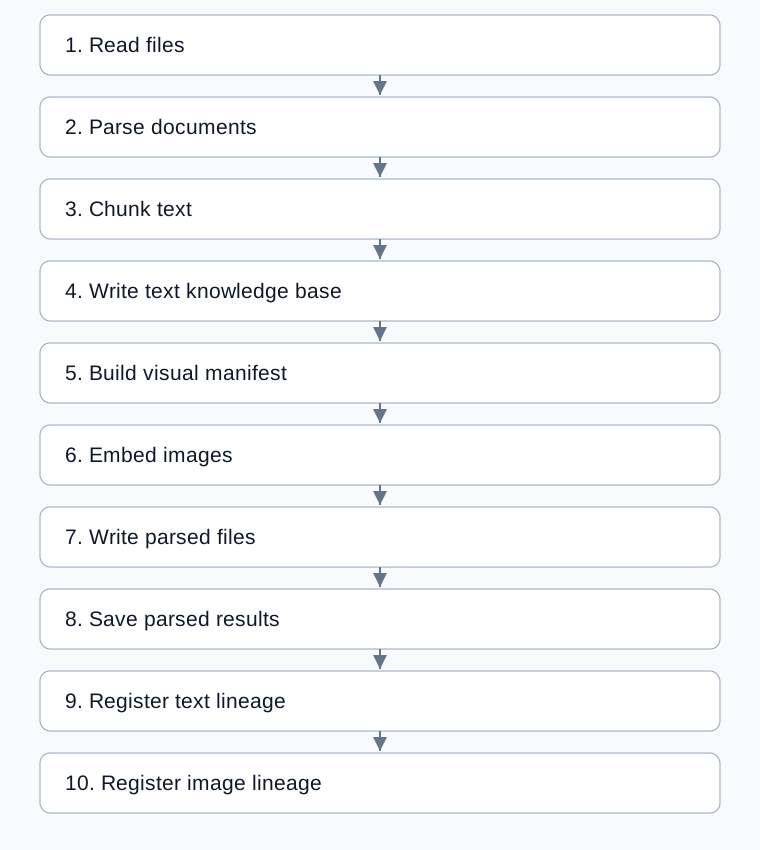
Complete processing flow
Arrows show execution order; configured bindings supply each step’s input.
Adjust text and image indexes
Setting |
How to use it |
|---|---|
Parsing tier |
Standard by default; use Enhanced for scans or complex layouts; see General Document Parsing |
Text chunks |
Template defaults: 512 characters with overlap 50; check parsed text before adjusting |
Three-level text index |
Enabled by default, with section size 5 |
Image index |
Confirm it is enabled and retains page and object image references |
Model and dimensions |
Match image model output to the image index; do not reuse text dimensions without checking |
The template embeds actual images and allows files with no indexable images. no_indexable_images means no image vectors were written for that file; disabled means indexing was disabled. Neither indicates successful image indexing.
Inspect the completed run
Check file counts and image sources in parsed records.
Inspect text
writtenand imagepage_rows,visual_object_rows, andfile_statuses.Check
indexed_source_file_idsfor sources actually indexed.all_source_file_idsonly lists sources considered.Inspect saved parsed files and both text and image lineage results.
Validate text and image retrieval separately with known content.
The template builds the text index before the visual manifest and image index, then saves parsed documents and registers relationships. Manifest and file-saving steps use documents before chunking; text indexing uses chunks.
Example: an illustrated equipment manual
Use a manual containing a parameter table and an equipment diagram. Keep default chunking, verify both model configurations, and run. Compare text results with the table, then inspect image records and their source against the diagram.
If images are missing, inspect readable image references in parsed output before checking manifests and indexing. Successful text retrieval alone does not verify the image path.
Common problems
Symptom |
Check and action |
|---|---|
Text retrieval works but images do not |
Check image enablement, sources, and per-file status |
Image dimensions mismatch |
Compare model output with index settings |
Some files have no image rows |
Distinguish no indexable images from failures in |
Rerunning changes the index |
The template uses |
Final registration fails |
Inspect source-to-derived-image mappings before repeating steps that already wrote data |