

Drawing Parsing
Identify drawing pages, local regions, and text, then prepare drawing knowledge for text-to-image and image-to-image retrieval.
Prepare your resources
Prepare drawing PDFs or images, a CAD primary model, a vision model, a drawing knowledge base, and an output location. Start with one page containing annotations and part structure.
The knowledge base supplies text and image index settings. CAD analysis, visual assessment, and embedding have different model roles; check each separately.
Use the template
On the workflow creation page, start from a template, search for Drawing Parsing, and load it onto the canvas.
Complete the required fields in the parameter form.
Setting |
Purpose |
|---|---|
Source drawings |
Drawing PDFs, images, or folders to process |
CAD primary model |
Main model for drawing structure analysis |
CAD vision model |
Vision model for CAD OCR and visual assessment |
Drawing knowledge base |
Select or create a drawing knowledge base that binds both text and image indexes |
Output location |
Location for drawing manifests and processing summaries |
Save the parameters, then start a manual run. The system saves the current workflow before submitting execution.
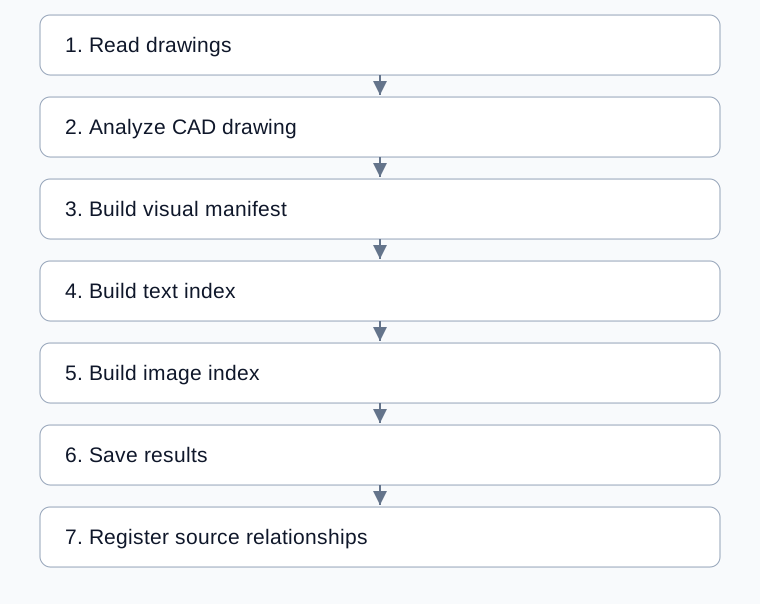
Complete processing flow
Arrows show execution order; configured bindings supply each step’s input.
Configure analysis and indexing
Setting |
Default or purpose |
|---|---|
Analysis mode |
|
CAD service URL |
Empty uses the built-in shared service; specify an actual endpoint for a self-hosted service |
Three-level text index |
Enabled, section size 5 |
Text embedding dimension |
Form default 1024; match the selected model and index |
Text write policy |
|
Image write policy |
|
Validate the full flow in deep mode first. After switching to fast mode, check whether output satisfies the downstream visual manifest requirements; analysis completion alone does not verify the whole flow.
Inspect each result
Compare pages, regions, part relationships, and OCR text with the drawing.
Check manifest validation and page/object image references. This template requires page images, object images, and visual context.
Inspect text and image writes separately. They share manifests but use different indexes.
Inspect saved results and manifest file references.
Check source mappings and asset relationships, then validate text-to-drawing and image retrieval.
Retain the full CAD result and per-source image mappings when editing. OCR text alone cannot replace the manifest input; image indexing needs readable images. See CAD Drawing Segmentation and Build Document Visual Manifest.
Example: an equipment assembly drawing
Select an assembly drawing and configure all models and the drawing knowledge base. Run in deep mode. Compare one part’s annotation and crop with the source, inspect index records, then retrieve by a known part name and verify the returned drawing.
Common problems
Symptom |
Check and action |
|---|---|
Manifest validation fails |
Check the full CAD result and page/object images |
Text works but images are incomplete |
Check image references, dimensions, and per-file status |
Analysis takes a long time |
Inspect logs and input scope; validate a small sample before changing concurrency |
Rerunning changes indexes |
Confirm sources and destination before applying overwrite policies |
Uncertain which template to use |
Use the image-index document template for ordinary illustrated files; use this one for part and region analysis |