

Document Information Extraction
Parse source material, extract structured fields from a schema, and save the results. Use it for contracts, receipts, and scanned documents.
Prepare your resources
Prepare a contract, receipt, or scan with clearly defined fields, an extraction schema, and an output volume. Validate one document before expanding the input set. Use Extract Information to Table for database writes.
Use the template
On the workflow creation page, start from a template, search for Document Information Extraction, and load it onto the canvas.
Complete the required fields in the parameter form.
Setting |
Purpose |
|---|---|
Source files |
PDFs, scans, images, or folders to extract from |
Parsing tier |
Controls parsing speed, quality, and cost |
Extraction schema |
JSON Schema defining fields to extract from parsed content |
Output location |
Catalog location for extraction results |
Save the parameters, then start a manual run. The system saves the current workflow before submitting execution.
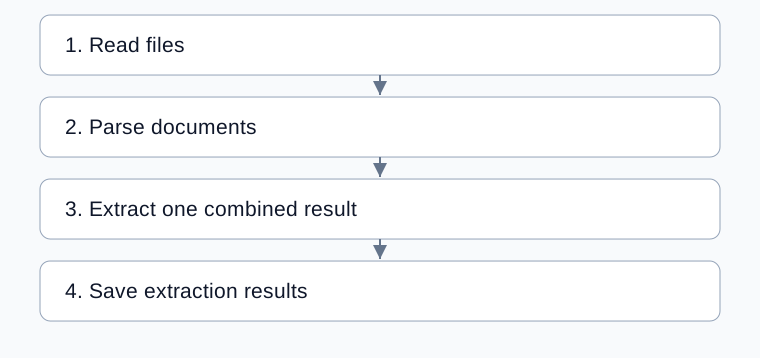
Complete processing flow
Arrows show execution order; configured bindings supply each step’s input.
Define the information to extract
Use JSON Schema for field names, types, and descriptions. This example extracts a contract number and allows null when it is absent.
{"type":"object","properties":{"contract_number":{"type":["string","null"],"description":"Contract number; return null if absent"}},"required":["contract_number"]}
Explain how to distinguish the contract number from an order number or filename. Missing-value instructions must agree with schema types.
Setting |
Adjustment |
|---|---|
Parsing tier |
Standard by default; try Enhanced for scans or complex tables and inspect text first |
Extraction instructions |
Explain meaning, format, and missing-value handling |
Layout-sensitive fields |
Name fields that require page-position context, such as supplier and recipient |
Output location |
Volume or directory receiving results |
The template uses n_to_1, combining the input into one result. Multiple files do not automatically produce separate records. For per-file results, change extraction mode and downstream saving bindings; see Information Extraction.
Inspect the run
Confirm the selected files in reading results.
Compare parsed text with the original, especially identifiers, dates, and amounts.
Inspect
resultfor field values, types, and missing values.Check available
sources_trackinginformation.Open the destination and verify returned files. The template saves extracted documents and results with ZIP configuration.
Parsing supplies documents; extraction produces fields. If text is correct but fields are wrong, refine instructions. If content is missing, resolve parsing first.
Example: extract a contract number
Select one contract, use the schema above, and request its formal number from the body. Compare the result character by character with the original and inspect the saved file. Attachments belonging to the same contract can contribute to one combined extraction.
Common problems
Symptom |
Check and action |
|---|---|
Empty field |
Check whether the information exists and survives parsing |
Wrong identifier selected |
Distinguish contract, order, and attachment numbers in descriptions |
Null violates the schema |
Align field types with missing-value instructions |
Several files become one record |
The template combines inputs; per-file processing needs mode and saving changes |
Table records are needed |
Use Extract Information to Table and verify column structure |