

Telegram configuration guide
Add a Telegram Bot instance in MOI to store your Bot Token and optional Webhook verification secret. This guide explains how to sign in to Telegram, obtain a Bot Token through BotFather, create an instance in MOI, and test the connection.
Prerequisites
A Telegram account for creating and managing bots.
Confirm that your MOI workspace and deployment profile expose the Telegram configuration entry and allow adding instances (public SaaS deployments may hide new configuration entries for Telegram, while private or enabled deployments expose it under Connectors or Channel Management).
Confirm that your browser can access Telegram and that the MOI service can reach the Telegram Bot API. Signing in from your browser does not establish server-side network reachability.
1. Sign in to Telegram
Open Telegram Web. If you are already signed in on your phone, open Settings > Devices > Add Device in the mobile app and scan the QR code shown on the web page to confirm sign-in.
You can also click LOG IN BY PHONE NUMBER and follow the prompts, or click 使用简体中文继续 if switching interface languages.
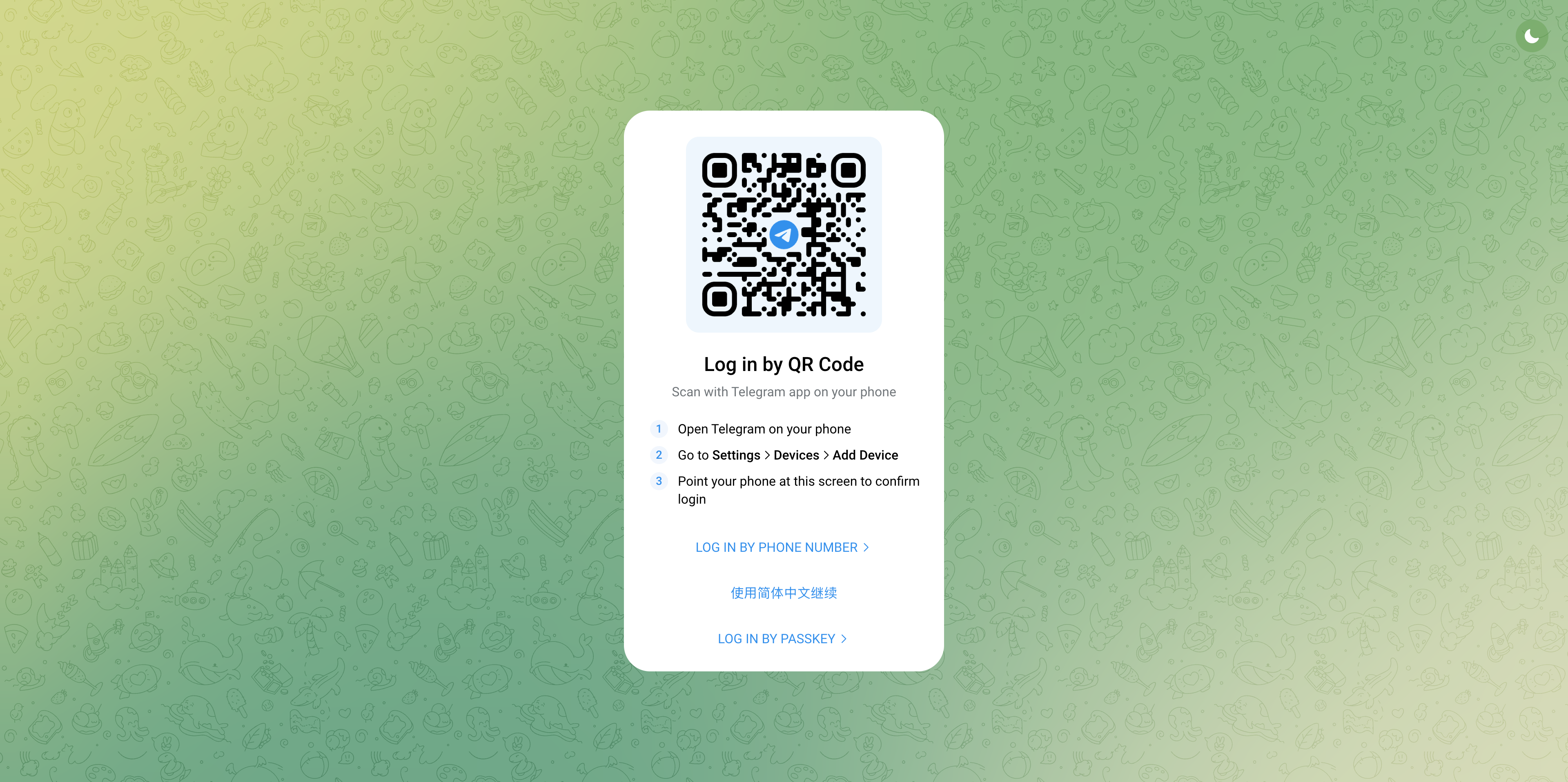
Sign in using the QR code on Telegram Web; screenshot is for locating the login entry.
2. Create a bot and obtain the Bot Token
Open the official BotFather page and verify that the username is @BotFather with the verification badge.
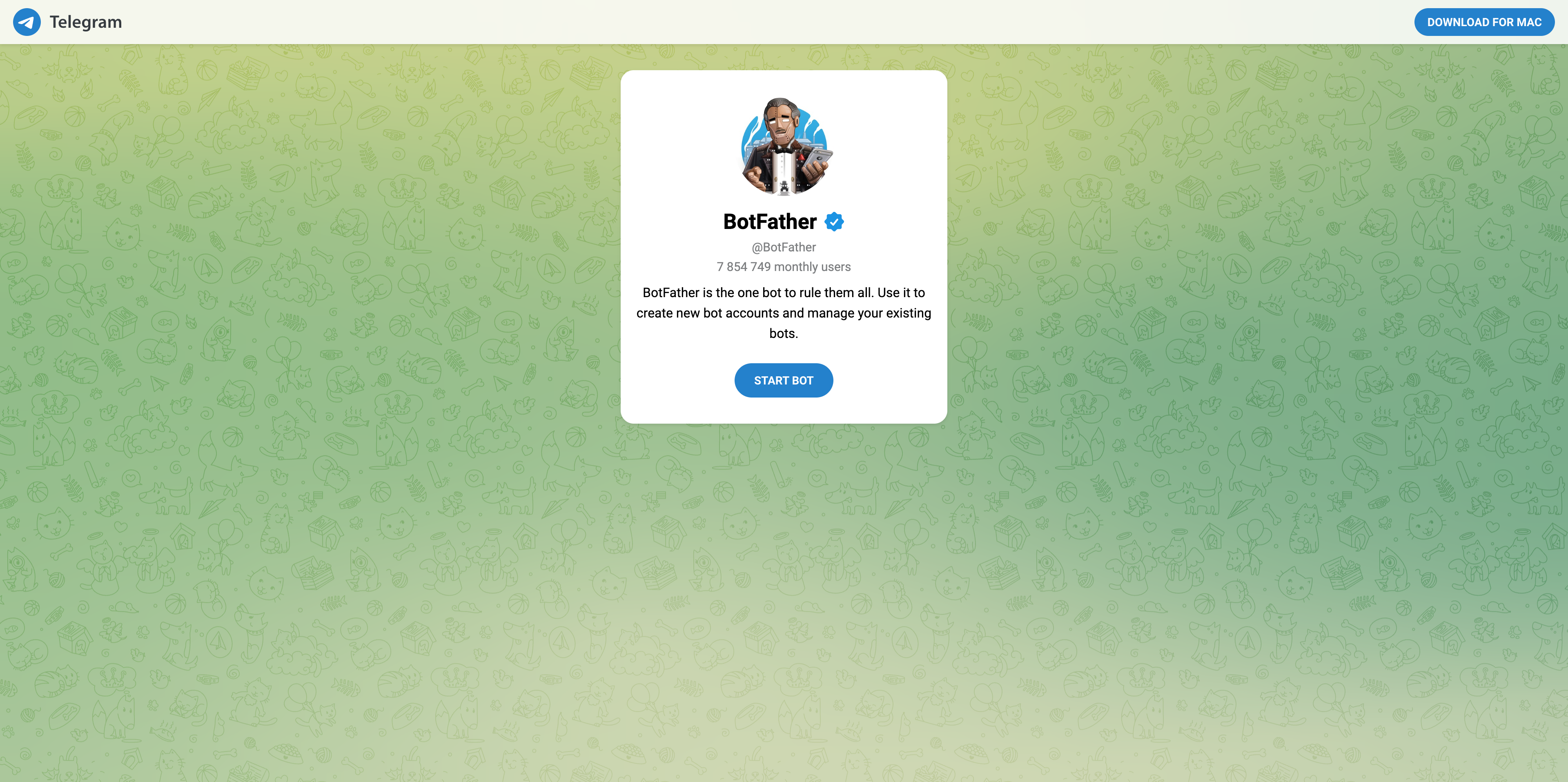
Create and manage bots through the official BotFather account.
Click START BOT to open a chat with BotFather in Telegram. In Telegram Web, you can also sign in first and search for @BotFather.
Send
/newbotin the BotFather conversation.Enter a display name for the bot when prompted, such as
MOI Notice.Enter a bot username when prompted, such as
example_moi_notice_bot. The username must be unique, 5–32 characters long, contain only letters, digits, and underscores, and end withbot. If the username is taken, enter a different one.After creation succeeds, copy the Bot Token from BotFather’s reply and record the bot’s username or link for verification.
The Bot Token is the credential used to call the bot. A display name, @username, or personal login verification code cannot replace it. Enter the token only in MOI’s Bot Token field—do not place it in descriptions, prompts, or public screenshots.
3. Create a Telegram instance in MOI
Open Channel Management (or the corresponding Connectors entry in your deployment), then select Telegram under Communication.
In the instance list, click Add to open the bot message and Webhook configuration form.
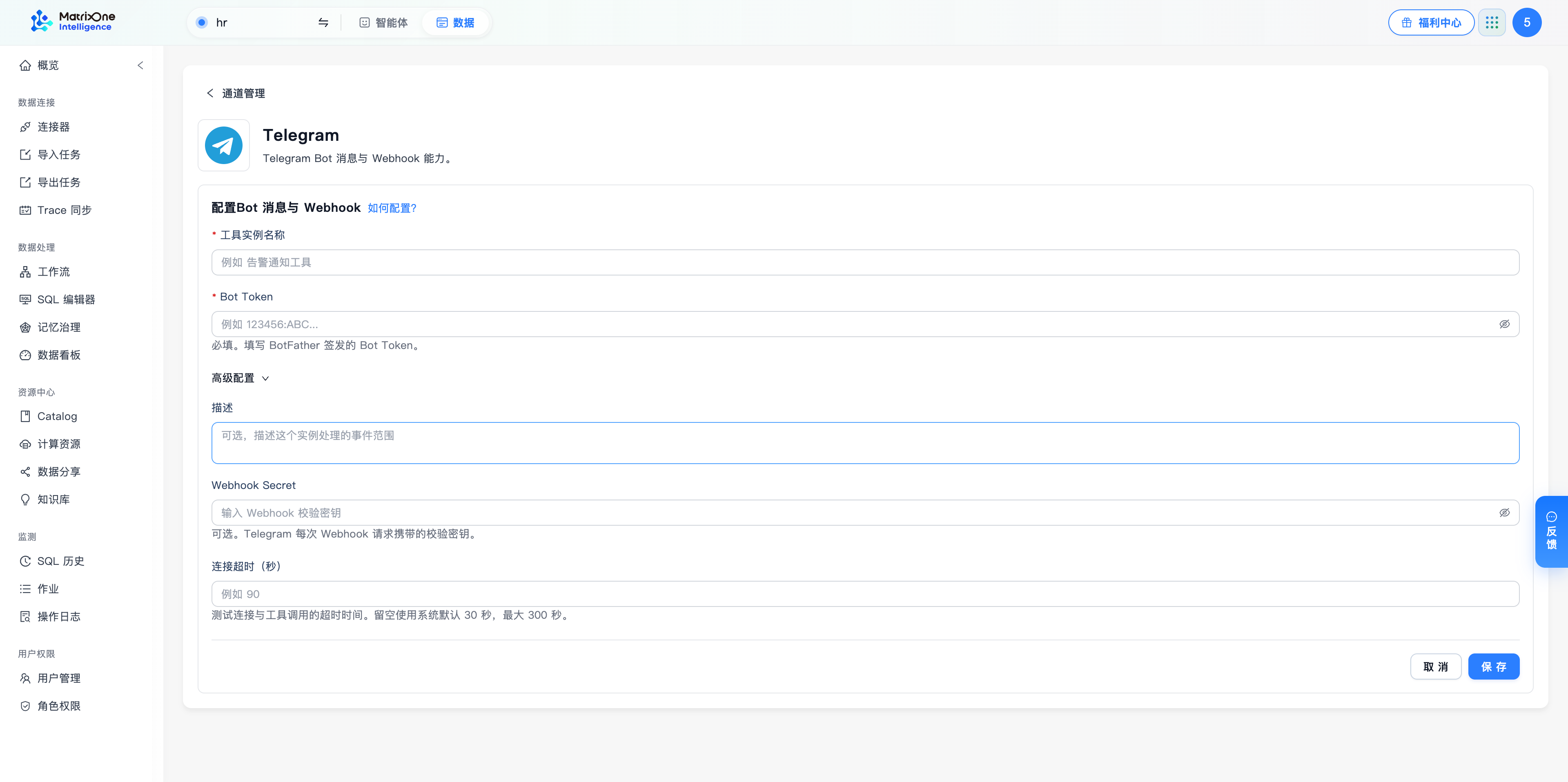
Enter the Bot Token issued by BotFather and expand advanced settings if needed.
Complete the fields below. Description, Webhook Secret, and Connection Timeout (seconds) are located under advanced settings.
Field |
Required |
Instructions |
|---|---|---|
Instance Name |
Yes |
Choose a name such as |
Bot Token |
Yes |
Paste the full token issued by BotFather. Do not enter the bot username or prepend |
Description |
No |
Describe the purpose of the instance, such as |
Webhook Secret |
No |
A verification secret you define separately from the Bot Token. Incoming requests from Telegram must send the same value as |
Connection Timeout (seconds) |
No |
Used for connection tests and tool invocations. Leave empty to use the 30-second default; maximum is 300 seconds. |
Webhook Secret corresponds to the Telegram Bot API secret_token: 1–256 characters using only A-Z, a-z, 0-9, _, and -. Telegram includes this value in the X-Telegram-Bot-Api-Secret-Token header so MOI can verify callback requests.
Click Save. Return to the instance list and confirm that the new instance appears with the expected name.
Note
This form saves the instance credentials in MOI. Entering a Webhook Secret does not register a Webhook with Telegram or confirm incoming event delivery; test the connection separately after saving.
4. Test the connection and verify settings
In the Telegram instance list, click Test Connection for the new instance (or open its detail view and click Test Connection).
Wait for the result. A passing check shows a connection-test-passed prompt and updates the Last Checked result and timestamp in the list.
Open instance details to verify the name and connection timeout. To update settings, click Edit, save, and run the connection test again.
A passing connection test verifies connectivity with the saved credentials. It does not prove that messages have been delivered or Webhook events are flowing; verify actual delivery in Telegram and event processing in MOI separately.
5. Maintain instances and tokens
To rotate a Bot Token, edit the instance under Telegram, enter the new token, save, and test the connection again. Do not judge token validity by whether masked sensitive fields appear in plain text; rely on the connection test result.
If a Bot Token is lost or compromised, use /token in BotFather to generate a new token for the bot, then update the corresponding MOI instance.
When an instance is no longer needed, verify its name in the list, choose Disconnect, and confirm. Disconnecting an instance in MOI and deleting the bot in Telegram are independent operations.
FAQ
Issue |
Resolution |
|---|---|
Cannot sign in via Telegram Web |
If already signed in on mobile, scan the QR code from Settings > Devices > Add Device; otherwise choose LOG IN BY PHONE NUMBER and complete verification. |
Clicking START BOT does not open a chat |
Sign in to the Telegram desktop/web app first, then search for the verified @BotFather handle. |
BotFather rejects the bot username |
Verify the username is unused, 5–32 characters long, ends with |
Connection test fails after saving |
Check the error details to confirm the full token matches the target bot and was not rotated, and verify that the MOI server can reach the Telegram Bot API. |
Unsure where to get Webhook Secret |
You define it yourself; it is not returned by BotFather. Set it only when validating Webhook callbacks and keep both sides identical. |
Still fails after raising timeout |
Raising the timeout does not fix an invalid token. Distinguish authentication errors from network timeouts before adjusting settings. |