Alert
Continuously monitoring the operating status of database instances is extremely critical to ensure the continuity and stability of enterprise operations. MOC provides users with the alert function of the instance management platform, enabling users to quickly identify and pre-warn potential risks and problems, thereby taking timely response strategies. This function not only enhances the reliability of the system, ensures the seamless operation of the business, but also improves the efficiency of database management, and is a key tool for enterprises to ensure data security and optimize operation and maintenance processes.
Alert Rules
The alert function focuses on the monitoring of the instance management platform, and currently does not involve the business-level monitoring of the database management platform. It mainly covers changes in accounts, instance billing, and instance status caused by non-manual operations.
View Alert Rules
You can log in to the instance management platform and clickAlert >Alert Rules in sequence to view the alert rules.
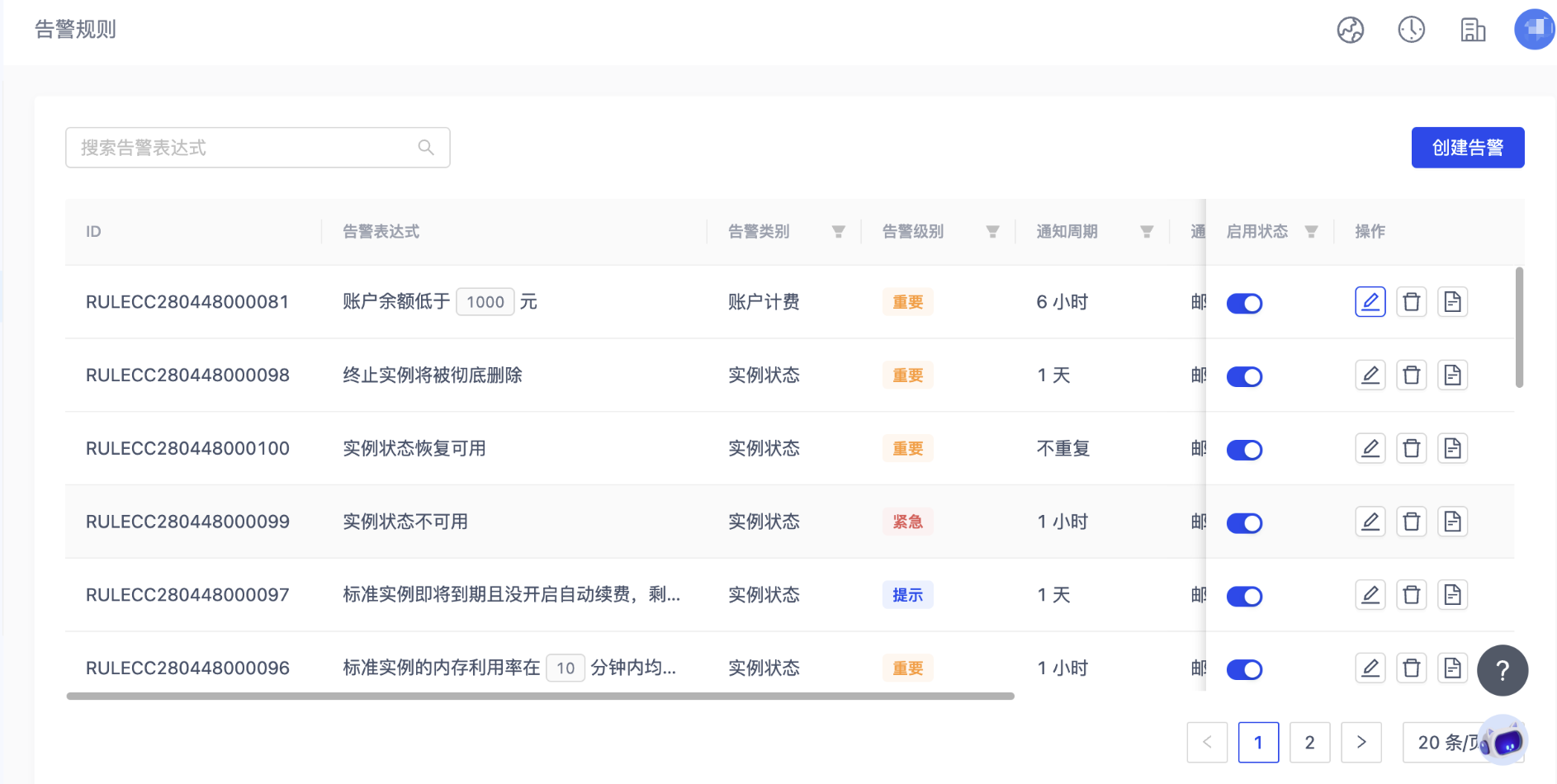
On the alert rules interface, users can browse detailed information including alert expressions, alert categories, and alert levels. The system will automatically turn on some key alert rules, and you can adjust the alert enable status as needed. In addition, you can also modify the rules or choose to delete unnecessary alert rules.
If you want to view the detailed information of triggering an alert, you can click the log icon on the far right of the alert rule to jump toAlert Record to view.
Create Alert Rules
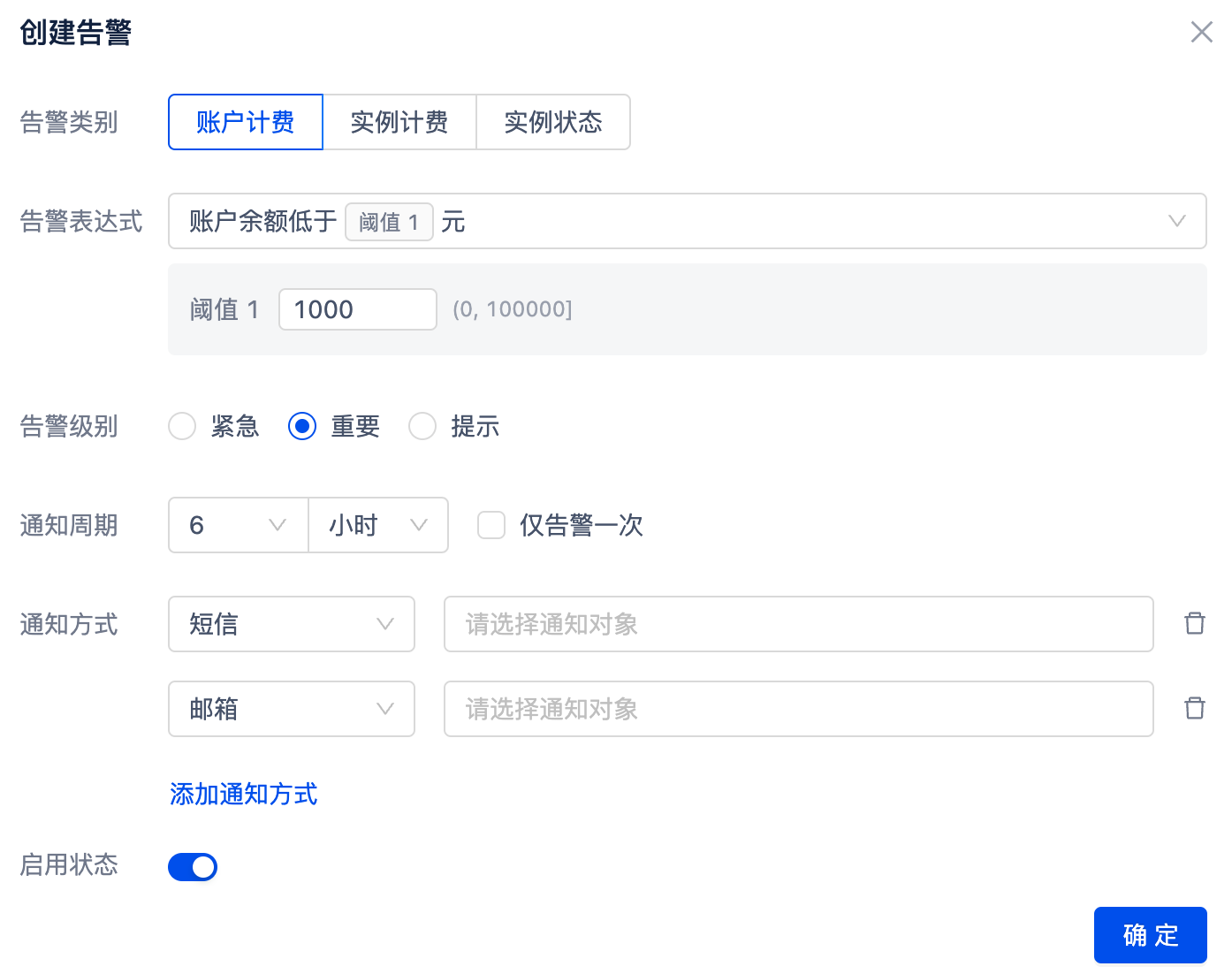
In addition to the system's preset alert rules, users can also create personalized alert rules as needed. To perform this operation, please log in to the instance management platform first, and then clickAlert >Alert Rules >Create Alert in sequence to enter the page for setting custom alert rules.
-
Alert Category: Divided into account billing, instance billing, and instance status
-
Alert Expression: It is a logical expression composed of a series of monitoring indicators, comparison relationships, thresholds, statistical cycles, and continuous cycles, which is used to define when to trigger an alert. It has the following limitations:
- The alert expression of the instance management platform is fixed and does not support user customization, but the threshold of the alert can be adjusted to meet specific monitoring needs.
- Users can create multiple alert expressions with different thresholds based on the same rule, but only one alert expression with the same rule and threshold is allowed.
- Each expression has a default alert level and notification cycle.
- According to their respective characteristics, each alert expression sets different default thresholds and threshold ranges that can be entered or selected.
- Each organization is allowed to set a maximum of 100 alert rules.
-
Alert Level
- Prompt: The problem belongs to a minor level and does not affect the normal operation of resources. The system notifies by email by default.
- Important: The problem is relatively serious and has a certain impact on the business. The system will notify by email and SMS by default.
- Emergency: In the event of an emergency failure or business function interruption, the system will automatically send emergency notifications by email, SMS, and telephone.
-
Notification Cycle: Refers to the minimum time difference for the system to send a notification to the user after an alert expression is continuously triggered. It has the following rules:
- Once the alert is processed (that is, the alert is no longer triggered in the subsequent detection cycle), the system will immediately restart the calculation of the new alert cycle.
- After adjusting the alert threshold, the system will immediately update the notification interval.
- After adjusting the alert cycle, the system will immediately recalculate the time between the next alert and the previous alert according to the newly set time interval. If the current time has exceeded the set value, the system will immediately trigger an alert.
- If different entities trigger multiple alerts, the alert notification and time interval of each entity will be calculated independently.
-
Notification Method: Once an alert is triggered, the system will send a notification to the user in a variety of ways. The user can choose zero or more notification methods, including email, SMS, and telephone. Each method can independently specify the recipient. Users do not need to manually enter the detailed information of the recipient, just select the corresponding name from the address book. If no notification method is selected, the alert information will only be recorded in the alert log. When creating an alert rule, once a notification channel is selected, the corresponding notification object must be specified. Different notification methods have different limitations:
- Telephone: The daily notification limit is 20 times. For the same number, the notification frequency is no more than 1 time per minute, no more than 5 times per hour, and no more than 20 times per day. Sometimes, because the phone number is maliciously reported and blocked by the corresponding service provider, the user may not receive the phone alert even though the alert rule has been triggered and the notification has been sent by telephone.
- Email: No limit.
- SMS: The daily limit for sending notifications is 100 times.
-
Enable Status: Alerts are enabled by default, and you can specify a start time or permanently disable them.
Address Book
View Address Book
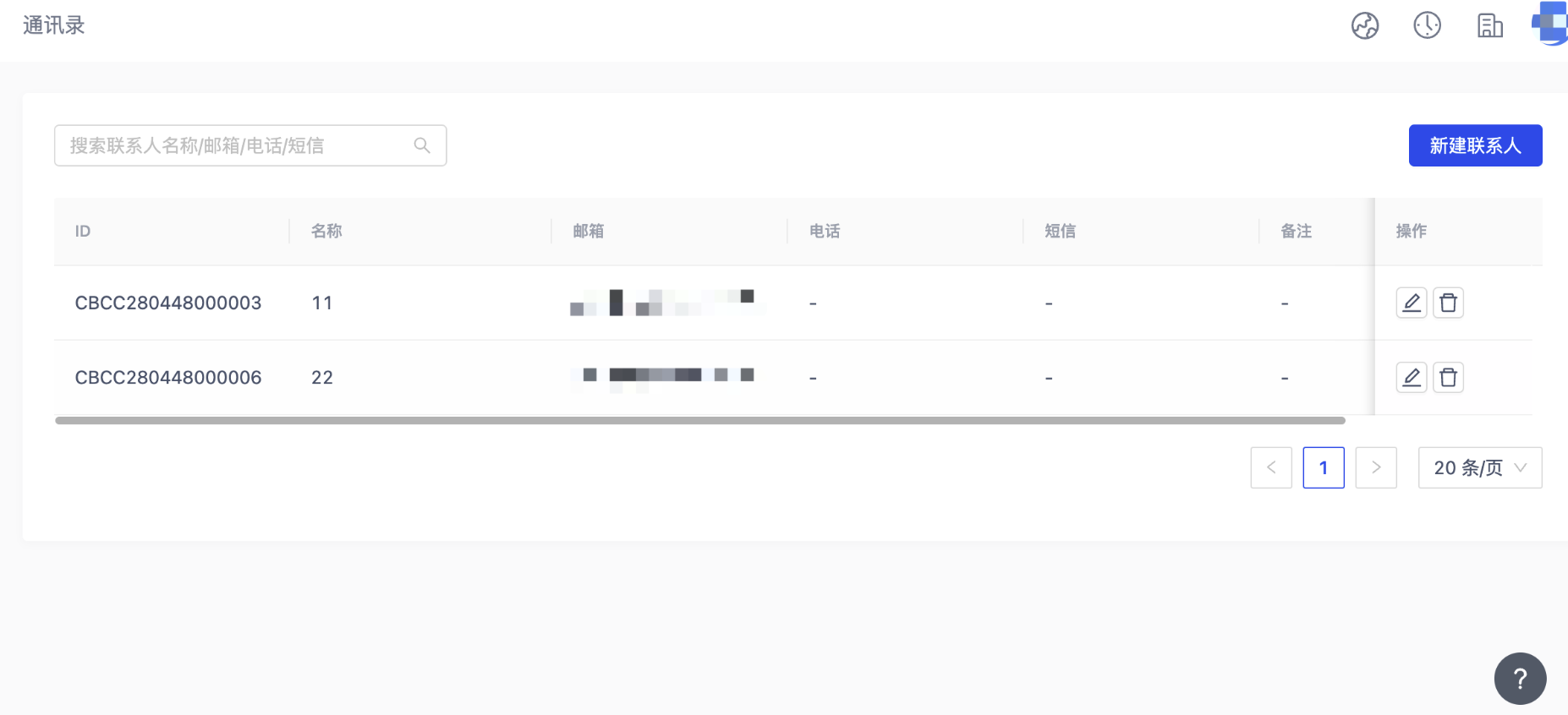
In order to facilitate users to manage the notification object information of different notification methods, we gather the object information of several notification methods in the form of an alert address book, using the name as the unique identifier of each recipient. The default first notification object is the organization's main account. You can log in to the instance platform and clickAlert >Address Book in sequence to view the address book list. The list displays information such as name, email, and telephone.
Add Contact
In the address book, you can add contacts. ClickAlert >Address Book >New Contact in sequence, and enter your contact information:
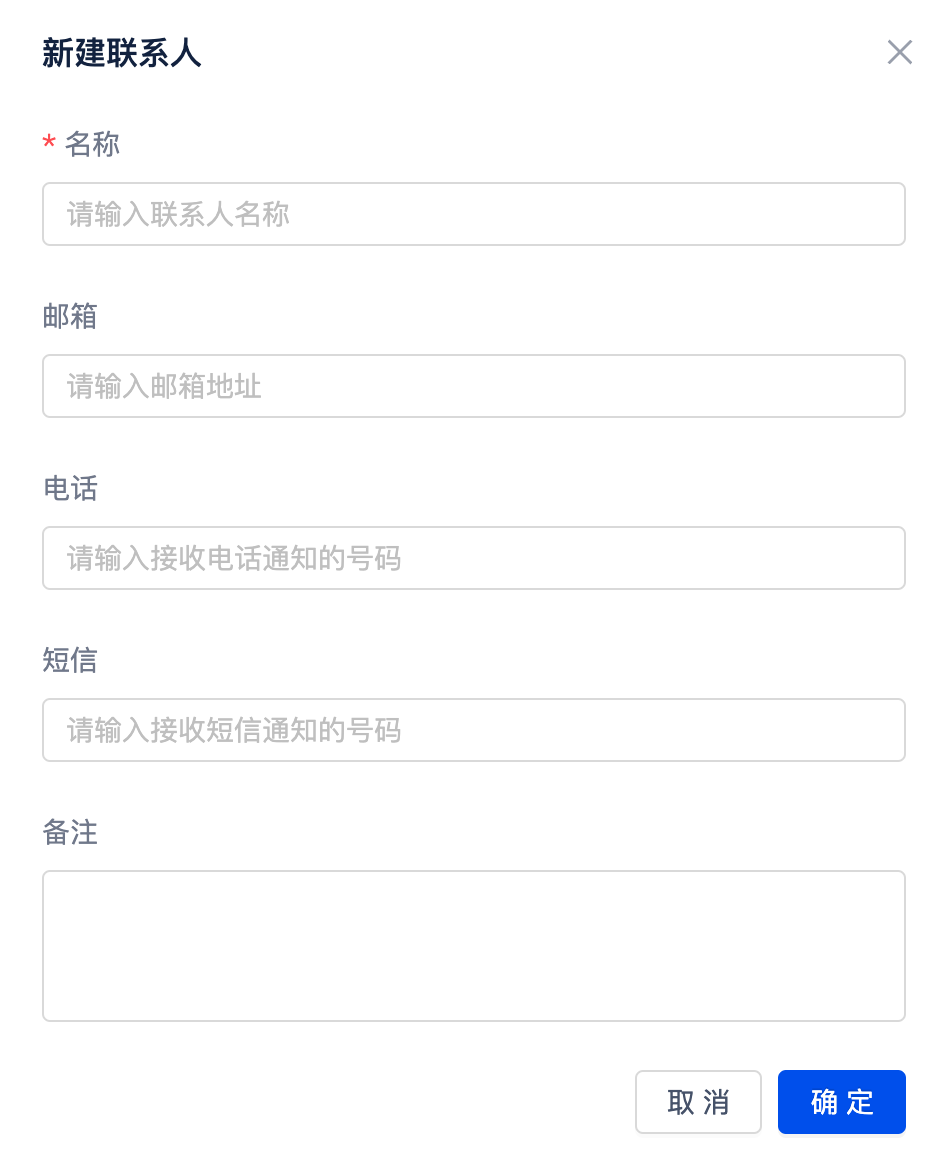
After successfully adding a contact, you can modify all attributes except the id. After the modification is completed, the associated synchronization update of alert management will be performed. For unnecessary contacts, you can also delete them or turn off theEnable Status button to disable the contact. Please note: The number of contacts in the alert address book cannot exceed 1000.
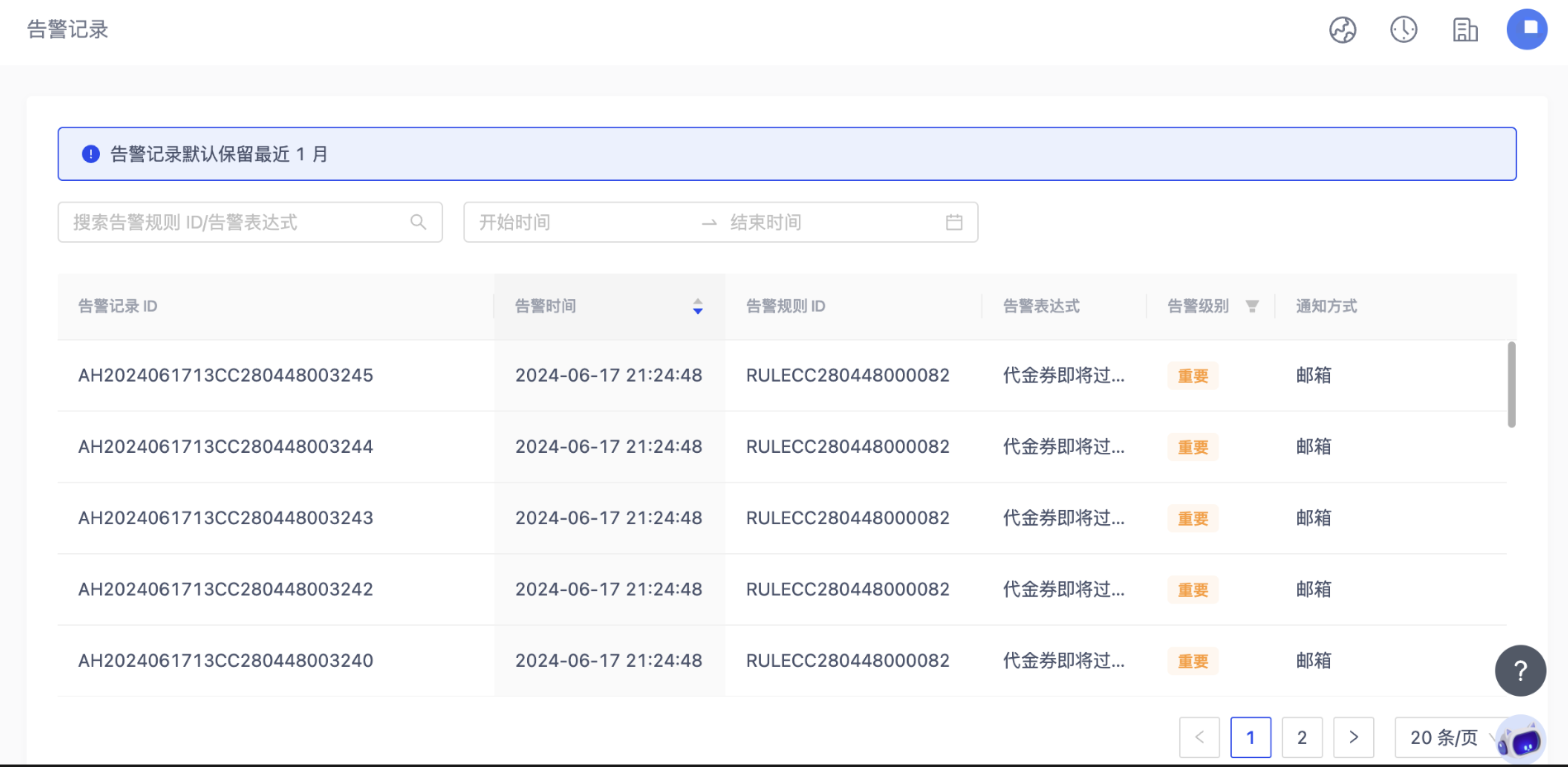
Alert Record
The alert log is used to track and archive the history of alert rule triggers. Users can query the alert records within the last month on the alert log interface, and filter and find specific alert entries by alert rule ID, alert expression, and start and end dates.