Client Tools Connection
MatrixOne now supports connecting to the MatrixOne service through the following database client tools:
- MySQL Client
- Navicat
- DBeaver
Preparation
- Create instance has been completed.
- Already get the connection command for the MatrixOne Intelligence instance.
- The default is a public network connection. If you want to use a private network connection, please refer to the chapter [Private Network Connection] ( ../../Security/private-link.md) to complete the configuration.
Connect to MatrixOne Intelligence Services via MySQL Client
-
Download and install MySQL Client.
-
After the download is completed, you can use the MySQL command line client to connect to the MatrixOne Intelligence service. You only need to copy the connection command of the MatrixOne Intelligence instance you obtained and enter your password as prompted.
mysql -h freetier-01.cn-hangzhou.cluster.matrixonecloud.cn -P 6001 -u 585b49fc_852b_4bd1_b6d1_d64bc1d8xxxx:admin:accountadmin -p
Enter password:
Note
If you need to use the LOAD DATA LOCAL statement to read the local file, you need to add the parameter --local-infile when connecting.
-
The connection is successful prompt as follows:
Welcome to the MySQL monitor. Commands end with ; or \g. Your MySQL connection id is 1031
Server version: 8.0.30-MatrixOne-v2.0.3 MatrixOne
Copyright (c) 2000, 2022, Oracle and/or its affiliates.

Oracle is a registered trademark of Oracle Corporation and/or its affiliates. Other names may be trademarks of their respective owners.
Type 'help;' or '\h' for help. Type '\c' to clear the current input statement.
Note
MatrixOne Intelligence and the client are non-encrypted transmission by default. If you need to enable encrypted transmission, please refer to [Data Transfer Encryption] (../../Security/TLS-introduction.md).
Connect to MatrixOne Intelligence Services via Navicat
-
Download and install Navicat.
-
After installing Navicat, open Navicat, clickConnection > MySQL in the upper left corner, and fill in the following parameters in the pop-up window:
-Connection name: moc -Host: freetier-01.cn-hangzhou.cluster.matrixonecloud.cn -Port: 6001 -Username: 585b49fc_852b_4bd1_b6d1_d64bc1d8xxxx:admin:accountadmin -Password: your_password -Save password: Check
-
ClickSaveSave settings.

-
Double-clickmoc in the database directory on the left, and the icon lights up and the connection is successful.
-
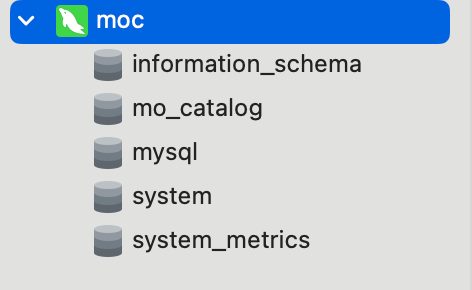
After connecting to MatrixOne Intelligence, in the database directory column on the left, you will see 5 default system databases:
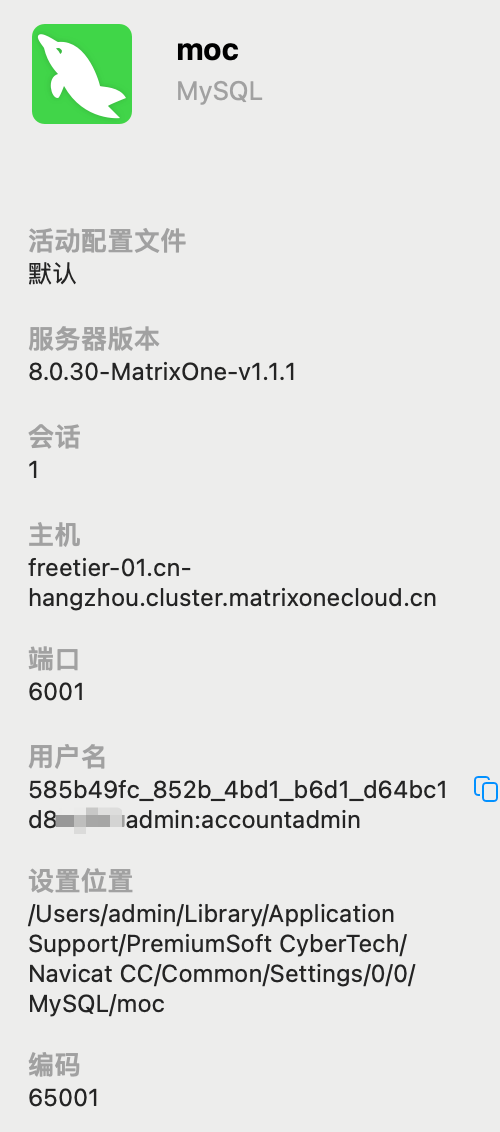
The right window allows you to view basic information about this connection:
Connect to MatrixOne Intelligence Services via DBeaver
-
Download and install DBeaver.
-
After installing DBeaver, open DBeaver, click theConnection icon in the upper left corner, selectMySQL in the pop-up window, and clickNext step.

Fill in the following parameters in theMain section of theConnect to a database window:
-Server address: freetier-01.cn-hangzhou.cluster.matrixonecloud.cn -Port: 6001 -Database: system -Username: 585b49fc_852b_4bd1_b6d1_d64bc1d8xxxx:admin:accountadmin -Password: your_password -Save password: Check
Note
For the first connection, you can fill in the Database option in the system library
systemfor easy connection, and you can modify it yourself according to your needs in the future.
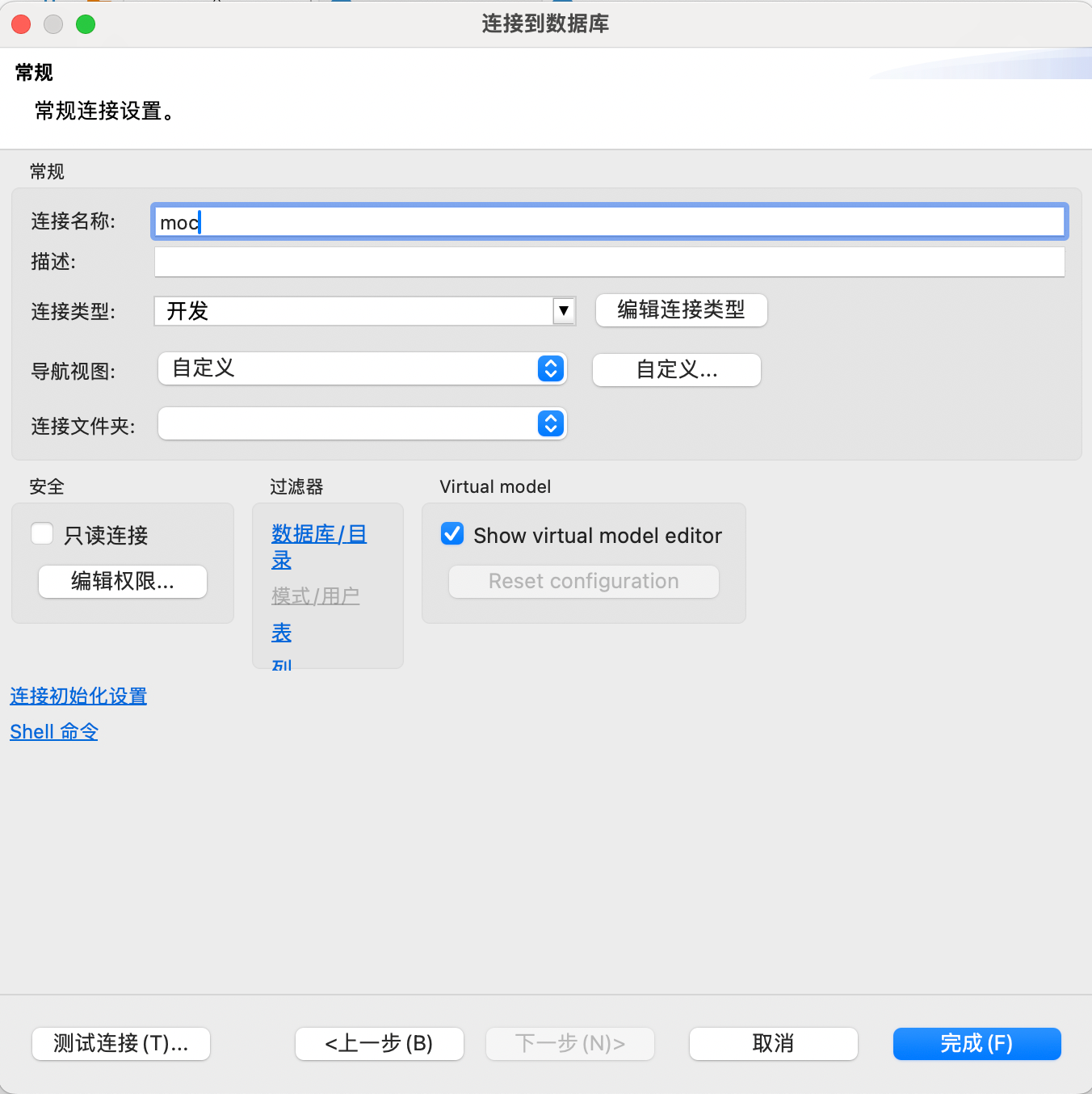
And clickConnection Details to modify the connection name tomoc.
-
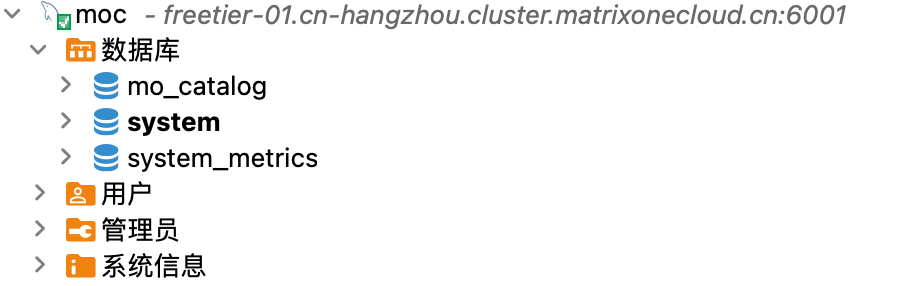
Double-clickmoc in the left directory to connect to the MatrixOne Intelligence service. You can see the default three system databases in the directory tree on the left:
-
By default, views are not displayed in DBeaver. To display the complete system database, you can right-clickmoc, selectConnection View and openShow System Objects:

Once the setup is complete, you will see five system databases.
