Alarm
As data processing tasks become increasingly complex and business systems continue to expand, the stability, security and performance controllability of workspaces are particularly important. In the absence of a timely feedback mechanism, problems such as system abnormalities, task failures or resource bottlenecks may not be discovered for a long time, seriously affecting the overall business operation efficiency and reliability.
By conducting real-time monitoring and automated warning of key links, users can discover problems, locate causes and respond quickly at the first time, thereby significantly improving the observability and operation and maintenance efficiency of the system. Especially in scenarios where multitasking concurrency and data dependence are complex, the alarm mechanism not only effectively reduces the cost of manual inspection, but also ensures the stability and controllability of data flow and processing links, helping the business system to operate continuously and healthily.
Alarm Rules
The alarm function focuses on the monitoring of the workspace, mainly covering data loading and data processing modules.
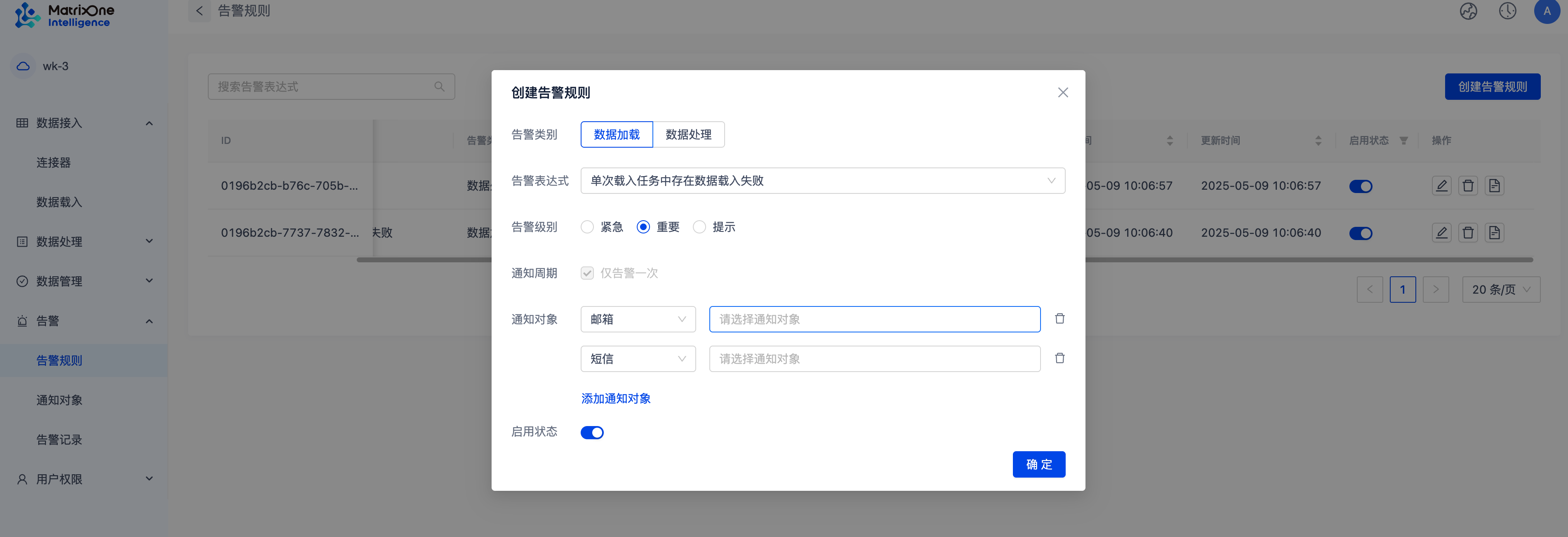
Log in to the workspace management platform, and then clickAlarm >Alarm Rules >Create Alarm Rules** to enter the page where you set the alarm rules.
-
Alarm category: divided into data loading and data processing
-
Alarm expression: is a logical expression composed of a series of monitoring indicators, comparative relationships, thresholds, statistical periods and continuous periods to define when an alarm is triggered. It has the following limitations:
- The alarm expression is fixed and does not support user customization, but the alarm threshold can be adjusted to meet specific monitoring needs.
- Users can create multiple alarm expressions with different thresholds based on the same rule, but for alarm expressions with the same rule and threshold, one is allowed to be created.
- Each expression has a default alarm level and notification period.
- Each alarm expression sets a different default threshold and a threshold interval that can be entered or selected according to its respective characteristics.
- The maximum number of alarm rules allowed in each workspace is 100.
-
Alarm level
- Tip: The problem is of a slight level and does not affect the normal operation of the resource. The system defaults to notifying it by email.
- Important: The problem is relatively serious and has had a certain impact on the business. The system will notify it by default by email and text messages.
- Emergency: In case of an emergency failure or business function interruption, the system will automatically provide emergency notifications through email, text messages, phone calls and corporate WeChat.
-
Notification cycle: Currently only once notification.
-
Notification object: Once the alarm is triggered, the system will send notifications to the user through various methods. The user can choose zero or more notification methods, including email, SMS, phone number and corporate WeChat. Each method can independently specify the recipient. The user does not need to manually enter the recipient's detailed information, but just select the corresponding name from the notification object. If no notification method is selected, the alarm information will only be recorded in the alarm log. When creating an alarm rule, once a notification path is selected, the corresponding notification object must be specified. Different notification methods have different restrictions:
- Phone: The maximum daily notification is 20 times. For the same number, the notification frequency is no more than 1 time per minute, no more than 5 times per hour, and no more than 20 times per day. Sometimes, the phone number may be maliciously reported and blocked by the corresponding service provider, resulting in the user not receiving the phone alarm even though the alarm rules have been triggered and notifications are issued via telephone.
- Email: Unlimited.
- SMS: The maximum daily notification is 100 times.
- Enterprise WeChat: No limit.
-
Enabled: Alarm is enabled by default, you can specify a startup time or permanently disabled.
After the alarm rules are created, users can browse detailed information including alarm expressions, alarm categories, and alarm levels. The system will automatically turn on some key alarm rules, and you can adjust the alarm activation status as needed. In addition, you can modify the rules or choose to delete unnecessary alert rules.
If you want to view the details of triggering an alarm, click the log icon on the far right of the alarm rule to jump toAlarm Record to view.
Notify objects
In order to facilitate users to manage notification object information of different notification methods, we have collected the object information of several notification methods in the form of notification objects, with the name as the unique identifier of each recipient. You can log in to the workspace and clickAlarms >Notification Objects to view the notification object list.
In the notification object, you can add a contact, clickAlarm >Notification object >Create notification object, and enter contact information:
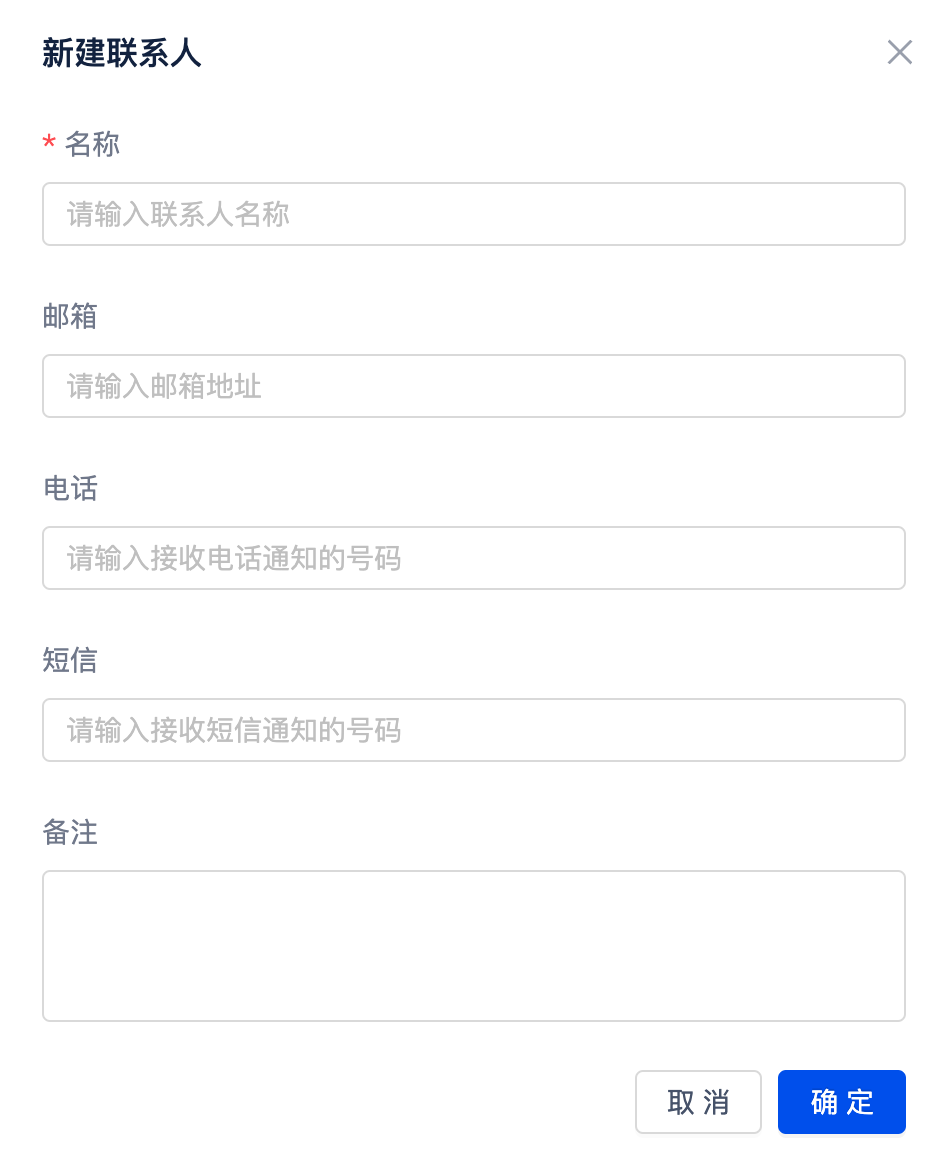
After successfully adding a contact, you can modify all attributes except id. After the modification is completed, the association of alarm management will be updated synchronously. For unwanted contacts, you can also delete them or turn off theEnable Status button to disable the contacts. Please note: the number of contacts in the alarm notification object cannot exceed 1,000.
Alarm record
Alarm logs are used to track and archive the history of alarm rule triggers. Users can query the alarm records in the last month in the alarm log interface, and filter and find specific alarm entries through alarm rule ID, alarm expression, and start and end dates.