SQL Editor
TheSQL Editor is a crucial tool within the MatrixOne Intelligence platform. It allows you to quickly write, execute, and view the results of SQL statements online. You can also save frequently used SQL statements inWorkbooks for easy future use, reference, and comparison.
This document will guide you on how to perform online SQL queries and data exploration using the MatrixOne Intelligence built-in SQL Editor.
Opening the SQL Editor
Log in to the MatrixOne Intelligence instance management platform, select your target instance, and connect via the cloud platform to enter the MatrixOne Intelligence database management platform. In the left-hand menu, find theSQL Editor module and click on it to access the SQL Editor page.
The SQL Editor module page consists of 3 parts.
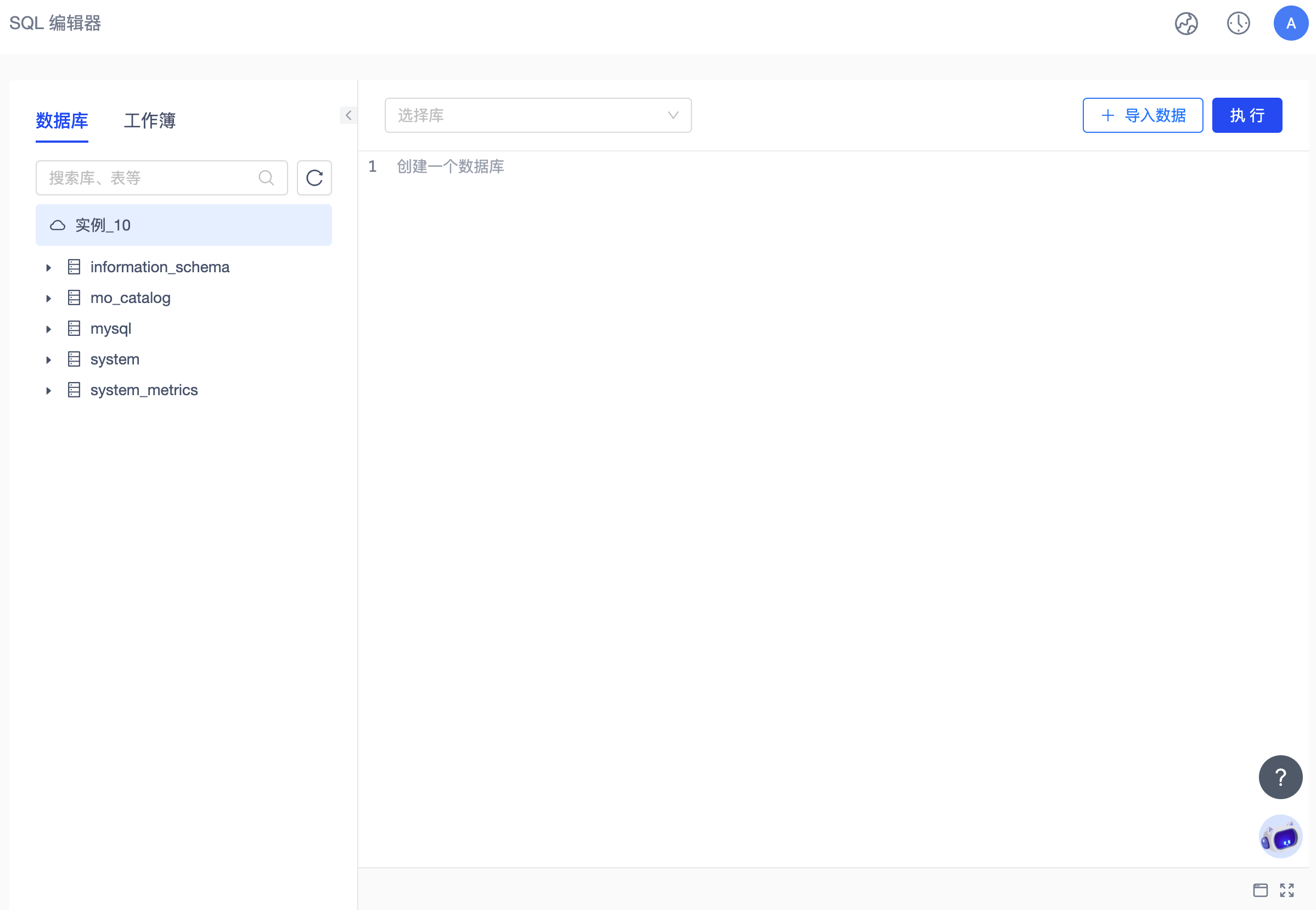
-Left Area: Displays the existing database tables and workbooks for the current instance. You can quickly view and copy database names, table names, column names, and SQL statements saved in workbooks. Clicking the icon in the top left corner will hide this area.
-Upper Right Area: This is the SQL statement editing area where you can quickly input, edit, and execute SQL statements.
-Lower Right Area: This is the execution result viewing area where you can see the results of your SQL statement execution.
SQL Statement Editing and Execution
In the right-hand SQL statement editing area, you can freely input and edit SQL statements and execute them on the current instance.
The online SQL editor supports data import, database/table viewing and selection, SQL statement editing, online execution, and result viewing.
Online Data Import
The SQL editor supports quick data import to kickstart your data analysis. ClickImport Data to begin the guided data import process.
MatrixOne Intelligence online data import supports two methods: importing sample data and importing your own data.
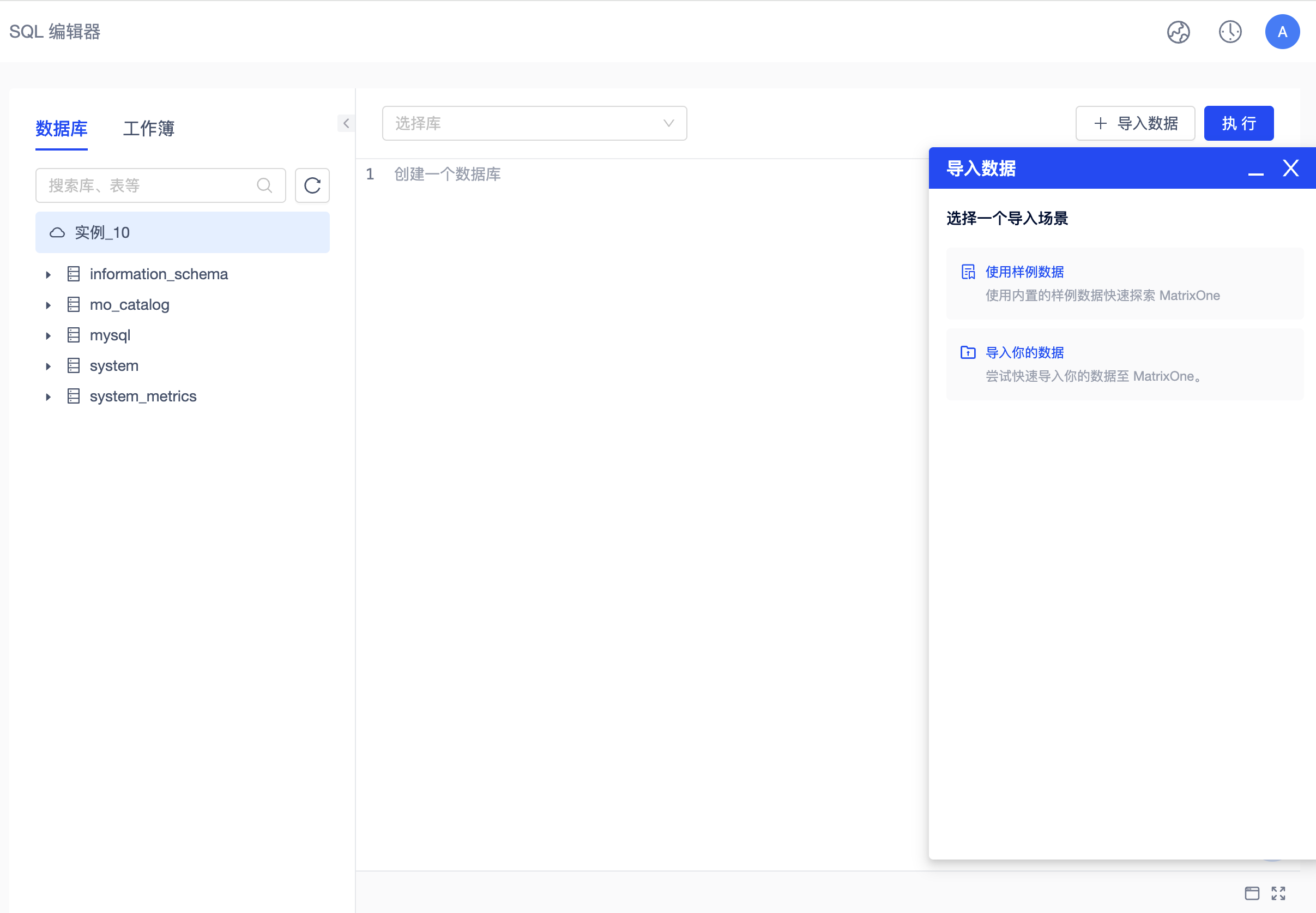
-Import Sample Data: The platform provides typical open-source datasets and interactive data import guidance, allowing you to experience the core product features of MatrixOne Intelligence without preparing any data. Currently, TPC-H Benchmark sample data is supported.
-Import Your Own Data: Currently, MatrixOne Intelligence allows you to import datasets directly from your local client or from your Alibaba Cloud OSS.
For more information on data import methods, refer to the Import Data section.
Viewing and Selecting Databases and Tables from Database
When writing SQL statements in the SQL Editor, developers often need to view the data structure and data types within the target database tables to improve the efficiency and accuracy of SQL statement writing.
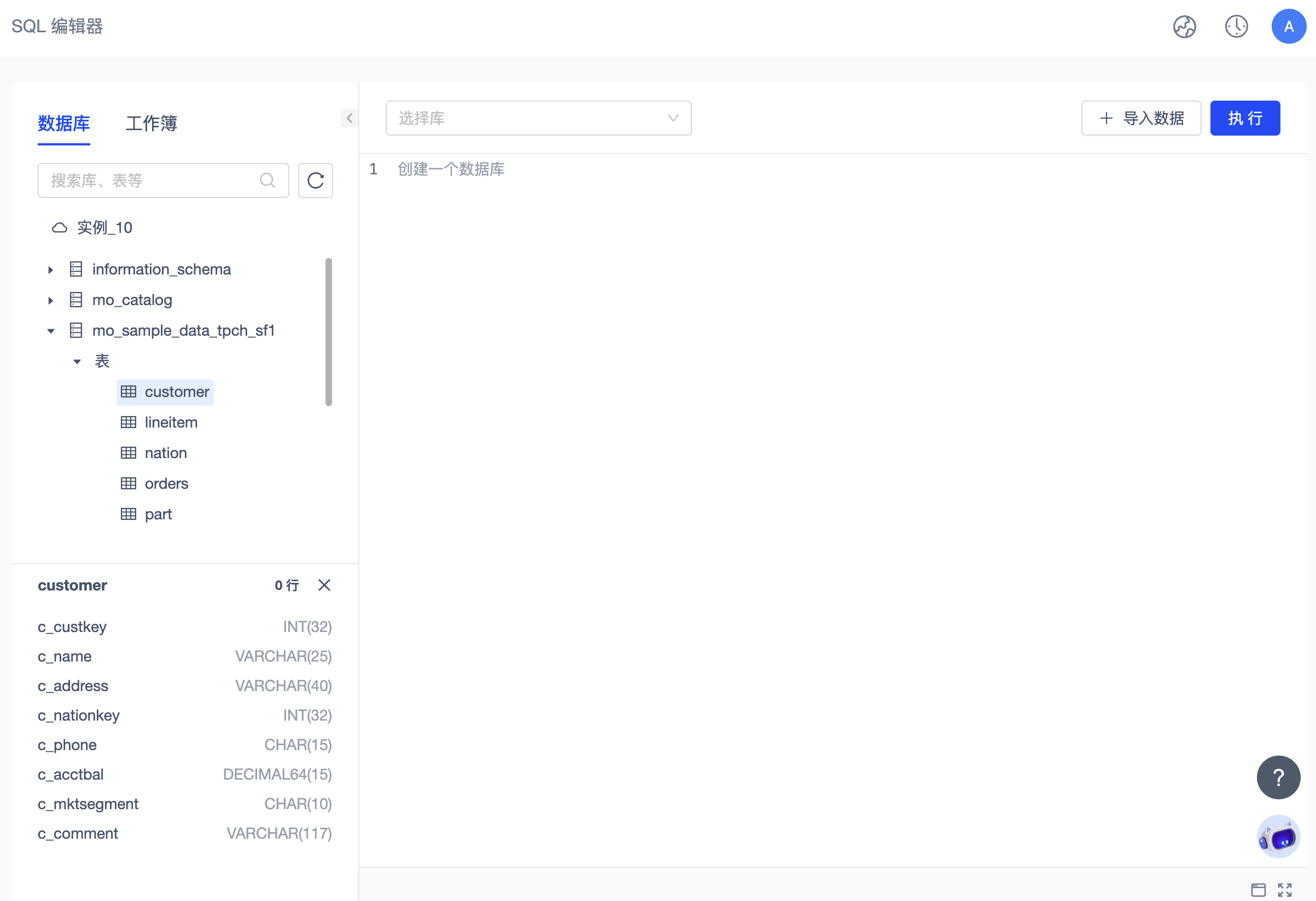
In the leftDatabase area, the databases and data tables of the current instance are presented in a tree structure. You can view the table structure of each database and the data types within each data table in detail. You can also copy the required database names, table names, and column names to quickly paste them into the editor.
Editing and Executing SQL Queries
The dropdown list above the right SQL editing area is used for database selection. You can view and select the database currently used for SQL queries from this list. After selecting a database, SQL statements can be executed without including dbname, which is equivalent to having executed a use database statement.
!!! note
When you re-edit and execute a new use database statement in the SQL editor and it succeeds, refresh the Database tree list on the left, and the database option in the dropdown box at the top right will switch synchronously.
After inputting the desired SQL statement, click theExecute button, and MatrixOne Intelligence will directly execute the corresponding SQL request online.
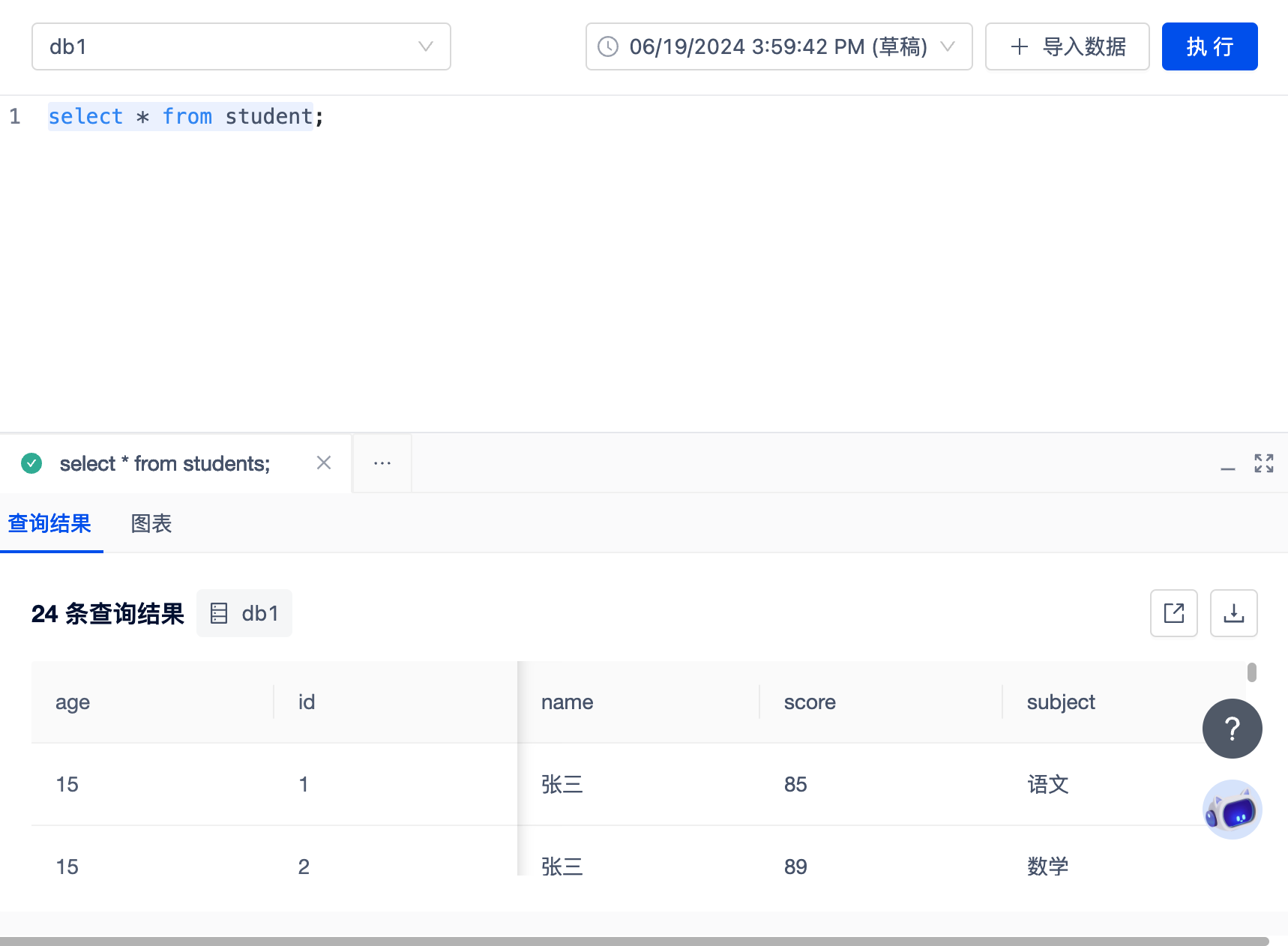
- Supports executing selected portions of SQL statements using the cursor; the platform will execute these SQL statements in order.
- If the cursor is inside an SQL statement, that SQL statement will be executed.
- If the cursor is outside an SQL statement and there are no SQL statements after it, the previous SQL statement will be executed.
- If the cursor is outside an SQL statement and there are no SQL statements before it, the next SQL statement will be executed.
- You can manually stop or close the Query Tab during SQL execution, and the Query will be terminated.
!!! note
The online SQL editor currently does not support the following statements: explain, Load data local, source, SELECT INTO...OUTFILE, transactions, and temporary table related statements.
Query Results
The lower-right query results area displays the execution results of the current query. If the platform executed multiple SQL statements sequentially, they will be displayed and viewed in separate tabs.
Due to page length limitations, the platform's visual query results currently only show the first 1000 rows. You can click theDownload button to export the full query results.
If you need further analysis and optimization of query result time consumption, you can click the jump button on the right side of the query result Tab to further view query details and Profile visual analysis in the Query History module.
Charts
MatrixOne Intelligence supports displaying SQL query results in chart form, enhancing data accessibility through visualization, which is an indispensable part of modern data analysis. Users can select one column from the result set as the horizontal axis for data grouping, select multiple columns from the result set as aggregation metrics for the vertical axis, and configure corresponding aggregation operations for each aggregation metric individually.
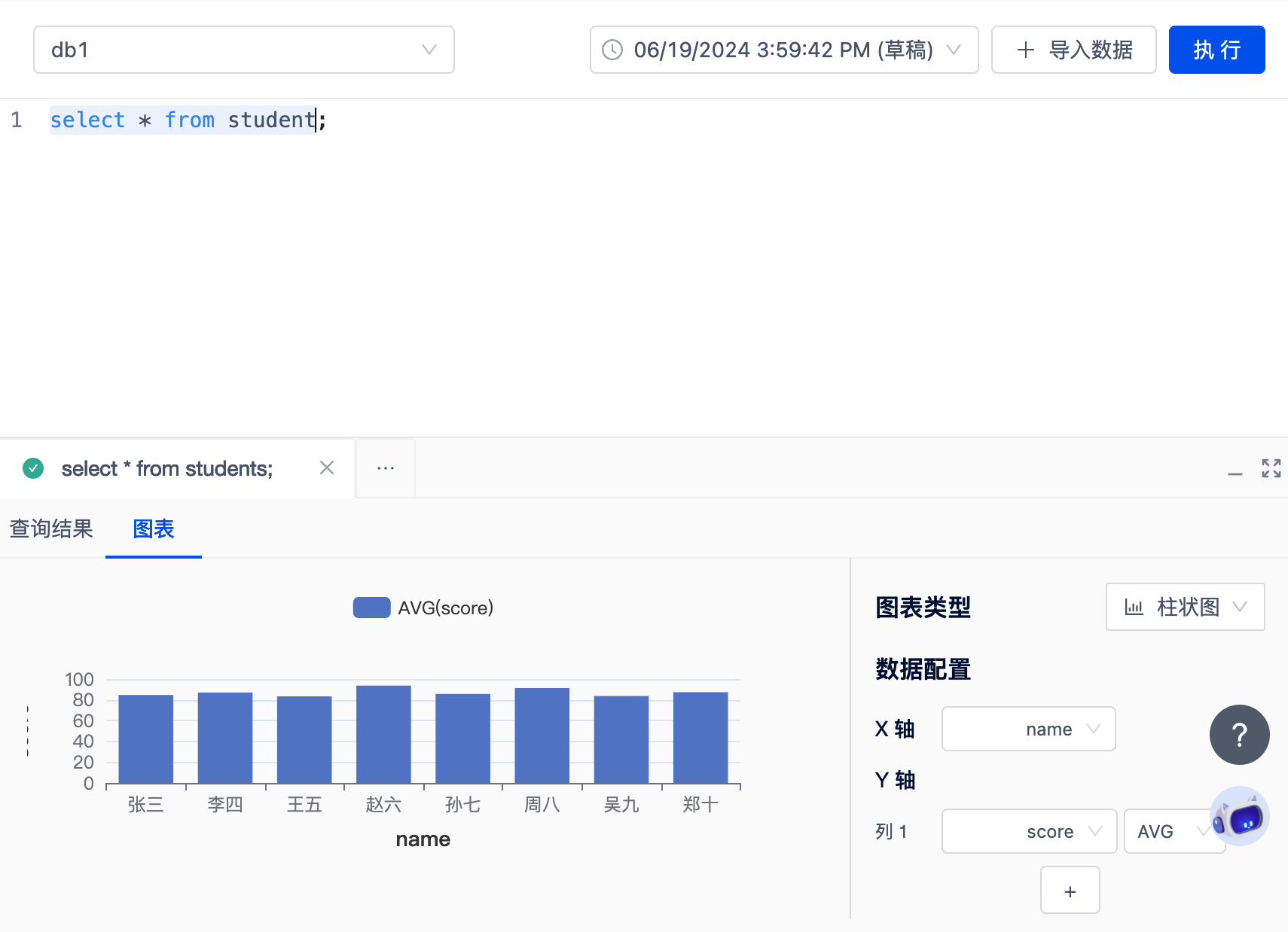
-Chart Type: Defaults to bar chart, also supports pie chart and line chart.
-Aggregation Function: Defaults to SUM, also supports CNT(COUNT), MIN, MAX, AVG.
Workbook Management
All SQL statements you edit and execute online will be saved in differentWorkbooks for future reference and use.
For more information, refer to Workbook Management.
When you first use it, SQL editing and querying will be performed in the default Workbook. You can further modify the Workbook's name.
You can also click the "+" sign above the Workbook list to add a custom Workbook. If there are many Workbooks, a search function is also available.
Each Workbook supports multiple versions. Every time you edit, a draft version will be generated, and clicking execute will save it as a formal version.
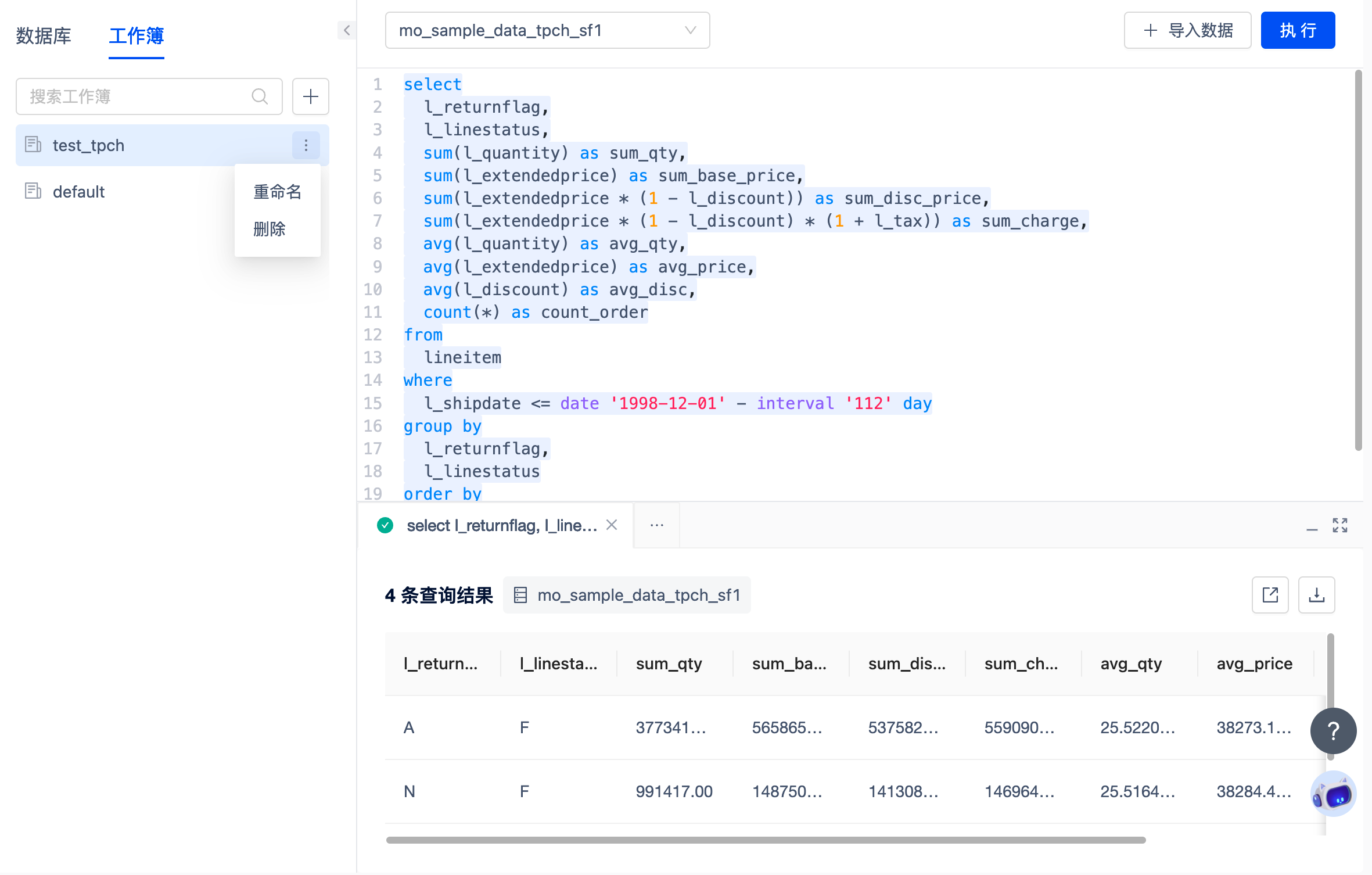
!!! note Each SQL User can create a maximum of 100 Workbooks, and each Workbook will save the 25 most recent versions.