Import object storage data
This chapter will provide detailed descriptions on how to import object storage data files stored on the public cloud into a MatrixOne instance.
Check before import
Before you do data import, make sure you have checked and understood the following data file information.
Object Storage Service
MatrixOne Intelligence supports object storage services from a variety of cloud vendors, including:
| Cloud vendor | Object storage name |
|---|---|
| AWS | S3 |
| Alibaba Cloud | OSS |
Data file type
MatrixOne supports batch import of the following data file types from the object storage service:
-CSV File: Suitable for structured data. -JSONLines File: A format that facilitates storing structured data, also known as newline-delimited JSON.
About JSONLines format
JSON (JavaScript Object Notation) is a lightweight data exchange format, while JSONLines is a more convenient format for storing structured data. It uses line breaks as delimiters, and each line contains independent, complete and legal JSON values. This format is suitable for handling data streams, as each line represents a separate entry and can be streamed easily without the need for a custom parser. Please note that MatrixOne has strict requirements on the JSONLines format, and only allows JSON objects or JSON arrays that contain the same type of values and normal structures. If a JSONLines file has a nested structure, MatrixOne does not currently support loading it.
Here is an example of the JSONLines format:
Free JSONLines object example:
{"id": 1, "father": "Mark", "mother": "Charlotte"}
{"id": 2, "father": "John", "mother": "Ann"}
{"id": 3, "father": "Bob", "mother": "Monika"}
Invalid JSONLines object example (with nested structure):
{"id": 1, "father": "Mark", "mother": "Charlotte", "children": ["Tom"]}
{"id": 2, "father": "John", "mother": "Ann", "children": ["Jessika", "Antony", "Jack"]}
{"id": 3, "father": "Bob", "mother": "Monika", "children": ["Jerry", "Karol"]}
Valid JSONLines array example (similar to CSV format):
["Name", "Session", "Score", "Completed"]
["Gilbert", "2013", 24, true]
["Alexa", "2013", 29, true]
["May", "2012B", 14, false]
["Deloise", "2012A", 19, true]
Invalid JSONLines array example (invalid due to mismatch between data type and column number):
["Gilbert", "2013", 24, true, 100]
["Alexa", "2013", "twenty nine", true]
["May", "2012B", 14, "no"]
["Deloise", "2012A", 19, true, 40]
Because the JSON data type is different from the data type of MatrixOne, you need to create a data table and make sure its data type matches the data type in the file before importing a JSONLines file.
Import method
MatrixOne provides a variety of ways to import object storage data files. The following is a detailed description of two of the main methods.
Web UI interactive boot
MatrixOne Intelligence provides an interface-based boot method to make data import simple. Here are the steps to import data using the Web UI:
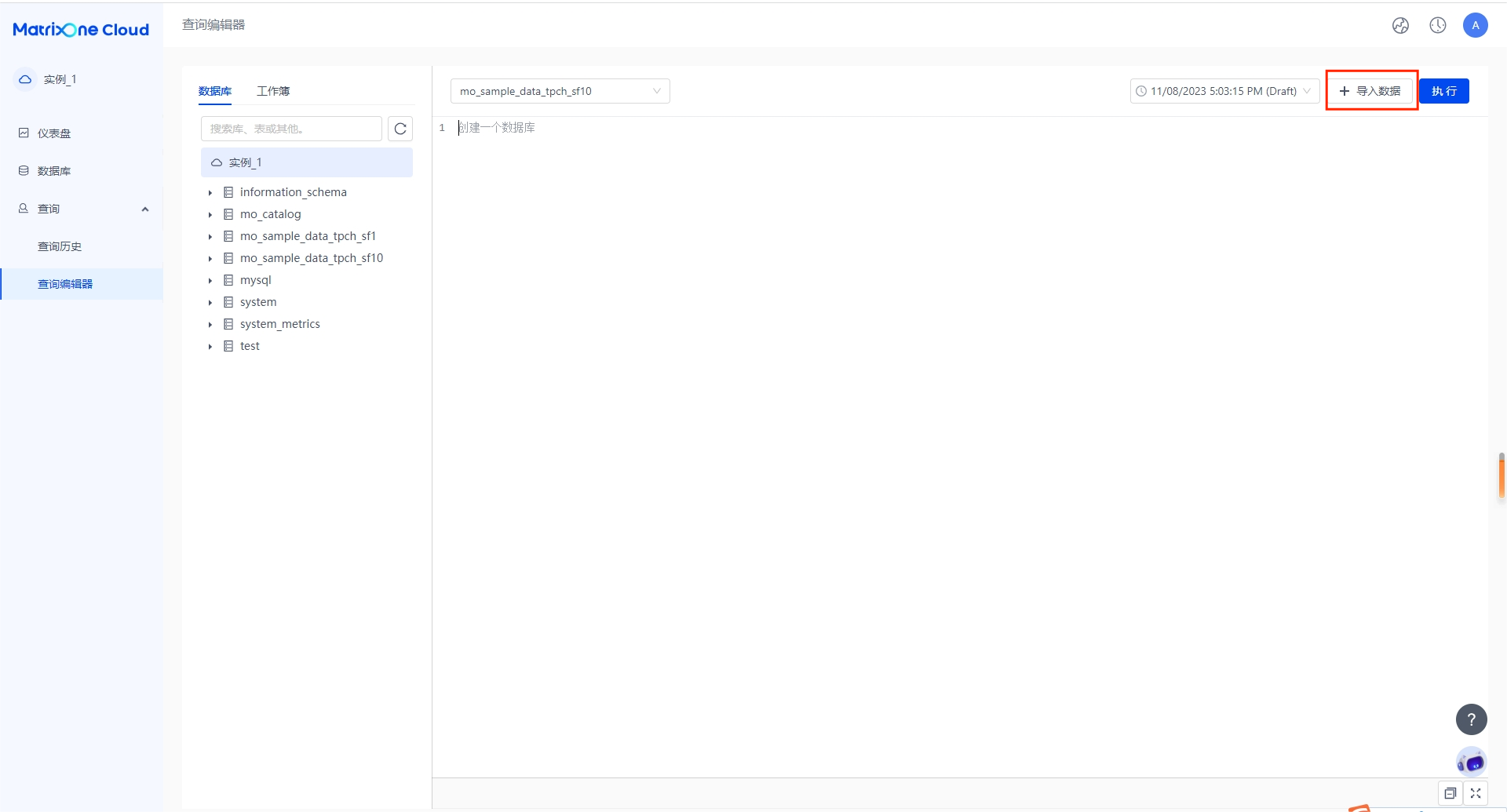
Step 1: Open the import window
In the SQL Editor function, click the "Import" button as shown in the following figure:
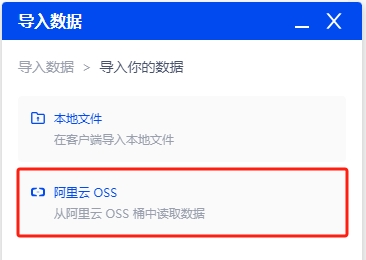
Step 2: Select the object storage where the file resides
Click "Import Your Data" and select the object storage service you want to import, as shown in the figure below:
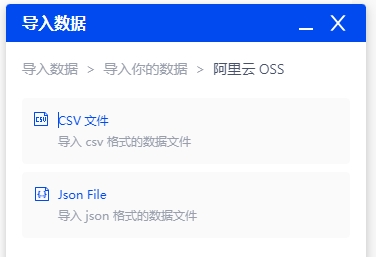
Step 3: Select the data file format
ForCSV file format, you can select appropriate field separators and field enclosures based on the file structure. The default field separator is a comma (","), and the field enclosure is a carriage return and a line break ("\r\n"), as shown in the figure below:
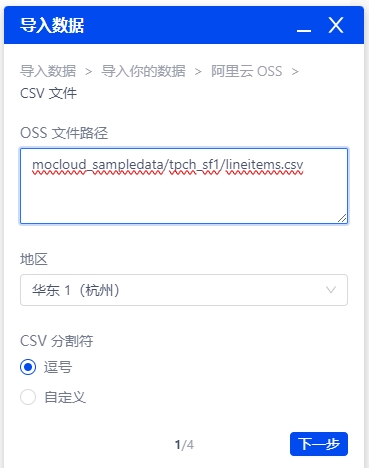
Step 4: Fill in the data file address
Fill in the path of the data file into the corresponding box and specify the file area. Please note that selecting the wrong file region may cause the import to fail, as shown in the following figure:
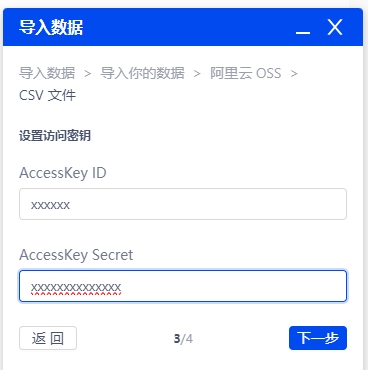
Step 5: Fill in the safety certification method
MatrixOne Intelligence supports two security authentication methods, namely access keys and role ARNs, for accessing imported data sources.
Access Key:
-AWS: Fill in the Access Key and Secret Access for an IAM user, who must have access to the imported data. -Ali Cloud: Fill in the AccessKey ID and AccessKey Secret of the RAM user. The user must have permission to access the imported data, as shown in the figure below:
Step 6: Select the imported data table
Specify the data source in the object store and the database and data tables in the MatrixOne instance, and complete the data import.
SQL statement import
Using SQL statements to perform data file import is a classic and commonly used method of importing data. MatrixOne supports the use of the LOAD DATA statement to import object storage data files.
Import CSV files
Grammar Structure:
LOAD DATA URL s3options {
    "provider" = '<string>',
    "endpoint" = '<string>',
    "bucket" = '<string>',
    "access_key_id" = '<string>',
    "secret_access_key" = '<string>',
    "role_arn" = 'xxxx',
    "external_id" = 'yyy',
    "filepath" = '<string>',
    "format" = 'csv',
    "compression" = '<string>'
}
INTO TABLE tbl_name
[{
    FIELDS | COLUMNS
    [TERMINATED BY '<string>']
    [[OPTIONALLY] ENCLOSED BY '<string>']
}]
[LINES
    [STARTING BY 'string']
    [TERMINATED BY 'string']
]
[IGNORE number {LINES | ROWS}]
[PARALLEL {'TRUE' | 'FALSE'}]
Particle description:
provider: The public cloud where the object storage resides, such as AWS or Alibaba Cloud. If you don't fill in, the default is AWS.endpoint: The access domain name of OSS, such as oss-cn-hangzhou.internal.aliyuncs.com. For Alibaba Cloud, this parameter is required; for AWS, it does not need to be filled in.bucket: The bucket where the data resides.access_key_id: AccessKey ID (optional).secret_access_key: AccessKey Secret (optional).role_arn: ARN of the RAM role (optional).external_id: (optional)file_path: Complete object storage file path, such as mocloud_sampledata/tpch-sf1/lineitems.csv.format: object storage file format, default is CSV.compression: The compressed format of the object storage file, if not filled in or the value is "none".
Note: This method is used to import CSV files.
Grammar Example
Loading data on AWS S3 using AK/SK authentication:
LOAD DATA URL s3options {
    "bucket" = 'test-load-mo',
    "access_key_id" = 'XXXXX',
    "secret_access_key" = 'XXXXX',
    "filepath" = 'mo_test/test.csv'
}
INTO TABLE t1
FIELDS TERMINATED BY ',' ENCLOSED BY '"'
LINES TERMINATED BY '\n';
Load data on Alibaba Cloud OSS using Role ARN authentication:
LOAD DATA URL s3options {
    "provider" = 'aliyun',
    "endpoint" = 'oss-cn-hangzhou-internal.aliyuncs.com',
    "bucket" = 'test-load-data',
    "role_arn" = 'xxxxxxx',
    "external_id" = 'xxxx',
    "filepath" = 'mo_test/test.csv'
}
INTO TABLE t1
FIELDS TERMINATED BY ',' ENCLOSED BY '"'
LINES TERMINATED BY '\n';
```#### Import JSONLines files

**Grammar Structure:**

```sql
LOAD DATA URL s3options {
    "provider" = '<string>',
    "endpoint" = '<string>',
    "bucket" = '<string>',
    "access_key_id" = '<string>',
    "secret_access_key" = '<string>',
    "role_arn" = 'xxxx',
    "external_id" = 'yyy',
    "filepath" = '<string>',
    "format" = 'jsonline',
    'jsondata' = '<string>',
    "compression" = '<string>'
}
INTO TABLE tbl_name
[IGNORE number {LINES | ROWS}]
[PARALLEL {'TRUE' | 'FALSE'}]
Particle description:
provider: The public cloud where the object storage resides, such as AWS or Alibaba Cloud
. If you don't fill in, the default is AWS.
endpoint: The access domain name of OSS, such as oss-cn-hangzhou.internal.aliyuncs.com. For Alibaba Cloud, this parameter is required; for AWS, it does not need to be filled in.bucket: The bucket where the data resides.access_key_id: AccessKey ID (optional).secret_access_key: AccessKey Secret (optional).role_arn: ARN of the RAM role (optional).external_id: (optional)file_path: Complete object storage file path, such as mocloud_sampledata/tpch-sf1/lineitems.csv.format: The object storage file format must be filled in as "jsonline".jsondata: JSON data format (optional).compression: The compressed format of the object storage file, if not filled in or the value is "none".
Note: This method is used to import JSONLines files.
Grammar Example
Loading data on AWS S3 using AK/SK authentication:
LOAD DATA URL s3options {
    "bucket" = 'test-load-mo',
    "access_key_id" = 'XXXXX',
    "secret_access_key" = 'XXXXX',
    "format" = 'jsonline',
    "jsondata" = 'array',
    "filepath" = 'mo_test/test.csv'
}
INTO TABLE t1;
Load data on Alibaba Cloud OSS using Role ARN authentication:
LOAD DATA URL s3options {
    "provider" = 'aliyun',
    "endpoint" = 'oss-cn-hangzhou-internal.aliyuncs.com',
    "bucket" = 'test-load-data',
    "role_arn" = 'xxxxxxx',
    "external_id" = 'xxxx',
    "filepath" = 'mo_test/test.csv',
    "format" = 'jsonline',
    "jsondata" = 'array'
}
INTO TABLE t1;
Safety certification
When accessing object storage files in the public cloud, security authentication is required to ensure the security and integrity of the data. When users use MatrixOne instances to access their own object storage files, they can use two security authentication methods: access key and role ARN. You can choose one of these methods and configure it in a public cloud account. When importing data, you only need to fill in the parameters of one of the authentication methods, including access_key_id, secret_access_key, role_arn and external_id.
Access key
The access key consists of a set of access key IDs and keys that identifies the user. In the LOAD DATA statement, they correspond to the access_key_id and secret_access_key fields, respectively. Make sure the provided access key user has read permission to access the object storage file to be imported.
AWS
It is recommended to use an IAM user (rather than the root user of an AWS account) to create an access key. The specific steps are as follows:
- Create an IAM user and assign the
AmazonS3ReadOnlyAccesspolicy of the source data bucket, as well as the policies ofCreateOwnAccessKeysandManageOwnAccessKeys. For details, see Create IAM User. - Log in to IAM Console using the IAM user.
- Create an access key. For details, see Management Access Keys.
Ali Cloud
It is recommended to use RAM users (rather than the root user of Alibaba Cloud account) to create access keys. The specific steps are as follows:
- Create a RAM user and assign the
AliyunOSSReadOnlyAccesspolicy for the source data bucket. For details, see Create RAM User. - Log in to RAM Console using the RAM user.
- Create an access key. For details, see [Create an access key] (https://help.aliyun.com/zh/ram/user-guide/create-an-accesskey-pair?spm=a2c4g.11186623.0.0.50452230cq6Dt0).
Note
Alibaba Cloud's AccessKey Secret corresponds to the secret_access_key field.