Connectors
The MatrixOne Intelligence platform provides a powerful data connector to support data loading and exporting, enabling users to easily import data stored in object storage and distributed file systems into the MatrixOne Intelligence platform. By providing the necessary connection information, seamless data import is achieved, facilitating subsequent data analysis and processing.
Supported Connectors
| Type | Connector | Load | Export |
|---|---|---|---|
| Object Storage | Alibaba Cloud OSS | ✅ | ✅ |
| Object Storage | Standard S3 | ✅ | ✅ |
| Distributed File System | HDFS | ✅ | ❌ |
| Database | MatrixOne | ❌ | ✅ |
| Knowledge Base | Dify | ❌ | ✅ |
How to Use Connectors
Navigate to the MatrixOne Intelligence workspace, then click Data Integration > Connectors > Create Connector, and select the desired data source type.
Object Storage
Alibaba Cloud OSS
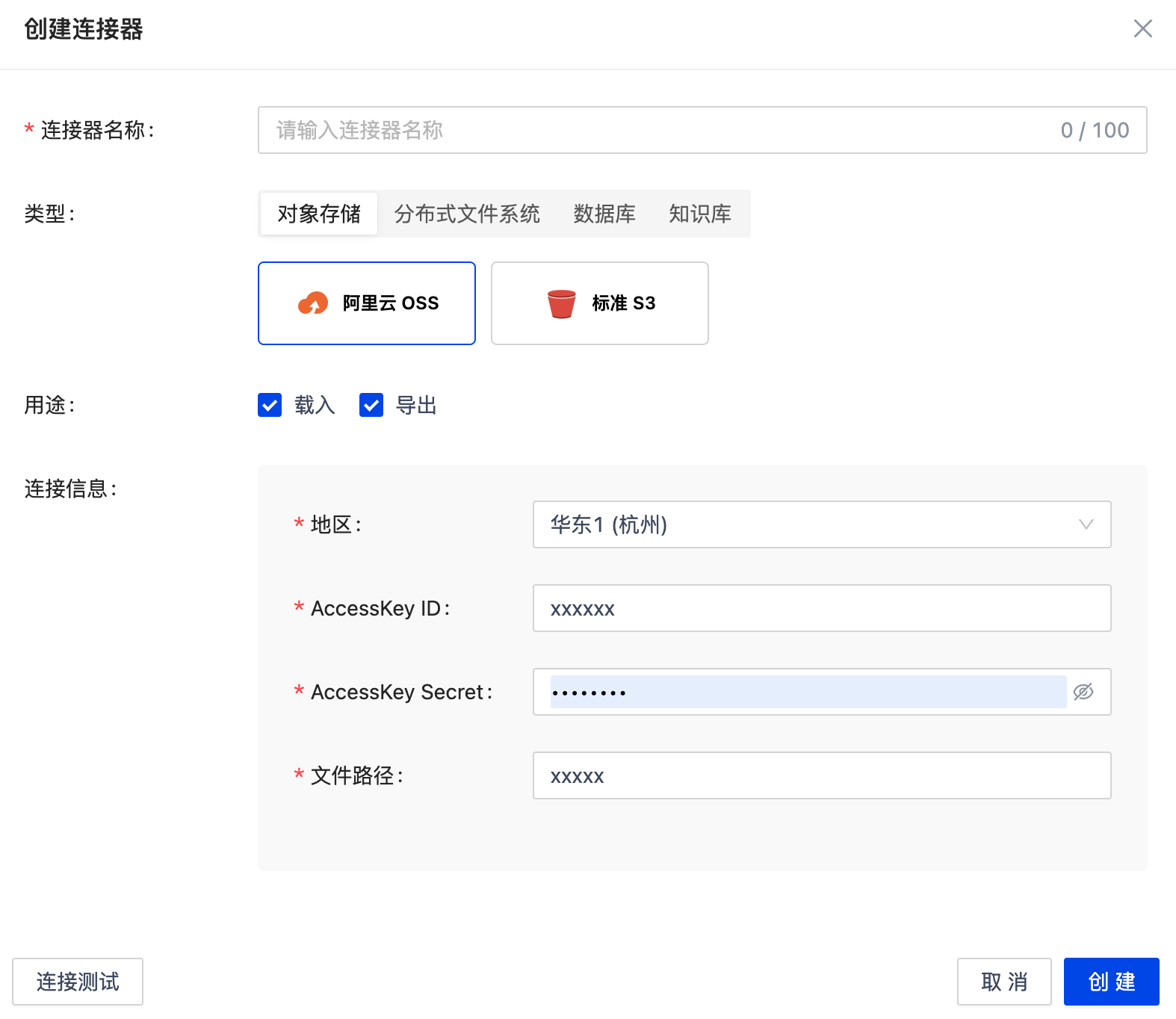
To import files from Alibaba Cloud OSS into the MatrixOne Intelligence platform or export processed results to OSS, provide the following connection configuration:
- Region: The access address of the OSS service.
- AccessKeyId: Your Alibaba Cloud account's AccessKey ID.
- AccessKeySecret: Your Alibaba Cloud account's AccessKey Secret.
- File Path: The path of the file on OSS. Example:
bucket-name/path/to/your/file.csv.
Standard S3
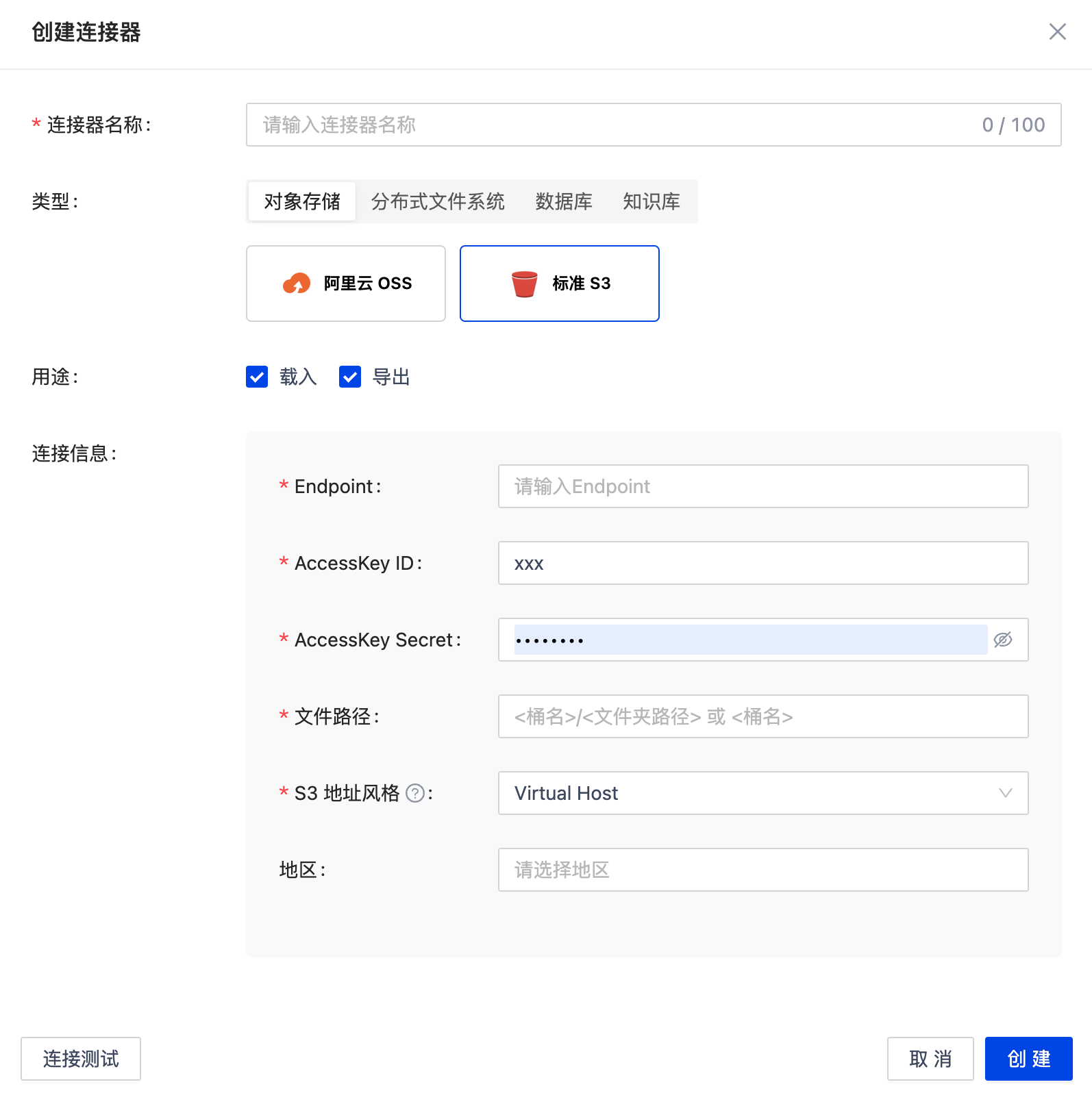
To import files from S3-compatible object storage services (e.g., AWS S3, MinIO) into the MatrixOne Intelligence platform, provide the following connection configuration:
- Endpoint: The access address of the S3 service. Example:
https://s3.amazonaws.com. - AccessKeyId: Your S3 account's AccessKey ID.
- AccessKeySecret: Your S3 account's AccessKey Secret.
- File Path: The path of the file on S3. Example:
bucket-name/path/to/your/file.csv. - S3 Address Style: Determines the URL structure for accessing buckets. Options:
- Virtual Host Style (Recommended):
https://my-bucket.s3.amazonaws.com/my-object - Path Style (Legacy Systems):
https://s3.amazonaws.com/my-bucket/my-objectAWS recommends Virtual Host Style, while some private S3-compatible storage (e.g., MinIO) may still require Path Style. - Region: The region where the S3 bucket resides. Example:
us-east-1.
Distributed File System
HDFS
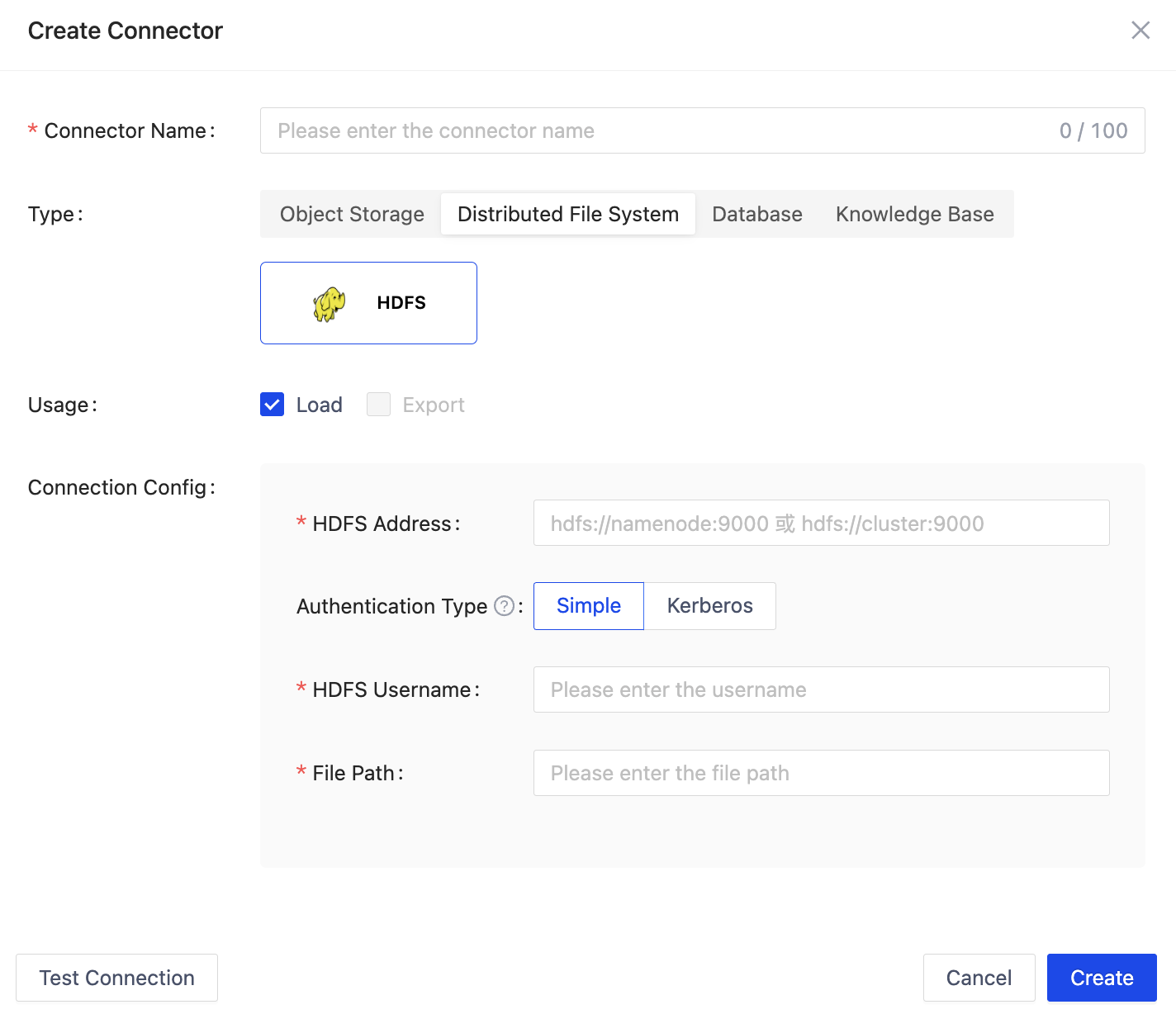
To import files from HDFS into the MatrixOne Intelligence platform, provide the following connection configuration:
- HDFS Address: e.g.,
hdfs://namenode:9000 - Authentication Method: Supports both Simple and Kerberos authentication methods
- Simple
- HDFS Username: HDFS access username
- File Path: HDFS file path
- Kerberos
- Kerberos Principal: A principal in Kerberos used to identify a user or service. Clients use it to request tickets from the Kerberos authentication service to prove their identity.
- Keytab File: A file that stores the Kerberos principal and encrypted keys, typically used for automated authentication. Clients can use it to obtain tickets from Kerberos without manually entering a password. It must be securely stored.
- Krb5 Configuration File: The Kerberos client configuration file, which defines realms, KDC information, etc., instructing the client on how to interact with the Kerberos server for authentication.
- Proxy User: In certain scenarios, a Kerberos authentication principal may need to access HDFS as another user. A proxy user can be specified to achieve permission delegation, allowing the main user to perform operations on behalf of the proxy user. Leave blank if not using a proxy user.
- File Path: HDFS file path.
Troubleshooting Connection Issues:
If encountering connection errors (service: new connector by config err: failed to create hdfs client: no available namenodes: dial tcp 43.139.183.124:9000: i/o timeout"), check the following:
- Port Accessibility: Ensure the following ports are open in the network environment:
- NameNode default port:
9000 -
DataNode default port:
9866If non-default ports are used, ensure they are open. -
Hadoop Configuration: Verify
core-site.xmlandhdfs-site.xmlcontain the following configurations:
In core-site.xml, hdfs://10.1.19.23:9000 is the internal IP address of the NameNode host. Port 9000 is the default HDFS NameNode port.
<configuration>
    <property>
        <name>fs.defaultFS</name>
        <value>hdfs://10.1.19.23:9000</value>
    </property>
    <property>
        <name>hadoop.tmp.dir</name>
        <value>/home/hadoop/hdfs/tmp</value>
    </property>
</configuration>
In hdfs-site.xml, dfs.datanode.hostname should be the DataNode's public IP (47.111.156.240). Add this configuration to force the DataNode to report the public IP.
<configuration>
    <property>
        <name>dfs.replication</name>
        <value>1</value>
    </property>
    <property>
        <name>dfs.namenode.name.dir</name>
        <value>file:///home/hadoop/hdfs/namenode</value>
    </property>
    <property>
        <name>dfs.datanode.data.dir</name>
        <value>file:///home/hadoop/hdfs/datanode</value>
    </property>
    <property>
        <name>dfs.datanode.hostname</name>
        <value>47.111.156.240</value>
    </property>
</configuration>
- Hostname Binding:
Check if the hostname (in
/etc/hosts) is bound to the internal IP, not the public IP. Example:
127.0.0.1   localhost localhost.localdomain localhost4 localhost4.localdomain4
::1         localhost localhost.localdomain localhost6 localhost6.localdomain6
10.1.19.23  iZbp14hbhigjmqticskavqZ
Database
MatrixOne
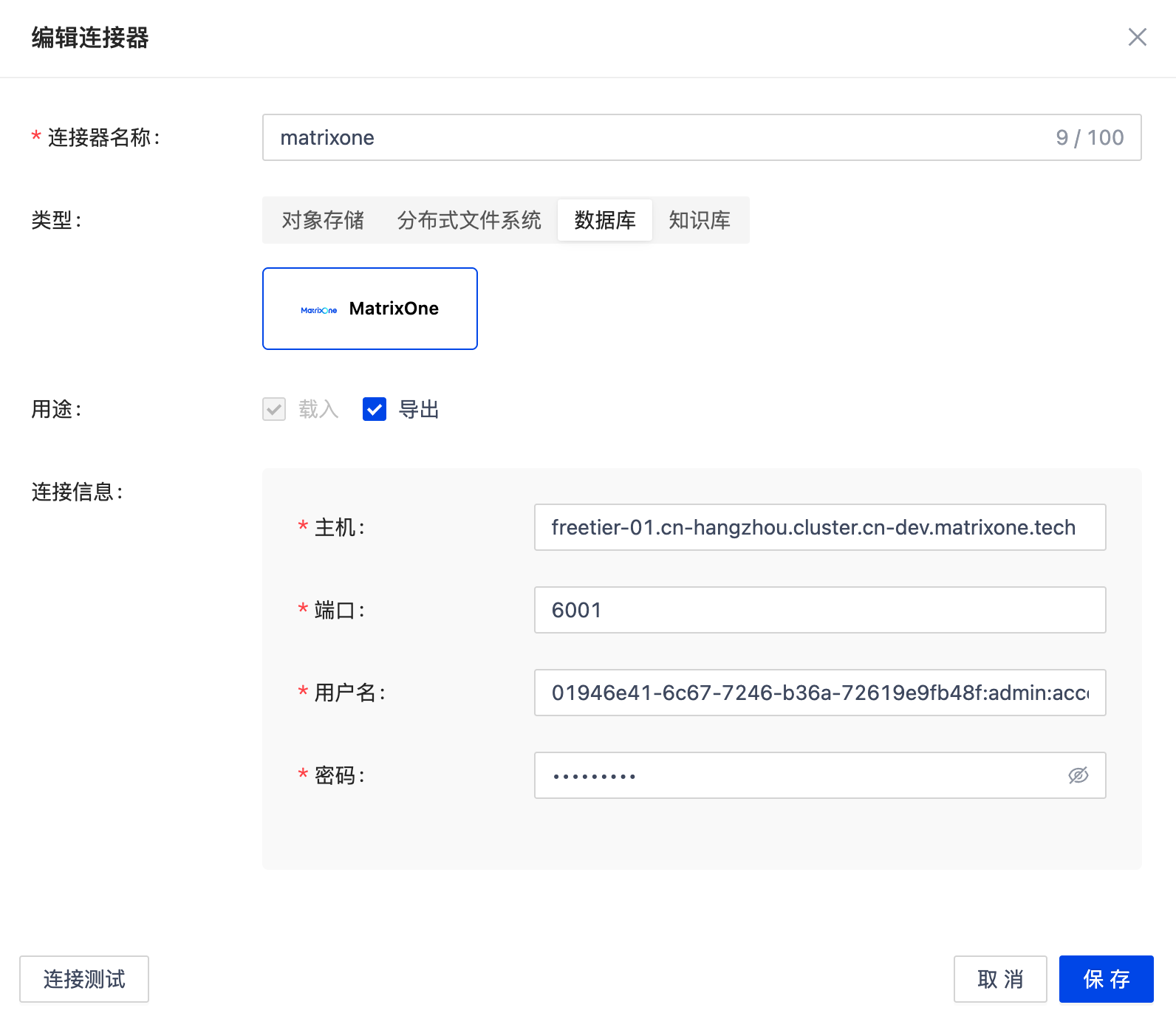
To export processed files to the MatrixOne database, provide the database connection details, including host, port, username, and password.
Knowledge Base
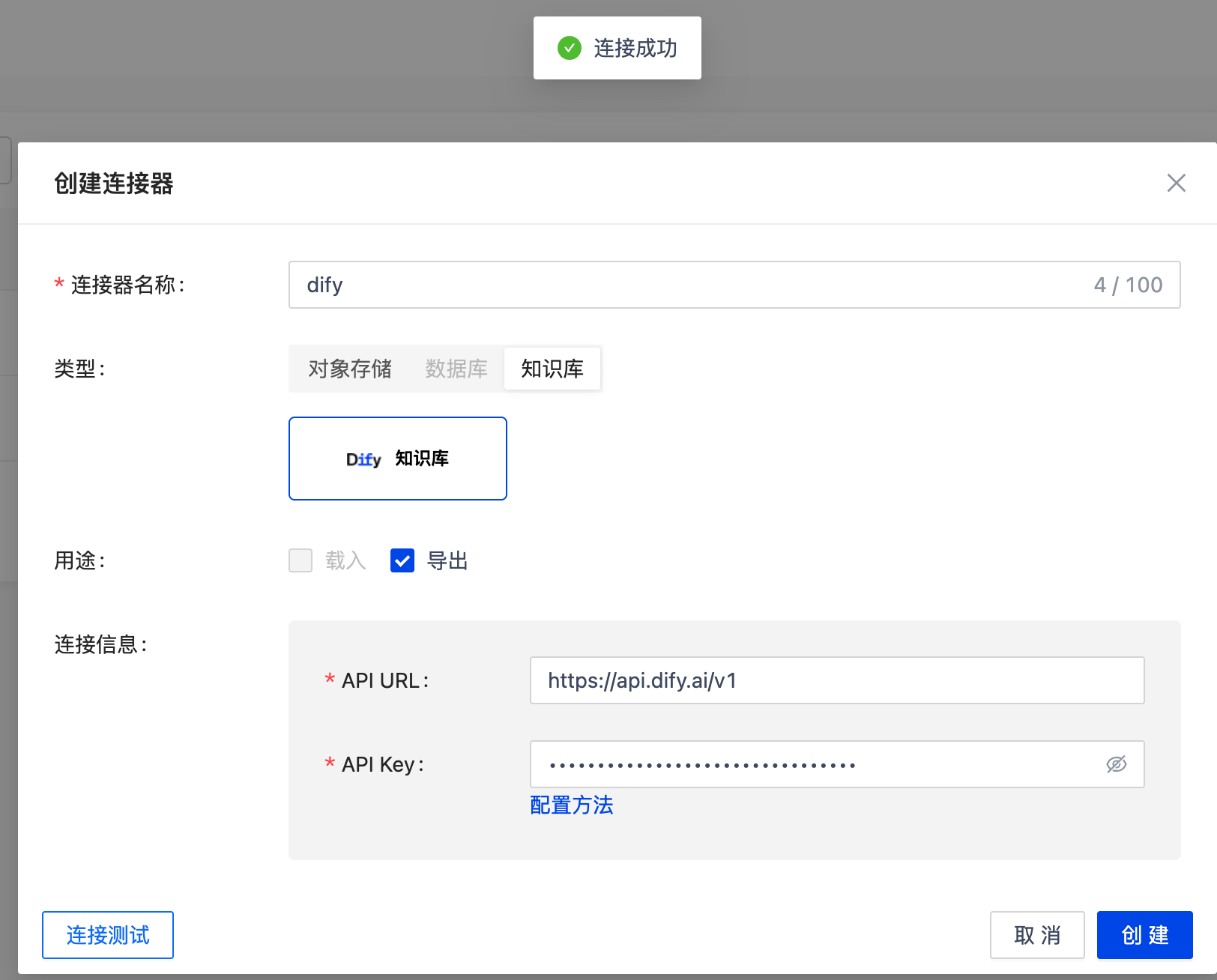
Dify
To export processed files to the Dify knowledge base, provide the API URL and API Key. For detailed configuration, refer to Data Export.