Terminate and restore instances
This document will describe how to terminate and restore instances, as well as related product behavior.
Note
MO Intelligence does not permanently save the state of the terminated instance, please be cautious. If you accidentally delete it, restore the instance in time to prevent data loss.
Terminate instance
- Click theInstance button in the menu bar to enter the instance list.
- Select the instance you want to terminate in theAvailable Instances tab, and clickTerminate** on the instance card.
- Confirm the name of the instance to be terminated in the pop-up window, and the instance will enter the termination state. After a few seconds, the instance will be completely terminated and displayed in the Terminate Instance tab.
Note
- After the instance is terminated, all access connections to the database will be terminated immediately.
- We will retain data for 7 days for instances with terminated status. After 7 days, MO Intelligence will automatically permanently delete the data information of the instance.
Recover instance
Instances in the Terminate Instances tab can be restored to the Available Instances**, please follow these steps:
- Select the instance you want to restore, and then click theRestore button.
- Confirm in the pop-up window that the instance will fully return to normal state after a few seconds.
Instance Status
In the cloud platform, instances will have different states under different circumstances, and the instance status icon will also change. The following is a description of the different instance states and instructions for operations that can be performed:
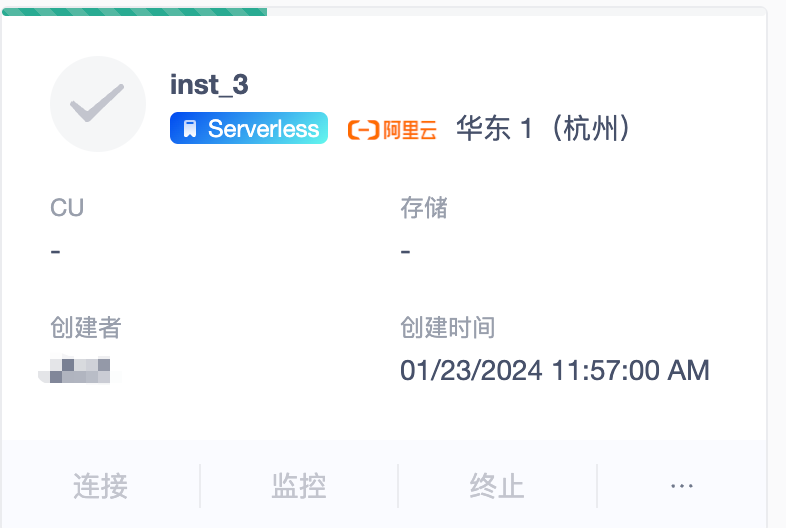
Instance Status: Creating
- Description: Create an instance
- Example operation: None
- Other operations: None
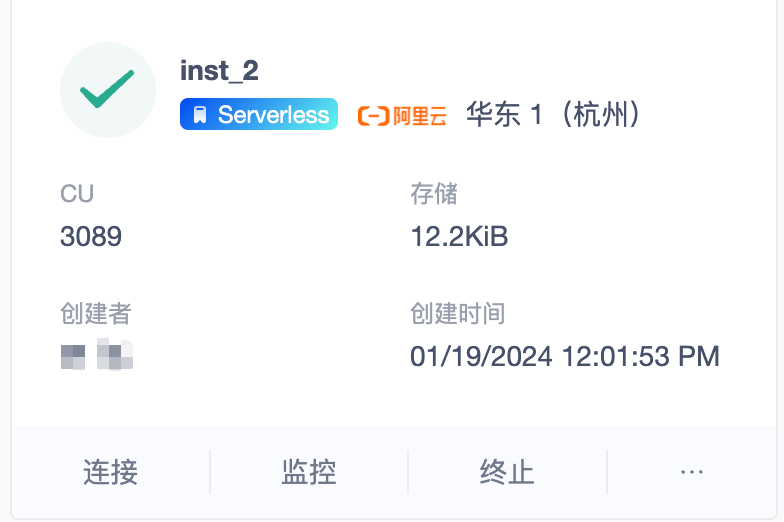
Instance Status: Available
- Description: Services can be provided during normal operation
- Example operation: Terminate
- Other operations: connection, monitoring, instance details, edit consumption restrictions
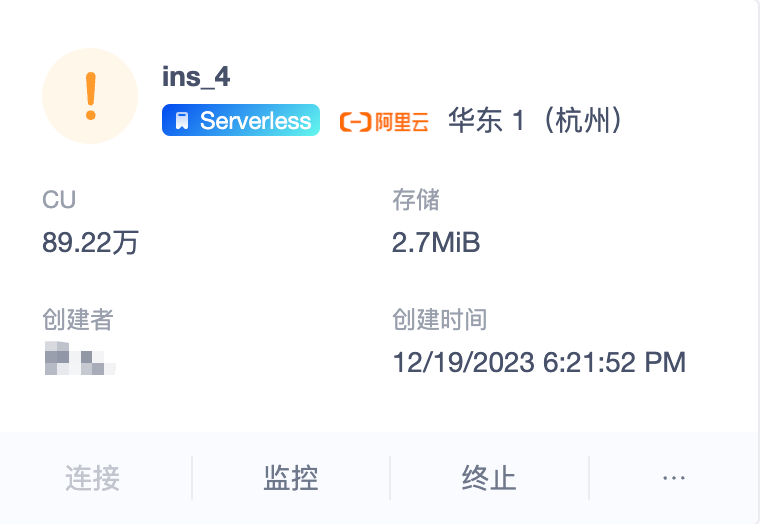
Instance Status: Limit
- Description: The instance will present a restricted state in the following situations:
- The cu or storage of the free instance has been used up, the service is not available, it is available next month, it is recommended to convert to production instances.
- Production instance consumption has reached the limit and service is not enabled and service is not available.
- Production instance consumption has reached the limit and service is turned on, and service is kept running at low speed.
- Account balance is insufficient, production instances are arrears, and services are unavailable.
- Example operation: Terminate
- Other operations: Connection (only operational if production instance consumption has reached the limit and service is turned on), monitoring, instance details, editing restrictions
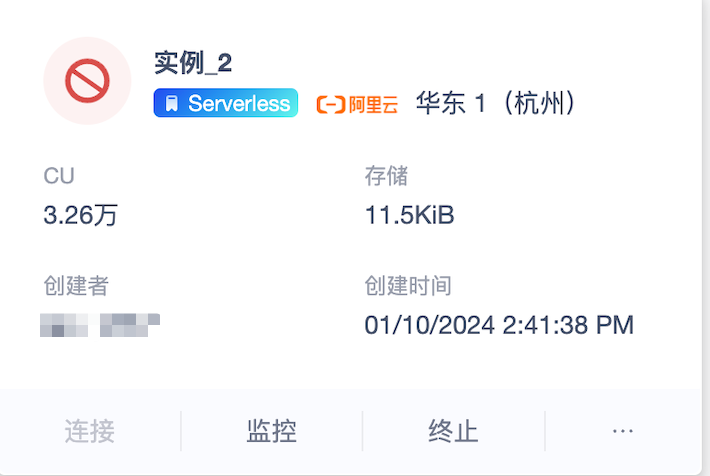
Instance Status: Invalid
- Description: The instance state is abnormal, the complete service cannot be provided
- Example operation: Terminate
- Other operations: monitoring, instance details, editing restrictions
Instance Status: Termination
- Description: Instance termination
- Example operation: None
- Other operations: Monitoring
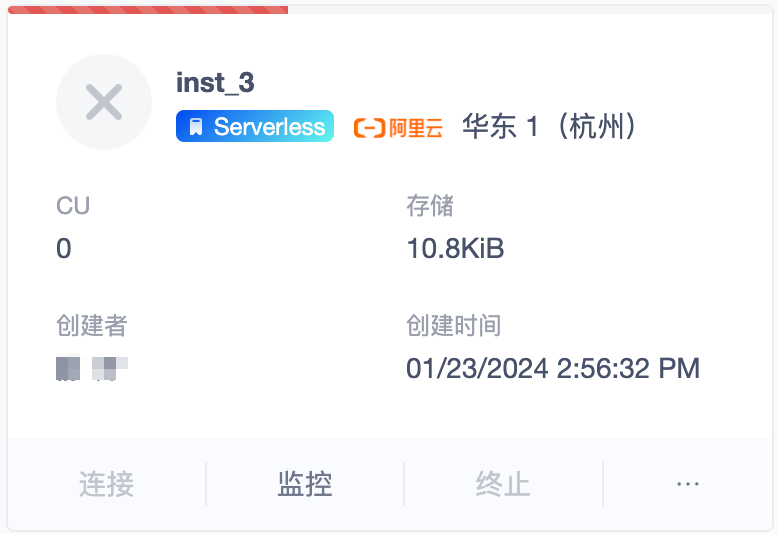
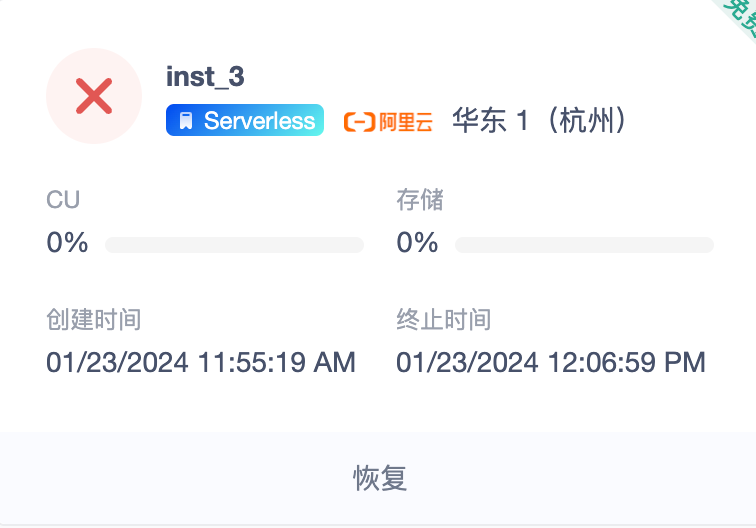
Instance Status: Terminated
- Description: Instance Termination
- Example operation: recovery
- Other operations: None
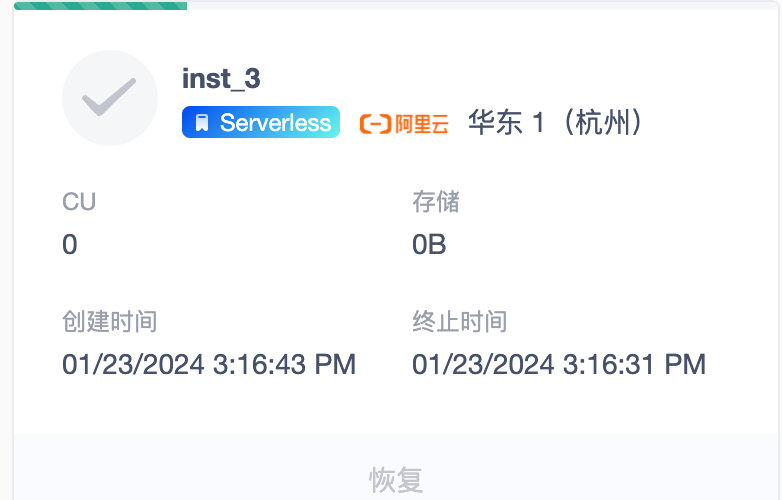
Instance Status: Recovery
- Description: Instance recovery
- Example operation: None
- Other operations: None
Hopefully these operating guides can help you better manage and recover your MatrixOne instances. If you have any questions or need further assistance, please continue to view our documentation or contact the support team.