Data Loading
MatrixOne Intelligence provides high-performance data loading capabilities, supporting the import of structured and unstructured data from various sources. It is widely used in scenarios such as data analysis, business queries, and AI agent training.
Supported File Types and Sources
Data Sources
- Connector Files: Select files from configured data connectors; the system automatically reads the contents of the corresponding directory.
- Local Upload: Upload local files to the system.
- Public Cloud Environment: Maximum support for 200MB.
- On-Premises Deployment: Maximum support for 10000MB (configurable).
Supported File Formats
| Loading Type | Supported Formats | Application Scenarios |
|---|---|---|
| Unstructured Data | Documents, Images, Videos, Audio, etc. | Knowledge base construction, document processing, multi-document Q&A |
| Structured Data (Table Import) | CSV, XLSX, XLS | Import of tabular data for finance, operations, sales, etc. |
Note
Excel files only process the first sheet. Merged cells are automatically split into separate rows. Image content in Excel is skipped and imported as null values.
Creating a Loading Task
Entry Path: Workspace → Data Connect → Data Loading → Load Data
Operation Process:
- Select Data Source (Connector File / Local Upload)
- Select Loading Type (Unstructured / Structured)
- Configure Loading Settings
- Select Target Location (Data Volume or Database Table)
- Create Task and View Execution Status
Unstructured Data Loading
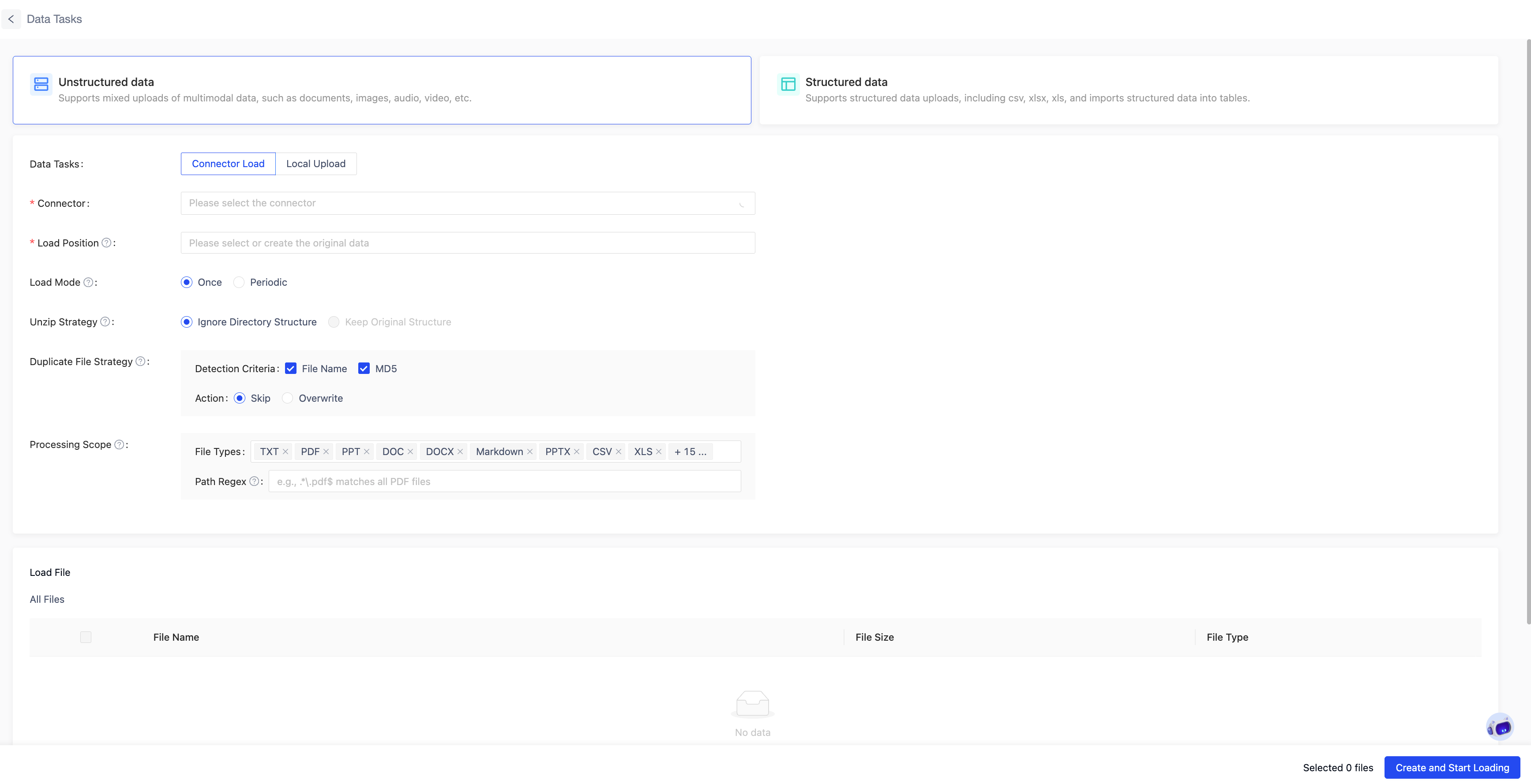
Suitable for unstructured files such as documents, images, audio, and video.
- Loading Mode: One-time loading is suitable for scenarios requiring only a single import. Periodic loading is suitable for regularly updated data needs and allows setting specific intervals (e.g., hourly or daily).
- Extraction Strategy: Supports automatic extraction. For compressed packages of types .zip, .rar, .7z, .tar.gz, .tar.bz2, .tar: the "Maintain Original Folder Hierarchy" option preserves the original folder structure, while the "Flatten Structure" option places all files in a single directory.
- Duplicate File Handling: To avoid importing the same files repeatedly, options are provided to skip or overwrite based on filename and file content (MD5).
- Loading Scope: The loading scope is defined by both file type and path regular expression, which operate as an AND condition. When the path regular expression is empty, no path restrictions are applied, and filtering is based solely on file type. For compressed files, path regex matching is based on the original path of the compressed package before extraction. After a successful match, files inside the package are filtered according to file type rules after extraction.
Structured Data Loading (Table Data Import)
Structured loading is used to import tabular data from CSV/XLSX/XLS files into database tables. It supports appending data to existing tables or creating new tables and then importing.
For structured files, you can configure the delimiter, quote character, and escape character (applicable only to CSV). File column headers can be enabled or disabled (enabled by default), and the row containing column names can be specified (up to 20 rows). The data start row defaults to the row immediately following the column header row.
During the loading process, the system previews the first 5 sample data rows starting from the specified data start row. If the data start row exceeds 1000, the preview cannot be displayed.
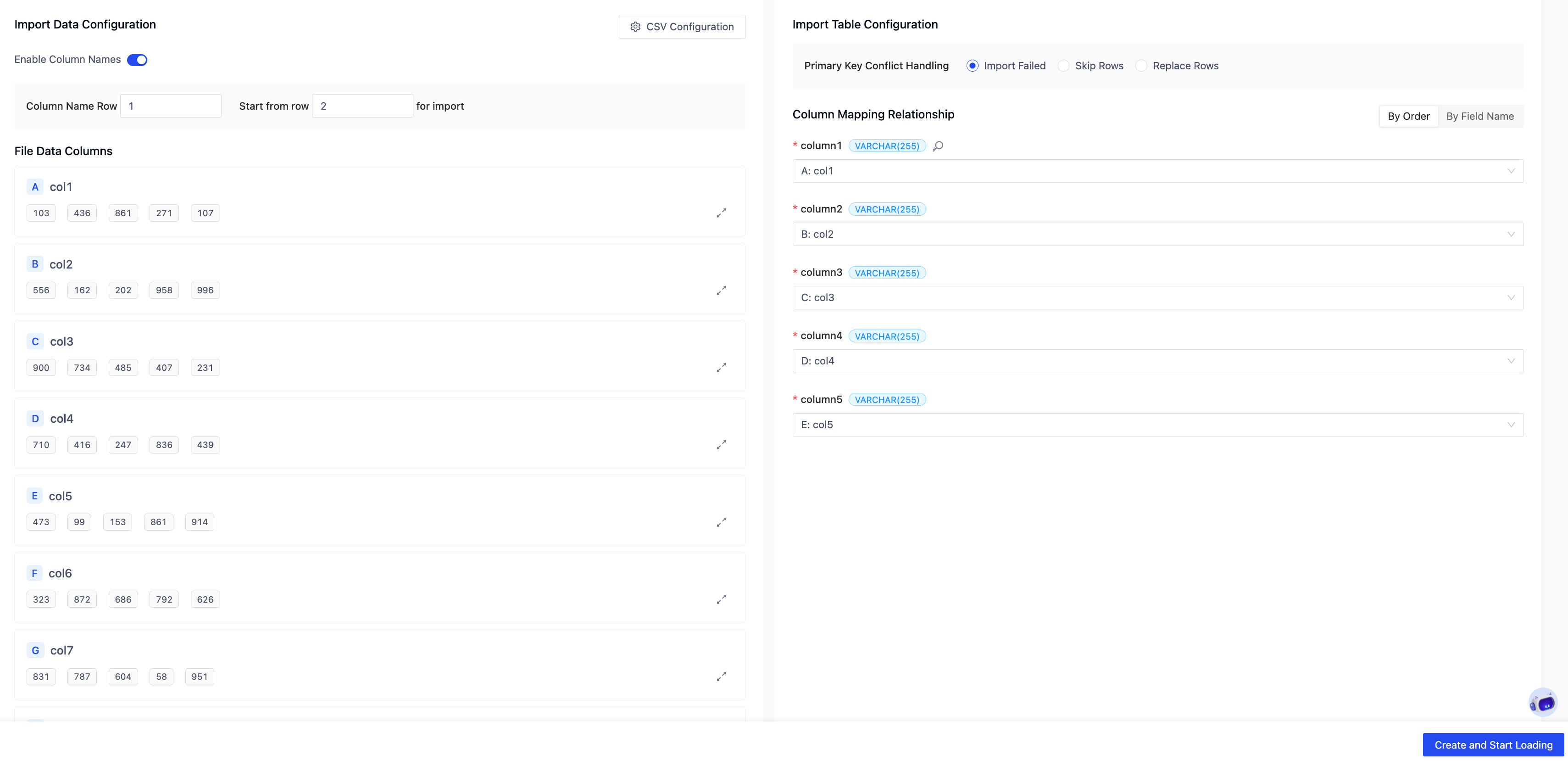
Data Processing Logic for Importing into Existing Tables
Options for primary key conflicts:
- Import Fails (Default): Task terminates upon encountering a primary key conflict.
- Skip Conflicting Rows: Only import data that does not conflict.
- Replace Conflicting Rows: Overwrite existing rows with the same primary key using new data.
Field mapping requirements:
- The system displays the target table's field names, types, and primary key information.
- Each target field can be mapped to: a file column / NULL / a default value.
- All fields must be mapped before the task can be created.
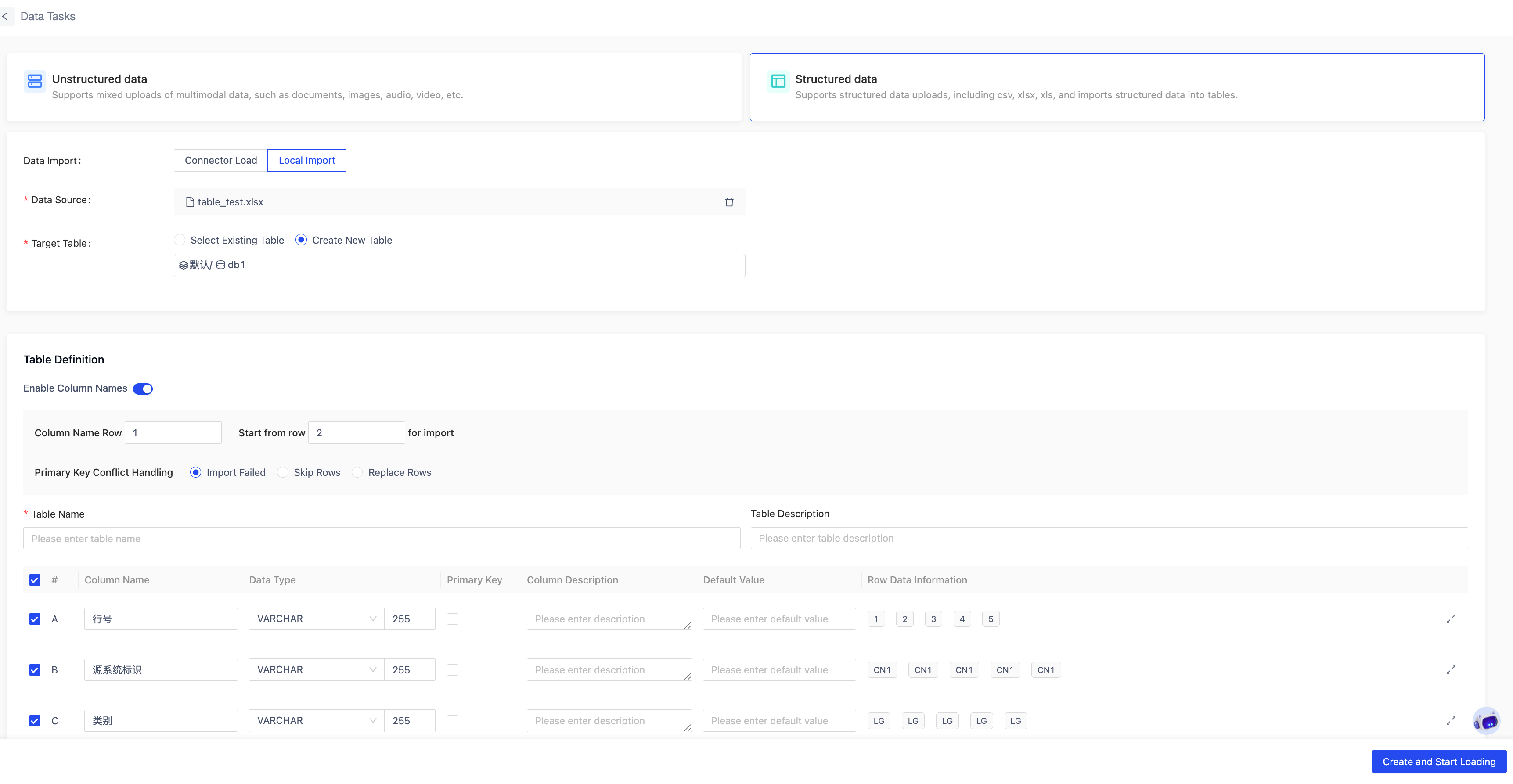
Creating a New Table and Importing
When creating a table, you can configure:
- Table Name
- Table Description
- Field Name
- Data Type
- Precision Rules
- Primary Key Settings
- Default Value
- Field Description
After the table is successfully created, the system automatically starts the import task.