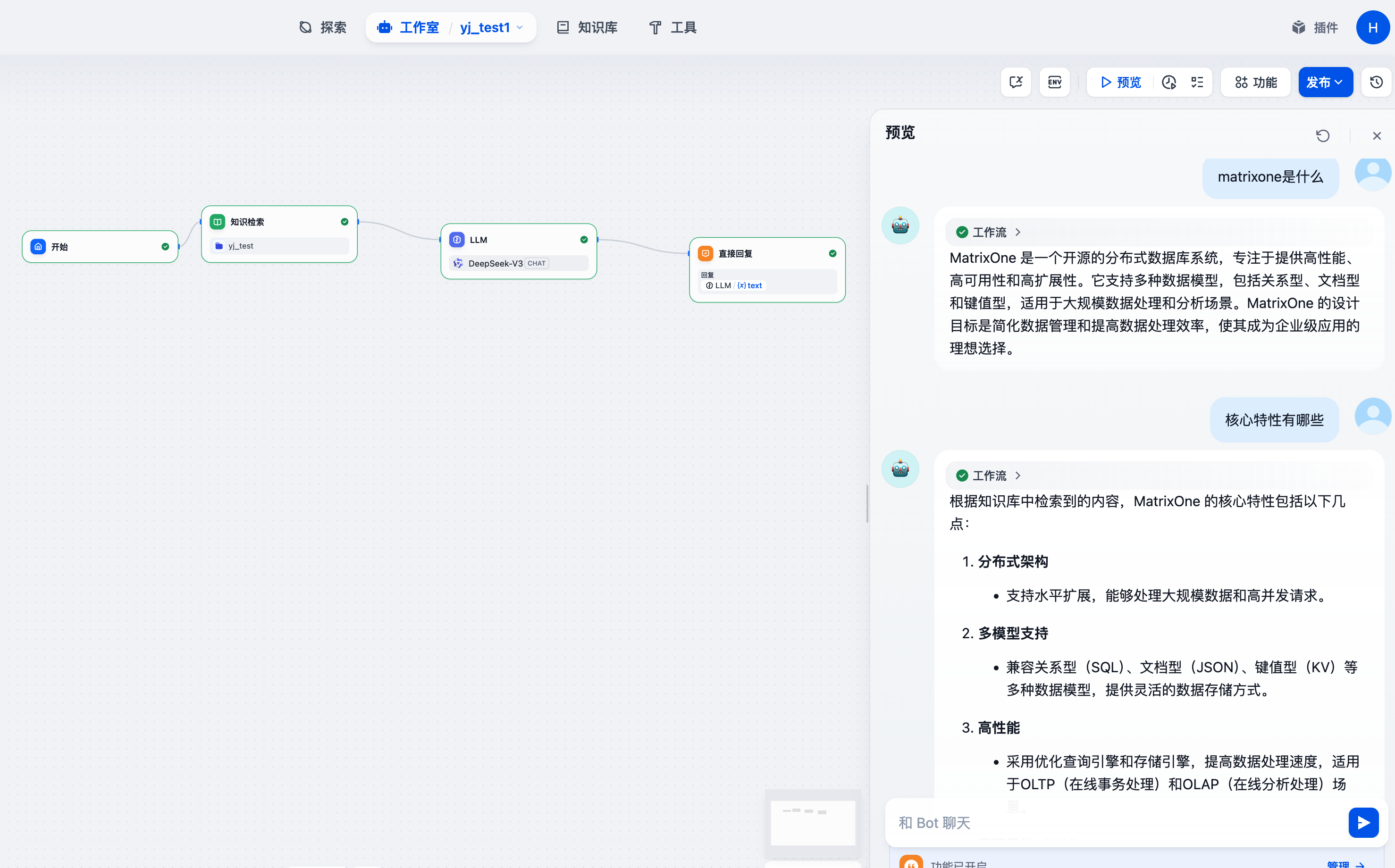
Multimodal Document RAG Data Preparation
This template helps you quickly build an intelligent parsing and knowledge extraction workflow for multimodal documents (containing both text and images), generating high-quality multimodal knowledge data to support Retrieval-Augmented Generation (RAG) applications. By automatically identifying text and image segments in documents, it enables structured segmentation and knowledge organization, making it widely applicable for scenarios like multimodal knowledge base management, document retrieval, and summarization.
Template Details
Click View Details in the template list to access the template details page. Here, you'll find example processing results and the workflow topology diagram.
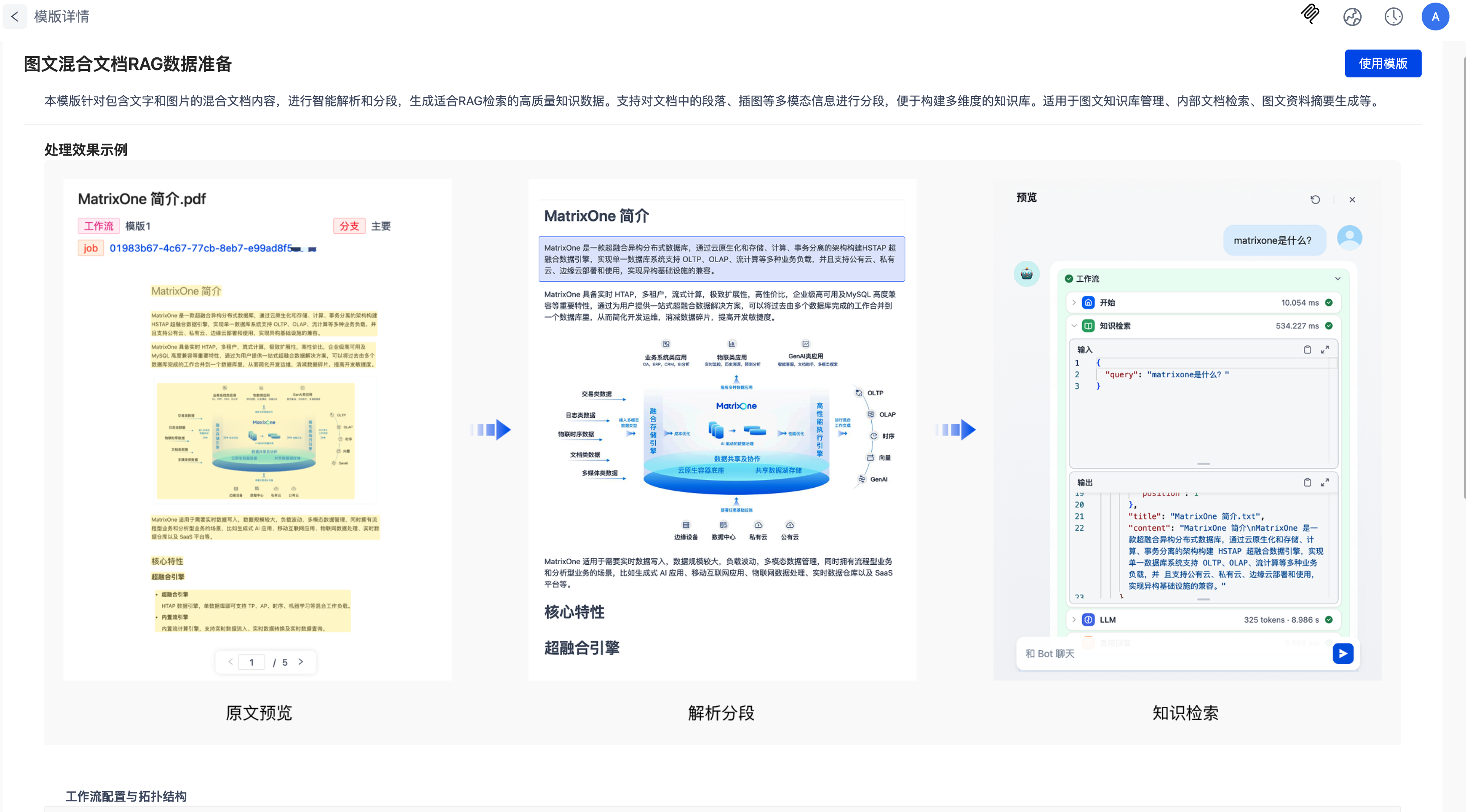
Using the Template
- Select the Multimodal Document RAG Data Preparation template from the template list. Click Use Template either in the list or on the details page to create a data processing task and generate the corresponding workflow.
- The system includes sample data for quick testing and onboarding.
- You'll need to create the target location manually.
- Supports custom adjustments to parsing, segmentation, and other workflow node configurations based on your requirements.
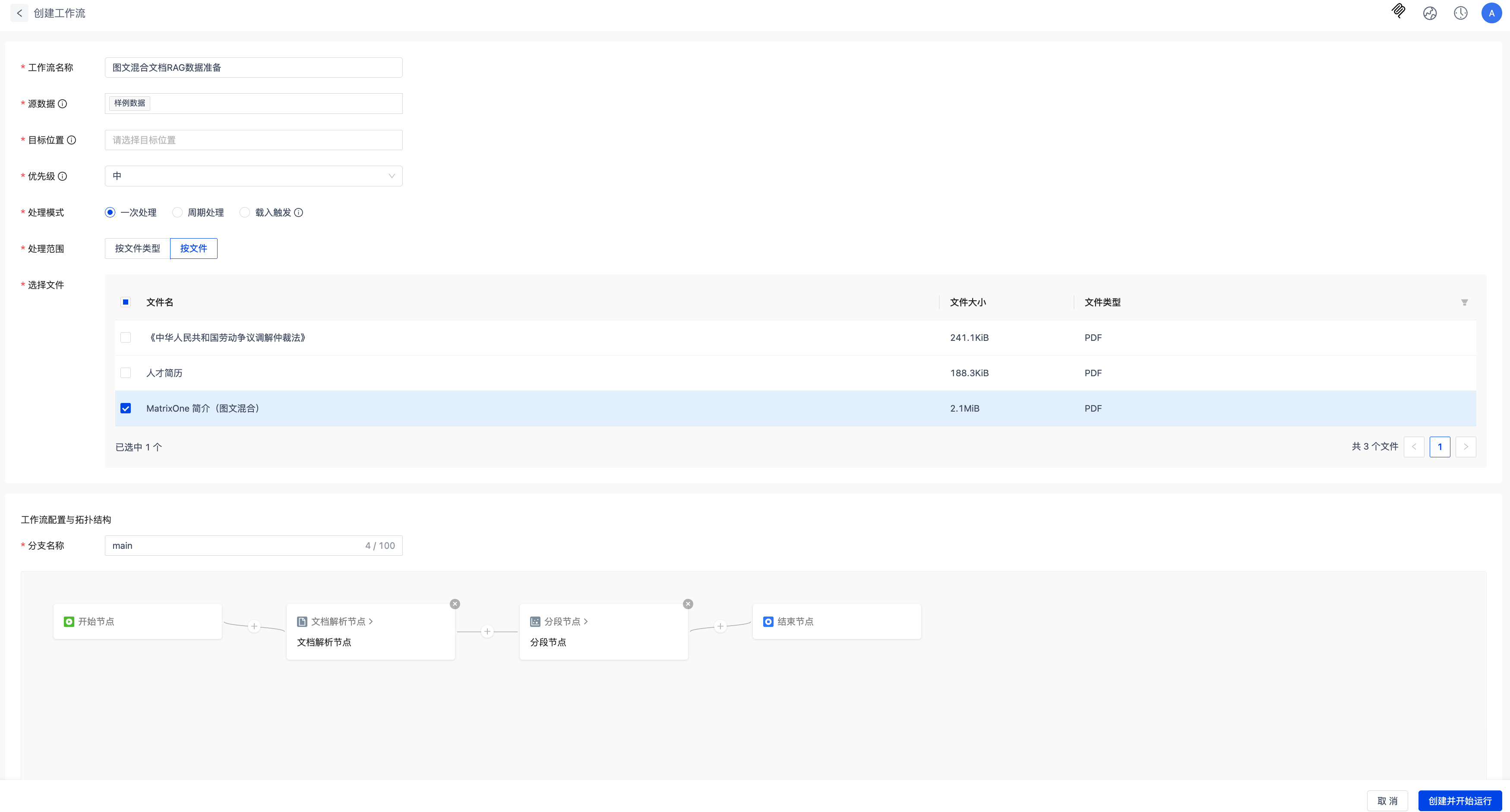
Click Create and Start Running, then wait for the workflow to complete.
Viewing Results
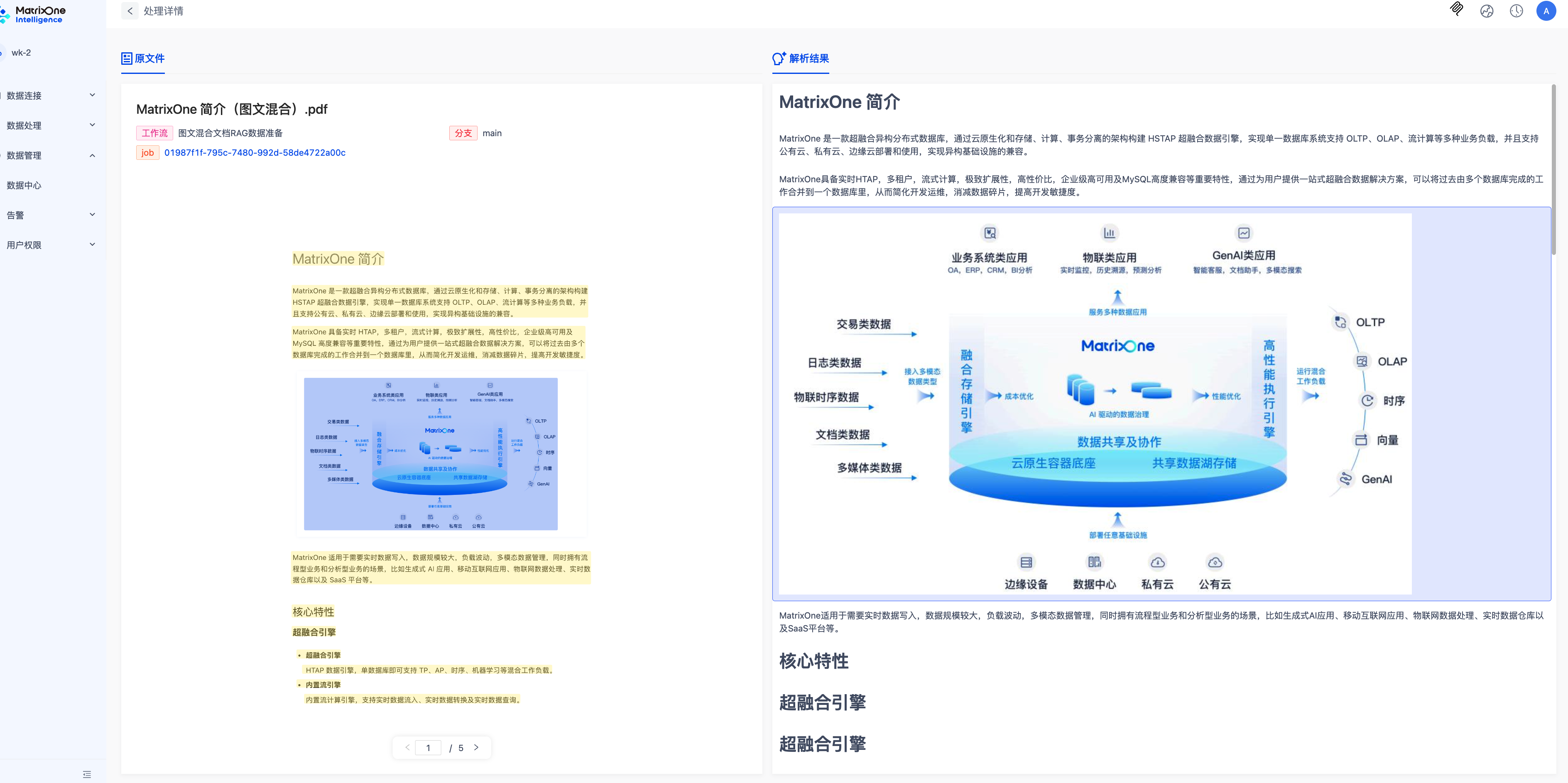
Navigate to Data Center, locate the target location selected during workflow setup, and click the preview button next to the file to view the processed results.
Exporting to Dify
- Go to Data Connections → Connectors and create a Dify connector. For configuration details, refer to Connectors.
- In Data Export, select Export to Knowledge Base → Dify.
- Configure export settings, select the processed JSON file, and start the export task. The system will automatically sync the segmented multimodal data to the target knowledge base.
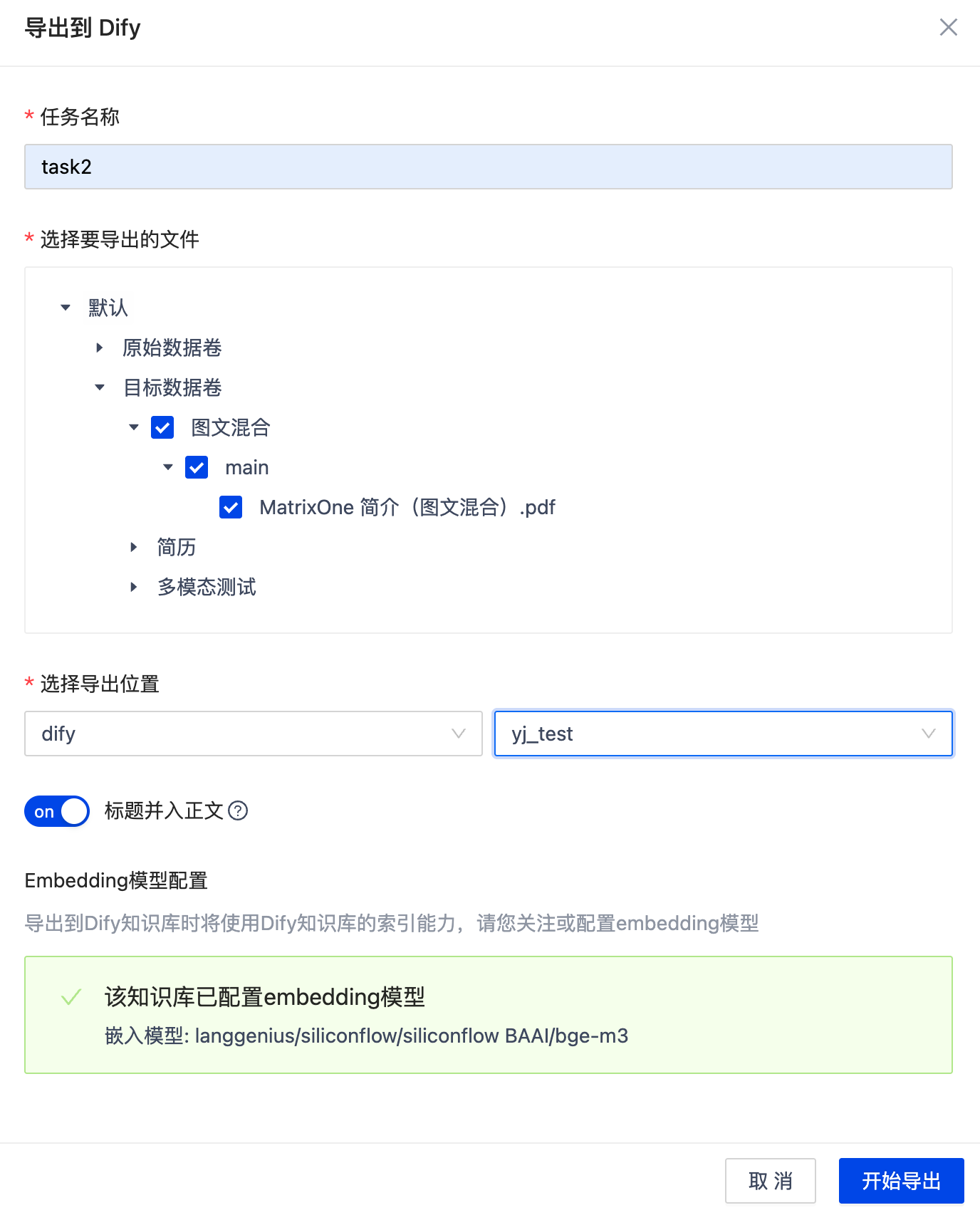
Wait for the task status to change to Completed, then verify in Dify.

Building RAG Applications
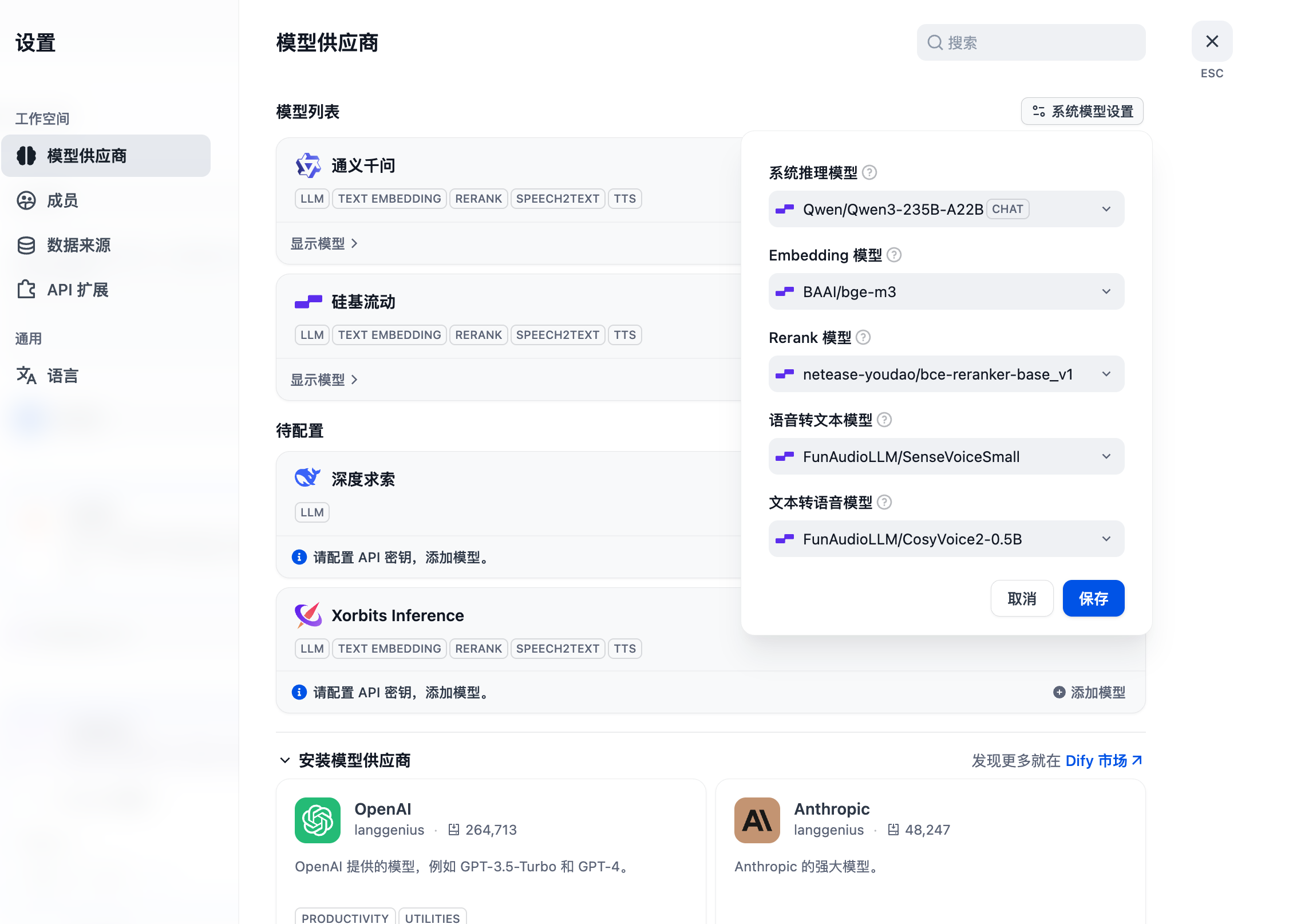
- Configure the model provider and API Key in the settings page.
-
Select an appropriate AI model.
-
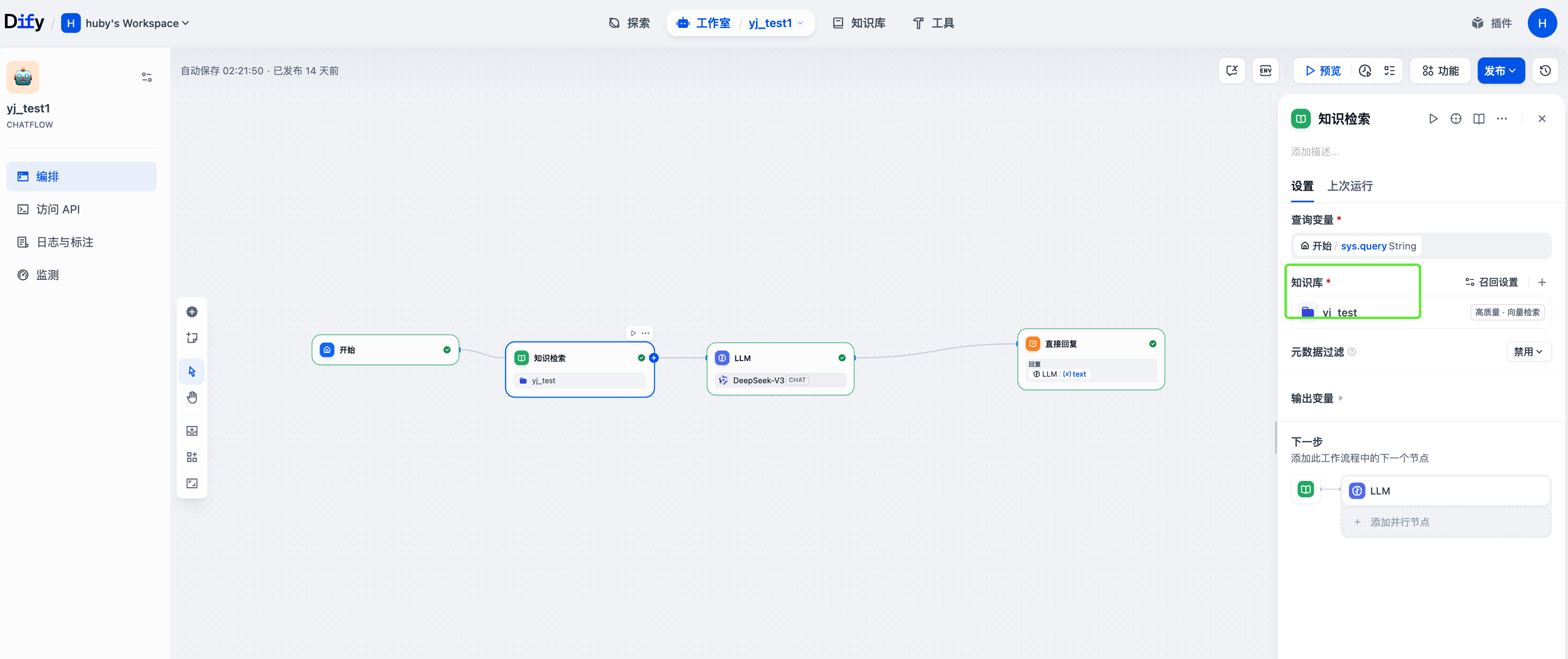
Create a new application in Dify Studio and link it to the imported knowledge base.
-
Click Preview to test multimodal Q&A functionality.