Workflow
The workflow feature is a core capability of MatrixOne Intelligence, enabling users to define and execute complex data processing tasks through a visual interface.
Workflow Creation
Enter the workspace, click Data Processing > Workflow > Create Workflow, and fill in the information according to your actual needs to complete the workflow creation. The system supports two modes: intelligent creation and manual creation. Intelligent creation allows you to quickly generate workflows through natural language.
Basic Configuration
| Configuration Item | Description |
|---|---|
| Source Data | Input data storage location |
| Target Location | Output path for processed results. Cannot select an already occupied target location. |
| File Type | Supported formats: • Documents: doc/docx/ppt/pptx/txt/md/pdf/xlsx/xls • Images: jpg/jpeg/bmp/png • Videos: mp4/mov/mkv • Audio: wav/mp3/aac/flac |
| Priority | Options: "Low", "Medium" (default), and "High". Once set, new workflow jobs will immediately follow this priority. When multiple workflows run concurrently, the platform schedules them in order of priority (High to Low). |
| Processing Mode | Supported modes: • Single Run: Executes once when triggered • Scheduled: Intervals: 1/5/10/30 minutes, 1/2/4/8 hours, 1 day (default: 5 minutes). Short intervals (<1 day) trigger on the hour (e.g., 30-minute intervals at :00/:30). Long intervals (≥1 day) require manual next execution time. • Load Trigger: Executes immediately after a batch of files is loaded into the same source volume. |
| Processing Scope | "Single Run" mode supports processing by file type or individual files. File-level selection is only available when a single source is chosen. |
| Branch Name | Name of the current workflow branch (default: "main"). |
Processing Pipeline Configuration
Supports multiple processing operators, including: Document Parser Node, Image Parser Node, Audio Parser Node, Video Parser Node, Chunking Node, Text Embedding Node, Information Extraction Node, Data Cleaning Node, and Data Augmentation Node.
Document Parser Node
Extracts structured content from documents (text, images, tables, headings).
| Module | Description |
|---|---|
| Node Name | Within 100 characters, unique within the workflow. |
| Image Description | Generates image content descriptions based on the Qwen/Qwen2-VL-72B-Instruct model, supports selecting description language: Chinese/English. |
| PPT Multimodal Parsing | When enabled, converts each page of the PPT into an image for processing. |
| CSV Settings | Supports configuring delimiter, quote character, backslash escape, and whether to use the first row as the table header. |
| OCR Recognition | Uses the ucaslcl/GOT-OCR2_0 model to extract text from images. |
| Notes | Node remarks. |
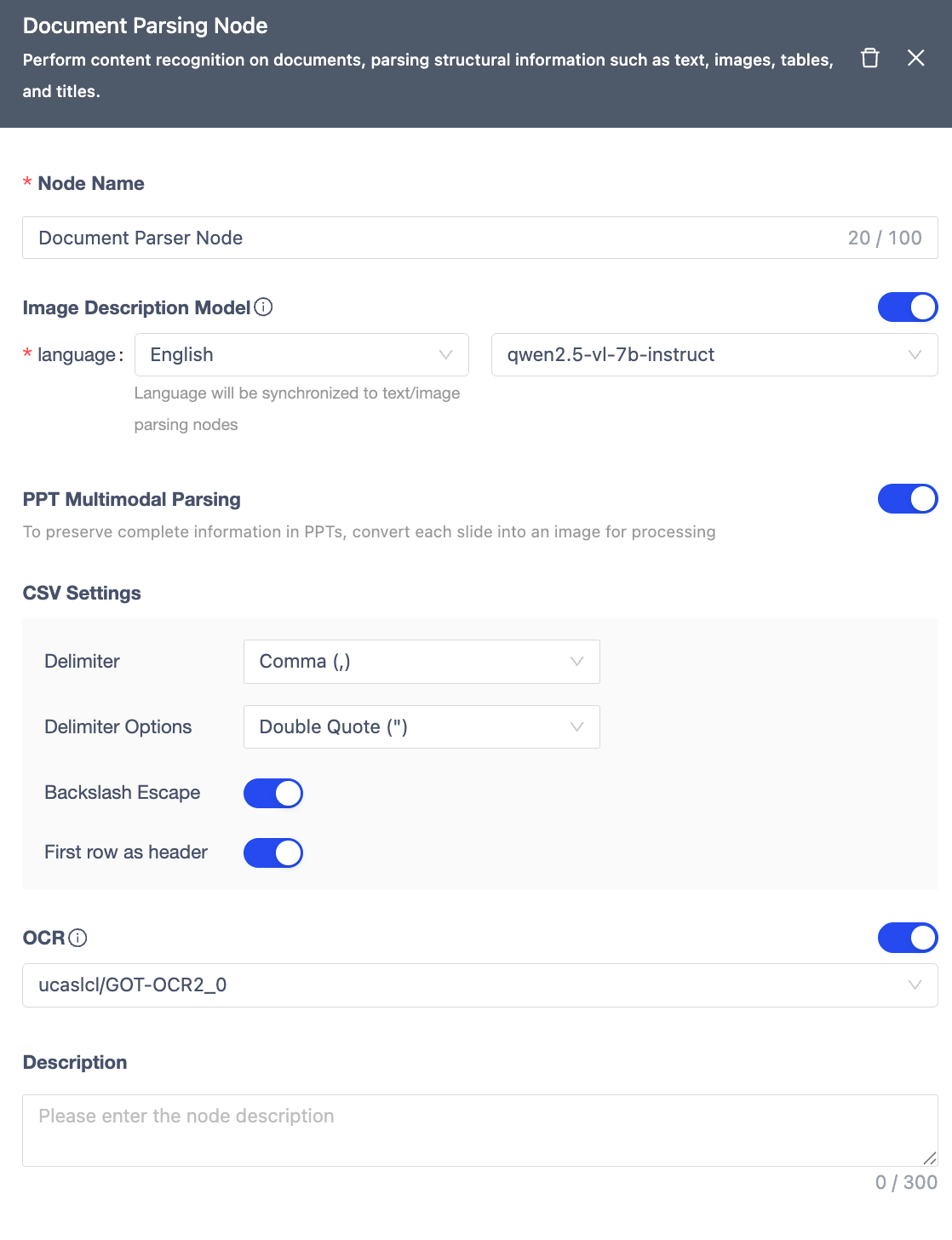
Image Parser Node
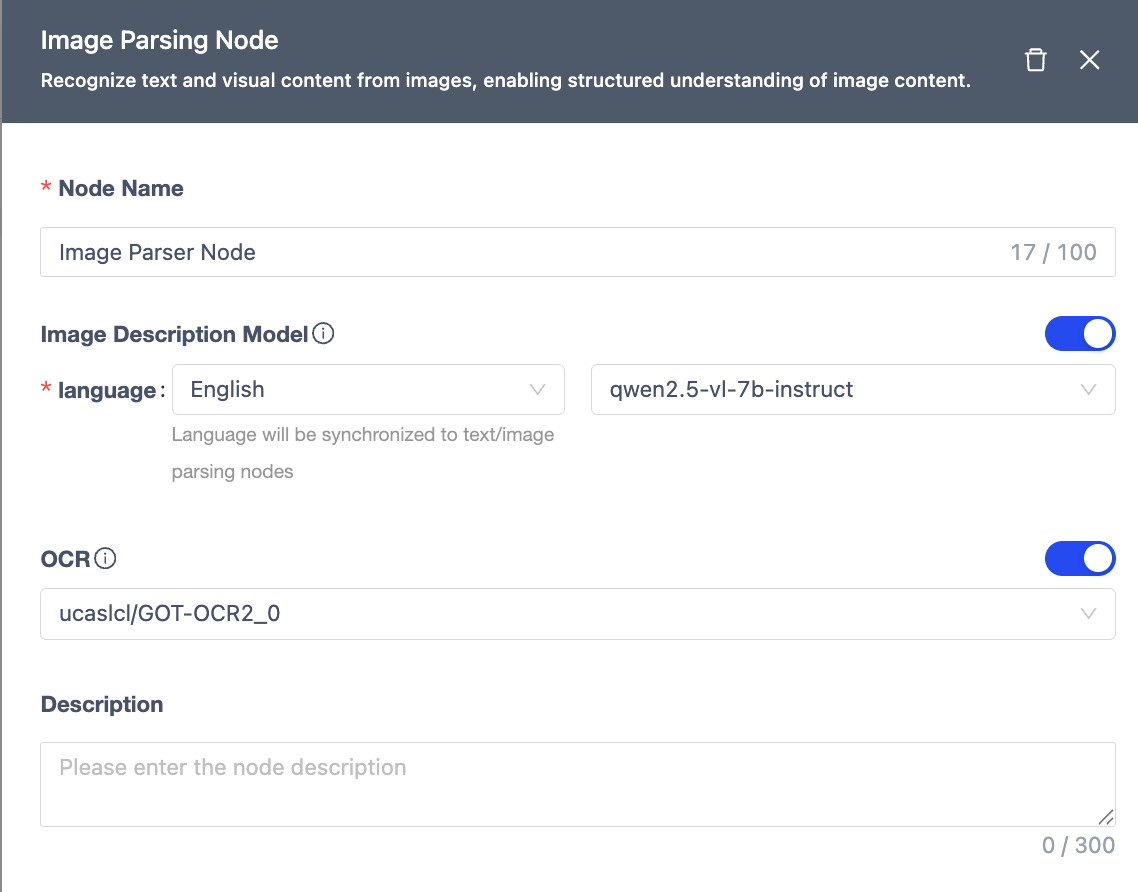
Recognizes text and visual content in images for structured understanding.
| Module | Description |
|---|---|
| Node Name | Unique within workflow (≤100 chars). |
| Image Captioning | Generates image descriptions using Qwen/Qwen2-VL-72B-Instruct model (supports Chinese/English). |
| OCR | Extracts text from images using ucaslcl/GOT-OCR2_0 model. |
| Notes | Optional node remarks. |
Audio Parser Node
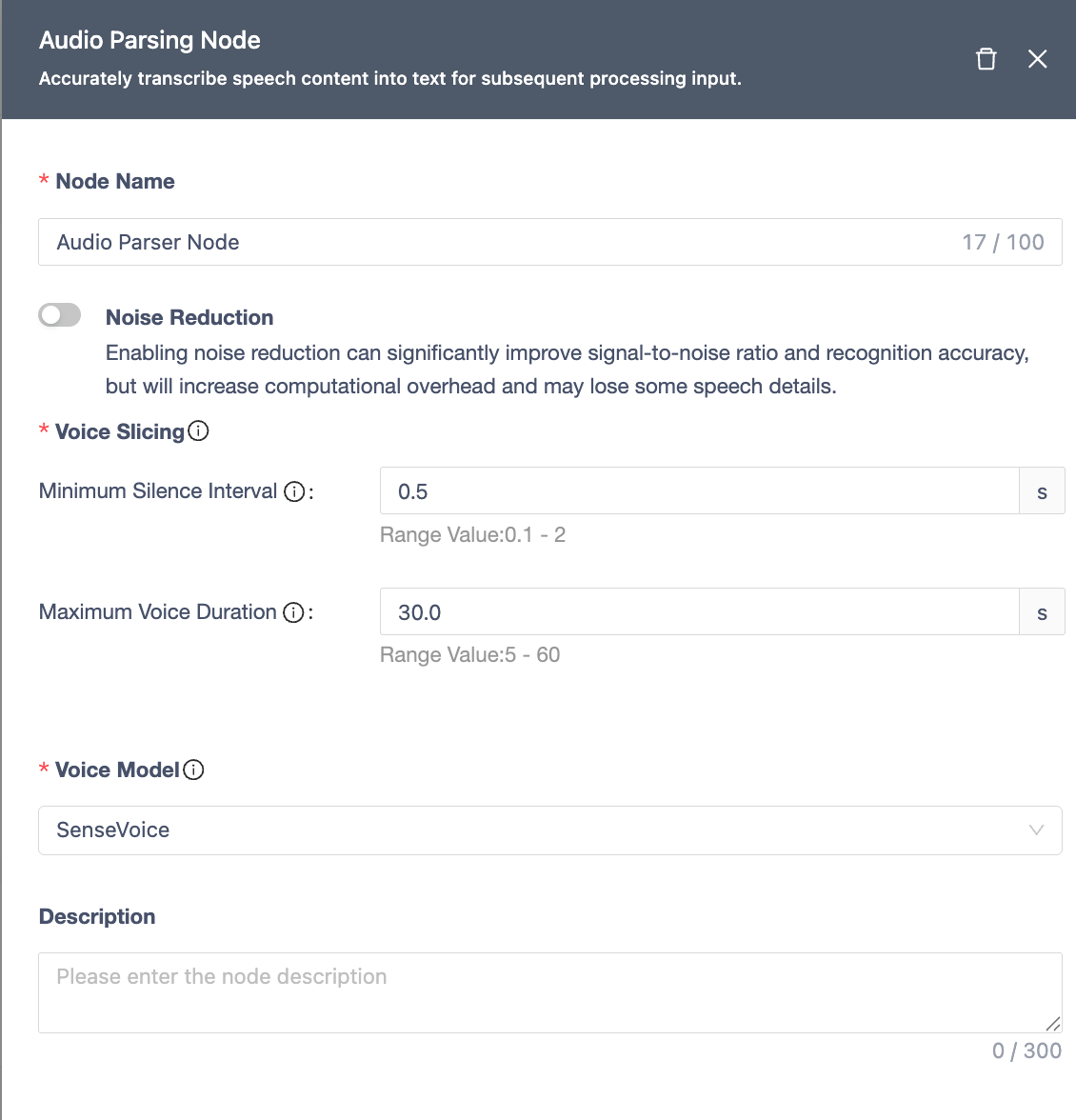
Transcribes speech content into text with high accuracy.
| Module | Description |
|---|---|
| Node Name | Unique within workflow (≤100 chars). |
| Noise Reduction | Improves SNR and accuracy (increases compute overhead, may lose some details). |
| Voice Segmentation | • Uses VAD to split audio into speech/non-speech segments. • Min Silence Gap: Shortest silence to split segments (default: 0.5s, range: 0.1-2s). • Max Speech Duration: Longest segment before forced split (default: 30s, range: 5-60s). |
| ASR Model | Uses SenseVoice model for transcription. |
| Notes | Optional node remarks. |
Video Parser Node
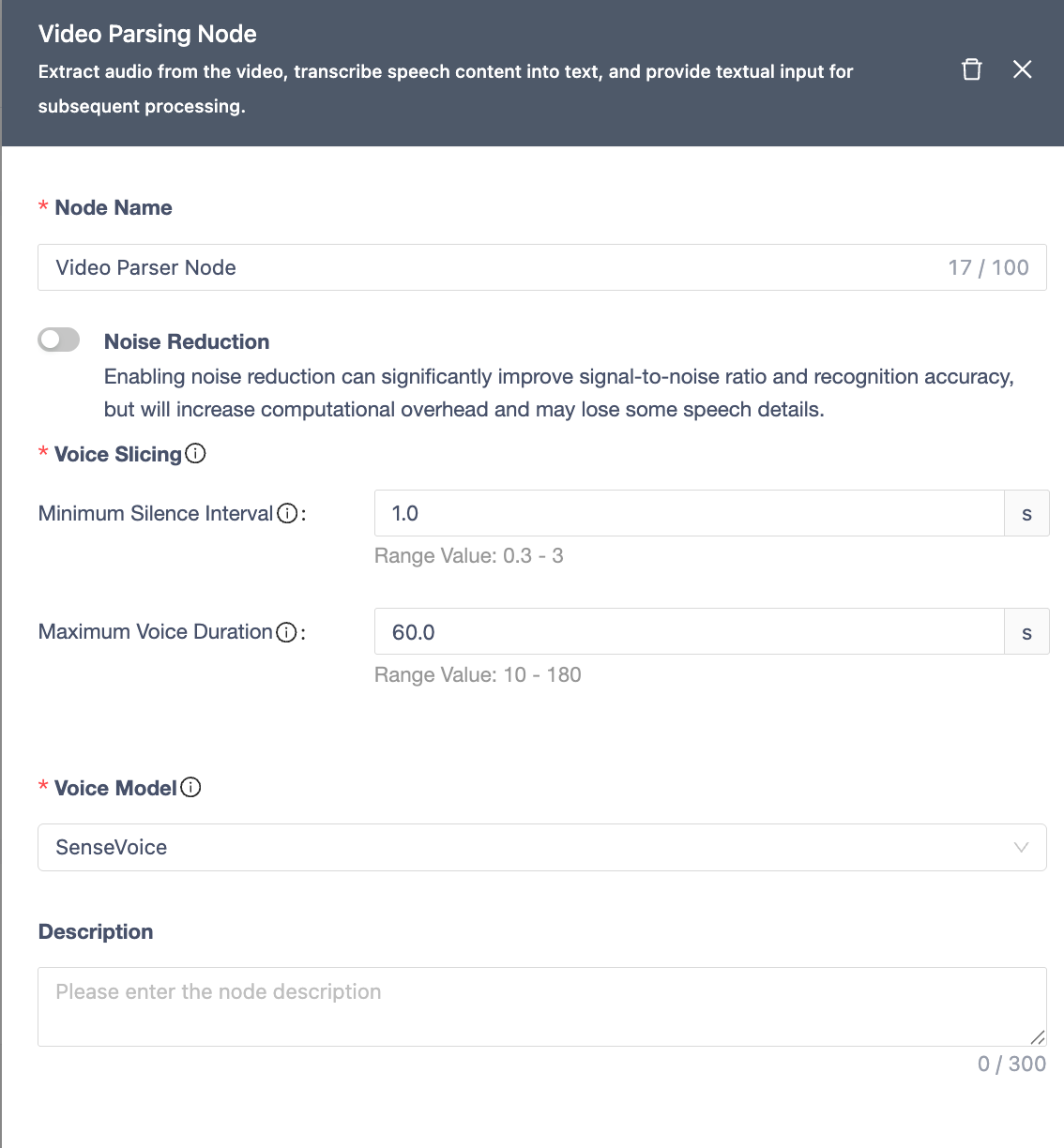
Extracts audio from video and transcribes it into text.
| Module | Description |
|---|---|
| Node Name | Unique within workflow (≤100 chars). |
| Noise Reduction | Improves SNR and accuracy (increases compute overhead, may lose some details). |
| Voice Segmentation | • Uses VAD to split audio. • Min Silence Gap: (default: 0.5s, range: 0.3-3s). • Max Speech Duration: (default: 30s, range: 10-180s). |
| ASR Model | Uses SenseVoice model for transcription. |
| Notes | Optional node remarks. |
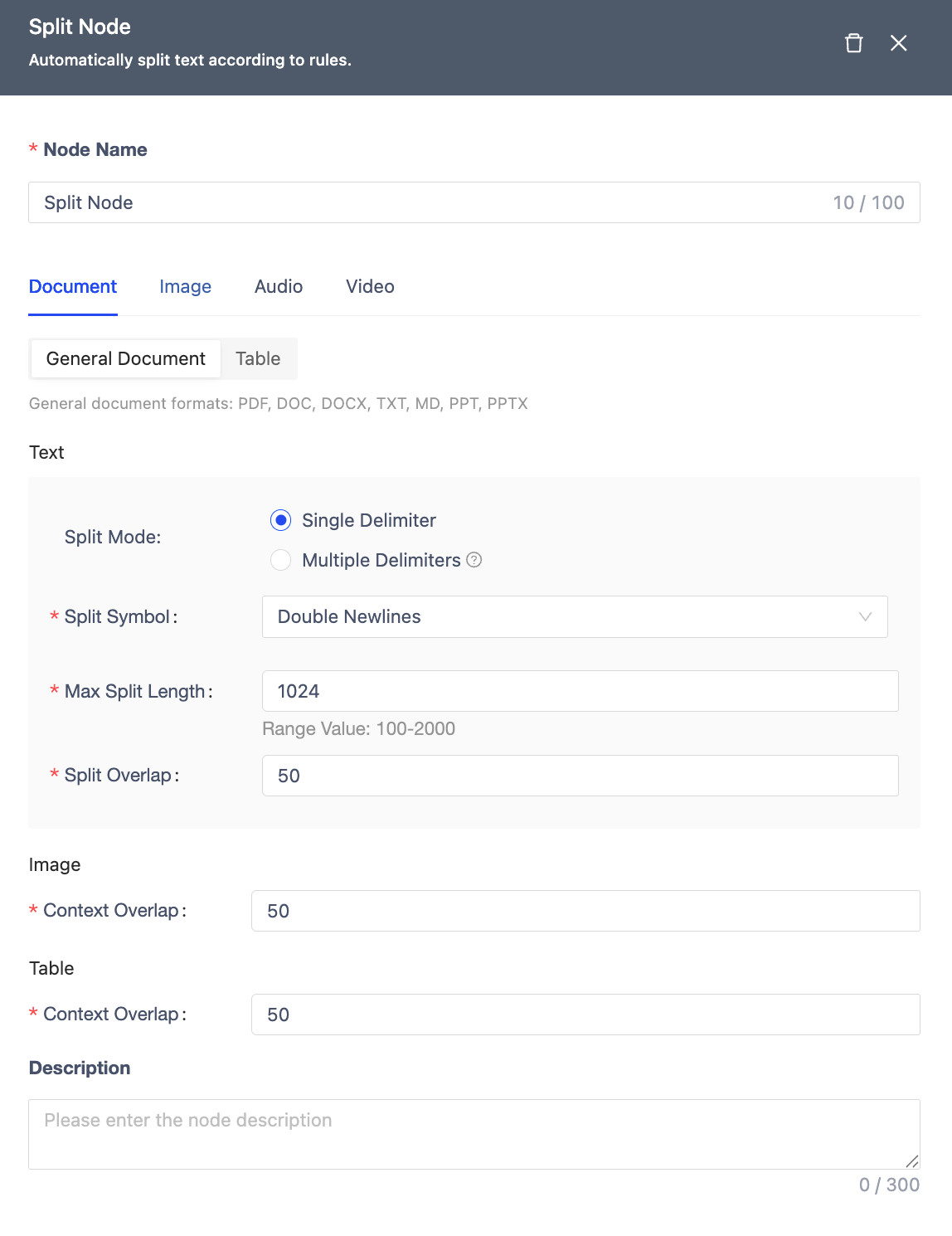
Split Node
Segments text based on rules.
| Module | Description |
|---|---|
| Node Name | Within 100 characters, unique within the workflow. |
| Document | General Documents: Text: • Segmentation Method: By single delimiter, by multiple delimiters • Segment Max Length: 100-2000 (default 1024) • Segment Overlap: Not exceeding the set field segment length. Within 100 characters, unique within the workflow. Images: • Context Overlap: Default 50. Tables: • Context Overlap: Default 50. Tables: Excel, CSV segmented by row. |
| Image | Image Element Merging: OCR recognized content and image description content merged as a single segment. |
| Excel, CSV segmented by row. | |
| Audio/Video | Segmented by transcribed speech chunks, supports setting segment max length, default 1024. |
| Node Name | Within 100 characters, unique within the workflow. |
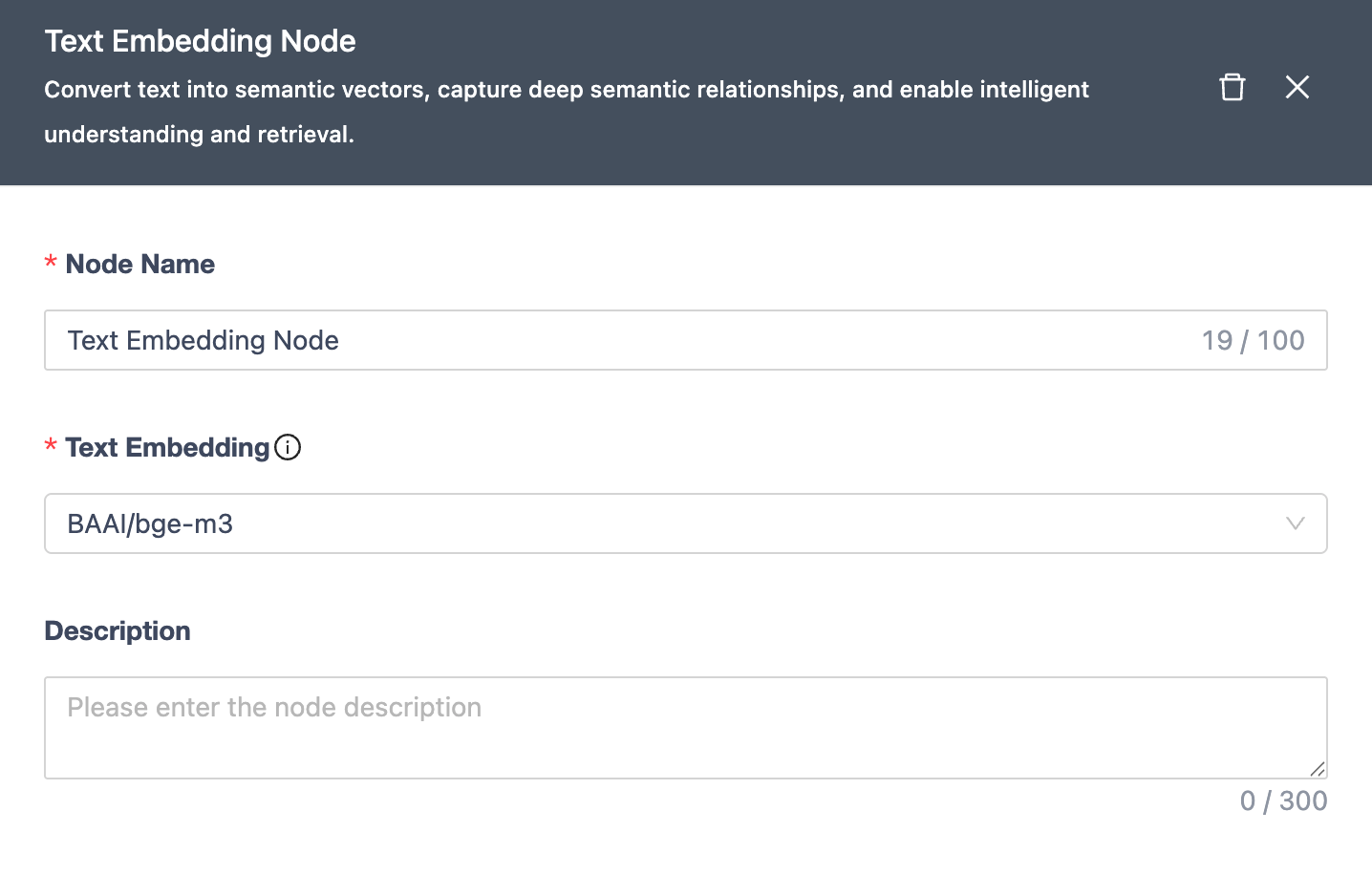
Text Embedding Node
Converts text to semantic vectors for intelligent understanding/retrieval.
| Module | Description |
|---|---|
| Node Name | Unique within workflow (≤100 chars). |
| Embedding | Uses BAAl/bge-m3 model for vector generation. |
| Notes | Optional node remarks. |
Information Extraction Node
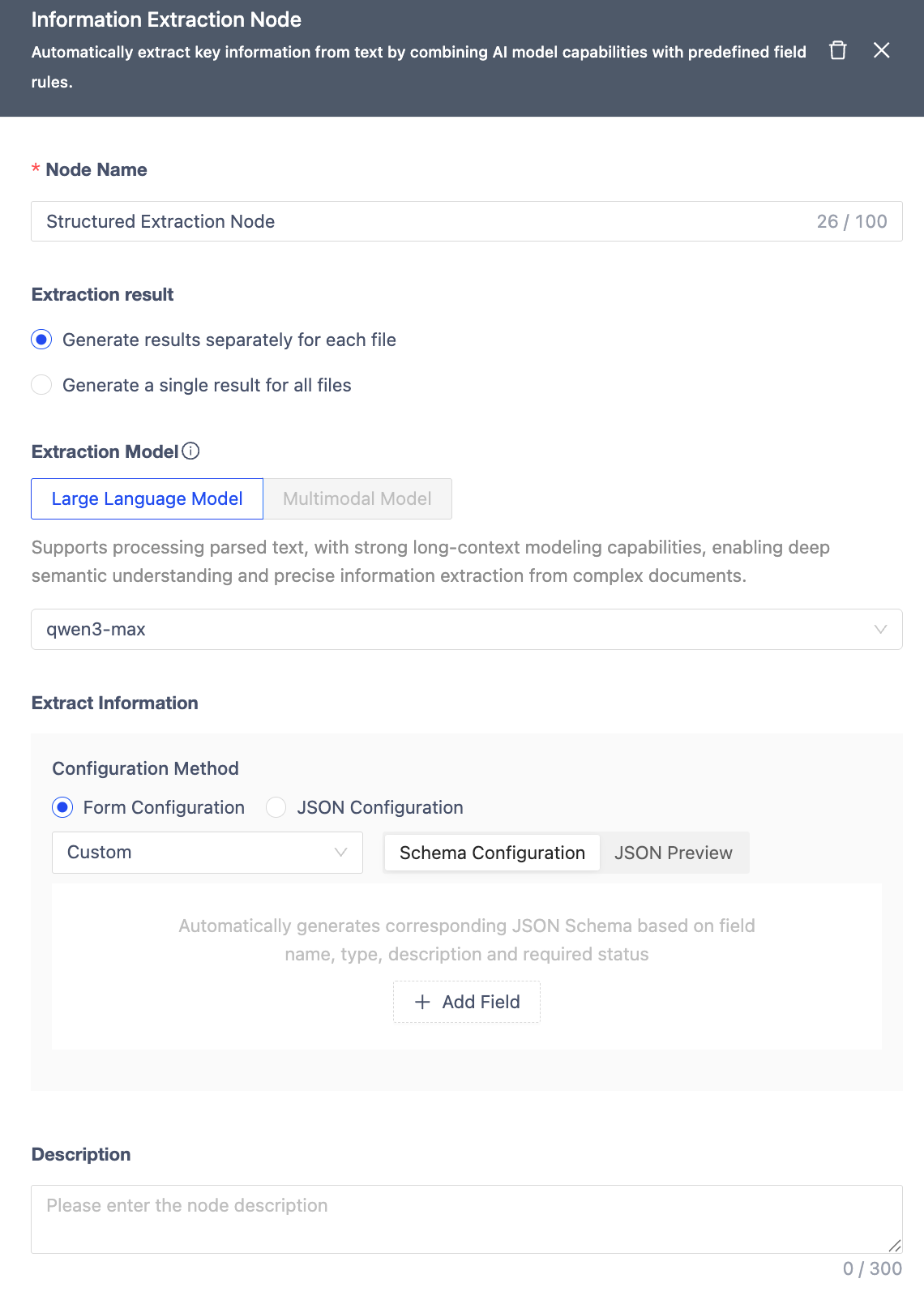
Information Extraction Node leverages AI model capabilities combined with preset field rules to automatically extract key information from text.
| Module | Function Description |
|---|---|
| Node Name | Within 100 characters, unique within the workflow. Defaults to the node type name. |
| Extraction Result | • Generate results per file: Independently extracts information from each file input to the workflow and generates corresponding JSON result files. • Generate a single combined result for all files: Processes all input files as a whole, searches for and integrates required information across all files, ultimately generating only one merged JSON result file. |
| Extraction Model | Supports integration of Large Language Models (Qwen-Turbo) and Multimodal Models (Qwen/Qwen2.5-VL-32B-Instruct) for field extraction. When selecting a multimodal model, it can be directly connected to the Start Node within the workflow to process files containing documents and images (direct processing of htm/html/xlsx/xls/csv format files is not currently supported), eliminating the need for additional parsing nodes. Token limit is 128k. |
| Extraction Information** | Includes three default field extraction templates: Financial Statements (including tables), Invoices, and Resumes. Also supports custom field configuration via a form interface. The system automatically generates the corresponding JSON Schema based on field name, type, meaning, and whether it's required. Supports up to 4 levels of nested structures, with a maximum of 40 fields. During configuration, you can switch to JSON Preview mode at any time to intuitively view the actual Schema content generated by the system. |
| Description | Node notes/remarks. |
Note
When performing information extraction, it is recommended to select the appropriate model based on the file type and content structure:For well-structured text files (e.g., parsed PDF, Word, TXT), Large Language Models are recommended. They excel at semantic understanding and field inference, making them suitable for scenarios with complex logic and strong inter-field relationships.For original PDFs, images, or scanned documents, Multimodal Models are recommended. They can directly recognize mixed text and image layouts without requiring additional parsing steps, making them more suitable for extracting information from documents with complex formats or containing charts, forms, and invoices. Choosing the right model helps improve extraction accuracy and processing efficiency.
Data Type Selection
The Information Extraction Node supports the following data types: object, string, boolean, number, array/string, array/boolean, array/number, array/object. Choosing the appropriate data type helps improve extraction accuracy and subsequent process efficiency.
Basic Types
-
string: Suitable for text-based fields where the content typically doesn't require numerical operations. Examples include single names, titles, IDs, descriptive fields, addresses, remarks, explanatory information, single dates, etc.Example:
- Customer Company: "xxx Co., Ltd."
- Invoice Code: "1234567890"
- Date of Birth: "1990-05-13"
-
number: Suitable for numerical fields that can be used for calculations or comparisons. Examples include amounts, quantities, percentages, tax rates, years of experience, counts, etc. Example:
- Amount: 12345.67
- Tax Rate: 0.13,
- Stock Quantity: 150
-
boolean: Used for binary judgments, with answers like "yes/no" or "true/false". Examples include whether approval was passed, whether tax is included, whether currently employed, etc.Example:
- is_active: true,
- is_tax_included: false
-
object: Used for structured data, where a single field contains multiple sub-fields. Suitable for complex entities or field groups. Examples include an address object (province, city, district, detailed address), an invoice information object (invoice number + issue date + amount), or a single entry within "Education Experience" or "Work Experience" in a resume. Example:
     {
       "company": "Matrix Origin",
       "position": "Engineer",
       "start_date": "2020-01",
       "end_date": "2023-01"
     }
Array Types
- array/string: Used when a field may contain multiple text values. Examples include skill lists (e.g., in a resume), multiple tags, multiple recipients, multiple subject names, etc.Example:
[“Java”, “Python”, “SQL”]
- array/number: Used for multiple numerical items. Examples include lists of amounts across multiple periods, multiple scores, collections of numerical attributes, etc.Example:
[95, 88, 76]
- array/boolean: Suitable for combinations of multiple Boolean fields. Examples include multi-dimensional permission flags, daily attendance records (true/false lists), etc.Example:
[true, false, true]
- array/object: One of the most commonly used composite structures, used for lists containing multiple similar objects. Choose this when the text contains repeating structures. Examples include multiple work experiences or education entries in a resume, multiple line items on an invoice (product name, quantity, unit price, amount), multiple account lines in financial statements, multiple transaction records in a report, etc.Example:
[
   {
      "item": "商品 A",
      "quantity": 2,
      "price": 100
   },
   {
      "item": "商品 B",
      "quantity": 1,
      "price": 200
   }
]
Summary:
| Type | Usage Scenario |
|---|---|
| string | Single text field (name, ID, date, description, etc.) |
| number | Amount, quantity, ratio, fields for numerical calculation |
| boolean | Yes/No type fields (yes/no, true/false) |
| object | A field containing multiple sub-fields, a structured entity |
| array/string | Multiple text items (skill list, tags, subject name list) |
| array/number | Collection of numbers (multi-period amounts, score list) |
| array/boolean | Multiple Boolean items (e.g., daily attendance record) |
| array/object | Multiple structured records (work experiences, invoice line items, report rows) |
Data Cleaning Node
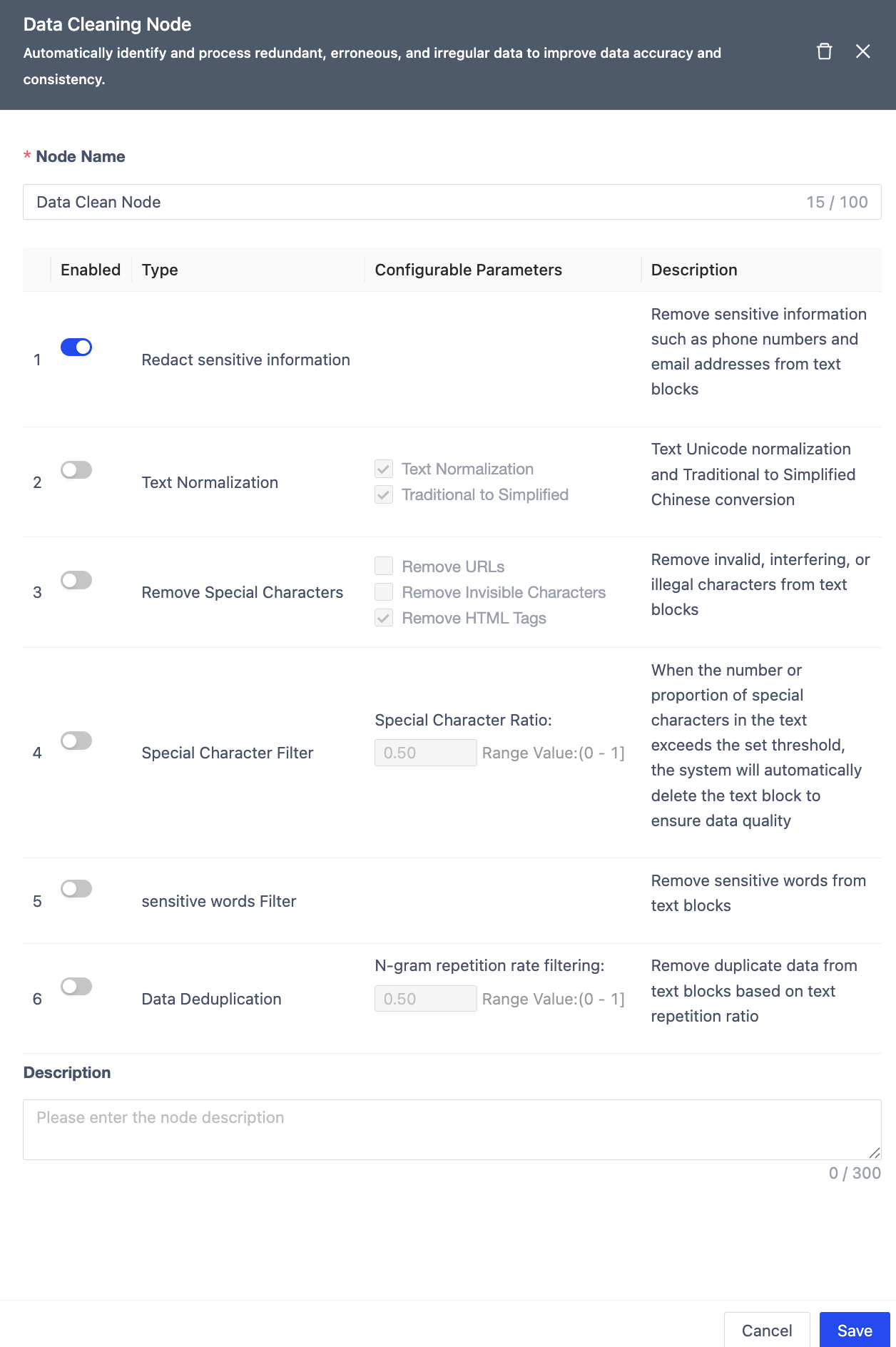
Identifies and handles redundant/erroneous data.
| Module | Description |
|---|---|
| Node Name | Unique within workflow (≤100 chars, defaults to node type). |
| Sensitive Info Masking | Off by default. Removes PII (phones/emails). |
| Text Normalization | Unicode normalization & Traditional-to-Simplified Chinese conversion. |
| Special Char Removal | Removes URLs, invisible chars, HTML tags. |
| Special Char Filtering | Auto-deletes text blocks exceeding threshold. |
| Sensitive Word Filtering | Removes flagged terms. |
| Deduplication | Uses N-Gram repetition ratio threshold. |
| Notes | Optional node remarks. |
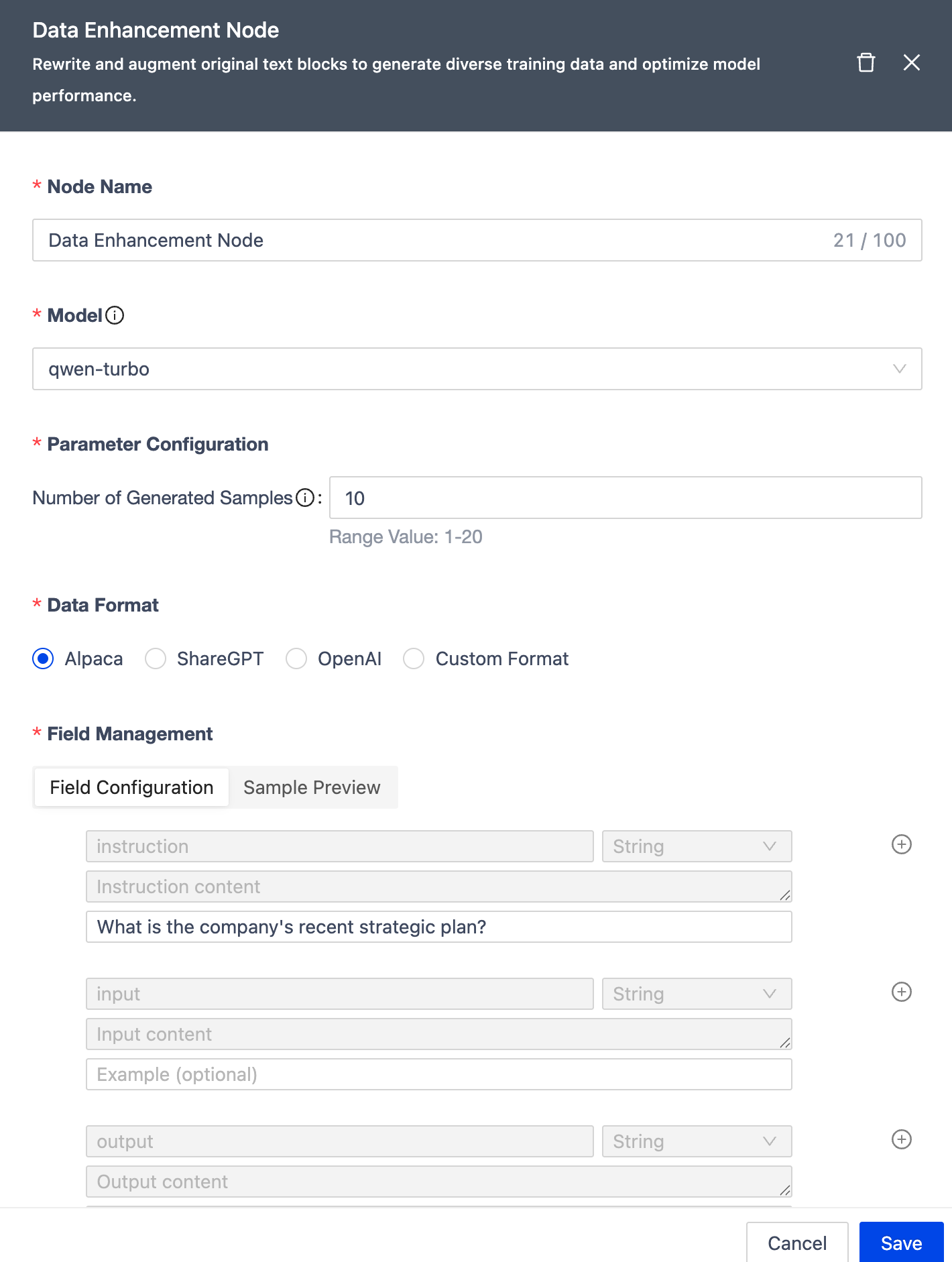
Data Enhancement Node
| Module | Description |
|---|---|
| Node Name | Unique within workflow (≤100 chars, defaults to node type). |
| Samples per Chunk | Max generated samples per chunk (1-20, default: 10). |
| Data Format | Supports Alpaca, ShareGPT, OpenAI formats + custom (max 40 fields, 4-level nesting). |
| Model | Uses qwen-turbo for generation. |
| Notes | Optional node remarks. |
Node Dependencies
| Node Type | Upstream Nodes | Downstream Nodes |
|---|---|---|
| Start Node | None | • Doc Parser • Image Parser • Audio Parser • Video Parser • Info Extraction |
| Doc Parser | Start Node | • Info Extraction • Chunking • End Node |
| Image Parser | Start Node | • Info Extraction • Chunking • End Node |
| Audio Parser | Start Node | • Info Extraction • Chunking • End Node |
| Video Parser | Start Node | • Info Extraction • Chunking • End Node |
| Chunking | • Start Node • Parsers |
• Text Embedding • Data Cleaning • Data Augmentation • End Node |
| Text Embedding | Chunking | End Node |
| Info Extraction | • Start Node • Parsers |
• Data Augmentation • End Node |
| Data Cleaning | • Parsers • Chunking |
• Text Embedding • Data Augmentation • End Node |
| Data Augmentation | • Data Cleaning • Chunking • Info Extraction |
End Node |
| End Node | All except Start Node | None |
Branch Management
Workflow branches help manage different versions of similar data processes efficiently:
- Reduces management overhead (avoid duplicate workflows)
- Optimizes resources (shared steps execute once)
- Simplifies comparison (visual diff between branches)
Branches function like Git: each workflow has a "main" branch (default) with shared base configs (source/target volumes, file types). Branches can modify their processing pipelines independently, with results stored in subdirectories by branch name.
Create Branch
From workflow list, click "Create Branch". Select base branch (default: "main"). New branch inherits the base's pipeline. Branch names must be unique.
Note
Main branch cannot be deleted alone. Deleting all branches deletes the workflow.
New branches may execute immediately based on workflow state. All branches share execution resources (identical steps run once). Workflow state is collective; start/stop affects all branches.
Modify Branch
- Only stopped workflows can be edited
- Only "main" branch can edit base configs; all branches can adjust pipelines independently
Compare Branches
Includes "main" branch by default; supports multi-select comparison
Delete Branch
- "Main" branch cannot be deleted alone
- Deleting all branches deletes the workflow
- Option to delete branch data from target volume
Workflow Management
From the workflow list, you can:
- Rerun workflows
- Modify/delete workflows (deleting all branches deletes the workflow)
Click a workflow name to view details. Use the edit button to modify/rerun, or click "Execution Details" to view job status.